 Brainerce Help
Discount rules
Automatic discounts that apply without a code, what they are, and a step-by-step walkthrough of building one (filters, conditions, discount config, display, stacking).
A Discount Rule is an automatic discount. Customers don't type anything: if the cart matches the rule's filters and conditions, the discount applies on its own. Use rules for ongoing promotions ("Buy 2 AirPods, get 1 free"), free-shipping thresholds, tiered pricing, VIP-only deals, time-limited Happy Hours, and bundles.
This page walks through building a rule. For the deep reference, jump to:
- Rule types are the 7 types and the exact config each accepts.
- Conditions are the 15 ways to control when a rule fires.
- Stacking & priority explains how rules and coupons interact.
- Manage discount rules covers editing, enabling, disabling, reprioritizing, translating, and deleting.
- Promotion recipes are ready-made patterns to copy.
Before you start, have the products you want to discount already in your catalog (a rule targets products, categories, tags, or SKUs). If you'll filter by category or tag, set those up first. And if you'll use a time condition (Happy Hour, weekend sale), set your store timezone under Settings → General → Timezone so the rule fires at the right local hour.
Quick steps
- Go to Marketing → Discount Rules in the sidebar.
- Click + Add Rule and pick a Type (Product, Order, Buy X Get Y, Volume, Shipping, Bundle…).
- Set Filters (which products it applies to) and Conditions (when it fires), or leave both empty for an always-on sitewide rule.
- Set the Discount Config, the actual discount the type applies.
- Click Create Rule. It's evaluated on every cart within seconds, no code needed.
Two things about step 3 that catch people out on their first rule:
- What the discount comes off is decided by the Type, not by the Method. A Product Discount comes off the filtered items; an Order Discount comes off the whole cart subtotal. That holds for both Percentage and Fixed Amount. With no filters set the two types behave identically, so pick the type that matches what you mean before you add filters.
- On a Shipping Discount, Filters decide which carts qualify. Set Filters = Mattresses and shipping is only discounted on carts that actually contain a mattress. Leave Filters empty and the rule covers every order whose conditions pass.
- A mistyped SKU filter is accepted and matches nothing, forever. SKUs are exact, case-sensitive text and are never checked against your catalog. Categories, Products and Tags are picked from a list and checked when you save.
The detailed walkthrough below covers each step, plus the storefront badges and how to track performance.
Coupons vs Discount Rules
| Mechanism | Customer types a code? | When to use |
|---|---|---|
| Coupon | Yes, must type at checkout | One-off promos, influencer codes, win-back emails, time-limited campaigns. |
| Discount Rule | No, applies automatically | "Buy 2 get 1 free", tiered pricing, segment-specific pricing, bundle discounts, free-shipping thresholds. |
The two can stack, but not by default: a rule only runs alongside a coupon when that rule's Combines with coupon codes toggle is on, and it is off on every new rule. The coupon side must also allow it (Can combine with other discounts, which is on by default). The Exclusive toggle is about other rules, not coupons, and it does not block a coupon. See Stacking & priority for the full picture.
The 7 rule types at a glance
Every rule has a Type that controls what discount it applies. Pick it first, because the rest of the form changes based on what you choose. You can change it later, but doing so switches the rule off (see Manage discount rules).
| Type | What it does | Classic example |
|---|---|---|
| Product Discount | A % or a fixed amount off the filtered products. | "25% off all Apple Watches" |
| Order Discount | A % or a fixed amount off the whole order subtotal. | "$50 off orders over $500" |
| Buy X Get Y | Buy N of A, get M of a different set discounted. | "Buy 2 shirts, get a free tie" |
| Buy X Get X | Buy N of a product, get more of the same discounted. | "Buy 2 t-shirts, get the 3rd at 50%" |
| Volume Discount | Quantity pricing: a %, a price per unit, or a price for a set of N. | "3+: 10% off. 3 for $499." |
| Shipping Discount | Reduce or zero out shipping. Filters limit it to carts holding a matching item. | "Free shipping over $100" |
| Bundle / Set | Discount when a specific set is bought together. | "MacBook + AirPods for $1,299" |
Two things about that table are worth knowing before you build anything:
- Product Discount vs Order Discount is the choice of what the discount comes off. A Product Discount is confined to the filtered items; an Order Discount comes off the whole cart subtotal. The Method (Percentage or Fixed Amount) only says how the number is read, never what it applies to. So "$50 off, filtered to Electronics" as a Product Discount takes at most $50 off the electronics and never touches the sofa sitting beside them, while the same thing as an Order Discount takes $50 off the cart total. With no filters set, the two types are identical; the choice only starts to matter once you filter.
- A Shipping Discount respects Filters. Filters decide which carts qualify: with Filters = Mattresses, only a cart containing a mattress gets the shipping saving. Leave Filters empty for every order. You can also gate it with a Condition (Subtotal by Category / Subtotal by Products) when you need a spend threshold rather than mere presence.
→ Full field reference for every type: Rule types.
1. Open the discount rules page
In the sidebar: Marketing → Discount Rules. The list shows every rule with its name, type, status (Active / Disabled), priority, expiry, filters, and conditions.
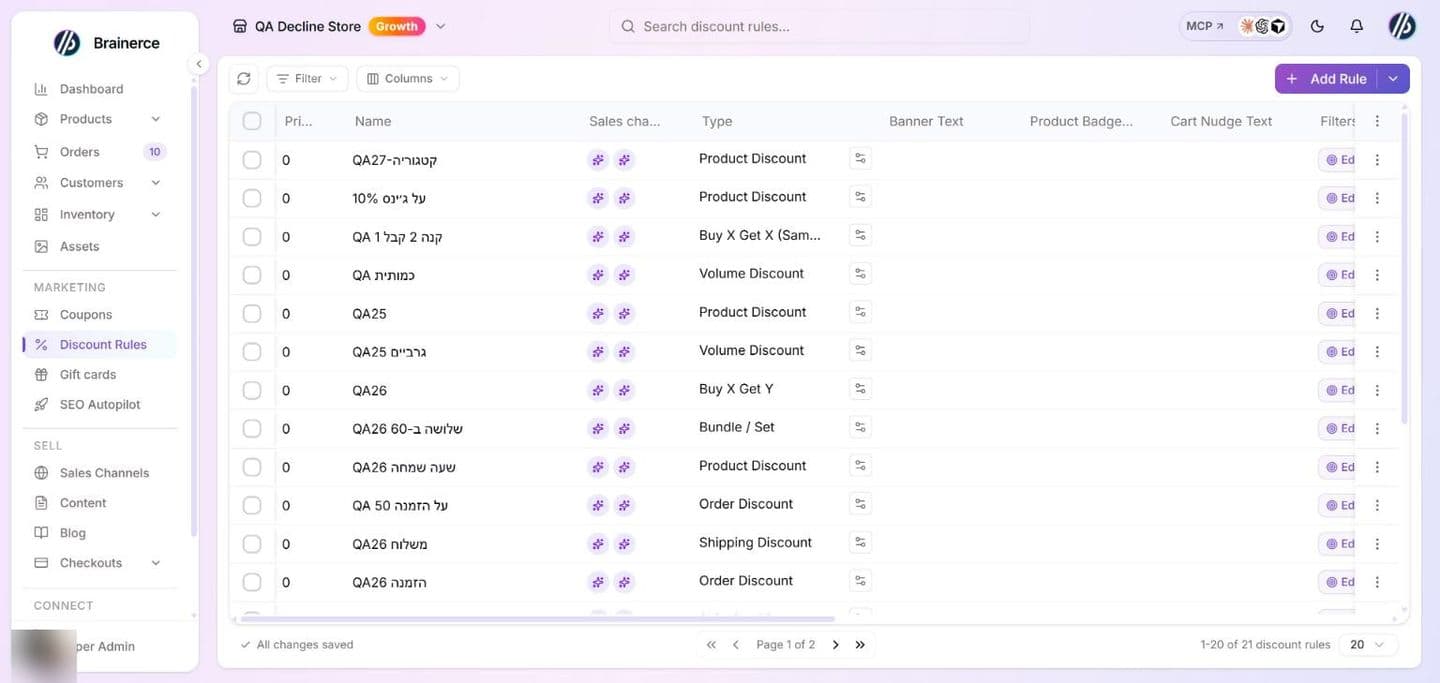
Each column at a glance:
- Name is the internal label.
- Product Badge Text is what shows up on the product card on your storefront (e.g. "Buy 2 Get 1 Free"). Leave blank if you don't want a badge.
- Type: see the 7 types above.
- Priority: when multiple rules match, lower numbers run first. See Stacking & priority.
- Sales channels are which storefronts the rule applies to (empty = all).
- Banner Text is the sitewide banner the storefront can render at the top of every page. Use for sale announcements.
- Status is Active or Disabled (toggle with one click; no need to delete a rule to pause it).
- Starts and Expires are the validity window. Expires is when the rule stops applying on its own. "No date" = runs forever.
- Stacks with Coupons, Stacks with Rules and Exclusive show each rule's stacking toggles at a glance. See Stacking & priority.
- Usage is how often the rule has been applied against its cap (see Track how often a rule is used).
- Filters are which products / categories / tags / SKUs / attributes the rule applies to. On a Shipping Discount the filters shown here decide which carts qualify for the shipping saving; a blank column means every order.
- Conditions set when the rule activates (15 condition types; see Conditions).
2. Add a rule
Click + Add Rule at the top right. The form opens. Pick a Type first because the rest of the form changes based on what you pick.
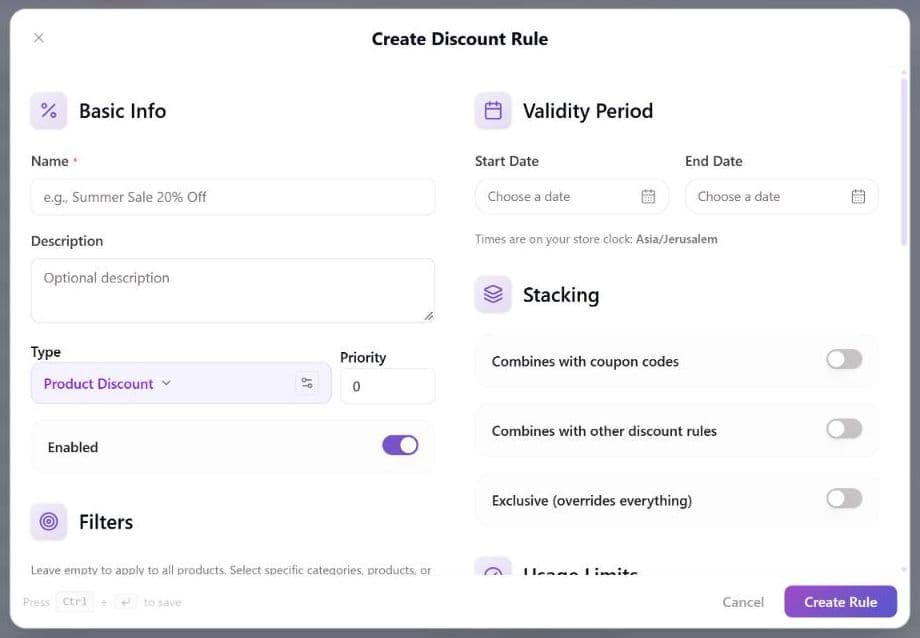
Common form sections (every type has these)
- Name is your internal label.
- Description holds your notes; not shown to customers.
- Priority: lower runs first. Default
0. - Enabled: toggle off to save the rule without activating it.
- Sales Channels restrict to specific storefronts; empty = all.
- Start Date / End Date set the validity window. Each one takes a date and a time. Leave the time out and the window starts at 00:00 on the Start Date and ends at 23:59 on the End Date, so the End Date itself is included. The times are on your store clock, shown under the fields ("Times are on your store clock"), not your own computer's clock, so a sale you set for Friday 18:00 starts at 18:00 in your store's time zone wherever you are. The End must be after the Start ("The end must be after the start"), and a condition with a type the rule engine does not know is refused instead of silently applying to everyone. A coupon's dates, by contrast, are whole days only.
Filters: which products the rule cares about
The Filters block answers "what do customers have to add to cart for this rule to apply?". Click Edit Filters in the Filters card and a dialog opens where you stack as many filter rows as you need:
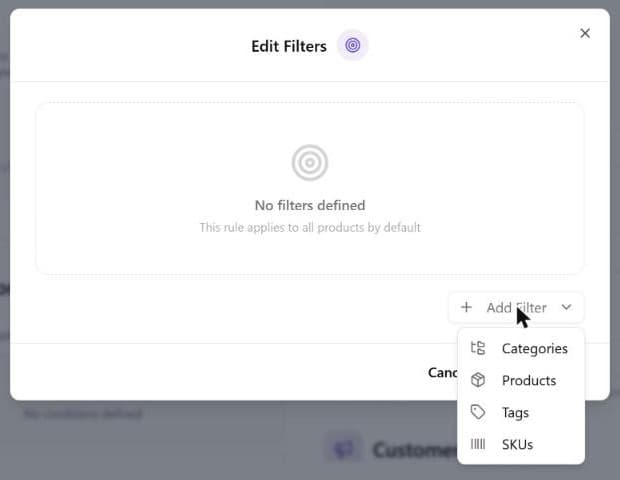
Each row is one filter type. The dashboard exposes 4 filter types:
| Filter type | Picker | What it matches |
|---|---|---|
| Categories | Multi-select tree | Any product in these category trees. |
| Products | Multi-select with search | These specific products only. |
| Tags | Multi-select with search | Anything tagged with these tags. |
| SKUs | Free text + paste-list | These specific SKU strings (most precise). |
A mistyped SKU is accepted, saves, and matches nothing, forever. The SKU box is free text: whatever you type or paste is compared exactly against each product's or variant's SKU, letter for letter, upper and lower case included.
BLK-TEE-Mdoes not matchblk-tee-m, and a stray space at the end of a pasted line does not match either. Nothing checks it when you save, nothing flags it later. The rule sits in your list marked Active, showing the SKUs you meant, and quietly discounts nothing. Categories, Products and Tags are different: those are picked from a list and checked when you save, so they cannot be wrong in this way. After building a SKU rule, add one of those SKUs to a test cart and confirm the discount actually appears.The same applies to an Exclude row of any kind. Exclusions are never checked against your catalog, so a typo in an exclude row excludes nothing and the rule discounts more than you intended, the failure that costs money rather than the one that costs nothing.
Two filter types are not in the dashboard's filter dialog:
attributes(e.g.material = leather) andbrands(e.g. filter to a specific brand). You can still set them in three ways: ask the AI assistant ("20% off everything by Nike" is built as a brand filter), use the MCP admin tools from an AI client you have connected, or call the API. Both follow the same shape,{ type: 'attributes' | 'brands', mode: 'include' | 'exclude', values: [...] }. For the API, callPOST /api/discount-rules?storeId=<your store id>with an admin API key (Authorization: Bearer brainerce_*); thestoreIdquery parameter is required, there is no SDK method for discount rules, and the versioned/v1API does not cover them.brandsvalues must be brand IDs;attributesare free text and, like SKUs, are never checked. To change anattributesorbrandsfilter later, use the same route you created it with, because the dialog's filter picker only offers the four types above.
Two important controls per row:
- Include / Exclude toggle: "Include" means "apply the rule only to these"; "Exclude" means "apply the rule to everything EXCEPT these". A common pattern: Include
Category: Electronics+ ExcludeTag: clearanceto discount all electronics EXCEPT clearance items. ×next to each chip removes that value from the row.×next to the row title removes the entire filter row.
Multiple include rows use OR logic: a product qualifies if it matches any of them. The example above ("Charging Accessories" category plus a specific Tag) fires for products in either group, not just those in both. Exclude rows work the other way and always win: anything they match is dropped, no matter how many include rows it satisfied.
To target a true intersection ("in this category and carrying this tag"), use one include row and narrow it with conditions instead.
Leave Filters empty for sitewide, where the rule applies to the whole cart.
Filters work on a Shipping Discount too. They decide which carts qualify: "free shipping when the cart contains a mattress" is built exactly that way, with Type Shipping Discount and Filters = Mattresses, and a cart with no mattress in it pays normal delivery. Leave Filters empty if you mean every order. Use a Condition (Subtotal by Category or Subtotal by Products) instead when the gate is an amount spent rather than an item being present.
What your filters affect depends on the rule's Type. On a Product Discount the discount is confined to the filtered items: a $50 fixed amount filtered to Electronics comes off the electronics, capped at what they are worth. If the filtered items come to less than the fixed amount, the shopper saves only what those items are worth: $50 off filtered to a single $30 phone case pays out $30, and the leftover $20 is not spilled onto the rest of the cart. On an Order Discount the filters decide only whether the rule fires; the discount then comes off the whole cart subtotal. This is true of Percentage and Fixed Amount alike.
Conditions: when the rule activates
Click Edit Conditions on the Conditions card. The dialog starts empty, and no conditions = the rule always fires when filters match.
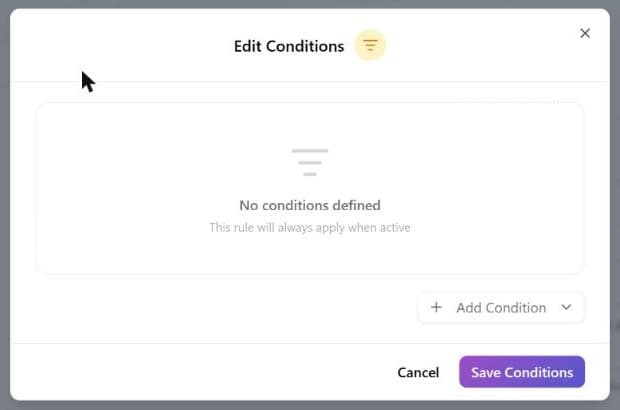
Click + Add Condition and pick a type from the dropdown. A row appears with three controls: type, operator, and value:
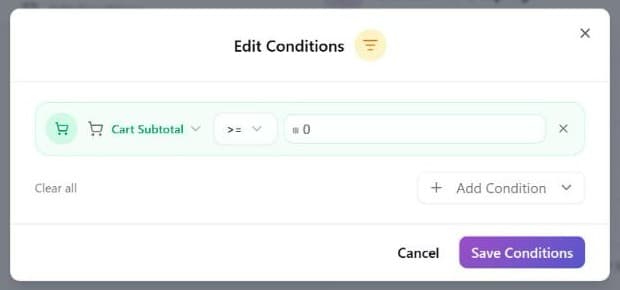
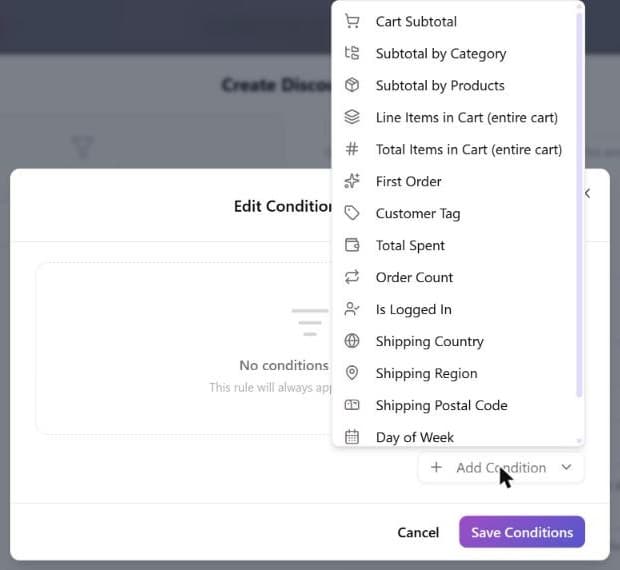
Stack as many rows as you need. The Match toggle at the top decides how rows combine: All conditions must match (AND) or Any condition matches (OR).
→ The full list of all 15 condition types (cart, customer, shipping, time) lives on the Conditions page.
Discount Config: what the rule does
Click into the Discount Config card and a sub-dialog opens with the discount details. For a Product Discount it asks for two things: the Method (Percentage or Fixed Amount) and the Value:
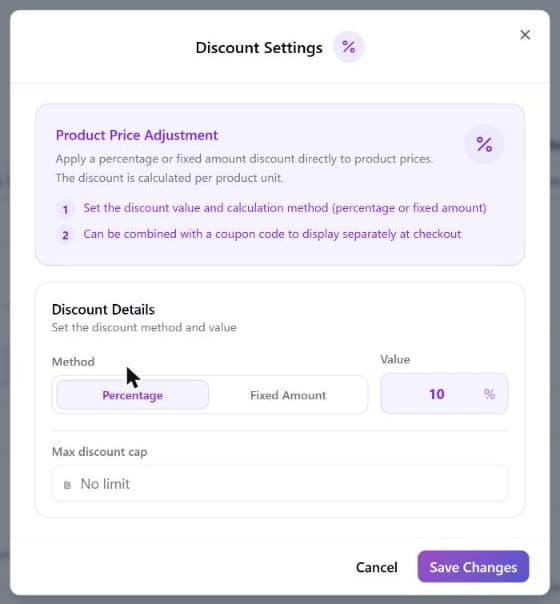
The form is type-aware, and each type asks for different fields. → See Rule types for every field each type accepts, with JSON examples.
Display Config: what the storefront shows
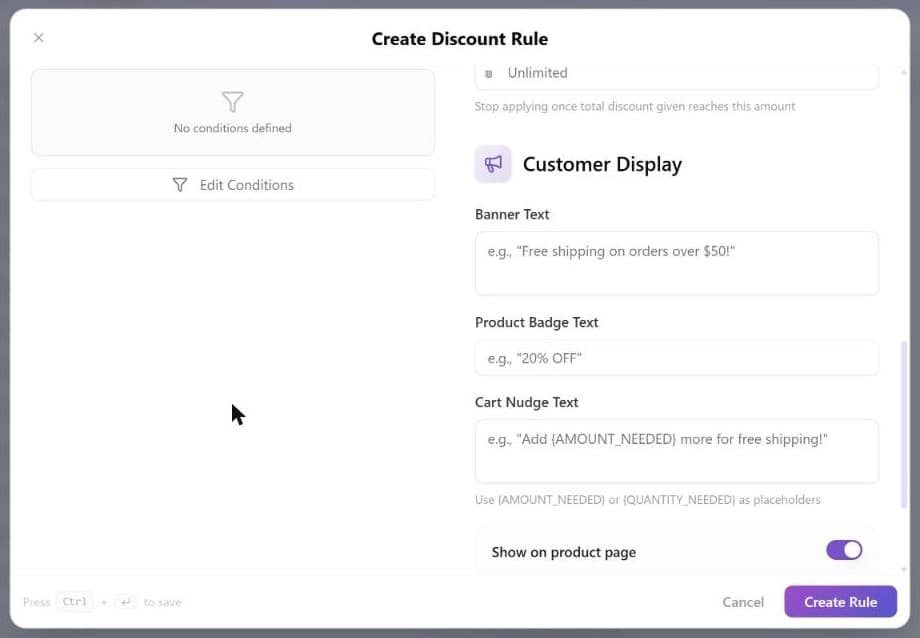
- Banner text is the string for the sitewide banner ("Free shipping over $100!"). Press Enter to split it across two lines, and storefronts render the line break. Stores scaffolded before August 2026 show the break as a space instead; regenerate or update the storefront template to pick it up.
- Badge text is the string for the product-card badge ("Buy 2 Get 1 Free", "BUNDLE"). Always a single line.
- Cart nudge text is the incremental message in the cart ("Add $25 more for free shipping"). Supports placeholders
{AMOUNT_NEEDED}and{QUANTITY_NEEDED}so the message updates live as customers add items. Line breaks work here the same way as in the banner text. - Show on product page / Show in cart / Show as store banner are three toggles that control where each of the strings above actually renders.
Stacking: how the rule interacts with others
- Combines with coupon codes: toggle on if a customer with a coupon code can ALSO trigger this rule.
- Combines with other discount rules: toggle on if other rules can run alongside this one.
- Exclusive and Combines with other discount rules cannot both be on. They contradict each other, since an exclusive rule never combines. In the form, switching one on switches the other off, and the API and the AI assistant refuse a rule that asks for both.
- Exclusive (stops later rules) stops every rule that comes after this one. Rules that already ran keep their discount, as the hint under the switch says. It does not undo rules that already ran. Under Stack All and Apply First, rules run in Priority order (lowest number first), so a priority-10 rule still applies and then your priority-20 Exclusive rule stacks on top of it. If you want an Exclusive rule to be the only discount on the order, also give it the lowest Priority number in your store (e.g.
0). Under Apply Best an Exclusive rule does win outright, whatever its priority.
Per-rule stacking is overridden by the store-wide Discount Stacking Mode. → Set that up on the Stacking & priority page first; use per-rule toggles only for one-off exceptions.
Usage limits
- Max total uses ("Stop applying after this many total uses") is total redemptions across all customers.
- Max uses per customer ("Stop applying for a customer after this many uses") is the cap per customer.
1means once per person; it does not limit a rule to first orders, use the First Order condition for that. - Max discount budget ("Stop applying once total discount given reaches this amount") is the cap on total discount given out by this rule, in your store currency.
Caps are held while a checkout is in progress. When a shopper starts paying, the rule's last uses (and, for a budget, the discount amount) are reserved for that checkout, so two shoppers paying at the same moment cannot both take the last use. If the shopper abandons the checkout, the reserved use is released again. The practical effect: a rule with 1 use left can look "used up" to a second shopper for a few minutes while the first is still paying, and it comes back if the first does not finish.
Leave a field empty (Unlimited) for no cap. A limit must be 1 or greater, and a budget 0 or greater. If you lower a cap below the number of uses already recorded, Brainerce asks you to confirm, because the rule will stop applying from the next checkout.
3. Save and the rule is live
Click Create Rule at the bottom of the modal (or Ctrl + Enter). The modal closes and your new rule appears in the list:
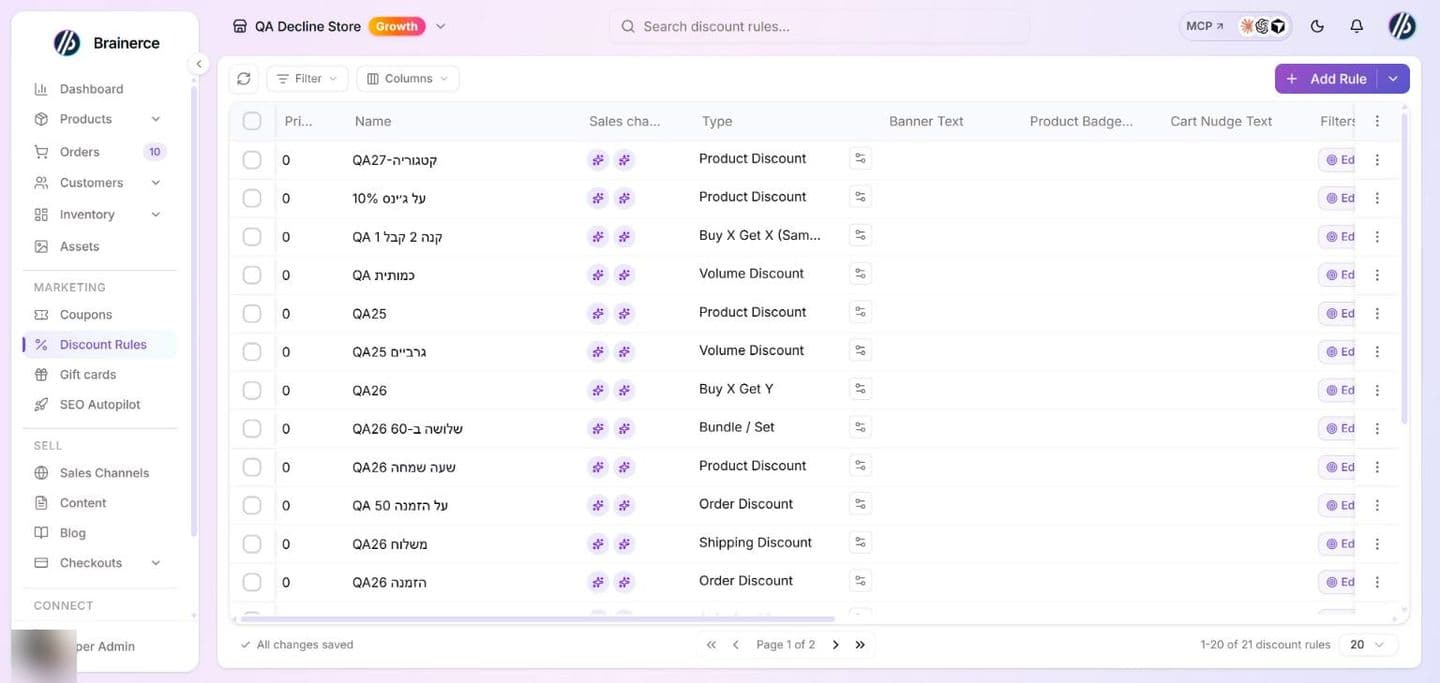
Within seconds the rule is evaluated on every cart on your storefront: if a customer adds a smartwatch, the price drops 20% in the cart line and the "20% OFF" badge appears on the product card.
How the storefront shows the discount
Once a rule matches, the storefront does three things automatically:
- Product card badge.
badgeTextfrom Display Config appears on every card that's eligible. - Cart line item. The discount appears as its own line in the order summary, with the rule's name as the label.
- Sitewide banner. If
bannerTextis set, the storefront top banner shows it on every page.
Multiple discounts on the same order? Each gets its own line in the summary. The customer can see exactly what's saving them what.
One exception: partial shipping discounts. A Shipping Discount set to anything other than Free (or Percentage 100) shows a $0.00 line in the cart. There is no delivery price to take a percentage of until the shopper picks a delivery method, so the saving is applied at the delivery step of checkout instead. The shopper does pay less; the cart just cannot show it yet.
Track how often a rule is used
The rules table has a Usage column showing how many times the rule has been applied, against its total-usage cap. Click that cell and a panel opens (Usage & limits) where you can edit the caps themselves: max total uses, max uses per customer, and max discount budget.
That is the whole per-rule reporting surface. Store-wide promotion numbers (active rules, total applications, total discount given, and your top rules) live on the main Dashboard under the Promotions tab.
What does not exist: there is no detail page for a discount rule (clicking a row opens the edit form), no list of the individual orders a rule fired on, no per-rule total-discount figure in the table, and no effectiveness or average-order-value comparison anywhere in the product. If you need per-order attribution, read it from your orders export rather than looking for it here.
What's next?
- Rule types give the exact config for all 7 types.
- Conditions list the 15 condition types in full.
- Stacking & priority covers store-wide modes and "why didn't my rule fire?".
- Promotion recipes are 10 ready-made rule patterns to copy.
Welcome discount for newsletter signups
Give everyone who confirms a newsletter signup their own one-time promo code, how to set the discount and expiry, who is eligible, and what to do when the email never arrives.
Rule types
The 7 discount rule types (Product, Order, Buy X Get Y, Buy X Get X, Volume, Shipping, Bundle) and the exact config each one accepts, including per-unit vs set pricing on volume tiers, with JSON examples for the API/SDK.