 Brainerce Help
Tax Center
Check whether your tax is set up, see which countries your customers pay tax in, mark countries where you don't collect tax, see how much tax you charged, and test what a customer will pay.
The Tax Center is Settings → Tax. It answers one question: when a customer checks out, will they be charged the tax you expect? It reads the rates, shipping zones and regions you already have. It does not add, change or remove a rate on its own. Each part has its own tab, so no page scrolls on and on: Overview, Tax rates, Products and tax classes, Registrations, Tax report, Test a transaction and Activity. The number on Overview is how many things need attention.
Brainerce does not decide where you owe tax. It does not register you for VAT, GST or sales tax, does not track thresholds, and does not file returns. Everything the Tax Center shows comes from the rates you entered.
Is my tax set up? The status card on the Overview tab
The first thing on the Overview tab is a status card that says, in one sentence, what customers pay today:
- Tax collection is off: "Your buyers pay no tax right now". While the store-wide switch is off, no customer pays tax anywhere, even in countries that have rates. The card has no separate button for this: use the Tax Collection switch at the bottom of the card. It opens a review, and nothing is saved until you approve it.
- Tax is on, rates are missing: collection is on, but some countries you ship to still have no rate, so customers there pay no tax. The card says how many.
- Tax is on: every country you ship to has a rate.
Under the sentence are three figures: how many of your markets are covered by a tax rate (for example 4 of 5), how many need attention, and how many rates you have set. Countries you marked as not collected are left out of the coverage count. If no shipping zone lists a country yet, every country in the markets list is counted.
The two store-wide switches sit at the bottom of the card. Tax Collection turns tax on or off for the whole store. Prices include tax is also store-wide; a region can set its own value for its customers, and a country row in the markets list shows a small note only when its prices differ because of a region. Both open a review before anything is saved.
Refuse orders to a country with no tax rate
The third row at the bottom of the card, Orders to a country with no tax rate, decides what happens when a customer orders from a country where you have no rate in force:
- Charge no tax (the default, and how every store worked before this choice existed): the order goes through and no tax is charged.
- Do not allow the order: the order is refused before payment, and the customer is asked to use a different delivery address. Nothing is charged. Use it if you never want to sell to a place where no tax rate is set.
A country you marked as Not collected is never refused, because you already decided no tax is due there. It is also never refused while Tax Collection is off, and never for an order with no delivery address (a digital order with no billing address, for example). A country that has a rate only for some states, or only for some tax classes, is not refused either: those are shown as Partial or under What to check. The choice is saved at once and recorded under Activity. The AI assistant can tell you which choice is on, but it cannot change it: do that here.
Better than refusing at checkout: remove the countries you do not sell to from your shipping zones, so customers there are never offered delivery.
A country only counts as covered when a customer anywhere in it is charged tax on a product with no special tax class. See Market statuses below.
What to check: alerts and one-click fixes
What to check lists problems that make customers pay less tax than you intended, each with an action to fix it in one click. It appears only when there is something to list. Two problems are not in this list because they are shown where you fix them:
- A country with no tax rate ("buyers pay no tax at all"). You ship to it, so customers there pay no tax. It is listed under Needs attention on the Overview tab, with two actions: Add rate (or apply a country preset from Quick setup), and, only if you are not required to collect tax there, Not collected in this market. When the Brainerce catalogue has an official rate for the country, a Review and set up button appears at the top of that list: it opens a review of the catalogue rate, with what customers would pay, and nothing is saved until you approve it. The catalogue covers only the standard rate of each country and does not cover special territories outside a country's VAT area, such as the Canary Islands.
- Tax collection is off while you have rates. This is the status card at the top; its button and its Tax Collection switch turn collection on.
The list has up to nine kinds of alert.
-
"A rate has a region we do not recognise". The region typed on the rate (for example "Qubec") is not one Brainerce recognises, so the rate never applies and customers in that province pay only the country rate, or nothing. When there is a close match, the alert offers a Fix to QC button with the region code it most likely meant; otherwise press Edit rate. Sometimes this is on purpose: a rate for a city or a special zone such as Eilat is not an official region, and only matches a customer who types that exact name. While such a rate is active, the country shows as Partial in the Markets table.
-
"(rate) stops being charged on (date)". A rate you gave an Ends on date is about to end, within the next 30 days, and no other active rate for the same country, region, postal code and tax class starts when it ends. After that date, customers there pay no tax unless you add a rate. Press Edit rate, then add the new rate starting that day or remove the end date. Nothing is raised when a new rate already starts on the day the old one ends, which is the normal way to change a rate from a future date.
-
"(class): products would pay no tax". A tax class holds products but has no rate of its own in a country where your Standard rate sits on your default class, so those products are not taxed there. Press Add rate for this class to open the rate form with the class already picked. A class with no rate of its own is normally charged the Standard rate, so this alert is only for that default-class setup. See Tax classes and products.
-
"(rate) (country) differs from the published rate". One of your plain rates (a country-wide or state-wide rate with no tax class and no postal code) is not the standard rate Brainerce publishes for that place and tax type. The alert shows both numbers, the date a Brainerce team member checked the published rate against the official source, and a link to that source. This can be on purpose, so nothing needs to change if your rate is right. Review the change prepares a review that moves the rate to the published one, with what customers would pay before and after, and nothing is saved until you approve it. Brainerce never changes a rate by itself. The published rates cover only a few countries, and only the standard rate: reduced rates, exemptions and registration thresholds are not in them. Rates you gave a tax class or a postal code are never compared.
-
"(rate) (country) was not checked against its source for a while". A rate that came from a country preset or from the Brainerce published rates was last checked against the tax authority more than 180 days ago. Tax rates change, so check that it is still right and edit it if it is not. A rate you typed yourself is never flagged, because Brainerce cannot know what it should be.
-
"Your (tax type) registration in (country) ends soon" and "Your (tax type) registration in (country) has expired". These come from the registrations you recorded, and only for an Active one with an end date: the first appears 30 days before it, the second after it. Press Review, then update the dates. See Tax registrations.
-
"Tax is charged in (countries), but no registration is recorded there". You charge tax in those countries and Registrations holds nothing for them. It appears only once you have recorded at least one registration, so it never nags a store that does not use the tab. It does not say you must register: whether you must is for you and your accountant to decide, and Brainerce does not work it out from where you ship. It only shows that your rates and your records do not match. Press Review to add the number, or ignore it if no registration is needed there.
-
"Registered in (countries), but no tax rate is set there". You recorded an Active registration in a country where no rate is in force, so orders from there are charged no tax. Press Add rate, or mark the country as Not collected if that is on purpose (a country marked that way raises no alert). A Pending or Inactive registration does not raise it.
A problem only goes away once it is fixed: a rate added, a region corrected, collection turned on, or the country marked as not collected.
Countries where customers pay no tax: the Markets table
The Markets list lists every country that matters to your tax: the countries in your active shipping zones, the countries in your active regions, every country that has a rate, and every country you marked as Not collected. Countries that need something come first, then the ones that are fine.
The table columns are Country, Rate, Prices (Include tax or Tax added, with "(store)" or the region that decided it) and Status. A country whose rates are set state by state reads "by region (N rates)". For each country you see:
- whether you ship there,
- its active tax rates (a country whose rates are all switched off shows No rate), with a small note when its prices include or exclude tax because a region says so,
- its status,
- the action it needs, if any: Collect here again on a country you marked as not collected. A country with no rate is fixed from Needs attention above the list, not from its row.
The list has no column for the tax registration you recorded. Registrations are kept under the Registrations tab.
If one of your shipping zones covers the whole world, the table does not list all 250 countries. It shows the countries you have rates, regions or zones for, and every one of them is marked as shipped to. A country you ship to through a worldwide zone but have no rate for will not appear until you add it.
Shipping zones drawn on a map are not matched to countries here, so a country you reach only through a drawn area may show as not shipped to.
Market statuses: covered, partial, not covered, not collected
- Covered: an active rate with no tax class (or with your default class) applies to the whole country, either one country-wide rate or a rate for every region of it. The United States is the exception: sales tax there is set state by state and you only collect in states where you are registered, so a rate for at least one state counts as Covered. Customers in states without a rate pay no sales tax.
- Partial: the country has active rates, but some customers there still pay no tax. For example only Quebec has a rate and the rest of Canada has none, the only rate is for a reduced tax class so ordinary products are not taxed, or a rate names a region that matches nothing. A region typed as a city name (such as "Toronto" or "Eilat") is not a recognised region, so a country with such an active rate is Partial even when its other rates cover everyone.
- Not covered: 0 tax: no active rate. Customers there pay no tax.
- Not collected: no active rate, and you marked the country as one where you don't collect tax. A country you marked but that still has an active rate keeps the status its rates give it (Covered or Partial), because those rates are still charged.
An inactive rate does not count. A country whose only rates are switched off is Not covered: 0 tax.
A rate that is Scheduled (its Starts on date has not come yet) or Expired (its Ends on date has passed) does not count either, because it is not being charged. A country whose only rate is scheduled is Not covered: 0 tax until that day, and the "buyers pay no tax at all" alert shows for it.
Mark a country where you don't collect tax
Mark a country as Not collected (the Not collected in this market button under Needs attention) when you are not required to collect tax there, for example because you are below that country's registration threshold. It changes how the country is reported: it shows Not collected instead of a missing rate, its "buyers pay no tax at all" alert goes away, and it no longer counts against your coverage.
It is a note, not a switch. Marking a country as not collected does not stop tax from being charged. If the country still has active rates, customers there keep paying them. Delete or switch off those rates if you really want no tax there.
Whether you have to collect tax in a country is your decision, or your accountant's. Brainerce cannot tell you, and the AI assistant will not suggest marking a country as not collected just to clear an alert. You can remove the mark at any time with Collect here again in the Markets list.
Products and tax classes: which rate each product gets
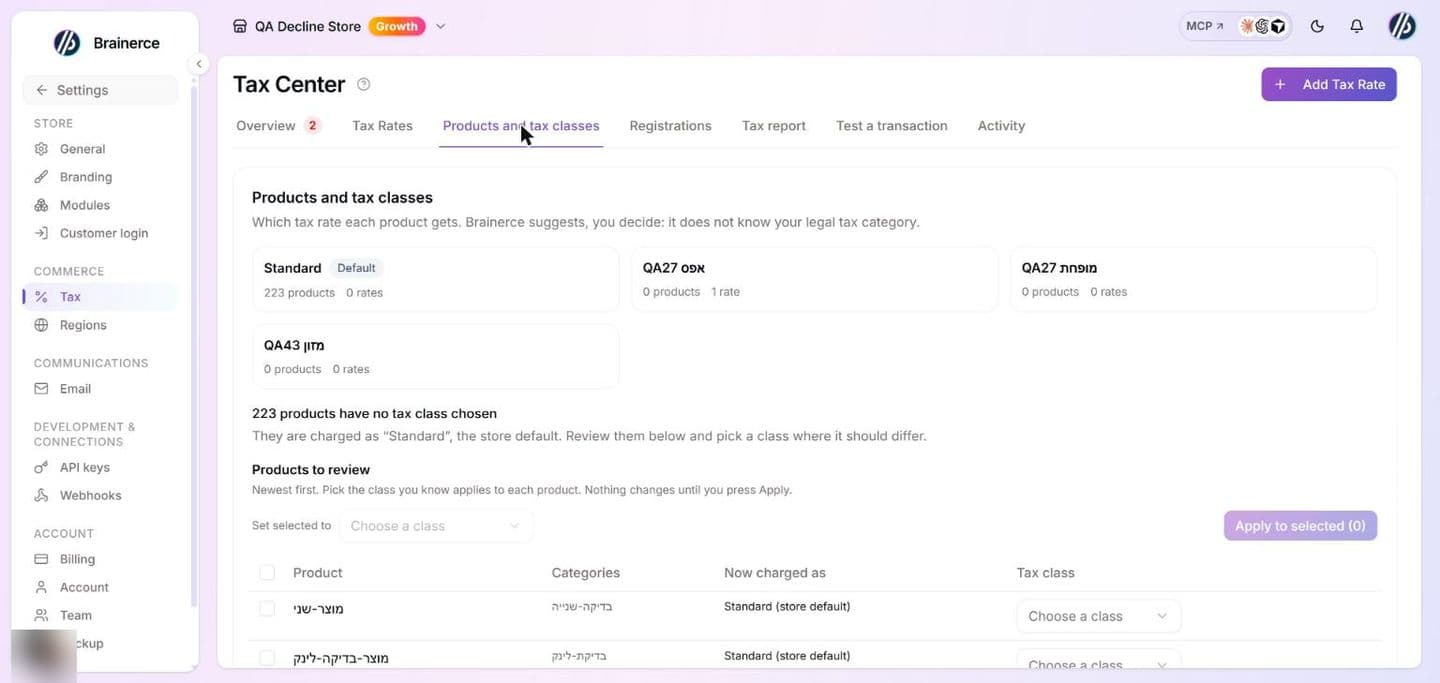
Products and tax classes, a tab of the Tax Center, shows a card for each tax class (its products and rates), how many products have no tax class chosen, how many are exempt, and a Products to review table where you can set a class on up to 25 products at a time. A team member without the store settings permission can review the list but not set classes (the tab says so). It only lists and applies what you choose: Brainerce does not know your products' legal tax category and never assigns a class on its own. See Tax classes and products.
Review tax changes before they go live
The Review tax changes window, opened from Review and set up in Quick setup (or from a switch or the Setup plans list under the Activity tab), shows what will change and what customers would pay (example orders, Today and After this change) before anything is saved. You approve it, and then all the changes are applied at once. A review expires after 30 minutes or as soon as your tax setup changes, and Brainerce never applies a review you did not approve. The Setup plans list at the bottom of the Activity tab shows earlier reviews and their status (five to a page). See Review tax changes before they go live.
Quick setup with country presets
Quick setup is a button in the header of the Markets table. It opens a window with the country presets, and choosing one closes it and goes on to the review. On a store that has no market yet, the presets are shown on the page itself instead of behind the button. They are: Israel (VAT 18%, one rate), Canada (GST, HST, PST, RST and QST, ten rates) and the United States (the state base sales tax for 45 states and DC, 46 rates, with no county or city taxes). For the US preset, apply only the states where you are registered to collect: see Set up taxes. A preset shown as already applied cannot be applied again, because the store already has rates for that country. Delete those rates first if you want to start over.
The Israel preset does not turn on Prices include tax and does not handle Eilat. More in Set up taxes.
See how much tax you charged: the Tax report tab
The Tax report tab, next to Registrations, shows the tax your store charged and refunded in a period, by country and tax rate. Pick This month, Last month, This quarter, Last quarter, This year or Last year, and use Download CSV to open it in a spreadsheet. The file has one row per line with the columns Section, Currency, Country, Tax, Rate %, Amount and Count, in English whatever language your dashboard uses. The sections are charged, refunded, charged_not_itemised, refunded_tax_unknown_money, cancelled_not_counted, and the totals total_charged, total_refunded and net.
This is a summary of what Brainerce charged. It is not a tax return. It does not say how much you owe, which sales are exempt, or which period a tax authority assigns a sale to. Your accountant decides that, and the figures here are a starting point for them.
Each currency gets its own section. Brainerce never adds amounts in different currencies together, so a store that sells in dollars and euros sees two sections and no grand total.
What Charged, Refunded and Net mean
- Charged: the tax on orders that were paid and placed in the period, using the tax rate lines saved on each order at checkout. If you change a tax rate later, past periods do not change. Orders that were cancelled are not included.
- Refunded: the tax inside refunds made in the period. A refund of an order from an earlier month is counted in the month you made the refund, not netted against the original sale.
- Net: Charged minus Refunded.
The country on each line is the country of the order's shipping address, or the billing address when nothing was shipped.
Orders and refunds that are listed on their own line
- Orders without a tax breakdown are counted in Charged but have no country or rate line, because they were placed before Brainerce saved a tax breakdown on orders.
- Earlier refunds without a tax breakdown show the money that was refunded, but their tax is not in Refunded, because it was never recorded. Net can therefore be slightly too high.
- Paid orders that were later cancelled show their tax on a separate line and are not counted in Charged. Check them yourself if you refunded the customer outside Brainerce.
What the Tax report does not do
- It does not file anything, and it does not tell a tax authority anything.
- It does not include test orders.
- It covers at most one year at a time. If a period has more lines than the report can show, a warning says the totals are incomplete: choose a shorter period.
- Days are counted in your store's time zone.
See who changed a tax rate: Activity
Activity, a tab in Settings → Tax, lists every change to your tax rates and tax configuration, newest first, ten to a page (Previous and Next). Each line says who did it, when, and what. It records:
- A rate added, edited or deleted, a rate added by a country preset, a rate restored from a backup, and a rate that moved with the store to a new owner account.
- The store-wide switches: Collect tax and Prices include tax.
- A region's own prices-include-tax setting, including going back to "Same as the store setting".
- A country marked or un-marked as not collected (Not collecting tax here).
- The choice for an order from a country with no tax rate (When a country has no tax rate).
Press Show details on a line to see a Field, Before and After table: for a rate that is Name, Rate, Country, Region, Postal code, Tax class, Charge together with other rates, Charged on shipping, Enabled, Priority, Other countries, Tax type, Starts on, Ends on, Source (entered by hand, assistant, MCP, API or import, store setup, country preset, or a reviewed tax plan) and Last checked. A line where only a tax class changed its role explains that the rate itself did not change.
The "who" is a team member, Assistant (the AI assistant in your dashboard), MCP (a connected AI tool), API key (your own code or an import), or System.
What Activity does not do:
- It only shows changes made since it was introduced. A rate you edited before then has no entry, and an empty list says "No changes yet. Changes made from now on are listed here."
- It does not change anything. There is no undo button: to go back, edit the rate or switch yourself.
- It does not record tax classes or registrations. Those changes leave no entry here.
- It is not a filing record. Brainerce does not file returns, and this list is not proof to a tax authority.
Below Activity, the Setup plans list shows the reviews prepared for your tax setup (five to a page), see Review tax changes before they go live.
Test what a customer will pay: Test a transaction
Test a transaction shows the tax a customer would pay before any real order exists. Choose:
- the customer's country and, where it matters, their region (state or province) and postal code (a rate for one postal code only matches when you type it),
- one or more products with quantities (search by product name, the list shows the first 8 matches; each added product has a Quantity of at least 1 and a Unit price that starts at the product's own price and that you can change to try another price),
- an optional discount for the whole order, such as a coupon amount,
- an optional shipping charge,
- the Sales region, if you have regions. By the buyer country uses the region a customer from that country lands in, the same one the Markets table shows.
Press Calculate. The result shows each tax line with its rate and amount (tax on shipping is included in those lines), what the customer pays, and whether the prices were treated as including tax. A badge says whether every product was covered by a rate, some had no rate, there is no rate for that address, or tax collection is off.
The discount is spread across the products in proportion to their price, the same way checkout spreads a coupon, and tax is worked out on the discounted amount. It is capped at the product total and never reduces the shipping charge.
The test creates no order, no checkout and no charge. It works out tax the way checkout does:
- each product uses its own tax class and its own tax exemption. A product marked tax exempt, or in a category marked tax exempt, is not taxed in the test either.
- while Tax Collection is off, the test shows no tax at all, exactly like checkout, with the badge Tax collection is off.
A real checkout can still differ if the customer's address or region differs from what you entered in the test. The test prices the product itself, not a variant, so a variant with its own tax class can be taxed differently at checkout. A kit product is taxed component by component at checkout, and as one product in the test.
Ask the AI assistant
There is no tax button for the assistant: open the assistant (BOBO) from anywhere in the dashboard and ask in plain words, for example "Is my tax set up?", "Which countries am I not charging tax in?" or "Why did this customer pay no VAT?". It reads the same Tax Center data. It can also show where you recorded a tax registration, with the number masked, but it cannot add one and you should never type a tax number into the chat (see Tax registrations). If you tell it you are not required to collect tax in a country, it can mark that country as not collected, and it asks you to approve that change on its own every time. It can also tell you who changed a rate and when ("Who changed the VAT rate?"), and set up a rate that changes on a future date. For a bigger change (a country preset, the prices-include-tax switch, several rates) it prepares a review, shows you what customers would pay before and after, and applies it only when you approve it on its own approval card.
Taxes
Decide whether your prices include tax, and add the rates you need to collect by country or region.
Review tax changes before they go live
See what customers would pay before a tax change takes effect, approve it yourself, and apply it all at once. Covers country presets, rate edits and the prices-include-tax switch.