 Brainerce Help
Set up taxes
Turn on tax collection, choose inclusive or exclusive pricing, and add tax rates by country or region.
Set up tax under Settings → Tax. You'll turn on collection, choose how prices show tax, then add one or more rates.
Brainerce does not decide where you owe tax. Every rate here is one you enter by hand. Brainerce does not register you for VAT, GST or HST anywhere, does not track nexus thresholds, does not watch your sales volume against any state's registration limit or Canada's small-supplier threshold, does not update rates when a jurisdiction changes them, and does not file returns for you. It applies the rates you configure to the addresses you configure them for, and nothing more.
Working out where you are registered, what the rate is, and whether a given product or shipping charge is taxable in that place is yours (or your accountant's). Getting it wrong is a liability Brainerce cannot catch for you.
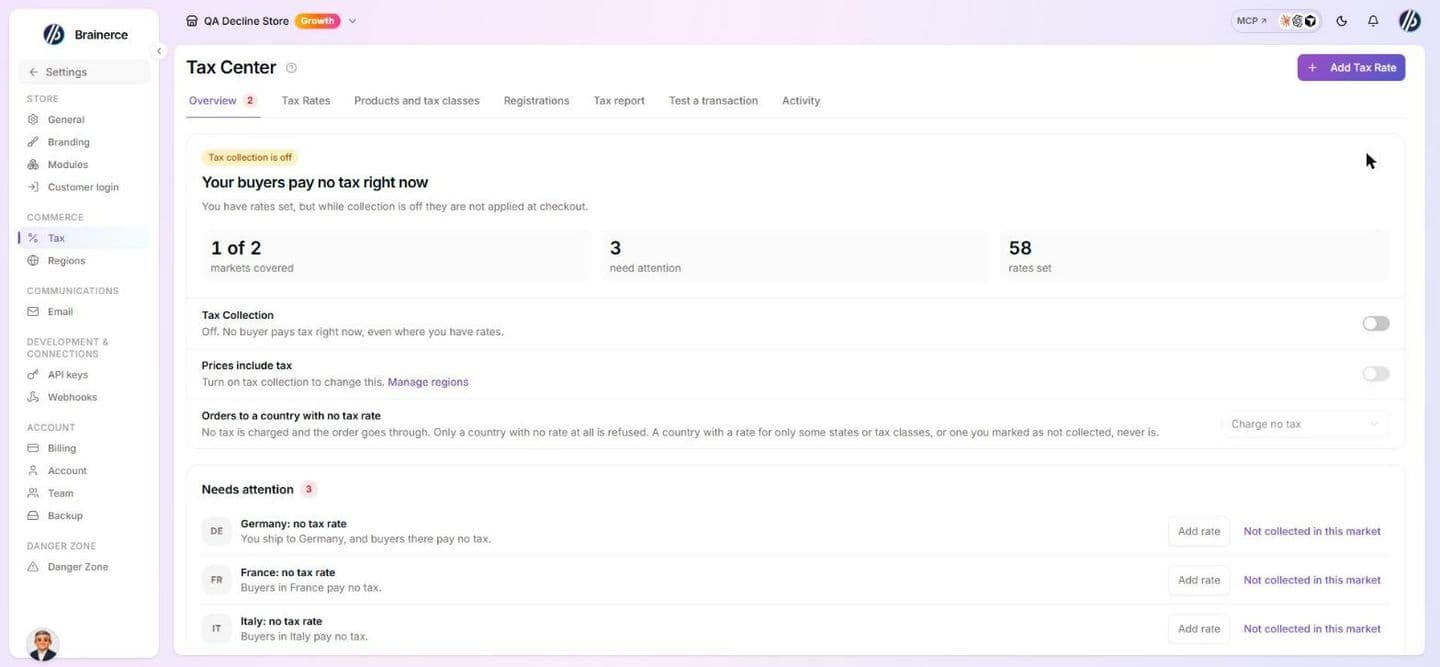
1. Turn on tax collection
Open Settings → Tax and turn on Tax Collection in the status card on the Overview tab (the switch is at the bottom of the card). It opens a review window: nothing is saved until you approve it. Until this is on, no tax is calculated, even where you have rates, and the Prices include tax switch is locked.
2. Choose inclusive or exclusive pricing
Use the Prices include tax switch, in the same status card (it also opens a review before it saves):
- Off (exclusive). Your prices don't include tax, and tax is added at checkout. This is the typical US sales-tax model.
- On (inclusive). Your prices already include tax, and Brainerce backs the tax out for display. This is the typical EU/VAT model.
This one switch decides inclusive or exclusive pricing for every rate, and for every region that is left on Same as the store. A region can set its own, see below.
Selling in several countries: VAT included in one, tax added in another
If you sell to markets with different habits, for example VAT included for Israel and Europe but tax added at checkout for the US, keep this store switch for your main market and give the other markets their own setting in Settings → Regions. Each region offers Same as the store, Prices include tax or Tax added at checkout.
A region's setting changes what buyers in that region pay from their next checkout: with tax added, they pay the price plus tax; with tax included, they pay exactly the price shown. The tax rates still come from this page either way.
Switch tax on with the AI assistant
You can also ask the AI assistant in your dashboard to switch tax collection on or off, or to set whether your prices include tax. It changes the same two switches shown on this page. The assistant can also apply the one-click country presets for Israel, Canada and the United States (it prepares a review and asks you to approve first). Adding other rates one by one is still done here, or through a connected AI tool.
3. Add a tax rate
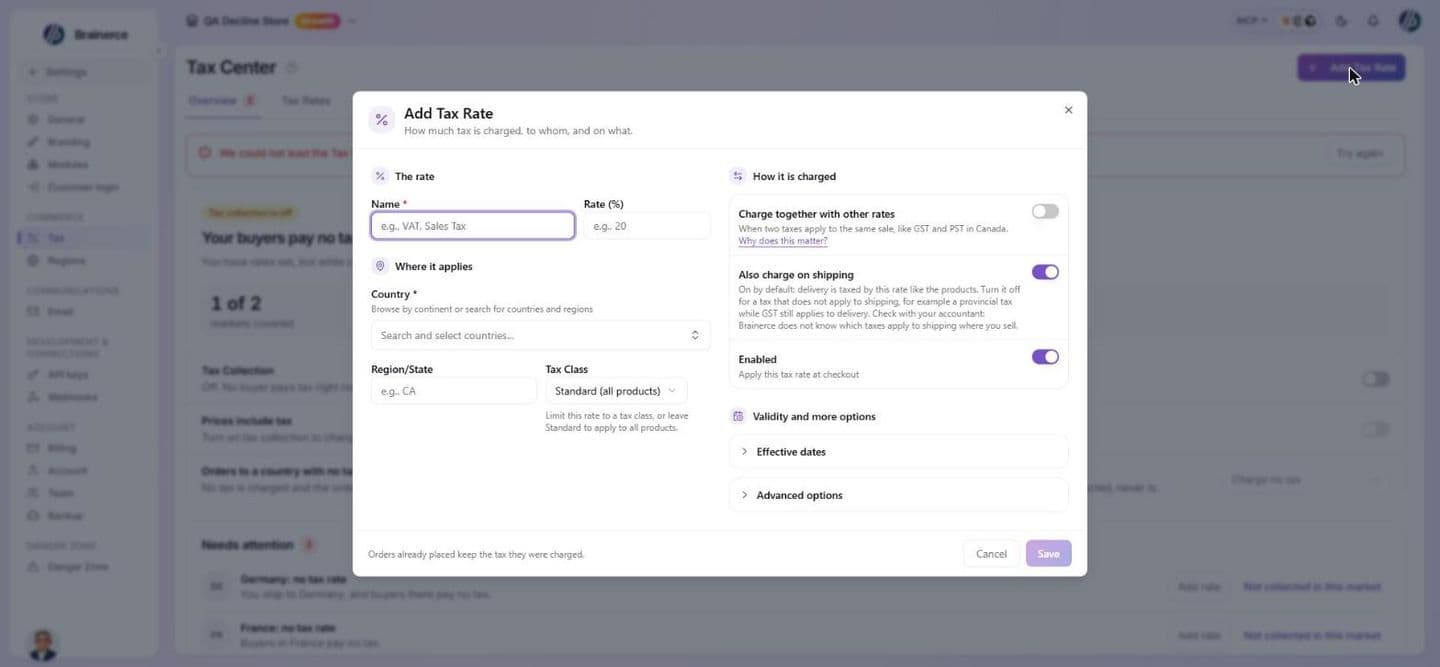
- Click Add Tax Rate (top right of the Tax Center, or on the Tax rates tab).
- Under The rate, fill in:
- Name, shown on invoices (e.g. Israeli VAT, California Sales Tax). Up to 100 characters.
- Rate (%), the percentage, from 0 to 100, decimals allowed (e.g.
18for 18%,9.975for Quebec's QST, never0.18). A preview line shows what a sale would be charged.
- Under Where it applies:
- Country: one or more countries this rate applies to (the first one plus up to 60 more). All of them are matched at checkout.
- Region/State: leave it on Whole country, or pick a state or province. Pick it from the list so the code is recognised. A region that is not in the list is saved as typed and only matches a customer who types exactly that name.
- Tax Class. Leave it on Standard (all products) to charge the rate on everything, or pick one of your own classes to charge it only on the products in that class. A class you created and named "Standard" is not the same thing as the Standard (all products) option at the top of the list.
- Under How it is charged:
- Leave Charge together with other rates off unless two taxes genuinely apply to the same sale, such as Canada's GST plus a province's PST or QST. When you do turn it on, every rate you want charged together has to have the same Tax Class. Two rates split across different tax classes are never charged together, however you set this toggle. See When two taxes apply to the same sale below.
- Also charge on shipping is on by default. Turn it off for a tax that does not apply to delivery. See Is the delivery charge taxed?.
- Enabled switches the rate on or off at checkout.
- (Optional, under Validity and more options):
- Effective dates (Starts on and Ends on), to charge the rate only between two dates. Leave both empty and the rate is always charged. See Change a tax rate from a future date.
- Under Advanced options, Postal Code to target a rate more precisely (one exact code, see below) and Priority, a whole number, to break ties when several rates are equally specific (the lower number wins).
- Click Save. Orders already placed keep the tax they were charged.
The Tax rates tab lists every rate with Name, Rate, Location, Tax Class, Status and Actions (edit and delete). A Stacked badge marks a rate charged together with others (and says how many it combines with in its class, or that no other rate in the class matches), Not on shipping marks one that skips delivery, and Status shows Active or Disabled, plus Scheduled or Expired with the start or end date. Deleting asks "Delete Tax Rate?" and cannot be undone, though orders already placed keep their tax.
Set up Israeli VAT in one click
If you sell in Israel, the Israel preset adds the VAT rate for you, so you do not have to type it in.
- On the Tax rates tab of Settings → Tax, click Use the Israel preset (or Use a country preset, then the Israeli VAT 18% card). If you have no rates yet, the empty table also offers a button that adds it straight away.
- It adds one rate: VAT 18% for all of Israel, on Standard (all products), so your products and your delivery charge are both taxed.
- Turn on Prices include tax. Most Israeli shops show prices with VAT already included. The preset does not change this switch for you. If it is off, VAT is added on top of your prices at checkout, and a ₪118 product would cost the buyer ₪139.24. With it on, the buyer pays exactly ₪118, of which ₪18 is VAT. The preset card reminds you when the switch is off and lets you turn it on from there.
You can also ask the AI assistant in your dashboard: "set up Israeli VAT". It applies the same preset after you approve it, and it can turn on Prices include tax as a separate step.
What the Israel preset does not do
- Eilat is not handled automatically. The Eilat VAT exemption depends on where your business is registered and where the sale takes place, not on the buyer's address, so the preset does not add a 0% rate for Eilat postal codes. If your business is registered in Eilat, ask your accountant how to set up your rates.
- Exports and other zero rated sales are not handled. A buyer outside Israel matches no Israeli rate and is charged no Israeli VAT. Anything more specific is between you and your accountant.
- It does not register you as an osek or file your VAT returns. Brainerce only applies the rate.
- It refuses to run if you already have any Israeli rate, so it cannot double your VAT. Delete the existing Israeli rate first if you want to start over.
- Check the rate before you rely on it. Israel's VAT has been 18% since 1 January 2025 (it was 17% before). Brainerce does not update rates for you when the law changes.
Change a tax rate from a future date
When the law moves a rate on a set date (for example VAT going from 18% to 19% on 1 January), do not delete the old rate and do not edit its percentage ahead of time. Either one changes what customers pay today. Give each rate its own dates instead, so the old rate keeps charging until the change and the new one takes over on that day.
- Open the old rate and click Edit. Open Effective dates and set Ends on to the day the change happens (1 January). Save.
- Click Add Tax Rate and enter the new rate (same name, country, region and tax class as the old one). Open Effective dates and set Starts on to the same day (1 January). Save.
The old rate is charged up to the start of that day and the new one from the start of that day, so exactly one of them applies at every moment, with no gap and no overlap. The new rate shows a Scheduled badge in the list until its day comes; the old one shows when it Ends, and shows Expired afterwards.
Do the two steps in this order. Two rates for the same country, region, postal code and tax class can exist together only while their dates do not overlap. If you add the new rate first, while the old one has no end date, Brainerce refuses it with a message that a rate with the same scope already exists. Set the old rate's Ends on first.
Good to know:
- A date means the start of that day in your browser's time zone. If your customers or your accountant work in another time zone, check the day, or ask the AI assistant to set an exact time.
- Orders already placed keep the tax they were charged. A scheduled change only affects checkouts that happen after it starts.
- A rate that is scheduled or expired is not charged, and it does not count toward a country being covered in the Tax Center.
- Brainerce does not know the law. It will not tell you a rate is changing and will not update a rate for you. The Tax Center warns you only when a rate you gave an end date is about to end and nothing starts after it.
- To remove a date, empty the field and save. The rate then has no start or end again.
- The AI assistant can do both steps for you: ask "change VAT to 19% from 1 January". It sets the old rate's end date first, then creates the new rate, and never deletes the old one.
If a tax rate or discount changes while a customer is paying
Brainerce checks the tax again at the last moment, right before a payment is created. If a rate started, ended or was edited, or a discount changed, after the customer last saw their total, Brainerce works the tax out again with the rates that apply at that moment and updates the checkout.
What the customer sees depends on how your website was built:
- Websites built to confirm the total show the customer the new total and ask them to accept it before anything is charged. If the customer does not accept, no payment is created and nothing is charged. This works only on websites that send the total the customer is looking at. Ask your developer or AI builder to send
expectedTotalwhen the payment is started. It is documented in the developer docs. - Other websites, including every website built before this existed, are not asked. The payment is created for the newly worked out total, so the customer can be charged an amount that differs from the one they saw. Brainerce does not create a payment and then change its amount afterwards: the amount is settled before the payment is created.
Good to know:
- This only matters in the moments between a customer reaching the payment step and paying. A change you make in Settings → Tax never touches an order that was already paid.
- It does not make Brainerce know the law. It applies the rates you entered.
- A checkout that has been paid, or whose payment is being processed right now, is never recalculated. Neither is one whose payment page is already open and waiting for the customer: it keeps the total it was created with, so the amount on that page always matches what is charged.
- If something goes wrong while the tax is being checked, Brainerce falls back to the total the customer was already shown and records the problem, instead of blocking the sale.
See who changed a tax rate
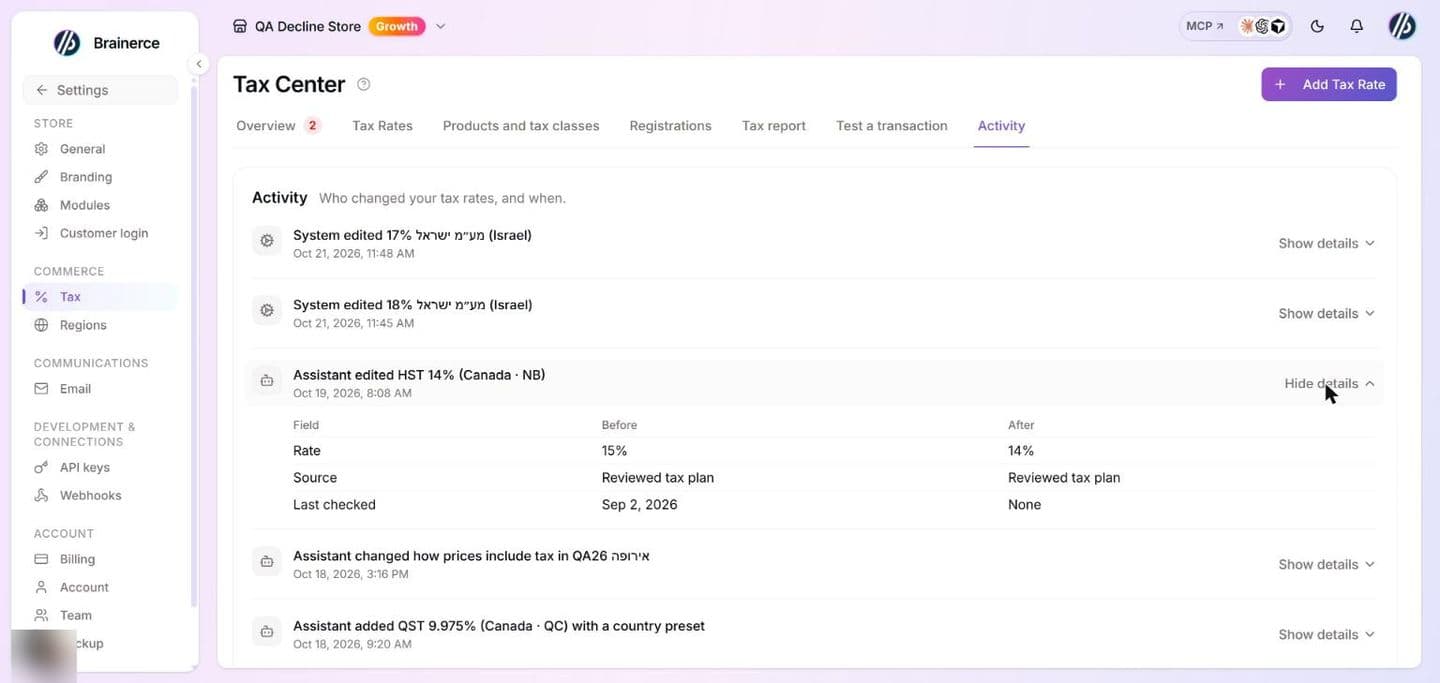
Every change to a tax rate is recorded: a rate added, edited or deleted, and a country preset applied. Open Settings → Tax and choose the Activity tab to see who did it (a team member by name, the AI assistant, a connected AI tool such as MCP, or an API key), when, and what the rate was before and after. See Tax Center.
Each rate also remembers where its number came from: entered by hand, a country preset, the assistant, a connected tool or an API or import. Rates added by a country preset also carry the date that preset's figures were last checked. That date is a note for your own records. Brainerce does not check your rates against the tax authority and does not keep them up to date.
How rates are matched
For each order, Brainerce picks the most specific matching rate: a postal code match beats a region match, which beats a country match. If two rates are equally specific, the lower Priority number wins. Think of it as "1 goes first".
By default exactly one rate applies per line, and the others are ignored. The exception is rates you have marked Charge together with other rates: those are added up, but only with the other marked rates that have the same Tax Class. A marked rate never combines with a rate in a different tax class, and it never combines with a rate that does not have the toggle on. Nothing is ever calculated on top of another tax, whichever setting you use.
A rate covers every country you selected, not just the first.
Postal codes and ZIP codes match exactly, with no ranges
A postal code on a rate matches one exact code. Case, spaces and hyphens are ignored, so SW1A 1AA and sw1a1aa are the same place, but nothing else is. There are no ranges, prefixes or wildcards: 941* or 94100 to 94199 match no customer at all. To cover several ZIP codes, add one rate per code, or use a region or country rate instead.
No tax rate for a customer's country means no tax is collected
Every rate belongs to a country, and there is no worldwide or fallback rate. If a customer orders from a country you have no rate for, their order is charged no tax at all, and checkout does not stop or warn them, unless you switched on Do not allow the order under Orders to a country with no tax rate (see Refuse orders to a country with no tax rate). If you sell to a country where you must collect VAT or sales tax, add a rate for it. A rate on a region only (for example California) does not cover the rest of that country.
Why a customer is asked for a state or province
If you have tax rates for states or provinces in a customer's country (US state sales tax, or Canadian GST plus PST, QST or HST), Brainerce needs the customer's state or province to charge the right tax. When it is missing, Brainerce does not take the payment. The customer is asked to add their state or province to the shipping address first, and nothing is charged until they do.
Why: without it, only the rate that covers the whole country can be charged. A customer in California would pay no California sales tax, and a customer in Quebec would pay only the 5% GST and not the QST. Brainerce stops that instead of quietly charging too little.
What this does and does not do:
- It only happens for a country where you have a rate on a state or a province. If a country has only a rate for the whole country (Israel, most of Europe), no state or province is ever asked for. A rate for one postal code (for example a special zone) does not make the state or province mandatory.
- It never happens when tax collection is switched off, or for an order with nothing to ship to an address.
- Brainerce does not guess the state from the postal code or ZIP code. A customer who types a city name instead of a state is not blocked, but a rate on that state will only match if the text matches the state you entered on the rate.
- Whether the customer sees a clear message depends on how your website was built. A website built or updated after this change shows "a state or province is required". An older website may show a generic payment error until your developer or AI builder handles it. It is documented in the developer docs as
TAX_ADDRESS_REGION_REQUIRED. - A tax estimate that does not know the state or province yet (for example one shown on a product or cart page, if your website shows one) can only see the country-wide rates. Brainerce marks that estimate as partial. Whether your website shows that mark to the customer depends on how it was built.
Discounts lower the amount tax is charged on
Tax is worked out after discounts. Coupons and promo codes, loyalty points, bundle offers and automatic discounts all reduce the amount tax is calculated on, so a $100 item with a $20 coupon is taxed on $80. A gift card is different: it is a way of paying, not a discount, so tax is still charged on the full order value.
When two taxes apply to the same sale (Canada GST plus PST or QST)
Some places charge two separate taxes on the same purchase, and the customer has to see both on the invoice. Canada is the common case: a federal GST of 5% everywhere, plus the province's own PST or QST in some provinces.
Enter these as two separate rates, turn on Charge together with other rates on both, and give both the same Tax Class. Brainerce then charges both and shows a line for each, on the checkout summary, the order in your dashboard, and the confirmation email.
Do not enter a single blended rate like 14.975%. It collects the right total but shows one tax line, and if you are registered for GST and QST you are expected to show them apart.
Only one of my two taxes is charged: GST and PST must be on the same Tax Class
Two rates are charged together only when both have the same Tax Class. This is the trap that catches most people, because both rates still show the Stacked badge on the Tax page and nothing on the screen looks wrong.
The Tax Class dropdown lists Standard (all products) at the top, then any tax classes you created. A class you created and named "Standard" is not the same thing as the Standard (all products) option. A GST rate on Standard (all products) and a PST rate on your own "Standard" class are in two different places, so they are never charged together.
What happens instead is worth being blunt about: the other rate is ignored completely, not added on later. Only one tax is charged, the one that sits in the tax class the product belongs to. So a Quebec order can show QST 9.975% on its own with no GST beside it, and you are under-collecting the federal 5% on every Canadian sale until you notice.
To fix it, open each rate on the Tax page and set every rate you want charged together to the same Tax Class. To charge GST plus PST, RST or QST across your whole catalogue, that is Standard (all products) on both rates. The one-click Canada preset below already does this for you.
Set up Canadian tax in one click
Click Use a country preset on the Tax page, then Canada. It creates all ten rates for you: the federal GST row that covers the whole country, five HST rows, three PST or RST rows, and Quebec's QST. All ten land on Standard (all products), which is what makes the GST and the provincial tax combine correctly, and it is why the preset is the safest way to set Canada up.
| Province or territory | Rates it creates |
|---|---|
| Alberta, Northwest Territories, Nunavut, Yukon | GST 5% only (the country-wide rate covers them, so there is no separate row) |
| Ontario | HST 13% |
| New Brunswick, Newfoundland and Labrador, Prince Edward Island | HST 15% |
| Nova Scotia | HST 14% |
| British Columbia | GST 5% + PST 7% |
| Saskatchewan | GST 5% + PST 6% |
| Manitoba | GST 5% + RST 7% |
| Quebec | GST 5% + QST 9.975% |
Four provinces need two rates and five need one. British Columbia, Saskatchewan, Manitoba and Quebec each need the federal GST row plus their own PST, RST or QST row, both marked Charge together with other rates and both on the same Tax Class. Ontario, New Brunswick, Newfoundland and Labrador, Nova Scotia and Prince Edward Island are HST provinces and need a single rate each, with that toggle left off. Alberta, the Northwest Territories, Nunavut and Yukon need no row of their own, because the country-wide GST row already covers them.
The preset refuses to run if you already have any Canadian rate, so it cannot accidentally double your rates. Delete the existing Canadian rates first if you want to start over.
Check the figures before you rely on them. Provincial rates change, and Brainerce does not update them for you. Nova Scotia dropped from 15% to 14% in April 2025. Brainerce also does not register you for GST or HST, does not track whether you have crossed the small-supplier threshold, and does not file your returns.
Why HST provinces get only one rate
HST is a single combined tax that already contains the federal 5%. So an HST province gets one rate, with Charge together with other rates left off. Turning it on there would charge the federal GST alongside the HST as well, and the customer would pay the federal part twice.
Brainerce never charges a tax on top of another tax
Rates that are charged together are all calculated on the pre-tax amount. Nothing is ever calculated on an amount that already includes another tax. GST 5% and QST 9.975% on a $100 item come to $14.98, not the $15.47 you would get by charging QST on the GST-inclusive total.
This is what Canada expects: Quebec stopped compounding QST on GST in 2013. Israel, the US, the EU and the UK never compound either. If you genuinely owe a compounded tax, there is no setting for it, and the only workaround is a single manually calculated combined rate that you own the arithmetic for. Email [email protected] if this affects you.
Charging GST plus a reduced QST on one tax class
A rate you put on a class of your own replaces the rates on Standard (all products) for the products in that class rather than adding to them. A product in a Reduced class does not pick up the GST rate you put on Standard (all products). To charge GST plus a reduced QST on that class, add both rates inside that class, and turn Charge together with other rates on for both of them.
Give the second copy a distinct name. If you add a GST rate inside a Reduced class, call it something like "GST (Reduced)" rather than "GST" again. Two rates with the same name in different tax classes show as two separate lines on the order, so an order that mixes a standard product and a reduced-class product would otherwise show two rows both labelled "GST" and you could not tell them apart when you file. The amounts charged are right either way; only the labelling is confusing.
Different rates for different products
Create a tax class (give it a Name and Slug, and an optional description; you can mark one class as the default), for example Reduced or Zero. Assign it to specific products, then add a tax rate that targets that class. Products without a class of their own use your default class, and products whose class has no rate of its own fall back to your Standard (all products) rates.
If you charge two taxes together, such as GST plus PST or QST, remember that rates only combine with other rates on the same Tax Class. Both rates have to sit on the class the product belongs to, or only one of them is charged. See Only one of my two taxes is charged.
Which address decides the tax: shipping or billing
When an order is delivered, the tax follows the shipping address: the country, state or province and postal code the goods are sent to.
When an order has nothing to ship, for example a digital product or a download, the customer is not asked for a shipping address. The tax then follows the billing address instead, and it appears as soon as the customer enters it.
If a checkout has no address at all, no tax is charged on it, and Brainerce does not warn the customer. A store that sells digital products should make sure its checkout asks for a billing address.
Brainerce does not look up the customer's location from their internet address, and it does not decide which country's rules apply to digital sales. That is for you or your accountant.
Is the delivery charge taxed?
Yes by default, but only by the rates on Standard (all products). When a rate whose Tax Class is Standard (all products) matches the customer's address, the delivery charge is taxed alongside the products. Rates you put on a tax class of your own never touch the delivery charge. Where two of your Standard (all products) rates are marked Charge together with other rates, delivery carries both, so a Quebec delivery charge is taxed GST plus QST just as the goods are.
If every rate you have sits in a tax class you created, the delivery charge is not taxed at all. The products are taxed and the delivery line is not. The Tax page now shows a Delivery charges are not being taxed warning when this happens; checkout itself does not warn the customer. Keep the rates that should cover postage on Standard (all products). The one-click Canada preset puts all ten of its rates there, so delivery is covered.
To leave just one of your taxes off the delivery charge, for example a provincial tax that does not apply to shipping while GST still does, open that rate (Add rate or edit it) and turn off Also charge on shipping. You can also ask the AI assistant, for instance "do not charge PST on shipping". Turning it off takes that one rate off delivery: the products still pay it, and the other rates still tax the delivery charge. Rates are charged on delivery by default. Rates switched off for delivery show a Not on shipping tag in the list. Brainerce does not know which taxes apply to shipping in your state or province and never decides it for you, so check with your accountant first.
To exempt postage, the setting is on the shipping rate, not here: open Shipping → Zones & Rates, edit the rate, and under Advanced Settings set Tax Status to No Tax. See Set up shipping zones and rates.
You cannot assign the delivery charge a reduced tax class, and rates quoted by a connected carrier app are always taxed.
Good to know
- Rates are manual, and each one can have optional dates (see Change a tax rate from a future date). There's no automatic tax-calculation service to connect.
- In a currency with no cents (Japanese yen, Korean won, Vietnamese dong), tax is rounded to whole units, so 10% on 1,234 yen is 123 yen. Currencies with cents (dollars, euros, shekels) are rounded to the cent as before.
- Israel's standard VAT is 18% since 1 January 2025. The one-click Israel preset adds it for you, see Set up Israeli VAT in one click. There is no setting for the Eilat VAT exemption today.
- Your own tax registration numbers are recorded on the Registrations tab, for your records only: they never change what a customer pays (see Tax registrations). The tax-type label (sales/VAT/GST) is shown on invoices for reference only and doesn't change the math.
What's next?
Need help with tax setup? Email [email protected].
Tax registrations
Record your VAT, GST, HST, PST, QST or sales tax registration number for each country or province where you are registered. The number is stored encrypted and shown only as its last 4 characters.
BOBO, your AI agent
BOBO is your AI store manager and the only AI assistant in Brainerce. Ask questions, delegate tasks, approve changes, get a daily briefing, and automate repetitive work.