 Brainerce Help
Registrations and seats
How event seats are counted so an event never overbooks, and how to search, fix, cancel, resend and download registrations from the Registrations window of an event.
A registration is one sign-up for an event: one contact person, a number of seats, and optionally a name for each seat. You see them in the event's Registrations window: open Events, open the event's row menu (the three dots at the end of its row) and choose Registrations. It opens over the list and needs View events; changing anything in it needs Manage events. If you do not see Events, read Events.
How are event seats counted?
The seat limit counts seats, not registrations. A registration for 4 people takes 4 seats. An event with 50 seats is full after 50 seats are taken, whether that is 50 people or 10 groups of five.
- A free registration is confirmed immediately when enough seats remain. There is no approval step and no payment.
- Cancelled registrations do not hold seats. Cancelling frees them at once.
- An event with no seat limit never fills.
The seat count is exact. Brainerce locks the event for the moment it takes to count the seats and save a registration, so two people registering for the last seat at the same instant cannot both get it. The second person is told the event is full, or how many seats are left.
At the top of the Registrations window, the figures are Registrations, Seats taken, Seats held, Seats left (or No limit) and, only when at least one registration is waiting, Waiting for a refund. Seats held and Waiting for a refund only matter for paid events, so for a free event they stay at zero. The Events table also has Seats taken, Seats left and Registrations columns.
What does a visitor see when seats run out?
The storefront asks Brainerce for the live number of seats left, and a registration that asks for too many is refused with one of these answers:
- Event full: no seats remain.
- Not enough seats: fewer seats remain than the visitor asked for, and the answer says how many.
- Registration closed, registration not open yet, event past or event cancelled: the event is not accepting sign-ups right now.
- Too many seats: more than the most seats one registration may take.
How these appear to the visitor depends on your storefront, which your developer builds. There is no waiting list.
What does a registration show?
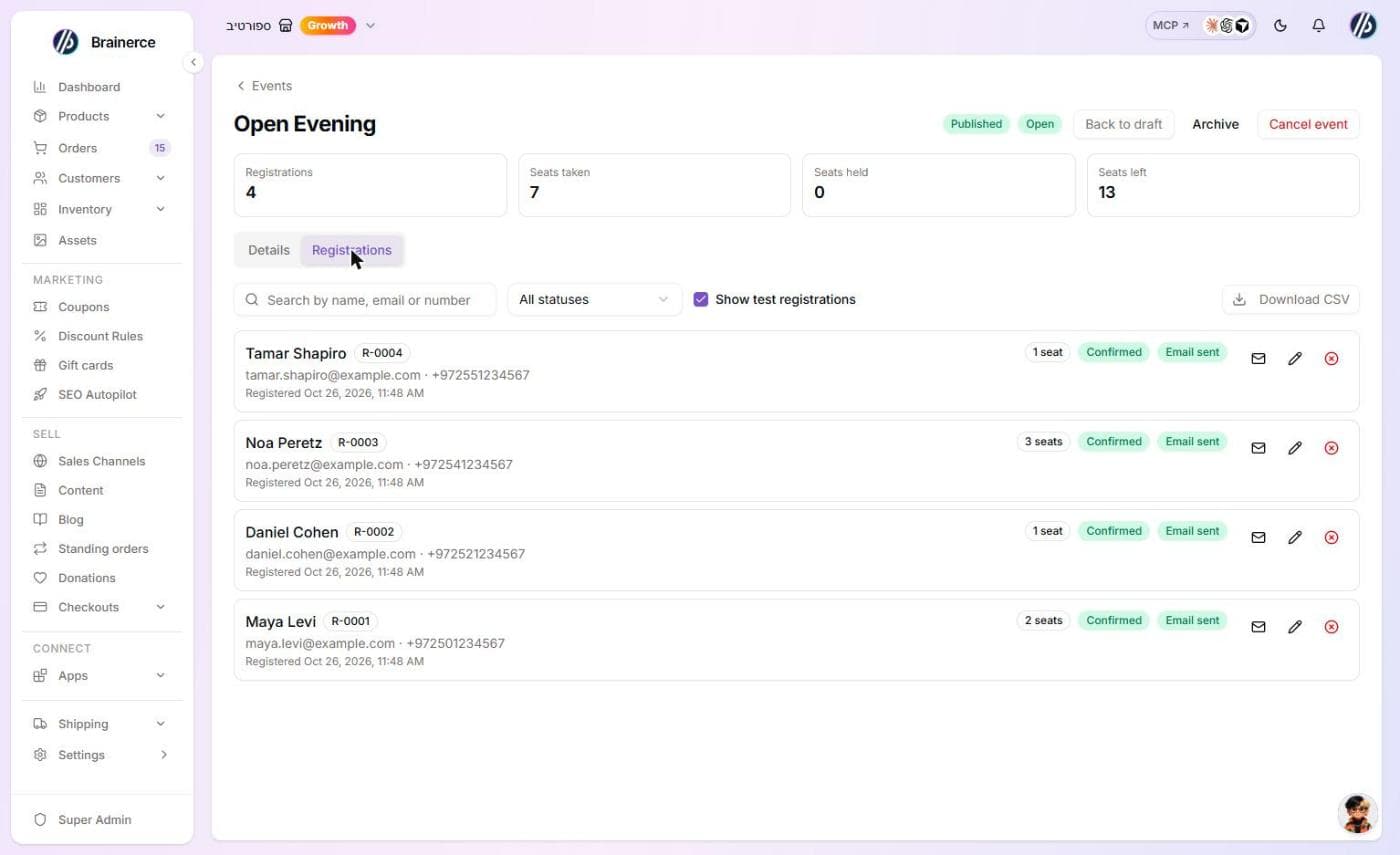
Each row in the Registrations window shows:
- a registration number such as R-0007, counting up per event, and when the person registered;
- the contact name, email and, depending on the event, phone number;
- the number of seats and, if the event asks for them, the Attendees names (one per seat);
- a status: Confirmed, Cancelled, and for a paid event also Held (seats held while the person pays; the row says "Held until" a time), Expired (the hold ran out or the payment failed) and Needs a refund (the person paid but no seat was left);
- for a paid event, the amount and the payment state, including how much has been refunded;
- an email status so you can see whether the confirmation went out: Email not sent, Email on its way, Email sent or Email failed.
Search by name, email or number finds a registration, and Status narrows the list. Show test registrations (on by default) includes registrations marked Test. Test registrations come from paid events taken while your payment provider was in test mode, so you will not see any on a free event. They hold real seats, are left out of the totals, and Remove test registrations deletes them all and frees the seats. It never touches real registrations, and it cannot be undone.
Can a visitor register twice by double clicking?
No. The storefront sends a unique request id with each submit. A double click or a retry with the same id returns the same registration instead of taking a second set of seats.
How do I fix a typo in a registration?
On the registration's row, click the pencil (Edit details). The Edit registrant window lets you change the Name, Email, Phone and each Attendee name, then Save. This never changes the seats, the status or any payment. The number of attendee names must still match the seats. Changing the email does not send anything by itself: use Send confirmation again if the person needs the email at the new address.
How do I cancel a registration?
On the registration's row, click Cancel registration. The window asks "Cancel this registration?" and says the person loses their seats and the seats are freed. You can add a Reason (kept for you, never emailed).
- Cancelling does not email the registrant. Tell them yourself. (Cancelling the whole event does email everyone: see How do I cancel a whole event?.)
- Cancelling does not refund anything. The window says "Nothing is refunded automatically." A refund is always a separate action: see How do I refund a registration?.
- You cannot cancel a registration twice. The second try says "This registration is already cancelled."
- A cancelled registration cannot be restored. The person registers again if seats remain.
How do I refund a registration?
On a paid registration's row, click Refund (it needs Manage events). The window says the money goes back to the original payment method. Leave Amount to refund empty to refund everything that has not been refunded yet, or type a smaller amount for a partial refund.
- A refund does not free the seats. Cancel the registration separately if you want them back. A partial refund never changes the status.
- It uses the same refund mechanism as the rest of Brainerce. A refund that you make in your payment provider's own dashboard is picked up too and shown on the registration.
- You cannot refund more than was paid. Asking for more is refused.
- A registration marked Needs a refund (the person paid but no seat was left) shows the note "This person paid but no seat was left. The money is kept. Refund it from here." Once it is refunded in full it closes as Cancelled. A partial refund leaves it waiting, because money is still owed.
How do I cancel a whole event?
On a published event, open its row menu on the Events page and choose Cancel event (it needs Manage events). A draft, an archived or an already cancelled event does not offer it. The window asks "Cancel this event?" and has:
- Refund every paid registration in full, for an event that charged. Leave it off if you would rather refund by hand, one registration at a time.
- Reason (kept for you, never emailed).
What happens when you confirm:
- New registrations stop at once. The event shows as cancelled, and a visitor who opens it is told so.
- Seats held by people still paying are released. If one of them pays anyway, the money is kept and the registration is marked Needs a refund. It is never seated into a cancelled event.
- Every registrant gets an email saying the event was cancelled, with your store's name. If you chose to refund, the email says the payment will be refunded. It never promises a refund you did not choose.
- The emails and refunds run in the background and can take a few minutes. A banner at the top of the Registrations window says whether Brainerce is still working through the registrants or has finished, and each registration shows where it stands ("Cancellation email not sent yet", or "Refund failed: ..." with the reason).
- If something could not be done, Brainerce tries again by itself. If it still fails you get an alert. Start it again on that banner picks up where it stopped: nobody gets a second email and nobody is refunded twice.
- A cancelled event cannot be edited, restored or cancelled a second time. An archived event cannot be cancelled.
- Changing the date, time zone or place of an event that already has registrations is not allowed. Cancel it and create a new event, which tells everyone.
How do I send the confirmation email again?
Click Send confirmation again on the registration's row (the envelope icon). It works only for a Confirmed registration ("Only a confirmed registration can be sent a confirmation."). It sends a new confirmation with a new private link, and the old link stops working. Two clicks in the same minute send one email; a second send a minute later sends another. If the email system is unavailable at that moment you get "The email queue is not available right now. Try again in a moment." and the person's old link keeps working.
A registration whose confirmation could not be queued (for example during an outage) is picked up automatically: a check runs every 5 minutes and waits 5 minutes after the sign-up before it acts. A registration still showing Email not sent after a day is left for you to send by hand.
How do I download the attendee list?
Click Download CSV in the Registrations window. The file has the columns Registration, Registered at, Name, Email, Phone, Seats, Attendees, Status, Test and Email status, and opens in Excel or Google Sheets. It follows the Show test registrations switch.
- It needs the Manage events permission. Viewing the list needs only View events, but a download puts every registrant's contact details into a file that leaves Brainerce, so it is held to the higher permission. See Events.
- A list of more than 10,000 registrations is refused ("This event has too many registrations for one download.") rather than cut off halfway, so an incomplete file never looks complete.
- Anything a registrant typed that starts like a spreadsheet formula is made safe in the file, so opening it cannot run a formula.
What's next?
Create an event
Create a free event with a date, time zone, place and seat limit, then publish it. Every field on the New event form, the rules each one follows, and what is locked once people have registered.
The registration page and emails
What a person receives and sees after registering for an event, the private "Your registration" page their email links to, how a lost link is replaced, and what your storefront has to build.