 Brainerce Help
Events
Take sign-ups for a workshop, class or open evening with a seat limit and a confirmation email. What the Events page does, how to switch it on, paid events and refunds, cancelling an event, and what events do not do yet.
Events are not available to merchants yet. There is no Events switch under Settings → Modules and no Events entry in your sidebar, so you cannot open the Events page or create an event today. This section describes the feature as it is being released, so you know what is coming. If you need it now, email [email protected].
Events let your store take sign-ups for a workshop, a class, an open evening, a tasting or any dated gathering, with a seat limit. Each person who registers gets a confirmation email with a link to their registration. This is the first release of the feature, so read what is and is not included before you plan around it.
Event registration and tickets: what you can do with events
- Create an event with New event on the Events page. The form opens in a window over the list: date, time zone, place, seats and a registration window. See Create an event.
- Publish it, so visitors can register from your storefront, and take it back to a draft or archive it later, from the event's row menu.
- Take registrations without overbooking. Two people registering for the last seat at the same moment cannot both get it. See Registrations and seats.
- See the attendee list from the row menu's Registrations entry: search it, fix a typo in someone's details, cancel a registration to free its seats, send the confirmation again and download the list as a CSV file.
- Email every registrant a confirmation with the date, the time in the event's own time zone, the place and a private link to their registration page. See The registration page and emails.
What does the Events page look like?
The Events page is a table, the same kind as Products and Coupons (see Working with tables). Each event is one row, and there is no separate page for an event: clicking its row opens it in a window over the list.
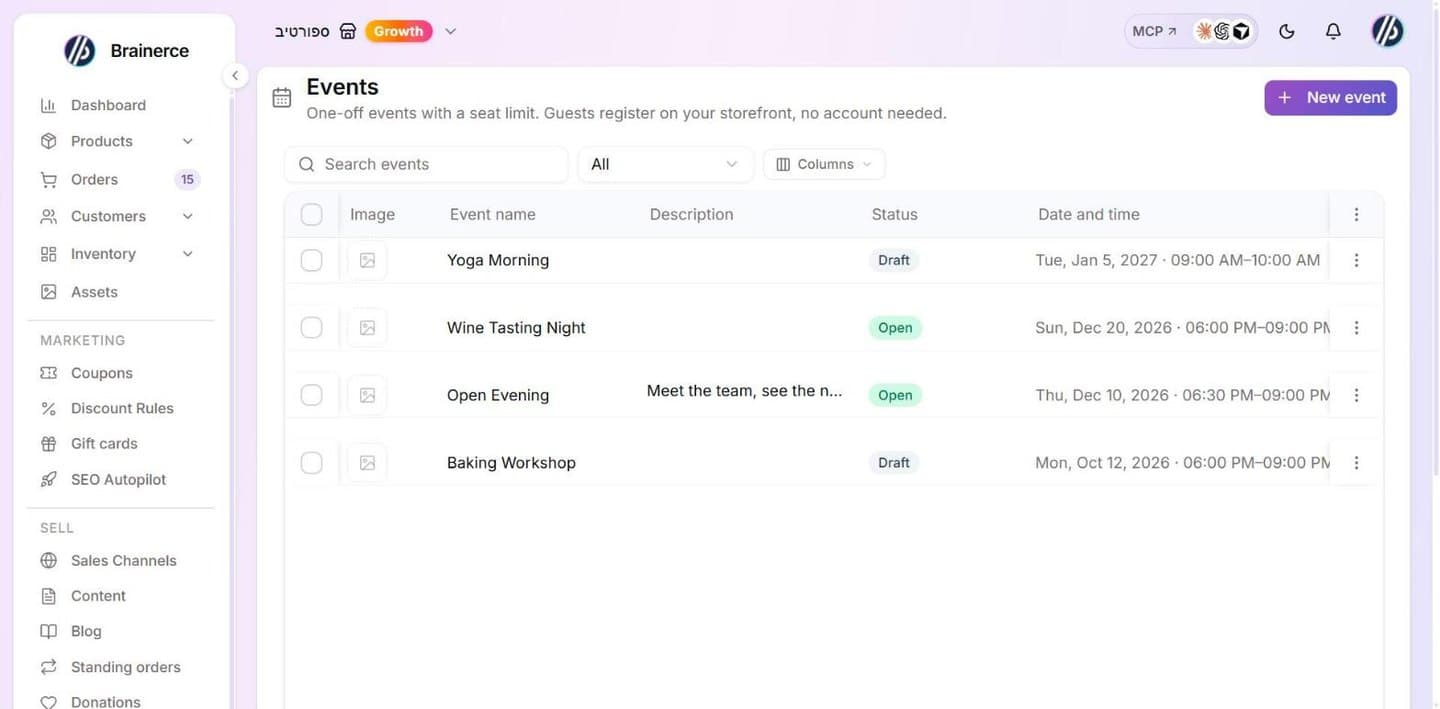
- Columns shown by default: Image, Event name, Description, Status (the live state: Draft, Open, Opens later, Registration closed, Full, Ended, Cancelled or Archived), Date and time, Location, Seats taken (for example "12 of 40 seats taken"), Registrations and Price (Free or the amount). The date column shows the event in its own time zone; hover over it to see the zone.
- Columns you can switch on under Columns: Published status (Draft, Published, Cancelled or Archived), Time zone, Most seats in one registration, Hold seats while paying (minutes), Phone number, Ask for a name for each attendee, Seats left, Registration opens, Registration closes, Page address and Created.
- Search and filter. The search box finds an event by name. The filter next to it narrows the list to Draft, Published, Cancelled or Archived (the default is All). The list shows 20 events per page.
- Edit the name or the description in the table. Click the cell and type; it saves on its own. A change that is refused (a cancelled event, an empty name) goes back to the old text and shows the reason. Everything else is edited in the event's window.
- The row menu has Registrations, and, with Manage events, Publish (on a draft), Back to draft (on a published event), Archive and Cancel event (on a published event). A cancelled or archived event offers only Registrations: neither can be brought back from the menu. A draft cannot be cancelled, only published or archived.
Old links keep working. An older link to an event page (/events/<id>) redirects to the list with that event open.
How do I turn on Events?
Events are a module that starts off in every store. Today the switch is not shown on the Modules page for merchants, so there is nothing to turn on: the feature is held back while it is in limited rollout, and we open it for a store ourselves. When it opens, the Events page appears in your SELL menu and you also need the View Events permission, which Owners and Managers have by default. Turning the module on publishes nothing: an event reaches visitors only when you publish it.
What events do not do yet
Say this plainly to anyone planning an event, because a sign-up form that quietly does not work is worse than no form.
- There is no ready-made registration form. Brainerce does not add an events page to your storefront for you. The Events page in the dashboard is where you manage events, but the page visitors see and the sign-up form are built on your storefront by your developer (or your AI coding tool) with the Brainerce SDK. A storefront made with
npx create-brainerce-storehas no events page either. Publishing an event on its own puts nothing on your site. - A paid event is not an order. You can charge a price per seat, and the payment goes through your connected payment provider, but a paid registration never appears under Orders and does not count in your sales figures. There is no coupon, gift card, tax line or invoice on a seat, and no instalments. See Create an event.
- Paid events need a payment provider that opens its own payment page. Stripe, PayPal, Takbull and Morning work (the same list as for donations). Cardcom and Grow show the card form inside your page, which events do not support yet: a paid event cannot be published with only such a provider, and no seats are held for a registration it cannot take.
- There is no waiting list. When the seats run out the event shows as full and new visitors are turned away.
- You cannot delete an event. An event that people registered for is a record they relied on, so you archive it (hide it) instead.
- Brainerce emails every registrant when you cancel the whole event, but not when you cancel one registration or change an event. The two event emails are the confirmation and the "event cancelled" notice. There is no reminder before the event, and you cannot move an event that already has registrations (cancel it and create a new one, which tells everyone). Cancelling a single registration sends nothing: tell that person yourself.
- BOBO and an MCP assistant can manage events, but only on a store where the Events module is on. Both can list and read events, create one (always as a draft), edit it, publish it, take it back to draft, archive it, read the attendee list, cancel or resend a registration and delete the test registrations. Both can also cancel a whole event or refund a registration, which BOBO asks you to approve first. Reading needs View events and changing needs Manage events. The ChatGPT app has no events actions at all. There is no attendee CSV action, because that file leaves Brainerce, so downloading it stays a button in the dashboard. See BOBO and Connect an AI assistant.
- Registration is not marketing consent. Registering does not sign a person up to your newsletter or campaigns. The confirmation email is a message about their registration only.
Who can see and manage events
Events are not available to merchants yet, so today these permissions only matter once Brainerce opens the feature for your store. Two permissions will control events. They appear under Events on a team member's permission list as View events and Manage events.
| Role | View events | Manage events |
|---|---|---|
| Owner | Yes | Yes |
| Manager | Yes | Yes |
| Staff | No | No |
| Viewer | No | No |
- View events opens the Events page and the attendee list, and lets you read everything.
- Manage events adds New event, Publish, Back to draft, Archive, saving changes, editing or cancelling a registration, sending a confirmation again and Download CSV. The download needs Manage on purpose: it puts every registrant's name, email and phone into a file that leaves Brainerce.
- An owner can tick or untick either permission for one person on their member record under Settings → Team. See Team and permissions.
- API keys cannot be limited to events yet. The permission list in Create API Key has no events row.
Where to go next
- Create an event lists every setting and the rules each one follows.
- Registrations and seats explains how seats are counted and what you can do with a registration.
- The registration page and emails shows what a registrant receives and sees, and what your storefront has to build.
Need help with events? Email [email protected].
FAQ & troubleshooting
Answers to the common promotion questions, from why a discount didn't apply to whether coupons and rules stack, scheduling, usage caps, targeting, and whether coupons sync to other platforms.
Create an event
Create a free event with a date, time zone, place and seat limit, then publish it. Every field on the New event form, the rules each one follows, and what is locked once people have registered.