 Brainerce Help
Test, approve and turn on an automation
Why a new automation is a draft, how Test on an order works, how Review and approve and Turn on work, who can approve, pause, resume and archive, and why an automation did not run.
A new or edited automation is a draft
Nothing runs until a signed-in person approves it and turns it on. This is deliberate: an automation acts on your store while you are not looking, so a person must see exactly what it will do first.
- A new automation is saved as a Draft ("Automation saved as a draft. It runs only after it is approved.").
- Every change to the settings creates a new version ("Version 2 saved. It runs only after it is approved."). The old approved version keeps running until the new one is turned on. When version 2 starts, version 1 stops getting new events at that moment.
- Renaming is the only change that needs no approval. A name change saves without a new version.
- You cannot change what starts a saved automation. Create a new one.
- The same rule holds for automations made by the API, and by default for an AI tool. They save drafts. An API key can never approve or turn one on. An AI tool can only if you allowed it, and only for simple automations (tags and notices to your team). See Build automations with an AI tool.
The badge on each row shows the state: Draft, Active, Paused or Archived. A row can also say Waiting for approval or A newer approved version is not active yet.
Test an automation before you turn it on
In the editor, click Test on an order (or Test on a customer, Test on a product, Test on a cart, or Test now for a schedule, depending on the trigger). Pick a real order, customer, product or cart and the test shows what would happen:
- whether the trigger would start,
- whether each condition is met,
- for each action, the change it would make or the reason it would skip (for example "Would be sent to the customer as a marketing email", "The count on hand would go from 4 to 24"),
- for a wait, how long it would wait (it is shown, never waited),
- for a repeat over a list, how many items would be reached, how many would change, how many would be skipped and why, and where it would stop.
A test changes nothing and sends nothing to customers. No order is tagged, no stock moves, no coupon is created and no HTTP call goes out. The one thing you can choose is Send me a copy: an email test copy goes to your own address, and only if your address is on the store team.
What a test cannot do
- It judges live values on today's values. A condition on a (now) field is checked against the order or customer as it is today, so after a real wait the result may differ.
- It cannot check the email frequency limit. That is checked only for a saved, running automation.
- It needs permission to see what it reads. Testing on an order needs permission to view orders, on a customer to view customers, on a product to view products.
- It needs something to test on. A return trigger needs an order that has a return, Refund issued an order with a completed refund, A new product review a product that has a review, and Tag added a customer who has a tag.
- It is not a guarantee. It shows the logic against one record. Test on more than one: one that matches and one that does not.
Review and approve a version
- On Settings → Automations, open the row menu ⋮ and click Review and approve version N (or use Save and go to approval in the editor).
- The dialog Approve and turn on version N? shows exactly what will run, in plain words, and what changed since the active version.
- Runs with your permissions lists the permissions the automation uses, for example Update orders or Edit coupons.
- Choose Approve and turn on, or Approve without turning on (then use Turn on in the row menu later).
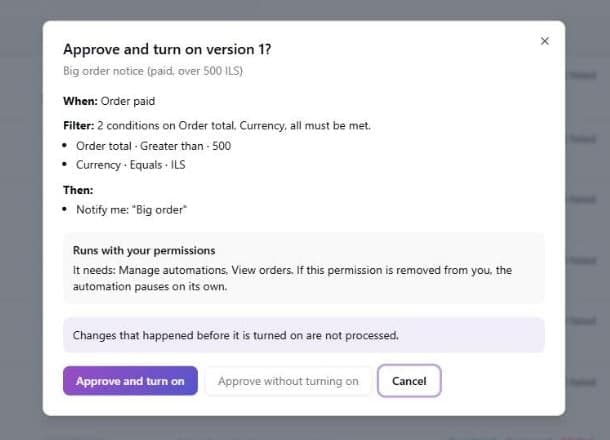
Whoever approves is the person the runs act as. Every action is done with that person's permissions. If that person later loses a permission the automation needs, the automation pauses by itself and its waiting runs are cancelled. A banner at the top of the page says so. To resume, a person who has the permissions turns it on again, and from then on the runs use their permissions.
Who can approve:
- Only a signed-in dashboard user. An AI tool or an API key cannot.
- They must hold every permission the automation needs. The dialog names any that are missing ("You are missing these permissions to approve or turn on this automation").
- A team member whose access is limited to some sales channels cannot approve or turn on an automation.
- A platform administrator who is not a member of your store cannot.
Turning on does not look back. "Changes that happened before it is turned on are not processed."
Your plan sets how many can be on at once. If you have reached the limit the dialog says "You reached the limit for this store". See Plans and limits.
Pause, resume and archive
- Pause ("Pause this automation?") has two choices: Pause new runs (changes from now on do not start it; changes already waiting in line finish) and Pause and cancel waiting runs (waiting runs are cancelled as well; an update already in progress finishes). Pausing undoes nothing already done.
- Resume (or Turn on) starts it again. A person does this in the dashboard.
- Archive ("Archive this automation?") stops it for good. An archived automation can never be edited or turned on again. Its history stays. Pause instead if you might want it back.
- Duplicate makes a copy as a draft, which needs its own approval.
Why did my automation not run
Work down this list. Each item is a real cause.
- It is still a draft. Look at the badge. A draft, or a version that was approved but not turned on, does nothing. Use Review and approve then Turn on.
- You approved version 1 but the change you made is version 2. Version 2 does nothing until it is approved and turned on. The older version keeps running.
- It is paused. A hand pause, or an automatic one because the person who turned it on lost a permission, or because one of its steps was retired ("Paused automatically: permission", "Paused automatically: an action it uses was retired").
- The event happened before you turned it on. There is no catch-up.
- The event does not match the trigger. For example Order paid does not fire for an order that is only created, Order delivered does not fire for Completed, and Order edited does not fire for a status change. See What can start an automation.
- The change came from an automation. An automation never starts itself, and a chain stops after 3 links. Changes from a store restore, migration or copy between stores never start one.
- Your plan. The Free plan has no automations, and a store that falls below Pro stops its runs ("Automations are not included in this store's plan"). When the plan's monthly actions are used up, runs are skipped ("The plan's automation actions for this billing period are used up").
- The hourly cap. One automation runs at most 2,000 actions an hour and a store 10,000. Over that, runs wait ("The hourly limit was reached. It will run later").
- The filter did not match. The history shows Skipped, "The condition was not met".
- Timing. A cart counts as abandoned after about an hour. A marketing consent change reaches an automation about a minute late. A schedule runs at its time on your store clock, and a missed run fires once, not for every missed time.
- It ran but skipped. For example the customer did not agree to marketing. See History and skip reasons.
Open ⋮ → History on the row. If the history is empty for the event you expected, the trigger did not start it (items 1 to 6). If there is a run, its result says why.
Run a failed run again
In the history, a run that Failed or Needs review has Run again. It runs with the same trigger event, from the start, using the version that is active now (fix what failed first). Points, stock, a coupon or a purchase order that the earlier attempt already added are not added a second time: Run again skips those steps and carries on with the next one, as long as they are unchanged since (if you edited one of them, Run again is refused). It is not offered when the run already emailed a customer or sent a request to another system (even if that run then failed), when the automation is not on, when the run is too old, when it was already run again many times, when it is a run that repeats over a list, or when it is not certain whether the run already acted ("Check the product").
What an automation can do (actions)
Every action in the Then block, what each one changes, what it never does (no refunds, no deleting, no discount codes in order emails), which need a condition, and how to wait, loop and call another system.
Automation history, skipped and failed runs
How to read an automation's history, what Updated, Skipped, Failed, Needs review and Waiting to retry mean, a table of every common skip and error reason in plain words, and which problems ring the bell.