 Brainerce Help
Build automations with an AI tool
Ask Claude, ChatGPT or another AI tool connected to your store to read, test and draft automations. By default it saves drafts and you approve and turn them on, in Settings, Automations. You can also allow it to turn on simple ones, with tags and notices to your team only.
An AI tool connected to your store over MCP can help you design automations: explain what is possible, check a draft against a real order, and save it for you to review. By default it cannot turn one on: you approve and turn it on in the dashboard. You can allow it to turn on simple ones (see Let your AI tool turn simple automations on). See Connect an AI assistant to connect one.
What an AI tool can do with automations
- Read the rules of automations: every trigger, action, condition field and limit, so a draft is written correctly the first time.
- List and read your automations, their versions and their history of runs.
- Test a draft on a real order, customer, product or cart. It shows what would happen and changes nothing and sends nothing. This is the same kind of test as Test on an order in the dashboard.
- Check a definition for mistakes before saving.
- Save a draft, either a new automation or a new version of an existing one.
- Pause an automation, optionally cancelling its waiting runs.
- Archive an automation. This is permanent, so a good tool asks you first. Ask it to pause instead if you might want it back.
What an AI tool can never do
- Unless you allow it, it cannot approve a draft, turn an automation on, or resume a paused one. A draft sits there doing nothing until you act in the dashboard. See Test, approve and turn on.
- Even when you allow it, it can never turn on an automation that messages customers, calls an outside service, cancels or pays an order, changes stock, prices or coupons, or changes many orders at once. Those are always turned on by a person in the dashboard. It also cannot resume a paused automation, switch to another version, or turn on one that a different team member approved.
- It cannot give itself a permission. It needs the View automations permission to read and Manage automations to test and save drafts. If you do not hold them, ask the store owner (see Team and permissions).
- It cannot save more than 50 drafts in 24 hours for your store.
- Do not take its word that something is on. If an AI tool says it has "turned on" an automation, open Settings → Automations and check the badge. A tool you have not allowed to turn automations on cannot have done it.
- It does not see a customer's name, email, phone or address, and neither does the automation it writes.
If your AI tool says it cannot find the automation tools
A connection made before 20 November 2026 was not given access to automations, so the tool cannot see them: it searches, finds campaigns or purchase orders, and may tell you Brainerce cannot do it. It can. Disconnect the Brainerce connector in your AI tool and connect it again, keep the permissions for automations ticked on the permissions screen, then ask again. A new connection is offered every permission. An API key made before that date has no Automations permission either: create a new key in Settings → API keys and tick Automations.
Let your AI tool turn simple automations on
You can let a connected AI tool turn an automation on after you tell it "yes" in the chat. It is off by default and you choose it yourself.
- When you connect (or reconnect) the AI tool, the permissions screen has a separate line, Turn automations on. Switch it on. It is a different permission from Automations, which only reads and saves drafts, and it works together with it: keep Automations switched on too, because switching on Turn automations on alone is not enough for the tool to turn anything on.
- Ask for the automation, for example "when an order is paid and the total is over 500, tag it big-order". The tool tests it on a real order and tells you what it will do and when.
- Say yes. The tool turns it on and tells you. It runs as you, the person who connected the tool, with your permissions.
What keeps this safe:
- Only simple automations. Adding or removing tags on orders or customers, and notices or emails to your own team. Anything that messages a customer, calls an outside service, cancels an order, or changes stock, prices or coupons is refused, and you turn that one on in Settings → Automations.
- You need the Manage automations permission yourself. If you do not hold the permission an automation needs, it is refused.
- It cannot do it with an API key. Only a connection signed in as a person can.
- It is recorded. Brainerce's audit log keeps that an AI tool approved and turned it on, and which person's connection it was.
- You can stop it any time: Pause it in Settings → Automations, or ask the tool to pause it.
If an AI tool tells you "I can only save drafts", the permission Turn automations on was not given when you connected. Disconnect, connect again and switch it on, or just turn the automation on yourself in the dashboard. It does not need to be on for the tool to build and test drafts.
BOBO in the dashboard
BOBO, the assistant in the dashboard chat, does everything on this page that an AI tool does: it reads the rules, lists and explains your automations, tells you why one did not run, tests a draft on a real order, saves a draft, and pauses or archives one (it asks first). It cannot approve a draft or turn one on either. You do that in Settings → Automations. Say what you want in plain words, for example "when an order is paid and the total is over 500, tag it big-order", and BOBO builds the draft, tests it on one of your orders and tells you what it would do. BOBO's own schedules are a different feature: see Schedules.
What to say
Be concrete about the trigger, the condition and the action, and ask for a test before it saves:
- "When an order is paid and the total is over 500, tag the order big-order and tell me in the bell. Test it on my last 3 orders before you save the draft."
- "Every morning at 9, find orders that are still unpaid after 3 days, tag them unpaid-3d and send me a notice with how many there are."
- "When a variant sells out, notify me with the product and variant name."
- "Show me the automations I have and which ones failed this week."
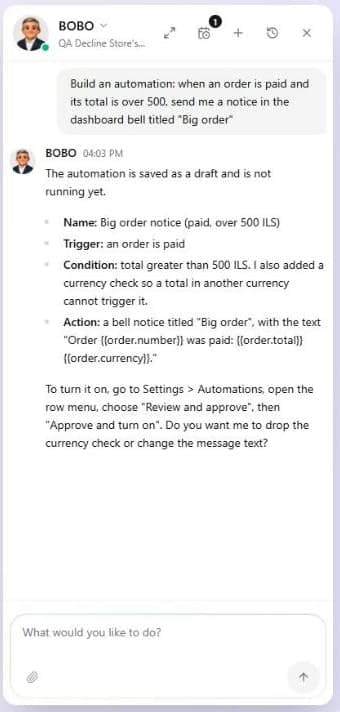
Then check the draft yourself: open Settings → Automations, open the row menu ⋮, and click Review and approve. The dialog shows exactly what will run and which permissions it uses. Read it as if you had built it by hand. Then click Approve and turn on.
An automation an AI tool built may be view-only in the editor
An automation built by an AI tool or the API can use a shape the dashboard editor cannot draw. The editor then says "This automation was built outside this editor ... It is shown as saved and will not be changed here." You can still approve, pause and archive it, and you can ask the AI tool for a new version.
Developers
Developers who build against the API or SDK have their own pages in the developer docs. This help article is for store owners.