 Brainerce Help
Automation plans and limits
Which plans include automations, how many can be active, how many actions a month you get, what happens when they run out, and every other limit (steps, waits, connections, hourly caps).
Which plan do I need for automations
Automations are a paid feature.
| Plan | Active automations at the same time | Actions per month |
|---|---|---|
| Free | None. The page shows an upgrade prompt. | None |
| Pro | Up to 10 | 5,000 |
| Growth | Up to 25 | 50,000 |
| Enterprise | By agreement | By agreement |
On a Free store the Automations page shows "Automations are included in paid plans" and a See plans button, not an error. Nothing is lost: you can upgrade at any time and start building.
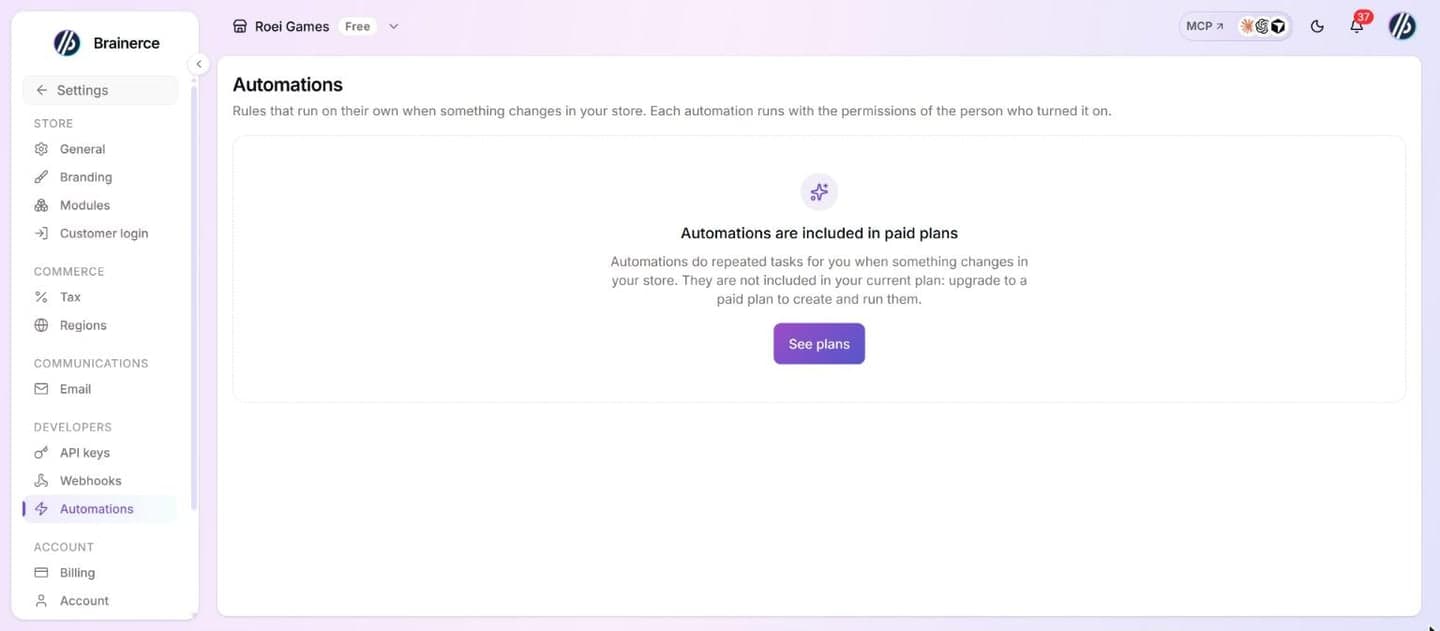
See Plans and limits for the rest of your plan and Upgrade your plan to change it. Only the account owner changes the plan.
How the active limit works
- Paused, archived and draft automations do not count toward the active number. Only automations that are Active do.
- The limit stops you turning another one on. It never switches a running one off. If your store moves to a lower plan, the automations that are already on keep their place, and you cannot turn on another until you are under the limit. If you drop below Pro, runs are skipped with "Automations are not included in this store's plan" until you upgrade.
- When you reach the limit, Approve and turn on says "You reached the limit for this store". Pause or archive one, or upgrade.
- There is also a limit of 10 active automations on the same trigger, even on a plan that allows more. A store on Growth cannot have 11 active automations that all start on Order paid.
What counts as an action
Each thing an automation does counts as one action: a notice, an email, a tag, a field change, an HTTP call. An automation that adds a tag and sends a notice counts 2 actions per run. A repeat over a list counts every action for every item: a loop over 100 customers with 2 actions is 200 actions. A run where the condition was not met, and a skipped run, do not do anything, so they use no actions.
Actions are counted per billing cycle.
What happens when the actions run out
The cap is soft. It is checked when a run starts. At the cap, new runs are skipped with a visible reason, never failed: "The plan's automation actions for this billing period are used up, so this run did nothing. Upgrade the plan, or wait for the next period." A run that was already going may finish a little past the cap. Skipped runs are not made up later: the events that arrived in the meantime are not replayed when the next cycle starts. Upgrade, or wait for the cycle to renew, then new events run again.
Other limits
| Limit | Value |
|---|---|
| Automations that are not archived, per store (drafts and paused ones count) | 50 |
| Active automations on one trigger | 10 |
| Versions of one automation | 100 |
| Steps in one automation | 30, up to 3 levels deep |
| Waits in one automation | 3, adding up to at most 90 days (one wait: 5 minutes to 90 days) |
| Actions per hour, one automation | 2,000 |
| Actions per hour, whole store | 10,000 |
| Items read by one Get step | 200 (50 when it feeds Tag all the orders found) |
| Get steps in one automation | 2 |
| Repeat for each one found in one automation | 1, with up to 5 actions |
| Tags in one tag action | 20 |
| Team members on one Email the team | 5 |
| Rows in a lookup table | 2,000 |
| HTTP connections in a store | 50 |
| Drafts saved by AI tools or the API in 24 hours, per store | 50 |
When an hourly cap is reached the run waits and goes later ("The hourly limit was reached. It will run later").
Who can use automations in your team
- View automations lets a person see the page and the history. Manage automations lets them build, test, pause and archive. By default only the store Owner can manage; a Manager can only view; Staff and Viewer cannot see the page. Change this under Settings → Team. See Team and permissions.
- Each automation also needs the permissions of what it does (for example Update orders or Edit coupons), held by the person who approves it. See Test, approve and turn on.
Automation history, skipped and failed runs
How to read an automation's history, what Updated, Skipped, Failed, Needs review and Waiting to retry mean, a table of every common skip and error reason in plain words, and which problems ring the bell.
Build automations with an AI tool
Ask Claude, ChatGPT or another AI tool connected to your store to read, test and draft automations. By default it saves drafts and you approve and turn them on, in Settings, Automations. You can also allow it to turn on simple ones, with tags and notices to your team only.