 Brainerce Help
Set up shipping zones and rates
Define where you ship and how much it costs, with flat, free, weight-based, price-based, or local pickup rates. Also the checklist for a shipping option not showing at checkout or a customer seeing no delivery option, and how a free shipping threshold works.
A zone is a group of places you ship to; a rate is a shipping option (and its price) inside that zone. Set both up under Shipping → Zones & Rates.
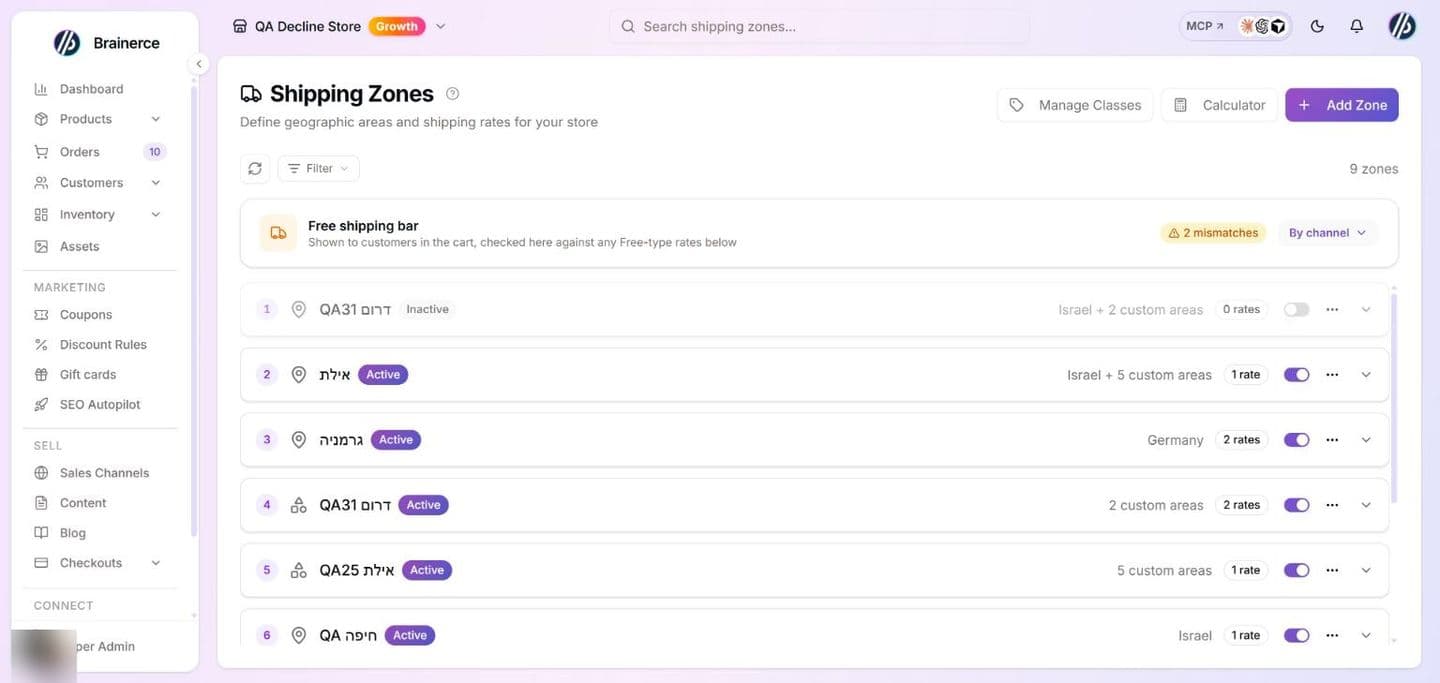
1. Create a zone
- Go to Shipping → Zones & Rates.
- Click Add Zone.
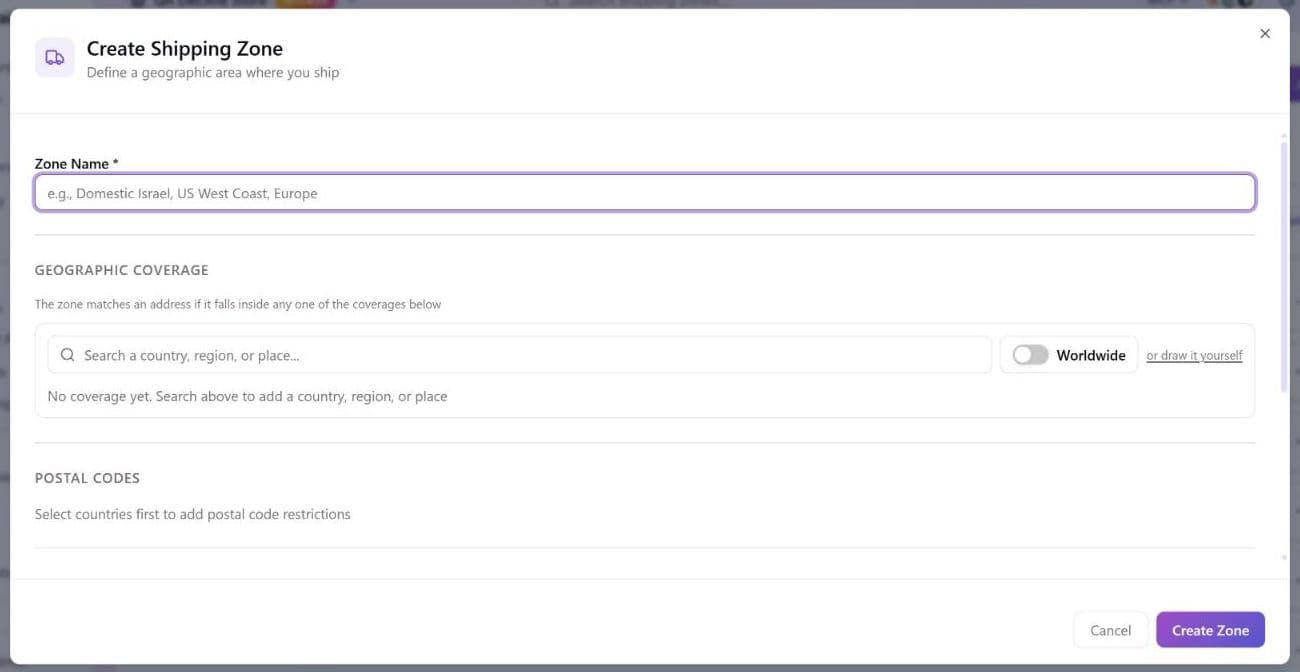
- Give the zone a Zone Name (e.g. United States, Europe).
- Add the Countries it covers, or turn on Worldwide to cover everywhere. The Countries & Regions picker lets you browse by continent or search, use Select all and Deselect all (also per continent), and open a country to pick only some of its states or provinces. A country with no state ticked covers all its regions ("No selection = all regions included"); with some ticked, an address in another state of that country does not match.
- (Optional) Narrow it with Postal Codes (pick the countries first; postal codes are not available on a Worldwide zone; separate several with commas), set a Priority (lower numbers are checked first, default 0) and leave Active on. Leave Availability by currency region empty unless you know you need it. See Why a zone is never offered below.
- Click Create Zone (Save Changes when editing).
How postal codes match. A plain code must equal the customer's code exactly, character for character, so type it the way customers write it (SW1A 1AA and SW1A1AA are different). A trailing * is a prefix wildcard: 90* matches every code that starts with 90. There are no ranges: 94100-94199 matches nothing, even though the field accepts the text. A postal restriction is only checked once the customer has entered a postal code, and the same holds for a state restriction: an address without a state is not rejected by it.
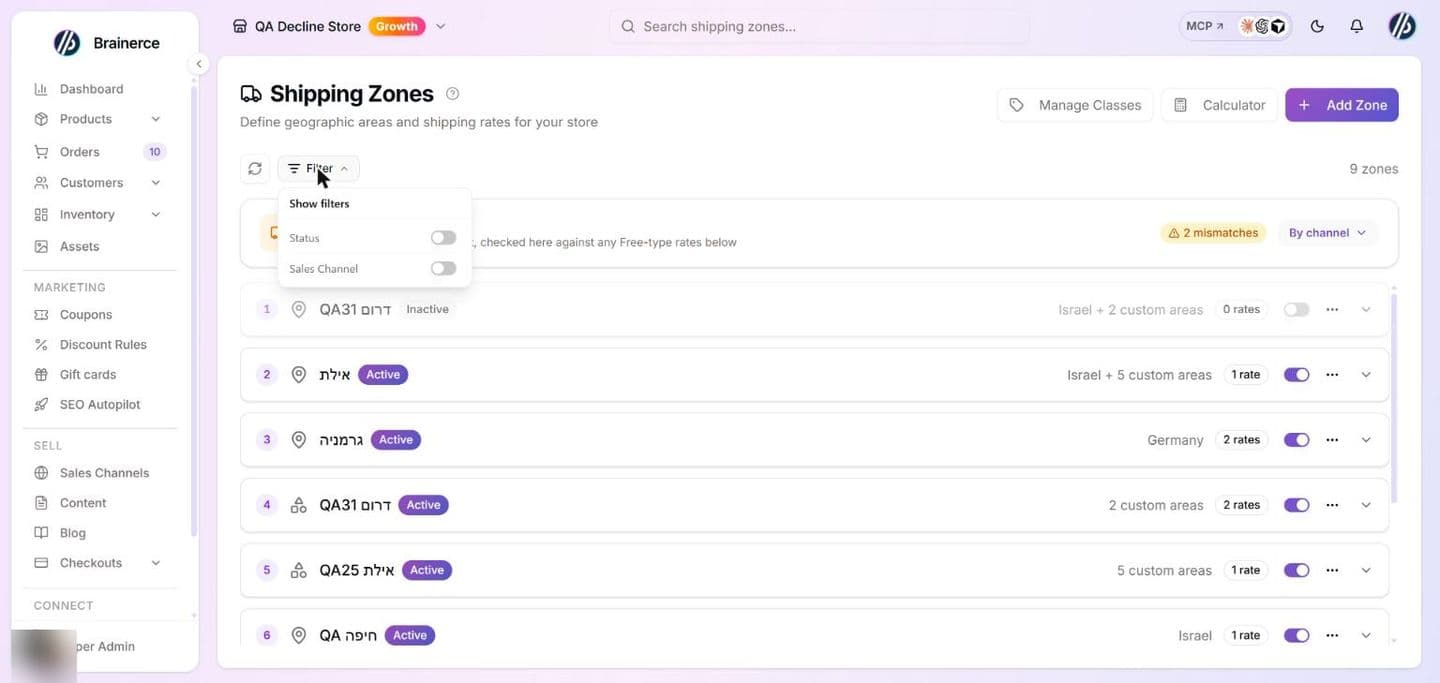
The Zones page. It lists your zones 20 to a page with the number of zones, a Status filter (Active or Inactive) and a Sales Channel filter. Each zone shows its countries (or the number of custom areas you drew), its rate count and an active switch, and opens to its rates. Deleting a zone asks for confirmation and also deletes all its rates; this cannot be undone. Manage Classes and Calculator sit in the page header.
2. Add a rate to the zone
-
Expand the zone and click Add Rate.
-
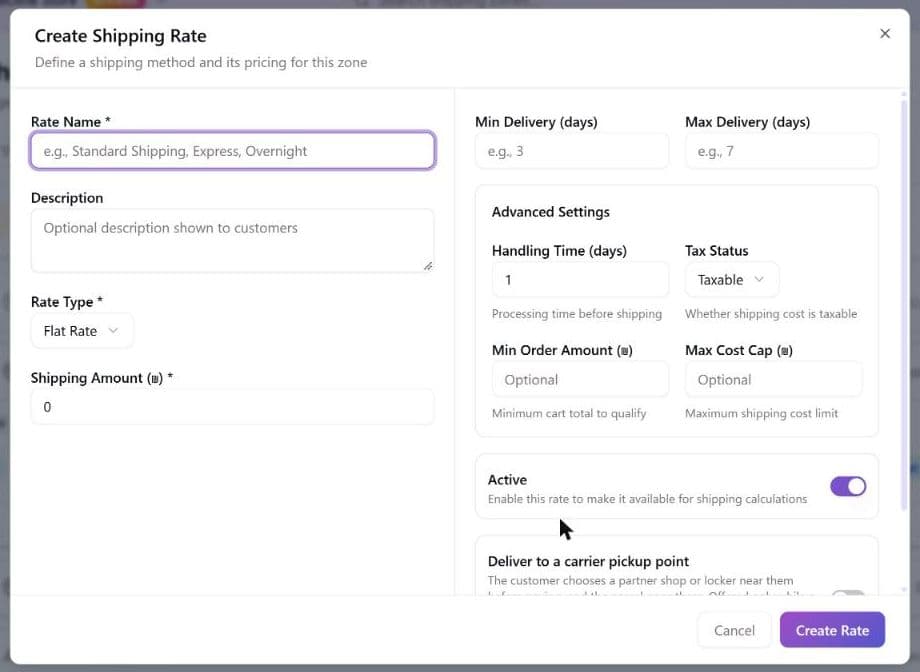
Give it a Rate Name (this is what customers see at checkout) and pick a Type:
Rate type What it does Flat rate A fixed price per order. Free shipping Free for every order the zone matches, or only above a minimum you set. Weight-based A Base Rate plus a Per Kg amount, with an optional Max Weight (kg): above it the rate is not offered. Weight is in kilograms only. Price-based Different prices by order subtotal (tiered). The dashboard edits a single tier; see below. Local pickup The customer collects in person at a location you set, with an optional Pickup Fee (0 for free pickup). Location Name, Pickup Address, City and Country are required; Region, Postal Code, Location Phone, Business Hours and Pickup Instructions are optional. A Flat rate has one Shipping Amount. Amounts are in your store currency, with two decimals, and cannot be negative. The Rate Name is required.
-
(Optional) Add a Description, Min Delivery (days) and Max Delivery (days) (shown at checkout as a range, or as one figure when both match), and a Handling Time (days) (processing before shipping). Under Advanced Settings you can also set a Max Cost Cap (the calculated price never goes above it), a Min Order Amount (the basket total a customer must reach before this rate is offered), a Tax Status and the Deliver to a carrier pickup point switch. All of them are applied at checkout.
-
Make sure the rate is Active (a switched off rate is never offered) and click Save. Delete a rate from its row; the confirmation says it cannot be undone.
The zone's rate list shows each rate with its type (Flat rate, By weight, By price, Free, Local pickup), its price (Free over 50, Always free or Tiered for the others), its delivery days and an active switch.
A rate that delivers to a carrier pickup point
On any rate, switch on Deliver to a carrier pickup point to make it a pickup shop or locker delivery instead of a delivery to the door. The customer picks the rate and then a point near them before paying, and the parcel goes there. Give it its own price.
- It is offered only while a connected shipping app lists pickup points for the customer's country. Today that is Cheetah (Israel). With no such app connected the rate is never shown, so it is safe to create it first.
- It is offered only by a storefront that can show the shop picker: the Brainerce starter does. A storefront built earlier does not show this rate until its developer adds the picker.
- The customer cannot pay without choosing a point. An order that chose one is shipped to that point by the app that listed it.
- A pickup point rate is not the same as Local pickup, where the customer collects from your own address.
Free shipping over a certain amount
Add a Free shipping rate and put your threshold in its Minimum Order Amount box: 50 for "free delivery over $50". Below that basket total the free rate is not offered; at or above it, delivery is free. This is applied at checkout, and the dashboard calculator shows the same thing.
The total compared against your threshold is the basket after discounts. A $60 basket with a $15 coupon counts as $45, so it does not reach a $50 threshold. Set the number with that in mind if you also run coupons.
Always leave a paid rate in the same zone. A free rate that isn't offered leaves nothing in its place: if it is the only rate in that zone, a customer under your threshold sees no delivery option at all and cannot finish the order. Pair every "free over X" rate with a normal paid rate in the same zone.
A Price-based rate does the same job in one rate, and is the better choice if you want a real price below the threshold: one tier that costs your normal price from $0, and a second tier from $50 upwards that costs zero.
The Create Rate and Edit Rate windows in the dashboard edit only ONE tier (the Min Order and Shipping Rate boxes under Price Tiers). More than one tier can only be set through the API or the MCP tools (the rate's tiers list), or by asking the AI assistant. Saving a Price-based rate from the dashboard after changing those two boxes replaces all its tiers with that single one. Do not open and save a multi-tier rate in the dashboard unless you want that.
The sales-channel free-shipping threshold (set per channel, not on the rate) is a separate mechanism: it zeroes the price of rates above the amount you set, rather than hiding them below it. The free-shipping check on the Calculator page (see below) tells you whether such a threshold has a FREE-type rate behind it at all.
The "X more for free shipping" bar in the cart reads the channel threshold, not your rates
The progress bar a storefront shows in the cart ("Add $12 more for free shipping") takes its number only from the sales-channel free-shipping threshold under Sales Channels → your channel → Upsell & Cross-sell. It does not read your Free shipping or Price-based rates, because the cart does not know the shopper's address yet and so cannot tell which zone, and which rate, will apply.
So if you give free delivery through a rate (for example a Price-based tier that costs zero from ₪200), the bar stays hidden until you also enter 200 as the channel threshold. Keep the two numbers the same. If they differ, the bar promises one figure while checkout charges by the other; the free-shipping check on the Calculator page flags exactly that mismatch.
Two fields, similar names. The Minimum Order Amount box on a Free shipping rate is the "free above this" threshold. The Min Order Amount under Advanced Settings is a different setting on every rate type: it hides that rate entirely below the amount. Both are applied at checkout, and you can set both on one rate.
Is VAT charged on the delivery charge?
By default yes, whenever a tax rate matches the customer's address: the delivery charge is taxed at your standard rate, the same one used for products with no tax class.
To stop that, open the rate, and under Advanced Settings set Tax Status to No Tax. Postage on that rate is then not taxed at all, and the customer pays the delivery price exactly as you entered it. Leave it on Taxable (the default) and nothing changes.
Two limits worth knowing before you rely on it:
- It is per rate, not per country. If one rate serves several countries and only one of them exempts delivery, Tax Status cannot express that, so split the countries into separate zones with their own rates.
- Delivery is always taxed at your standard rate when it is taxed. You cannot put the delivery charge in a reduced tax class.
- Live carrier rates ignore it. A rate quoted by a connected carrier app is always taxed; Tax Status only exists on rates you create yourself.
Whether delivery is taxable where you sell is a question for your accountant. Brainerce applies whatever you set here and does not check it against any jurisdiction's rules.
Shipping classes: charge more for certain products
Some products cost more to ship (bulky, fragile, oversized). Use Manage Classes on the Zones page to create Shipping Classes, which are named groups like "Oversized" or "Fragile". Assign products to a class, then on a rate open Shipping Class Costs and add the extra cost for each class. It is added to the rate's base cost. Choose the Class Calculation Type:
- Per Class: the costs of all the shipping classes in the order are added up.
- Per Order: only the highest class cost in the order is used.
- Per Item: the cost is multiplied by the quantity, so 3 mattresses cost 3 times the class cost. You can set a First item cost and an Each additional cost.
Products with no class use the No Shipping Class cost on the rate (the extra charge for products without a class, which can be zero). Deleting a class does not delete its products: they just become unassigned, and the confirmation says so.
Manage Classes opens a table of Class Name, Slug, Description and the number of products in each class. Add Class takes a Class Name (required), a Slug (lowercase key, filled in from the name until you edit it) and an optional Description. A product gets its class in the product form.
3. Preview which rates apply
Use the shipping calculator to enter a destination (and optional weight/price) and see which rates a customer there would be offered, which is handy for checking your zones before you launch. It prices rates with the same calculation the live checkout uses, so what it shows is what a customer there would be offered. One thing to watch: it knows nothing about discounts, so when you are testing an order-total threshold, type the basket total after any coupon has come off. See Test what a customer would pay below.
Shipping option not showing at checkout: why a shopper sees no delivery option
If a customer says they see no shipping option or no delivery option at checkout, or a rate you expected is missing, go through this list. Every item is explained further down this page.
- No zone covers the delivery address. Brainerce picks exactly one zone for the address; if none matches, there is no delivery option and the order cannot be finished. Check the zone's countries, postal codes or drawn area.
- The zone or every rate in it is switched off, or the zone is restricted to a different sales channel or currency region. See Why a zone is never offered to anyone.
- The address arrived with no country, so a zone that works from a country list cannot match. See Some addresses arrive with no country.
- Another zone won. Only the winning zone's rates are shown, never several zones combined. Lower the Priority number of the zone you want.
- The basket is below a threshold (Min Order Amount, a free rate's Minimum Order Amount) or above a weight-based rate's maximum weight. Keep one rate with no threshold in every zone.
- The only rate is local pickup or a pickup point. Pickup is offered for the whole store, not by address, and only by a storefront that can show the pickup picker. It never appears as a delivery option.
The shipping calculator under Preview which rates apply shows what a customer at a given address would be offered.
How the winning zone is chosen
When a customer enters their address, Brainerce picks exactly one zone for that address and shows only that zone's rates. Several zones can cover the same address, but only the winner supplies the delivery options; they are never combined.
The winner is chosen in this order: lowest Priority number first, then a drawn shape beats a country list, then the smaller drawn area wins. So a neighbourhood you drew inside a country-wide zone takes the address, and the country-wide zone's rates are not offered alongside it.
This is why you may not see both your rates at checkout. If a rate you expected is missing, it is usually sitting in a zone that lost, not switched off. Put its zone on a lower Priority number to make it win. If nothing matches at all, the customer sees no shipping option, which can stop the order, so double-check that your zones cover every place you sell.
A rate can also drop out because of the basket, not the address. The winning zone's rates are each checked against the customer's basket, and one is hidden when the basket is below its Min Order Amount, below a free rate's Minimum Order Amount, or above a weight-based rate's maximum weight. That is the point of those fields, but it means a zone whose every rate has a threshold can leave a small basket with no delivery option at all. Keep one rate in each zone with no thresholds on it.
If the basket changes after the shopper picked a delivery option
Delivery is priced again whenever the basket changes during checkout (an item removed, a quantity changed, a coupon added or removed). The rate the shopper already picked is checked against the new basket total:
- It stays, at its new price, when it is still offered. A Free shipping rate threshold or a Price-based tier that the new total crosses changes the price in either direction: free delivery is taken away when the total falls below the threshold, and a delivery fee disappears when it rises above it.
- It is cleared when the new basket no longer qualifies for it (for example the total fell under the rate's Min Order Amount, or a live carrier no longer offers it). The shopper is sent back to choose delivery again, and nothing is charged for a figure they did not see. Pickup rates are left alone.
- A discount rule of the type shipping discount (free or cheaper delivery) lowers the rate it applies to, and the channel's free-shipping threshold zeroes the price once the total after discounts reaches it. Both are applied after the rate's own price is worked out.
Drawing a zone on the map
Countries and postal codes don't always describe where you actually deliver. The Geographic Coverage panel lets you draw the area instead: search for a place, or draw a shape directly on the map, and the zone covers exactly what you outlined. You can draw several shapes for one zone and label each.
This is the right tool for local delivery ("within these streets", "this side of the river") where a postal-code list would be both long and wrong.
How it works in the panel:
- Search a country, region or place. For a place with a mapped boundary, choose Use this exact area, or or draw it yourself. If no boundary is found, the outline is a small placeholder of about 330 m across, and a notice tells you to drag its points out to your real delivery area before saving.
- Draw with Draw freehand (click and drag to trace the boundary) or Click points (click to add points, press Enter or click the first point again to finish). Undo last point, Clear and redraw and dragging points adjust the shape, and Save coverage adds it.
- A zone matches an address if it falls inside any one of its coverages (country rows and custom areas).
- A zone holds at most 10 shapes (parts) and 500 points in total. A more complex shape cannot be saved: simplify it.
- A zone needs at least one coverage, a country (or Worldwide) or a drawn area, and a name, or it cannot be saved.
Some addresses arrive with no country
Address search does not return a country for every place. For certain settlements, including ordinary residential addresses in Israel such as Ramat Shlomo, Givat Ze'ev, Modi'in Illit and Ma'ale Adumim, the address lookup comes back with the street and city filled in but the country blank, because the map provider declines to attribute them to one.
A zone that works from a country list can never match such an address. A blank country is in nobody's country list, so the zone is skipped and the customer sees no delivery option, which looks exactly like shipping being broken, and is the most common reason a merchant reports it. Only two things cover these addresses: a shape you drew on the map over the area, or a zone with Worldwide turned on.
Brainerce does not guess the missing country, and it deliberately does not fall back to your store's own country, because that would silently ship the wrong quotes. The customer can still pick the country themselves in the checkout form, and once they do, a country-list zone matches normally. But you cannot rely on that happening.
If you deliver to any of these places, draw the area on the map rather than listing countries. Then test it in the Calculator below with a real street address from that area, not just the city name.
Why a zone is never offered to anyone
A zone can be switched on, cover the right streets, and still never appear at checkout. The zone list marks some of these with a Never offered badge; hover it for the reason. The badge appears for three of the five reasons below (every rate switched off, covers nowhere, and a currency region that no longer exists or is switched off). The other two, a sales channel restriction and an address that arrives with no country, never show a badge, so check them yourself when a customer cannot be delivered to. The five reasons:
- Every rate in it is switched off, so there is nothing to offer. (A zone holding only a local pickup rate is fine and is not flagged, because pickup is offered at checkout for the whole store, without matching the address. It just never appears as a delivery option.)
- Availability by currency region is set. This field is not geography. It refers to the currency/tax regions under Settings → Regions (e.g. one region charging in shekels, another in dollars), and it is checked before the map is. A zone limited to a currency region is skipped unless the delivery address's country belongs to that region: it follows where the parcel goes, not the currency the shopper happens to be browsing in. If the region you limited it to was deleted or switched off, the zone is never offered to anyone until you clear the restriction (the zone list says so on the Never offered badge). A store with only one currency region ignores the restriction and clears it when you save. (If the delivery country belongs to no region, the checkout's own region is used, then your default region.) Unless you deliberately price by currency region, leave it empty.
- Restricted to a different sales channel. See the next section.
- It covers nowhere, with no countries selected and no shape drawn.
- It lists countries, but the address arrived without one. Address search returns a blank country for some places. See Some addresses arrive with no country above. A country-list zone can never match a blank country; only a drawn shape or a Worldwide zone can.
Nothing about a delivery address makes a zone "wrong" on its own: if a customer says they can't get delivered to and you believe they should, check these five before redrawing the map.
Limiting a zone to one sales channel
A zone can also carry a Sales channels restriction, so it only applies to buyers from the channels you pick. Use it when a marketplace and your own storefront ship on different terms. Leave it empty and the zone applies everywhere.
Test what a customer would pay
The Calculator button on the Zones page opens a rate calculator. Fill in the Destination Country (required), an optional Region, an optional Street address and city (needed to test a zone you drew on the map), the Package Weight (kg) (for weight-based rates) and the Order Amount (for price-based and free rates), then press Calculate Shipping. It shows which rates match and what they cost, with the estimated delivery and the Cheapest Option. Use it after any change to zones or rates. It is much faster than putting a test order through checkout, and it tells you why nothing matched when nothing matches.
The Calculator and the real checkout price rates identically. Both run the same calculation, so a rate the Calculator drops for a basket (under its Min Order Amount, under a free rate's Minimum Order Amount, or over a weight-based rate's maximum weight) is a rate a real customer with that basket is not offered either. Enter the basket total and weight you want to test, not just the address.
Enter the total after any discount. At checkout these thresholds are measured against the basket total once coupons and automatic discounts have come off; the Calculator has no notion of discounts and takes the number you type at face value. A $60 basket with a $15 coupon must be tested here as $45, or the Calculator will show a "free over $50" rate the customer won't get. The Calculator also can't know a live carrier rate's own availability rules, so confirm those with a test order.
Under the results it lists every zone that did not take the address, with the reason for each: outside its countries and drawn areas, excluded by its currency-region restriction, restricted to another sales channel, covered it but has no active delivery rate, or covered it but lost to a zone with a lower Priority number. If it says the address could not be placed on the map, add the street and city, because without a street an address can only be located at the centre of the city, and a zone drawn around a neighbourhood can never match that.
The same page carries a free-shipping check, which compares each sales channel's free-shipping threshold against the FREE-type rates you've configured. A threshold with no matching free rate behind it silently never triggers, and this is what catches it.
What's next?
Need a hand? Email [email protected].
Shipping overview, ready to ship and parcels that need attention
What the Shipping page shows you, which paid orders are waiting for a label or tracking number, how to cancel a label, and what each warning means.
Connect Shippo or EasyPost for live carrier rates and labels
Install Shippo or EasyPost from Apps, paste your own key, set a ship-from address and package defaults, and see what each one can and cannot do in Brainerce.