 Brainerce Help
Order status and shipping
Move an order through its statuses, record a carrier and tracking number, and customize the status list to match how your team works.
Brainerce moves an order forward through its status, and records shipment details (carrier, tracking number, tracking link) on the Shipping page. You can work either way round: mark the status by hand, or record tracking and let the status follow.
Order statuses
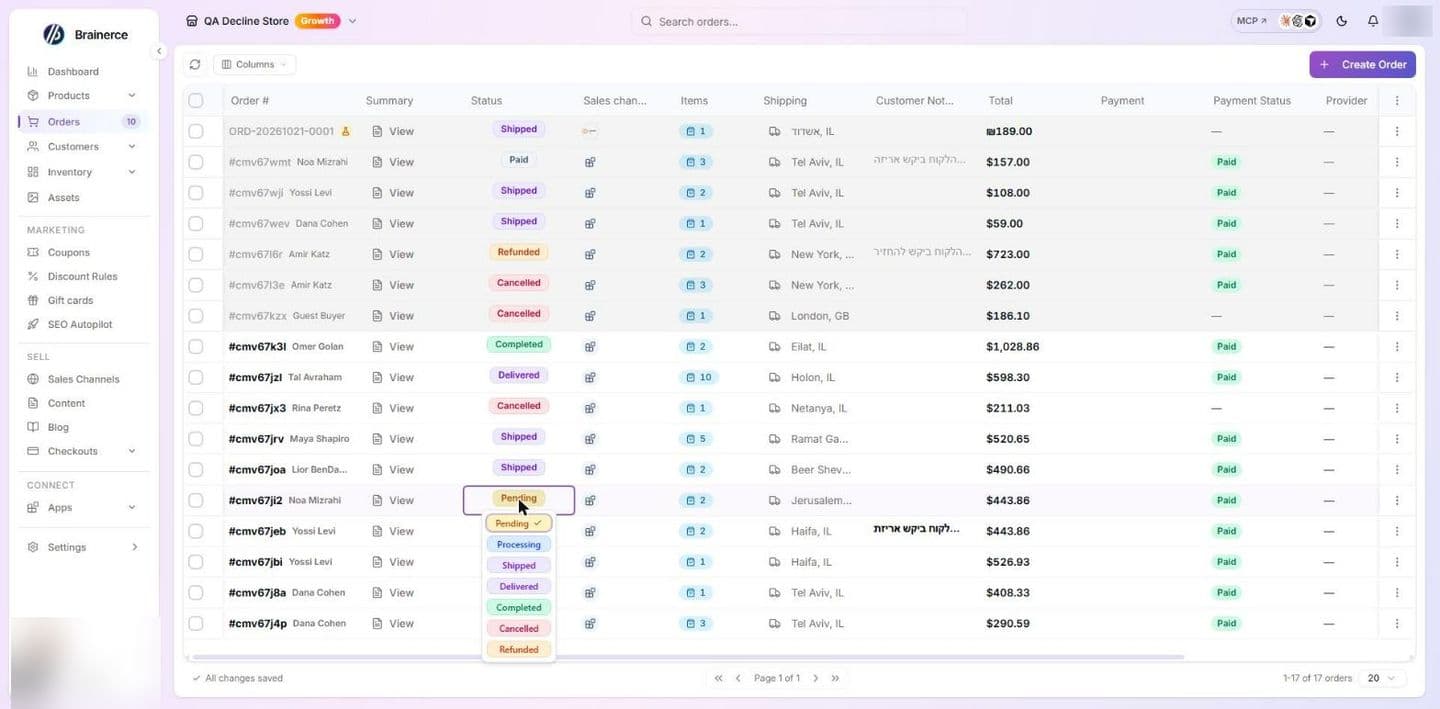
Brainerce has twelve built-in statuses. Order Settings → Status Labels lists all twelve. The Status dropdown on an order row can offer seven of them, plus your own custom statuses. A built-in status is offered only while its visibility switch is on. All seven start with the switch on (see below):
| Status | In the row dropdown? | Switch in Order Settings by default | What it means |
|---|---|---|---|
| Pending | Yes | On | Order created; not being worked yet. |
| Processing | Yes | On | Being prepared. |
| Shipped | Yes | On | On its way to the customer. |
| Delivered | Yes | On | Arrived with the customer. |
| Completed | Yes | On | Fully handled and closed. |
| Cancelled | Yes | On | Order voided. |
| Refunded | Yes | On | Fully refunded. |
| Draft | No | Off | Not yet a real order. |
| On hold | No | Off | Paused, waiting on stock or the customer. |
| Paid | No | Off | Payment settled, work not started. |
| Fulfilled | No | Off | Every item shipped. |
| Partially refunded | No | Off | Some of the order was refunded. |
The five statuses marked "No" are not offered in the row dropdown. A partial refund sets Partially refunded by itself, and Draft appears only on a quote created by the AI assistant or a connected AI agent, or on an old draft left over from the retired Shopify connection. To be able to pick On hold, Paid, Fulfilled or Partially refunded by hand, add a custom status that maps to it (see Customize your order statuses).
The visibility switch decides whether a built-in status is offered in the row dropdown. Of the seven built-in choices, a status whose switch is off is left out. All seven ship with the switch on, Delivered included, so a new store offers all seven. A store set up before Delivered was switched on by default may still have it off: if Delivered is missing from your dropdown, switch it on under Order Settings → Status Labels. If you switch one off in Order Settings → Status Labels it disappears from the dropdown until you switch it back on. An order that is already in a hidden status still shows it and keeps it in its own dropdown. The switch cannot add the five statuses marked "No" above: turning on On hold, Paid, Fulfilled, Partially refunded or Draft does not put them in the dropdown. A hidden custom status is not offered either.
Note: an order can reach a status that is not in the dropdown. Issuing a partial refund sets Partially refunded whether or not you can pick it, so if refunds are part of your workflow, a custom status mapped to it is worth adding.
Move an order forward
- Open Orders in the sidebar.
- On the order's row, click the Status cell and pick the next status, typically Processing → Shipped → Completed.
The change saves immediately and shows Order status updated. If the jump is not allowed, nothing changes: the cell goes back to its old value and a red message gives the reason.
Which status changes email the customer
Picking a status here can send an email to the customer, so pick it when you want them told. Only these statuses send one, and only to an order that has a customer email address:
| You set the status to | The customer gets | Notes |
|---|---|---|
| Shipped | The shipped email | It carries the tracking number, carrier and Track link only if the order already has them. To send tracking with it, use Add tracking (below) instead of the dropdown. |
| Cancelled | The cancellation email | The store owner gets a copy too. See Settings → Email. |
| Delivered or Completed | The order completed email, with download links for digital products | A direct move between Delivered and Completed, in either direction, does not send it a second time. |
| Anything else: Pending, Processing, On hold, Paid, Fulfilled, Partially refunded, Refunded | Nothing | A refund email comes only from the Refund action with Notify customer via email ticked. |
Each of these emails can be switched off under Settings → Email → Sending and domain. A status picked by a custom status follows the built-in status it maps to. An order with no customer email gets nothing.
Which status changes are allowed
The dropdown lists every built-in choice whether or not the order can reach it, so it is the server that refuses an impossible jump. Your own custom statuses are different: the dropdown only offers the ones the order can reach. This is the full list of what each status may move to:
| From | Can move to |
|---|---|
| Draft | Pending, Cancelled |
| Pending | Processing, On hold, Paid, Shipped, Completed, Cancelled |
| Processing | On hold, Shipped, Completed, Fulfilled, Cancelled |
| On hold | Pending, Processing, Cancelled |
| Paid | Processing, Shipped, Completed, Fulfilled, Cancelled, Refunded |
| Shipped | Delivered, Completed, Fulfilled, Refunded, Partially refunded |
| Delivered | Completed, Fulfilled, Refunded, Partially refunded |
| Completed | Fulfilled, Delivered, Refunded, Partially refunded |
| Fulfilled | Delivered, Completed, Refunded, Partially refunded |
| Partially refunded | Refunded |
| Cancelled | Nothing: final |
| Refunded | Nothing: final |
Cancelled needs the cancel permission and Refunded needs the refund permission. Setting a status to Cancelled needs a role that can cancel orders, and Refunded or Partially refunded needs a role that can refund orders, on top of the right to update orders. A Staff member has neither by default: those choices are left out of their Status dropdown, and the server refuses the move if it is attempted another way (the API, the admin MCP tools or the AI assistant).
What follows from the table:
- Cancelled and Refunded are final. Once an order has either, it cannot be moved to any other status.
- Once an order is Shipped, Delivered, Completed, Fulfilled or Partially refunded, it can no longer be cancelled. Refund it instead.
- An order cannot go backwards: Shipped cannot return to Processing, and Pending cannot jump to Delivered or Refunded.
- An order On hold goes back to Pending or Processing before it can ship. It cannot jump straight to Shipped.
- Setting an order to the status it already has is accepted and does nothing.
An unpaid order cannot be moved to Shipped, Completed or Fulfilled. If the order was paid outside Brainerce (cash on delivery, a bank transfer, a card machine) record it first with the order's ⋯ → Mark as Paid, then set the status. See Process an order. (Recording tracking with Add tracking, below, is the one exception: it marks the order shipped even when it is unpaid, which is what you want for cash on delivery.)
Customize your order statuses: recolor, hide, reorder, add your own
Open Orders, click the table's ⋮ menu (in the last column header), choose Order Settings, then Status Labels. The list shows every status with a drag handle, a color swatch, the name and a visibility switch. Changing any of it needs a role that can manage store settings; a role that can only view them sees the list and gets an error on save.
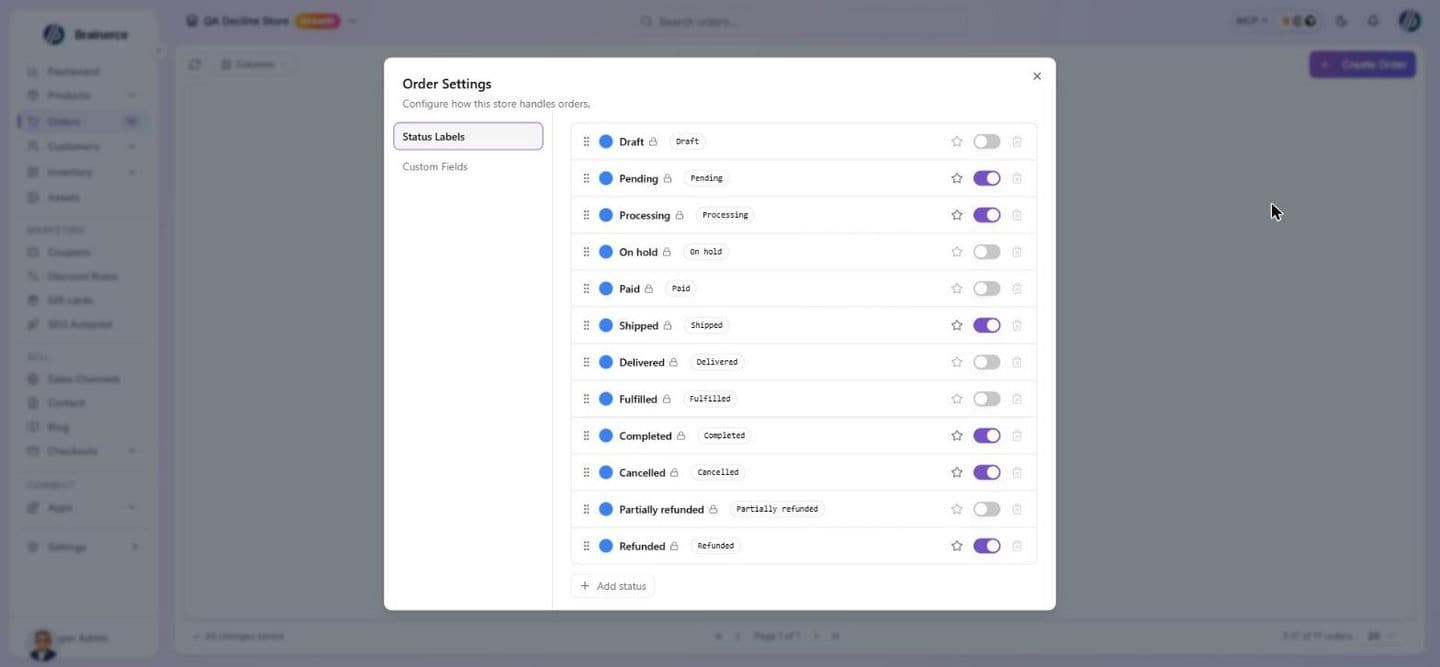
The twelve built-in statuses cannot be renamed or deleted. Hover the name and it says "System status: name & mapping are locked". On a built-in status you can:
- Recolor it with the color swatch.
- Reorder it by dragging the handle.
- Hide or show it with the visibility switch. Turning a built-in status off takes it out of the row dropdown (see Order statuses), except on an order that is already in it. Orders already in a status keep it either way.
To use your own wording, add a custom status. Click Add status, then:
- Type a Name (up to 60 characters), for example "Printed" or "Awaiting Pickup".
- Under Maps to, pick the built-in status it behaves like. This is the part that matters: stock, refunds, emails and which jumps are allowed all follow the built-in status your custom one maps to. "Awaiting Pickup" mapped to Processing behaves exactly like Processing.
- Pick a Color and click Add.
A custom status can be renamed (click its name), recolored, hidden and deleted. Hiding a custom status takes it out of the row dropdown. Deleting asks you to confirm and does not touch the orders in it: they fall back to the built-in status it was mapped to. The color is a six digit hex value such as #2563eb, picked with the swatch. A custom status is offered on an order only when the order can still reach the built-in status it maps to. The dropdown lists built-in and custom statuses in the order you dragged them.
Default for new orders. A visible status can be marked Default for new orders, and Clear default for new orders removes it. A hidden status cannot be the default, and hiding a status that is already the default stops it being applied. Every new order placed at your checkout, created with Create order in the dashboard or sent through the API starts with that label shown on it. Only the label changes: a new order's real status is still Pending, so stock, emails and the allowed jumps follow Pending until you move it. The default is only applied when it is mapped to the status the order is created in. For checkout and API orders that is Pending, so a custom status mapped to Processing is used only for an order you create by hand as Processing. Marking a default never relabels orders that already exist, and orders imported from a connected platform keep the status they came with.
Record a tracking number
Open Shipping in the sidebar. The overview lists every paid order still waiting to go out, under Awaiting shipment (or Ready to ship if you have connected a carrier). Each row has an action:
- Add tracking is for a parcel you posted yourself. It opens the Add tracking window. It is offered only while no carrier app is connected, here and in the Shipping label box of the order summary.
- Buy label is for a connected carrier (it is called Create Label in the order summary). Brainerce buys the label, fills in the tracking details for you, and the parcel appears under Shipping → Shipments. With a carrier connected there is no manual tracking window for an unshipped order: buy the label, or set the order's Status to Shipped from the dropdown (no tracking is recorded then).
In the Add tracking window, fill in:
- Tracking number
- Carrier, free text such as "Israel Post" or "UPS"
- Tracking link, a full link starting with
http://orhttps://. It adds a Track button to the customer's email. - Email the customer, ticked by default the first time. It sends the customer the shipped email with these details. If the order has no customer email address, the box is unavailable and nothing can be sent.
Click Mark as shipped. The order moves to Shipped and its ship date is stamped. Add tracking works on an unpaid order too, so a cash-on-delivery parcel can be marked shipped without recording a payment first. You need a role that can update orders, and the order must be Pending, Processing, Paid or On hold (an order that is Delivered, Completed, Cancelled, Refunded or Partially refunded gets no Add tracking button).
Either way the tracking number, carrier and link are stored on the order, shown on the order summary, and included in the shipped email.
To correct a tracking number later, open the same window again from the Edit button beside the tracking number in the Shipping label box of the order summary: it is titled Edit tracking and its button reads Save. It works while the order is Shipped or Fulfilled. Once the order is Delivered or Completed the tracking is locked and the button is gone. A correction changes only the tracking fields: it does not change the status, the ship date or any stock, and it does not fire the order fulfilled webhook again. Email the customer is off by default when you edit, because there is no "corrected" version of the shipped email and a second identical email reads like a second parcel. Tick it only if you want the customer told.
You don't need a carrier account to use this. Add tracking exists precisely for the merchant who walks parcels to the post office and just wants the number on the order.
Edit the shipping address
An order's shipping address is separate from its tracking. To view or correct it, click the order's Shipping cell in the Orders list and edit the details: name, company, address lines, city, region, postal code, country, and phone. The address is saved on the order only. See The Shipping Details window for the required fields. (Shipping addresses are read-only for TikTok and Meta orders, which are managed on those platforms.)
What's next?
- Process an order to confirm payment and manage the order.
- Refund an order covers full or partial refunds.
- Shipping zones and rates controls what the customer is charged to ship.