 Brainerce Help
Upgrade your plan
Move from Free to Pro or Growth, with what to click, what changes immediately, and how proration works.
Plans are billed per store, so you can run different stores on different plans. You can upgrade any time from Settings → Billing and it takes effect at once. A downgrade is booked for the end of your billing period. For the full feature and limit comparison, see Plans & limits.
The plans at a glance
| Plan | Price | Best for |
|---|---|---|
| Free | $0 | Trying Brainerce, very small catalogs |
| Pro | $25/mo ($20/mo billed yearly) | A real online store |
| Growth | $70/mo ($59/mo billed yearly) | Higher volume, multi-channel |
| Enterprise | Custom | Custom limits and SLA. Talk to sales |
In Israel the prices are in shekels (₪): Pro ₪79/mo (₪64/mo billed yearly, ₪768 charged once a year) and Growth ₪225/mo (₪190/mo billed yearly, ₪2,280 charged once a year). VAT is included and nothing is added at checkout: the price shown is exactly what you pay. See Which currency you are billed in.
1. Upgrade from Free to a paid plan
Only the account owner can do this. Billing sits with the account that owns the store, not with store permissions. A Manager has no Settings → Billing entry in their menu. It is not shown to them, and no permission checkbox adds it. If you cannot see Billing, you are not the account owner of this store. See Team and permissions.
- Go to Settings → Billing. A Free store shows a "Your plan" card with Upgrade to paid.
- Click Upgrade to paid. The Change your store plan page opens. At the top it shows the plan your store is on and its usage (orders and AI credits) so you can see why you are upgrading, and below it the plan cards.
- Pick Monthly or Annual (annual shows a Save 17% badge), then click Switch to Pro or Switch to Growth.
- You're taken to a secure Stripe checkout to enter payment details.
- After payment you're returned to the dashboard and your store's plan badge updates right away.
Enterprise has no checkout. Its card says Contact sales and opens an email to [email protected]. You cannot buy Enterprise from the dashboard.
2. Switch between paid plans
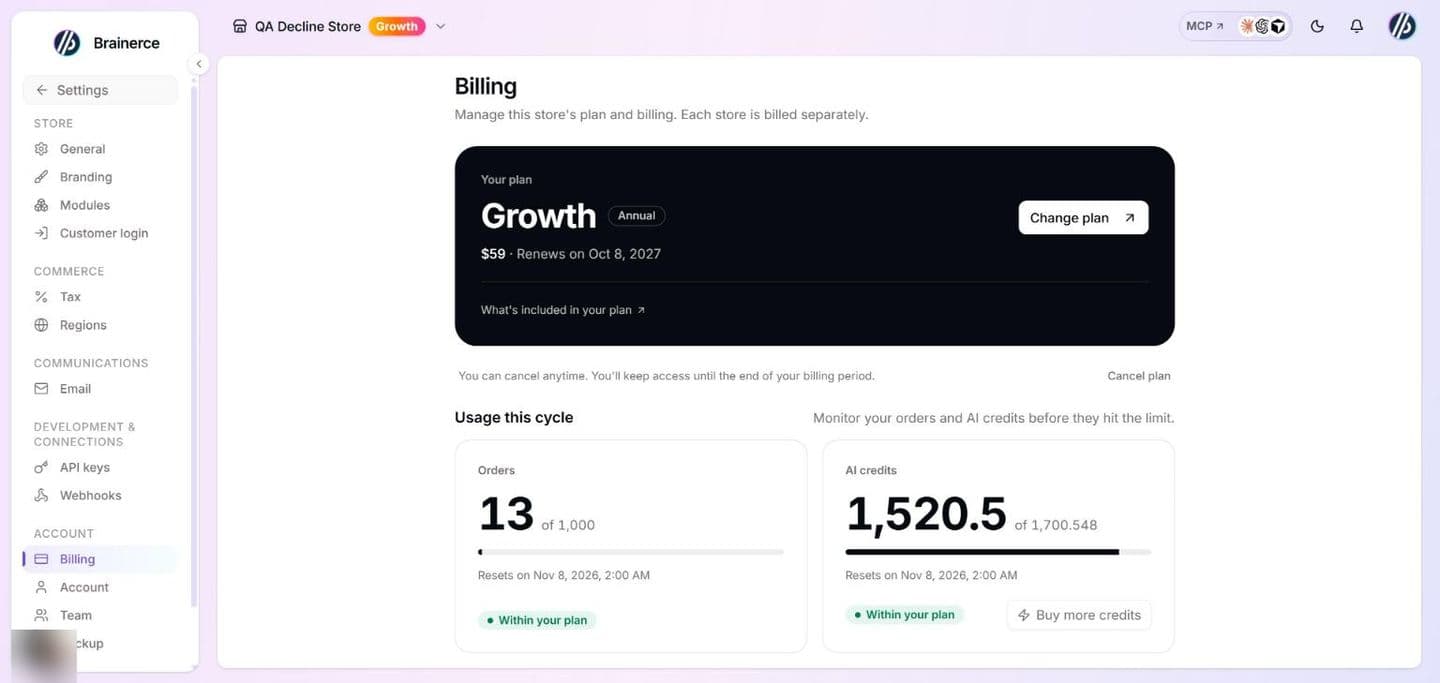
Already on Pro or Growth and want to change? Open Settings → Billing, click Change plan and choose the other plan (e.g. Switch to Growth). A window then shows you exactly what the change costs, before anything is charged. Nothing happens until you confirm.
You can also start from the pricing page. While you are signed in, the button on a plan higher than your store's reads Upgrade to Growth (or Pro) and takes you straight to this same window, with that plan already chosen. On a plan your store already has, the button reads Add a store on Pro and takes you straight to the secure Stripe checkout for a new store, where you can pay with any card. A store you upgrade from Free goes to the same checkout; a store that already pays opens the confirmation window instead.
- The same window changes the billing period too. Flip the Monthly / Annual switch on the Change your store plan page before you press Switch to ... to move the same plan between monthly and yearly billing. Whatever costs money today (for example Pro monthly to Pro annual, or Pro to Growth) is charged now; anything that would not cost money today (for example Growth to Pro, or annual back to monthly) is booked for the end of the period.
- Moving up (Pro → Growth): the window shows the amount that will be charged today to the card you already have on file. It covers only the rest of the current billing period. Click Pay … and switch and the plan changes at once. There is no separate Stripe checkout page, because your card is already saved.
- Moving down (Growth → Pro): the switch is booked for the end of your current billing period, not applied today. The window shows the date. You keep Growth, with all of its limits and AI credits, until then. Nothing is charged and nothing is credited today. Click Schedule the switch to book it. Until that date Settings → Billing shows "Switching to Pro on (date)" with a Keep my plan button that cancels the switch.
- There is no mid-period downgrade. You cannot move to a cheaper plan in the middle of a period, and you are not refunded or credited for the unused part of the higher plan, because you keep that plan until the period ends.
- If your card is declined, or your bank asks for extra verification, the plan does not change, you are not charged, and no extra AI credits are added. Update your card from the billing portal (see below) and try again.
- If the amount changed while the window was open, you see the new amount and confirm again. You are never charged an amount you have not seen.
What changes immediately
The moment an upgrade goes through, the new limits apply: higher order caps, more sales channels and team members, more AI credits, and more storage. Your plan badge in Settings → Billing updates straight away. (Billing dates and quota counters finish syncing a few seconds later once your payment is confirmed.)
How proration works
When you upgrade mid-cycle, Stripe prorates the change automatically: you're credited for the unused time on your old plan and charged for the remaining time on the new one, so what you actually pay is the difference.
- On an upgrade you pay that difference right away, in the confirmation window, by card. It is not postponed to your next invoice.
- A downgrade has no proration at all. It starts when your current period ends, so there is nothing to charge or credit, and your next invoice is the lower plan's regular price.
- From your next renewal the new plan's regular price applies. The window says on which date ("From (date), Growth costs ...").
- Changing the billing period restarts the cycle. If an upgrade also moves you between monthly and yearly (for example Pro monthly to Pro annual), the window says "Your billing cycle restarts today", and the new price renews one period from today instead of on your old renewal date.
The figure in the confirmation window is the exact amount charged, to the cent, in the currency your account is billed in (dollars or shekels). There's nothing to calculate or request manually.
Downgrade or cancel
These are two different things, and they behave differently. Both are account-owner only: a Manager cannot cancel or downgrade a plan.
Moving to a cheaper paid plan (Growth → Pro) is booked for the end of the current billing period. Click Change plan, pick the lower tier and confirm. Nothing changes today: you keep your current plan, its limits and its AI credits until the date shown, and on that date the store moves to the lower plan automatically. Changed your mind before then? Click Keep my plan in Settings → Billing. After the switch has happened, going back up is a normal upgrade and is charged right away.
You cannot book a move to a cheaper plan while the subscription is set to cancel. If you already used Cancel plan, the store is on its way to Free at the end of the period, and a booked switch would quietly undo that. Click Resume subscription in Settings → Billing first, then choose the lower plan. Moving up is still allowed while a cancellation is pending, and it leaves the cancellation as it was.
You cannot change the plan of a subscription that is not active (for example one whose last payment failed, or one that has already ended). The window tells you so and nothing is charged. Fix the payment method in Settings → Billing, or subscribe again, and then change the plan.
Cancelling to Free is a separate action and waits for the end of the period too. Use Cancel plan; you keep your paid features until the end of the current billing period, then the store moves to Free. Until that date Settings → Billing shows a "Changed your mind?" card with a Resume subscription button, and clicking it cancels the scheduled downgrade. If a move to a cheaper paid plan was booked, cancelling replaces it.
What the cancel flow asks you. Cancel plan first asks "Why are you canceling?" with six reasons: Too expensive, Missing features, Switching provider, Not using it enough, Technical issues and Other. Pick one and press Continue. Extra details are optional, except for Other, where they are required. A second window then asks "Cancel your subscription?" and says your plan stays active until the date shown, after which the store is on the Free plan and there are no more charges. Keep my plan closes it; Yes, cancel confirms.
There is no "Switch to Free" option in the plan picker; it lists Pro, Growth and Enterprise only. Free is reached through Cancel plan.
Downgrading never deletes your data. If your catalog is above a lower plan's limit, your existing items stay; you just can't add new ones until you're back under the cap. See Plans & limits.
AI credits are the exception. Dropping to Free freezes your whole credit balance, including any packs you paid for. Nothing is deleted and it all comes back when you upgrade again, but you can't spend it while you're on Free.
Which currency you are billed in
Brainerce bills in dollars ($) or, for merchants in Israel, in shekels (₪). The pricing and upgrade pages show the price list that matches where you are connecting from, and that is the currency Stripe charges at checkout.
- A new account that signs up from Israel is quoted and charged in shekels. Anywhere else, dollars. This follows your location, not the language of the page.
- An account is billed in one currency, always. After the first payment, every store you add, every plan change, every AI credit pack and every extra-orders charge uses that same currency. If you are in Israel but your account already pays in dollars, the upgrade page keeps showing dollars, because Stripe cannot charge one account in two currencies.
- You cannot switch currency from the dashboard, and switching plans does not change it. To move an account from dollars to shekels, email [email protected].
- Shekel prices are fixed, not converted from dollars at the day's rate, and they include VAT: nothing is added at checkout, the price shown is exactly what you pay.
What the Billing page shows
Settings → Billing is one page with these cards:
- Your plan: the plan name with a Monthly or Annual tag, the price and Renews on (or Ends on once a cancellation is scheduled) with the date, and Change plan. A Cancel plan link sits under it with "You can cancel anytime. You'll keep access until the end of your billing period." (a Free store shows Upgrade to paid instead). While a cancellation is scheduled, the link is replaced by a Changed your mind? card with Resume subscription. A downgrade you booked shows as "Switching to Pro on (date)" with Keep my plan.
- What's included in your plan: a collapsed list inside the plan card (click it to expand) with the plan's limits and features.
- Usage this cycle: Orders and AI credits as "N of limit" bars with Resets on a date, each labelled Within your plan, Approaching the limit (orders from 80% of the cap) or Limit reached, and Unlimited where the plan has no cap. For AI credits on Pro and Growth the status follows your remaining balance instead of a percentage (see AI credits). Buy more credits sits here on a paid plan; on Free the button reads Upgrade to PRO for more credits.
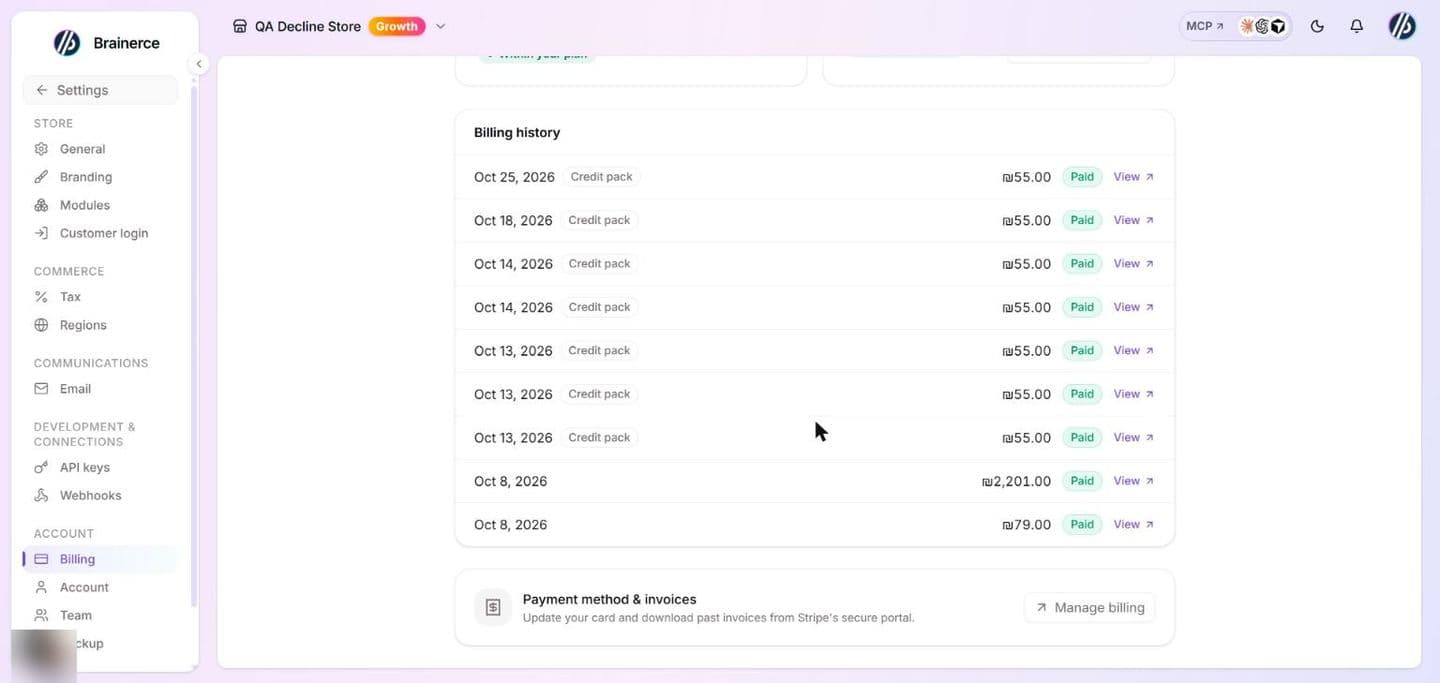
- Billing history: your last 12 charges, each with its status (Paid, Open or Failed) and a View link to the Stripe invoice page; credit pack purchases show as Credit pack. The card is hidden until you have your first invoice.
- Payment method & invoices (below).
A Free store shows only a "Your plan" card with "You're on the free plan. Upgrade for advanced features." and Upgrade to paid, plus the usage cards. A store whose paid plan was granted by Brainerce without a Stripe subscription shows its plan name with Change plan and the usage cards, but no renewal date, billing history or Manage billing card, because there is no subscription to show.
If a payment fails, a banner in the dashboard says "Payment issue: please update your card" with the date the store will be paused if it is not fixed. If it is not fixed the store is paused ("Store paused: payment required"): it takes no new orders until the outstanding payment is settled, and your data is safe.
Manage payment method and invoices
From Settings → Billing, the Payment method & invoices card has a Manage billing button that opens Stripe's secure portal, where you update your card and download past invoices. The Billing history list on the same page also has a View link for each invoice. Only the account owner sees this page.
What's next?
Questions about billing? Email [email protected].