 Brainerce Help
Team and permissions
Invite teammates, assign roles, and control exactly what each person can do.
Add people to your store and decide what they can access under Settings → Team.
Invite a team member
- Click Invite Member. The button only shows for people who hold Manage team.
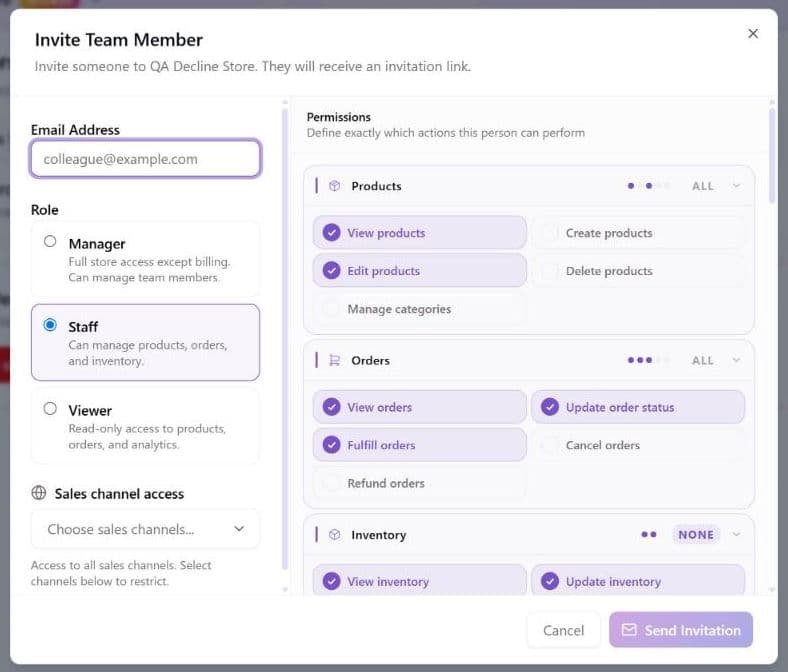
- Enter their Email Address (required, must be a valid address) and choose a Role (below): Manager, Staff or Viewer. Staff is pre-selected. There is no Owner choice; see Transferring ownership of a store.
- (Optional) Restrict them to specific sales channels (Sales channel access), or fine-tune individual permissions in the Permissions panel on the right (see Customize one person's permissions).
- Click Send Invitation and they'll get an email with a link to join. The invitation is valid for 7 days.
An invitation is refused when:
- the address already belongs to someone on this store's team, or to the store's owner ("This user is already a member" or "already an owner");
- an invitation to that address is already pending (resend or revoke it instead);
- your plan's team size is full. Pending invitations count toward the limit, so you cannot queue invitations beyond your seats. The upgrade window opens instead; see How many people you can add;
- you try to invite someone at a role equal to or higher than your own, or to give them a permission you do not hold yourself (Manager limits).
Limit a member to some sales channels
Under Sales channel access, a new member has access to all sales channels by default. Select one or more channels and the member is restricted to the selected sales channels: they see only those channels' products, orders and data. You can change this later in Edit Role & Permissions, and the member list shows it as "Channels: ...". Owners always have access to all sales channels, so the restriction does not apply to them. A restriction is what you want for someone who runs one brand's storefront and should not see the others.
Roles
| Role | What they can do |
|---|---|
| Owner | Everything, including billing and team management. This is the store creator. |
| Manager | Full day-to-day store access, apps included: they can browse the app store, install apps and configure them (a payment provider's keys included). They can also create, rotate and delete API keys, but only with permissions they hold themselves. Out of reach: billing, webhooks, gift cards, donations, uninstalling apps and the Full app management group. Can manage team members below their own role. |
| Staff | Edit existing products, work orders, and adjust inventory. Can't create products, cancel orders, delete orders, issue refunds, delete products, see Analytics, or manage the team. |
| Viewer | Read-only access to most areas: products, orders, inventory, customers, inquiries, content, blog, SEO, analytics, coupons, discount rules, loyalty, pricing formulas, categories and tags, apps, and storefront bot conversations. No settings, no AI assistant. |
Need something in between? Adjust any member's permissions individually in Edit Role & Permissions. A member's row shows a Custom badge only when that person's permissions differ from what their role gives by default. No Custom badge means they hold exactly the role's default permissions.
Default permissions by role
Every row below is a group in the Permissions panel. "All" means every box in the group. The Owner has every box ticked, including the ones nobody else holds by default.
| Permission group | Manager | Staff | Viewer |
|---|---|---|---|
| Products | All | View, Edit | View |
| Orders | All (view, update status, fulfill, cancel and delete orders, refund) | View, Update status, Fulfill | View |
| Inventory | All | All | View |
| Customers | All | View | View |
| Customer Privacy (export and erase one customer's personal data, see Export or erase a customer's personal data) | none | none | none |
| Analytics | All | none | All |
| Coupons | All | View | View |
| Discount Rules | All | View | View |
| Loyalty | All | View | View |
| Gift Cards (not available to merchants yet) | none | none | none |
| Donations (not available to merchants yet) | none | none | none |
| Events (not available to merchants yet) | All | none | none |
| SEO Autopilot | All | View | View |
| Categories & Tags | All | View | View |
| Connectors | View | none | none |
| API Keys | All | none | none |
| Apps | View, Install, Configure | none | View |
| Content | All | View | View |
| Blog | All | View | View |
| Pricing Formulas | All | View | View |
| Contact Inquiries | All | View, Manage | View |
| Webhooks | none | none | none |
| Storefront Bot | All | View settings, View conversations | View conversations |
| Administration | View store settings, Manage store settings, Manage integrations, Manage team | View store settings | none |
| AI Assistant | Use | Use | none |
Three things in that table surprise people. Staff has no Analytics access, even though Viewer does. A Manager cannot give a member Gift Cards or Donations unless the Manager holds them too, because nobody can grant a permission they do not hold; tick them on the member yourself as the Owner. And Connectors, Webhooks, API Keys and Full app management are not available to a Staff or Viewer by default at all.
Two boxes in the Administration group do nothing: Manage billing (explained below) and Manage developer portal. Ticking either changes nothing in the product.
Customize one person's permissions
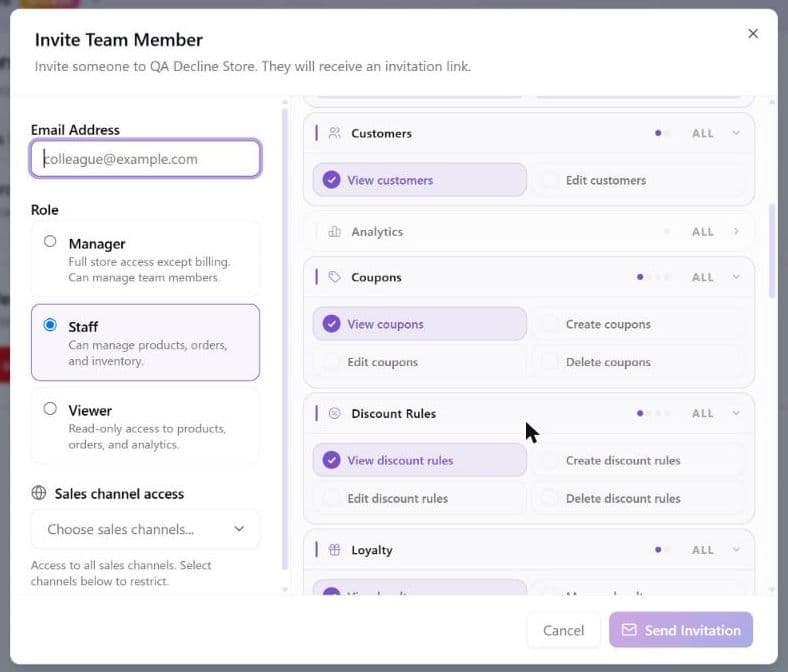
The Permissions panel sits on the right of both the Invite Team Member and the Edit Role & Permissions windows, with one collapsible row per group in the table above.
- Tick or untick any single box, or use a group's All / None switch to flip the whole group. Each group shows how many of its boxes are ticked, and the panel title shows "N permissions selected".
- Choosing a different Role on the left re-ticks the panel with that role's defaults ("Start from Manager defaults").
- When your ticks differ from the role, an amber bar says "Permissions differ from Manager defaults" with a Reset button that restores the role's defaults.
- If your ticks end up identical to the role's defaults, nothing custom is stored.
- Changing a member's role resets their custom permissions to the new role's defaults. Re-tick anything you want to keep before you save.
What the Custom badge on a team member means
The Custom badge on a member's row in Active Members means that person's permissions are not the defaults of their role: someone ticked or unticked individual boxes in Edit Role & Permissions (or when inviting them). It sits next to the role badge (Manager, Staff or Viewer). Open Edit Role & Permissions to see which boxes differ; the amber bar "Permissions differ from Manager defaults" shows the same thing and its Reset button removes the customisation.
- No Custom badge means the member holds exactly their role's default permissions.
- The owner never shows a Custom badge, because the owner holds every permission.
- Custom is not a fourth role. The roles are Manager, Staff and Viewer; there is no role called Custom.
- Changing the member's role removes the customisation, and the badge goes with it.
What a Manager can and cannot do to the team
A Manager who holds Manage team can invite, edit and remove members, but only below their own rank:
- They can invite or save someone only as Staff or Viewer. They cannot create another Manager. The edit window always saves a role, so saving another Manager's window is refused unless it moves that person down to Staff or Viewer.
- They cannot remove a Manager.
- They cannot edit their own role or permissions, and cannot remove themselves.
- They cannot change Sales channel access, their own or another Manager's. A Manager can change it only for a Staff or Viewer member, so a Manager who is limited to some channels cannot lift that limit themselves; the Owner has to.
- They cannot give anyone a permission they do not hold themselves.
- A Manager who is limited to some sales channels can give someone access only to channels they hold themselves, and cannot leave the Sales channel access choice empty (which means all channels) when inviting or editing a member. The Owner can grant any channel.
Only the Owner can do all of these. The Owner's own row and your own row have no ⋯ menu. Changing the Owner means transferring ownership.
Who can change the plan or the card
Only the account owner. Billing is the one area that is not governed by the permission checkboxes at all. It is tied to the account that owns the store.
Managers, Staff and Viewers do not see Settings → Billing. The entry is not in their settings menu, and it is not hidden by a permission you can grant. It is absent because the plan, the card and the invoice history all belong to the account that owns the store, not to the store. Nothing is broken and nothing is missing from their account; there is simply no billing for them to reach.
There is a Manage billing checkbox in the Permissions panel. Ticking it does nothing at all: no page appears and no billing action becomes available. Treat it as inert. If a teammate needs to pay the bill, transfer ownership of the store to them, because there is no way to delegate billing without it.
A Manager can change your payment provider's keys. Configure apps is on for the Manager role by default, and it covers entering or replacing the credentials of an installed app, a payment gateway included. A Manager still cannot uninstall, suspend, resume or disconnect an app: those need Full app management, which only the Owner holds by default. If you do not want a Manager touching payments, open the member's Edit Role & Permissions and untick Configure apps (and Install apps to stop new installs).
Manage members and invitations
- Active Members (N) lists the Owner and every accepted member with an avatar, name, email, Joined date, a role badge, a Custom badge (shown only when their permissions differ from their role's defaults), and "Channels: ..." when they are limited to some sales channels. Your own row carries a You badge.
- Open a member's ⋯ menu to Edit Role & Permissions or Remove Member (this asks "Remove Team Member?" first and says the person loses access to all store data). The menu does not appear on the Owner's row, on your own row, or for anyone without Manage team.
- Pending Invitations (N) lists each invited email with its role badge and "Expires (date)", or Expired once the 7 days are up. An expired invitation stays in the list until you resend or revoke it. The three icon buttons on each row are Copy invitation link, Resend (circular arrows; sets a fresh 7 days and emails again) and Revoke (the red X; asks "Revoke Invitation?" and kills the link already given out).
- Whoever you edit or remove gets an email only when their role changes (an email names the old and new role and who changed it). Removing a member and a permission-only change send no email.
Copy an invitation link (when the email doesn't arrive)
If a teammate says they never got the invitation email, or you would rather send the invitation yourself in a chat message, copy the link instead of waiting for the email.
- Go to Settings → Team and find the person under Pending Invitations.
- Click the link icon (Copy invitation link) on their row. A check mark and "Invitation link copied" confirm it.
- Paste the link into a message to them.
- Send the link privately. Anyone who opens it can see the store name, the role offered, the invited email address, who invited them, and any sales channels the access is limited to. Treat it like a password reset link rather than posting it in a group chat.
- It only works for the invited email address. The person must sign in (or create an account) with exactly the email you invited. Someone else who gets hold of the link cannot join with it.
- An expired invitation has no link. The link icon is greyed out with "Expired. Resend to renew". Click Resend first, which sets a fresh 7 days and emails them again, and then copy the link.
- A revoked or already accepted invitation has no link either. Revoking an invitation also kills the link it gave out.
- Copying the link does not extend or change the invitation. It does not send an email and does not reset the 7 days.
- If your browser blocks copying, a small window shows the link so you can select it and copy it by hand.
- Only people who can manage the team see the link icon.
Removing a member, or editing their role, also cuts off any AI tool they had connected to this store. That happens automatically and it cannot be reversed by putting the role back. Read Removing someone also disconnects their ChatGPT or Claude connection before you edit a member who has one, because it is a one-way door.
Removing a member does not delete API keys they created. Keys belong to the store, not to the person who made them, so a key that person set up keeps working after they are gone. If you are removing someone for cause, go to Settings → API keys afterwards and delete or rotate anything they set up. See Connect an AI assistant.
Removing someone also disconnects their ChatGPT or Claude connection
If a team member connected ChatGPT, Claude, Cursor or another AI tool to this store by signing in with their Brainerce account (see Connect an AI assistant), removing them from the team also cuts that connection off. Their AI tool still shows Brainerce in its own list, but every action it tries against your store is refused from then on.
Editing their role or their permission checkboxes cuts it off as well, in either direction. Promoting a Staff member to Manager disconnects their AI tool exactly as demoting them would. The connection was approved against the permissions that person held on the day they set it up, and Brainerce will not quietly hand it a different set of permissions afterwards, so it stops the connection instead.
Saving a form that changes nothing leaves a working connection alone. The check compares what you saved against what was already stored, so a save that moves neither the role nor the checkboxes does nothing, for a Manager, a Staff member or a Viewer alike. Opening Edit Role & Permissions and pressing Save Changes without touching anything is safe: it does not store a custom permission set and does not cut the AI connection.
Putting the role back does not bring the connection back. This is the part that surprises people. Demote someone by accident, notice, and promote them straight back, and their AI tool is still cut off. There is no button anywhere in your dashboard that reconnects it. The person themselves has to go into their AI tool, remove the Brainerce connection, add it again and approve the permissions again. Until they do that, their AI tool reports that it cannot reach your store.
It affects this store only. If that person is also on the team of another store of yours and has connected an AI tool there, that connection is untouched.
Timing. In normal operation the connection stops working straight away. If the disconnect itself fails behind the scenes (a hiccup on our side), their AI tool keeps working until it next renews its access, which is at most an hour. If you are removing someone for cause and that hour matters, change any API keys and passwords they knew as well, rather than relying on this alone.
This does not touch API keys. A brainerce_... key that person created keeps working after they are removed, because keys belong to the store. Delete or rotate those yourself under Settings → API keys.
What each role can ask the AI assistant to do
BOBO, the AI assistant in your dashboard, now checks a person's role before it makes a change. For most changes, if a person cannot make it by clicking through the menus, asking BOBO to make it for them is refused too, with a short message telling them to ask someone with the right permission.
Three things follow from that, and they catch people out:
- Viewers cannot use BOBO at all. The Viewer role does not include Use AI Assistant, so the assistant is closed to them rather than merely limited.
- Staff can ask BOBO for everyday work only. Editing products, updating stock, moving orders along and fulfilling them all still work. Gift cards, loyalty, pricing formulas, donations, blog posts, pages, standing orders and email campaigns do not: those need a Manager or the Owner, in the dashboard and through BOBO alike.
- Gift cards and donations are Owner-only unless you grant them. They are not in the Manager role's default set, so a Manager asking BOBO to issue a gift card is refused. That is not new, and it matches what the dashboard already did; tick the gift-card permissions on that member if you want them to have it.
The refusal happens before the approval card appears, so a person without the permission never sees a plan to approve. They see the refusal instead.
To close the assistant to someone completely, untick Use AI Assistant on their member record, or move them to Viewer. Without that permission there is nothing for them to ask it. If you are removing someone for cause, do that as well as the role change.
How many people you can add
Team size depends on your plan. The count includes you (the Owner), every accepted member and every pending invitation, so a Pro store with you and two pending invitations is already full:
| Plan | Team members |
|---|---|
| Free | 1 (just you) |
| Pro | 3 |
| Growth | 5 |
| Enterprise | Unlimited |
See Plans & limits for the full comparison, or upgrade your plan to add more seats.
Transferring ownership of a store
At the bottom of Settings → Team is a card called Transfer Store Ownership ("Move this store to another owner's account. They get full ownership; you lose access."). It hands the whole store to someone else's account. It is not the same as making somebody a Manager: the new owner gets the store, and you do not keep it. Only the account owner sees the card.
- Click Transfer this store.
- A window shows the store name and a red warning ("This is irreversible. The store, its catalog, orders, and customers move to the new owner. You will lose all access to this store, and payments pause until the new owner connects their own payment provider."). Enter the recipient's email address (it must look like a valid address, and you cannot transfer a store to yourself) and click Transfer this store. There is no step where you type the store name.
- The recipient gets an email with a link that is valid for 7 days. While it waits, the card shows "Transfer pending to ..." with Cancel transfer.
- A store on the Free plan changes hands when the recipient accepts. A store on a paid plan goes through Stripe checkout for the recipient first, because the plan has to be attached to the receiving account's billing; the transfer completes after that payment.
- Once the recipient has started to accept (or paid), the card says the transfer is "in progress and can no longer be cancelled".
Only one transfer can be in progress per store, and sending a new one while the first is still pending replaces it. The link only works for the email address you entered.
Take a backup before you start, and be sure you mean it: this moves the store out of your account.
Payments are paused after a store transfer
The moment the new owner accepts, the store stops taking payments. Customers can still browse, add to cart and reach checkout, but the payment step fails with a "payments are temporarily unavailable" error until the new owner connects a payment provider. This is deliberate: the old owner's Stripe account is disconnected from the store's payment app at that moment, and the store must not charge a single order into the wrong bank account while it changes hands.
The new owner sees a red notice on the same Settings → Team card ("Payments are paused following the ownership transfer") with a Connect a payment provider button that opens Apps. It stays until a provider is connected.
The pause ends only when the new owner connects a payment provider and its connection test passes. Any payment gateway app counts: Stripe, Cardcom, Grow, Morning or another. With Stripe, the pause lifts once Stripe reports that the account can take charges, which can be a few minutes after the connect click. Do it under Apps → Browse → Payment Gateways, following Configure payment methods.
Three things that do not end the pause, because people expect them to:
- Waiting. There is no timer. A store that was transferred three weeks ago and never had a provider connected is still refusing payments today.
- Installing the app without connecting it. A payment gateway that shows as Pending on the Installed tab has not passed its connection test, so payments stay paused. It has to show as Active.
- The old owner's other providers. Only the Stripe connection is removed by the transfer. A Cardcom, Grow or Morning connection set up by the previous owner stays in place, but it is still the previous owner's account receiving the money. Reconnect it with your own credentials, or disconnect it and connect a provider of your own.
A successful test order does not prove payments are back. Sandbox test orders on a test sales channel are not paused, so a test checkout completes normally while every real customer is still turned away. Check that the provider shows as Active instead.
If customers are still getting the payment error after the provider shows as Active, email [email protected] with the store name and say the store was transferred.
What's next?
Need help with your team? Email [email protected].
Webhooks
Have Brainerce notify your own systems when orders, customers, inventory or payments change, resend events that were missed or failed, and call a third-party API such as a voucher or licence service.
Your account and notifications
Your own profile, password and two-factor settings, plus where to turn on the browser alert for new orders.