 Brainerce Help
Set up low-stock alerts
Get an email warning before a product runs out, and show "only N left" on your storefront. These are two separate things, controlled in different places.
Two different things happen when stock gets low, and they are controlled separately:
- The low-stock alert email to you. Fires on a threshold Brainerce works out across your whole store. It is on by default and has its own switch, Low stock alerts, in Settings, Email.
- The "Only 3 left" badge shown to shoppers. Per sales channel, and switched on or off per channel.
Setting the number on a channel changes the badge on that channel. It is not how you turn the email on or off: for that use the Low stock alerts switch (see Turn the alert email off).
Set your low-stock threshold
- Open Channels in the sidebar and pick the channel you want.
- Open its Settings (the gear icon) and go to the Inventory tab.
- Turn on Low Stock Warning (it is on by default). This controls whether shoppers on this channel see the "Only N left" nudge. It does not switch the alert email on or off.
- Set the Low Stock Threshold, the stock level that counts as "low" (any number from 1 to 100, 5 by default).
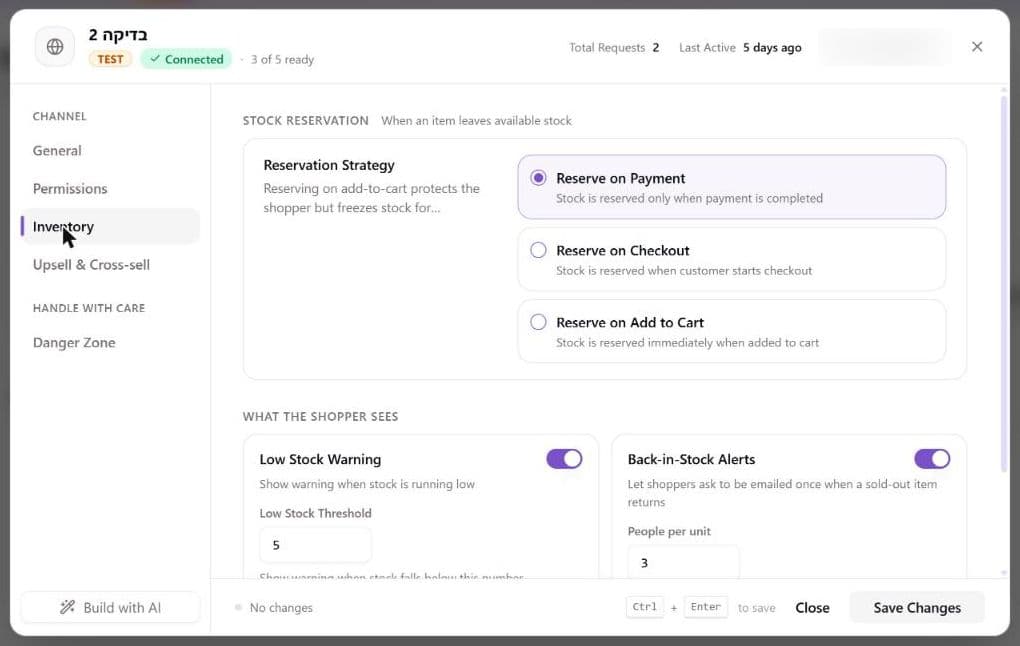
Your storefront may ignore both of these settings
Set the threshold to 2, look at your shop, and it may still say "Only 5 left". That is not a bug in the setting.
Your website has to read this number and use it. The toggle and the threshold are a message Brainerce sends to your storefront, and your storefront is separate code that has to be built to listen. Two things commonly go wrong there:
- The number is hardcoded. A storefront built from our own starter kit has 5 written into it, so it says "Only 5 left" whatever you set here. Your developer has to pass the real threshold through.
- The toggle is ignored. Switching Low Stock Warning off does not force your site to stop showing the badge. A site that was never wired to check it keeps showing it.
The alert email to you is not affected by any of this. Brainerce sends that one, so it arrives whatever your website does or does not do, until you switch it off yourself under Settings, Email.
To fix it, ask your developer to read the channel's Low Stock Warning and Low Stock Threshold and pass the threshold into the stock badge. See a feature you turned on is not showing on your website.
One more limit worth knowing: the badge only ever appears on products whose stock you actually track. A product set to unlimited stock, or with tracking off, never shows it, however low the threshold.
Which threshold the alert email actually uses
This surprises people, so it is worth being precise. The number you set on one channel is not the number the email uses:
- The alert email uses the highest Low Stock Threshold across all your sales channels.
- So if channel A is set to 3 and channel B is still on its default of 5, you are emailed at 5, not 3. Setting one channel low does not make your alerts more sensitive; you have to lower it on every channel.
- A per-product threshold wins over every channel number for that product. Set one and the channel rule below stops applying to it. See Set a threshold for one product.
- With no sales channels configured at all, Brainerce falls back to a platform default.
The per-channel number still does its own job: it decides when that channel's storefront shows the low-stock badge.
Set a threshold for one product
The channel threshold is one number for your whole catalog, which is rarely right for everything: a slow-moving item is fine at 2, and something you sell twenty of a day needs warning at 30. You can set a threshold on a single product, and it beats every channel number for that product.
- Open Inventory and find the product.
- Open the actions menu at the end of the row (the three dots) and choose Update stock.
- Turn off Use the store default, and type the level you want to be warned at. Any number from 1 to 10,000.
- Save. The line under the field tells you what you have chosen before you do.
To go back to the store-wide number, turn Use the store default back on and save. That clears the product's own threshold rather than storing a copy of the current default, so the product follows along if you change your channels later.
This changes the alert email and the highlighting on the Inventory page, not the badge shoppers see. The "Only N left" nudge on your storefront is still the per-channel number, so a product set to 30 here can still show "Only 5 left" to customers.
Kits and products with variants do not offer the field in the dashboard. A kit holds no stock of its own, and a product with variants keeps its stock on each variant, so there is no single count for a threshold to watch. A kit never has a threshold. For a product with variants, ask the AI assistant ("alert me at 10 for this product"): it sets the threshold on every variant, and the alert email for a sale of that variant then uses it. A variant with no threshold of its own follows the store-wide number.
What happens at the threshold
When a product's available stock falls to or below the threshold:
- You receive a low-stock alert email with the product name, SKU, and current stock level.
- On channels with Low Stock Warning switched on, your storefront can show shoppers the low count (for example, "Only 3 left") to nudge a purchase.
Remember that available stock is what triggers this. Units held in open carts or unfulfilled orders are reserved, so a product can go "low" without you having sold them yet.
How often you get emailed: once per product per day
You get at most one alert email per product per 24 hours. A product hovering right on its threshold will not flood your inbox, and a second dip on the same day will not send a second email. The same 24-hour rule covers the low-stock webhook, if you have one wired up.
The practical consequence: don't treat the absence of a second email as "it recovered". Check the number.
Turn the alert email off
The alert email has its own switch. Open Settings, Email, open the Sending and domain tab, open the System group and switch Low stock alerts (described as "Inventory low") off. It is on by default and goes to the store owner only.
- The channel's Low Stock Warning toggle does not control the email. That toggle only governs the shopper-facing badge on the channel. Switching Low Stock Warning off on every channel stops the badges and still leaves the emails arriving.
- The master Email notifications switch at the top of the Sending and domain tab also stops it. With that switched off, the store sends no email of this kind, including this one.
- Switching the email off does not stop the low-stock event. A webhook subscription to the low-stock event still fires (at most once per product per 24 hours, as above), because the switch only governs the email.
If the emails are too frequent but you still want them, lower the Low Stock Threshold on every channel so fewer products qualify. If it is only one or two noisy products, give those a threshold of their own instead of moving the number for everything.
Days left: the number that actually tells you to reorder
A stock count on its own does not tell you whether to order. Twenty-five units is comfortable for something you sell twice a week and nearly gone for something you sell six a day. The Days left column on the Inventory page closes that gap: it divides what is available by how fast the product has been selling, and tells you how long the shelf lasts.
- It uses the average daily sales of the last 30 days, counting paid orders only.
- A product with no sales in that window shows a dash. Nothing has sold, so there is no rate to divide by, and a made-up number would be worse than none.
- 7 days or fewer shows in red, 8 to 14 days in amber. The number is rounded down to whole days.
- Not for sale, unlimited and sold-out products show a dash, and so does a kit, whose stock is its components.
Pick Needs restocking in the filter to see only the products due to run out within 14 days. That list is usually not the same as the Low stock list, and that is the point: a fast seller with 25 units left can be more urgent than a slow one with 4.
This does not yet account for supplier lead times or stock already on the way. It tells you when you run out, not when you had to order. If a supplier takes two weeks, treat anything under about 20 days as already late.
Spotting low stock in the dashboard
The Inventory page also highlights items that are running low, so you can scan the list and restock without waiting for an email. The Low stock and Out of stock counters in its toolbar are buttons: click one to filter the list down to just those products. To update a count, see Adjust stock.
The page highlights a product using the same threshold the email uses, its own if it has one and the highest channel number otherwise, so what you see there and what lands in your inbox agree.
What's next?
Need help with alerts? Email [email protected].
Adjust stock
Set a product or variant's stock level, and choose whether Brainerce tracks its quantity.
Warehouses, suppliers and purchase orders
Multi-location stock in warehouses, assigning existing stock, which warehouse ships each order, splitting a line across warehouses, supplier records, purchase orders and backorders. There is no stock count screen.