 Brainerce Help
Adjust stock
Set a product or variant's stock level, and choose whether Brainerce tracks its quantity.
The Inventory page is where you see and update stock across your whole catalog. Open it from Inventory in the sidebar.
No Inventory page at all? Stock tracking is a module, and stores set up to sell only digital goods or services start with it switched off, which removes the whole Inventory section, not just a sidebar link. Turn it on under Settings → Modules.
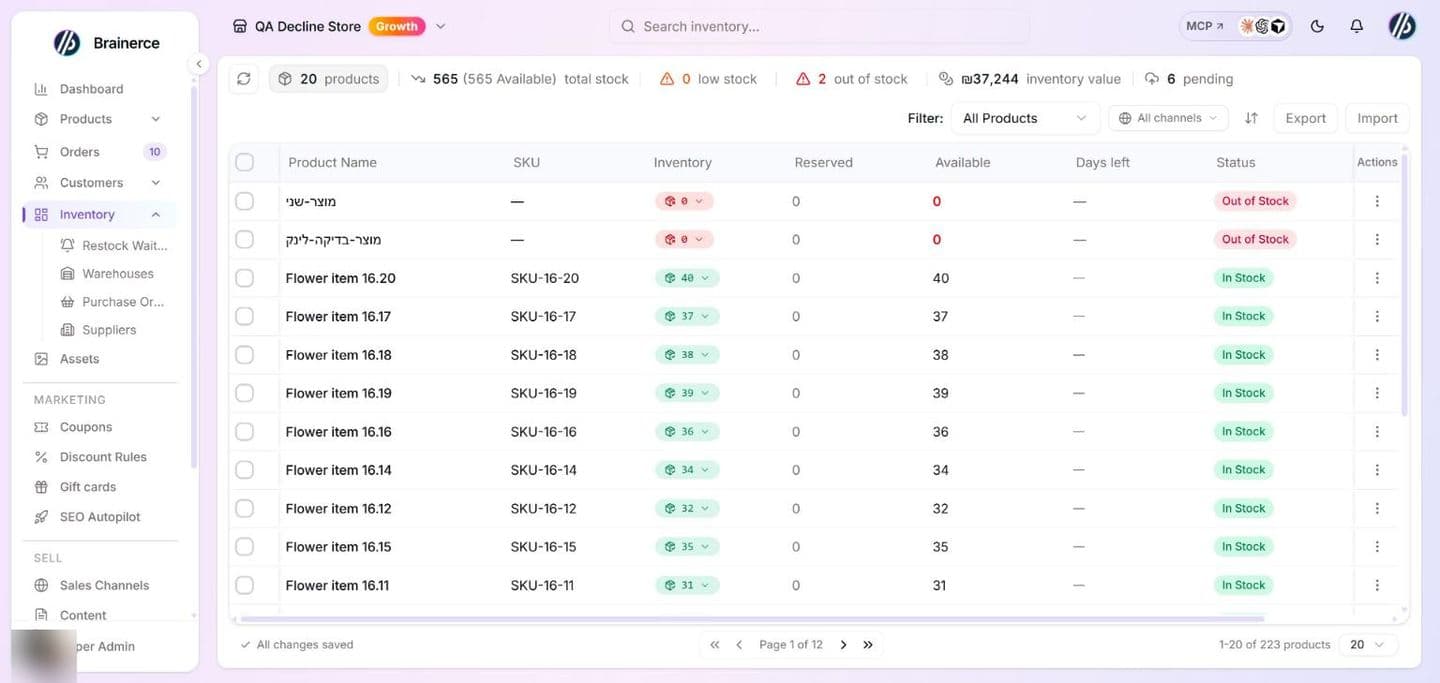
The numbers in the toolbar and the filter
Above the table the Inventory page shows products, total stock (with the available part in brackets), low stock, out of stock, inventory value (only when it is above zero) and pending (products waiting to be sent to your sales channels on the next sync). Hover a number for its explanation. The products, low stock and out of stock numbers are also buttons: click one to apply that filter, and click products to clear it. The refresh button beside them reloads the list. The Filter menu offers All Products, In Stock, Low Stock, Out of Stock and Needs restocking.
Next to the filter, the Sales channel picker narrows the list to the products published on one channel (the default is All channels). A team member limited to a single sales channel sees that channel locked in the picker and cannot switch it. Also in the toolbar: Export and Import (stock CSV, see Updating a lot of stock at once) and the small ⇅ button, which is the separate edit your data in a file export and import for stock and warehouse stock levels.
The table columns are Product Name, SKU, Inventory (the stock cell you click), Reserved, Available, Days left, Status and Channel policy. Variants of a product sit under it: click the arrow on the row to expand them. Showing or hiding columns, sorting and page size work as on every table, see Working with tables.
These counts and the filter cover the page on screen, not your whole catalog. On a store with more than one page of products the page says "Counts cover page 1 of 4" and "Filters the current page only". To count your whole catalog, use Export (it covers every product) or page through.
Inventory value adds up units on hand times each product's cost price, or its selling price when no cost price is set. It counts only products whose stock you track, and leaves out kits.
Update a stock level
The same stock popover opens from the Inventory page and from the Products table, on the inventory cell of any row. Both write the same change.
- Open Inventory (or Products). Products with variants expand to show each variant on its own row.
- Click the inventory cell (the stock badge) for the product or variant you want to change.
- In the popover, make sure Manage Inventory is on. Then either:
- Set total: type the new count you have on hand. A shipment of 30 arrives and you had 5: enter 35.
- Adjust by: type the change instead: +30 for a delivery, -2 for breakage. The popover shows the current count and what it becomes before you save.
- Pick a reason if you want the movement history to say what happened (received shipment, damaged goods, return from customer, return to supplier, stocktake adjustment, manual correction, or Other... with your own text of up to 200 characters). Leave it blank and the history records which screen the edit came from.
- Click Save.
Update stock in each warehouse from the stock popover
If your store has two or more active warehouses, the stock popover of a product without variants shows one row per warehouse instead of a single quantity. Each row has the warehouse name, what it holds now, how many units are reserved there, and a field with minus and plus buttons.
- Choose Set total or Adjust by. It applies to every row.
- Change the warehouses you need. A row you do not touch is left alone, and a changed row shows how much it moves (for example +15).
- Check Available, Reserved and Total at the bottom. They show what the stock will be after you save.
- Pick a reason. It is saved once and recorded on every warehouse you changed.
- Click Save. Brainerce updates the changed warehouses one after another. If one fails, it stops there and tells you how many were saved, so you know which ones still need a change.
- Stock that no warehouse holds yet is shown in your default warehouse. A product with 150 units that you never placed shows 150 in the default warehouse and 0 in the others. That matches how Brainerce already counts it.
- A warehouse cannot go below the units reserved in it. The row turns red and Save stays off until you fix it.
- Transfer between warehouses appears under the rows when at least one warehouse holds stock that is already placed. It moves units immediately and does not wait for Save. It cannot move stock that no warehouse holds yet. To move that, lower one warehouse and raise another in the rows, then save.
- Inactive warehouses are not listed, but the units they hold still count in the total.
- With one warehouse, or none, the popover is the single quantity field described above.
- If your default warehouse is switched off (inactive), the popover shows the single quantity field and says so. Switch the default warehouse back on under Inventory, Warehouses (or click Set as default on another active warehouse), and the rows come back. A store with no default warehouse at all shows the same note: click Set as default on one of your warehouses. Without an active default there is nowhere to show stock that no warehouse holds yet.
- Products with variants, and the dialog from the row menu, still work on the total only. Per-warehouse editing for variants is not available yet.
- In a sales channel view the warehouse numbers are read-only. Stock is shared by every channel, so change it in the All channels view. What you can set per channel is the stock it keeps for itself, under Channel inventory policy in the same popover.
Update every variant at once
A product with variants opens a popover that lists each variant with its own toggle and quantity. Above the list, All tracked variants applies one number to every variant that has Manage Inventory on:
- Choose Set total or Adjust by, type the number, and click Apply. Every tracked variant's quantity fills in, and each row shows its before and after. Variants with tracking off are skipped.
- Change any single variant's quantity by hand if one size differs.
- Pick one reason. It is saved on every variant's movement.
- Click Save. The button says how many variants will change, and only those are written.
Apply fills the fields, it does not save. Nothing changes on the store until you click Save; close the popover to discard.
Add or remove units from the row menu
The popover above covers most edits. The row menu opens a larger dialog with the same Adjust by and reason, plus the product's alert threshold:
- On the product's row, open the actions menu (the three dots at the end of the row).
- Choose Update stock.
- Switch to Adjust by and type the change: +30 for a delivery, -2 for breakage. The dialog shows the current count and what it becomes before you save.
- Pick a reason: received shipment, damaged goods, return from customer, return to supplier, stocktake adjustment, manual correction, or Other... with your own text (up to 200 characters).
The reason is saved with the change and shows up in the movement history below, so a count that looks wrong later can be traced instead of guessed at.
The same dialog holds the product's alert threshold, the level that counts as low for this one product. See set a threshold for one product.
This dialog is for simple products only. A product with variants keeps its stock on each variant, so use the stock badge on the row and set each variant there; its row menu offers Stock movements only. A kit has no count of its own and is not offered the dialog at all: its row menu has Manage Kit instead, which opens the kit's contents.
See who changed stock, when, and why
Open the row's actions menu and choose Stock movements for the last 20 changes to that product: what the count went from and to, how long ago, and the reason if one was given. Reservations and fulfilments from customer orders appear here too, not only your own edits.
Variant rows have the same menu item, and it shows the movements for the whole product, variants included.
A kit has no movement history, because it holds no count. Look at the movements of the products inside it instead.
Stock tracking modes
The Manage Inventory toggle controls how Brainerce handles availability:
| Mode | Behavior |
|---|---|
| Manage Inventory on | Brainerce tracks the count and reduces it as orders come in. |
| Off → In Stock | Always available, no count is kept (good for made-to-order). |
| Off → Not for Sale | Can't be purchased, and collects no back-in-stock waitlist. |
Not for Sale products sit outside the stock filters. Like kits, a product you switched off is in none of the In stock, Low stock or Out of stock buckets, and it is not added to the Out of stock counter. It was your decision, not a shortage, so there is nothing to reorder. Its units still count in Total stock, because you are still holding them, but not in the available figure beside it, because nobody can buy them.
Sold out is not the same as Not for Sale. If the product is coming back and you want shoppers to ask about it, leave Manage Inventory on and set the quantity to 0. Switching the toggle off and picking Not for Sale blocks purchase but also blocks the back-in-stock waitlist, because there is no stock count for Brainerce to watch.
Kits (gift boxes) have no stock of their own
A kit has no quantity you can type. Its stock cell is not editable, and the Inventory page shows it blank rather than a number.
That is on purpose. How many kits you can sell is worked out from what is inside them: whichever component runs out first sets the limit. A gift box holding one bottle and two glasses, with 10 bottles and 12 glasses on hand, is 6 boxes, because the glasses go in pairs. Type a number onto the kit itself and it would be a second, frozen count that never moves when a bottle sells, so Brainerce does not let you.
To change how many kits you can sell, change the stock of the products inside it. Open Inventory, find those products, and set their quantities the normal way. The kit follows on its own.
The same applies to every other route in: Bulk Set Stock skips kits in your selection and tells you it did, the inventory CSV importer counts a kit's SKU among the SKUs it could not find rather than importing it, and the API and AI assistant refuse a stock write to a kit with an explanation. Kits also sit outside the In stock, Low stock and Out of stock filters entirely. This page holds no count for them, and a filter that guessed would be worse than one that abstains.
Available, Reserved, and Total
When tracking is on, the popover shows:
- Available is what customers can still buy.
- Reserved is units held in open carts or unfulfilled orders.
- Total is Available plus Reserved.
Stock is tracked per variant, so each size/color can have its own count.
A product is only "unlimited" when every variant is. Mix one made-to-order size in with tracked ones and the product is still tracked: its row shows the total of the sizes you do count, and the unlimited size adds nothing to it rather than wiping the number out.
Updating a lot of stock at once
Two faster paths than editing rows one at a time, both on the Inventory page:
Import a CSV. Click Import in the toolbar and choose a CSV file. It needs a SKU column and one stock column named Stock (also accepted: new_stock, quantity or qty). Header names are not case sensitive. A preview lists each SKU with its New Stock before anything is written, and Import applies it. It matches the SKU of a simple product and the SKU of a variant, which makes it the right tool after a stock count. The SKU of a product that has variants (the parent) and the SKU of a kit are not matched: they are counted as SKUs not found, so put the variant SKUs in the file.
- Limits. One file can hold up to 500 rows. A longer file is refused as a whole, and the dashboard then shows the generic message "Please upload a valid CSV file", so split it into files of 500 rows or fewer.
- Rows that are skipped silently. A row with an empty SKU, a quantity that is not a number, or a negative quantity does not appear in the preview. Decimals are cut to a whole number (12.5 becomes 12). Commas are the only separator, so a SKU that contains a comma cannot be imported this way.
- The result. The message says how many products and variants were updated, how many SKUs were not found, and how many rows had an error. It does not list the SKUs, so compare against your file.
- What it sets. Each row sets the total (the reserved units stay reserved) and writes a movement with the reason CSV import, and the new count is sent on to your connected sales channels like any other stock edit. A variant that never had a stock record starts as tracked. A team member limited to certain sales channels cannot import stock for products outside those channels: those rows are listed as errors.
This is not the product importer. The one under Products cannot update stock on an existing product. See Bulk import from CSV.
Bulk Set Stock. Tick several rows, click Set Stock in the selection bar, type the New stock quantity (a whole number, 0 or more) and click Apply. Every ticked product gets that same total, and the movement reason is "Bulk update from the inventory screen". It works on simple products only: products with variants are left out because their stock sits on each variant, and kits are left out with a message saying how many. If only variable products are ticked, nothing opens and a message tells you to set stock per variant. If some writes fail, the message says how many succeeded and how many failed.
You can also export the current stock levels, which gives you a correctly-shaped file to edit and import back. The Export button in the toolbar covers your whole catalog (up to 5,000 products), not just the page on screen, and follows the search box and channel filter if you have either set. The columns are Product Name, SKU, Tracking, Stock, Reserved, Available and Status. Unlimited stock shows as ∞, and a kit's numbers are blank with the status From kit contents. To export only certain products, tick their rows and use Export in the selection bar instead.
Reserving stock per sales channel
The Channel policy column controls how much of an item each sales channel may sell. Use it to hold stock back for one channel, keeping a buffer for your own storefront while a marketplace sells the rest, rather than letting whichever channel sells first take everything.
Set a reserved amount for a channel
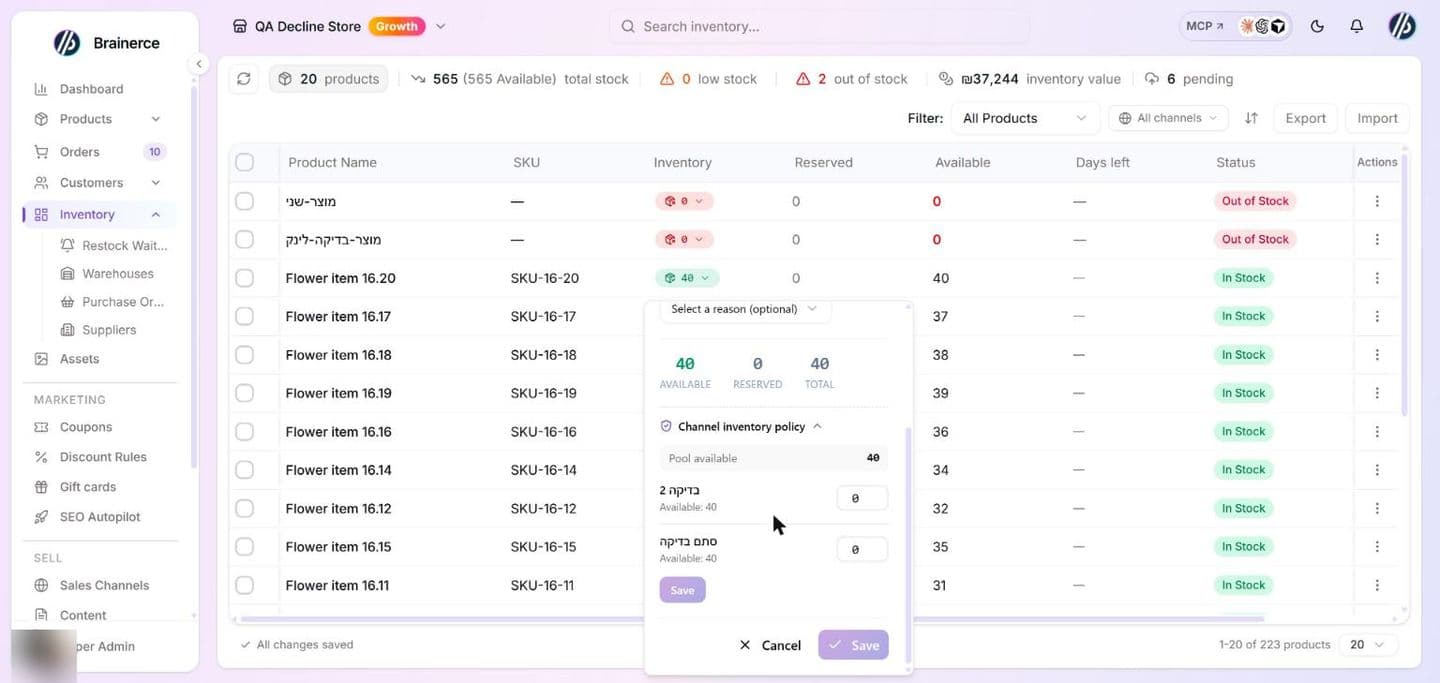
- On the Inventory page, click Manage in the Channel policy column of the product or variant (the same panel also sits at the bottom of the stock popover). The panel is called Channel inventory policy and lists your connected sales channels, with Pool available at the top.
- Type the number of units to hold back for each channel. It must be a whole number from 0 up to what is available now; a bigger number turns red with "Exceeds available".
- Click Save. A 0 clears the reservation for that channel.
If the amounts you reserve across channels add up to more than the stock you have, saving still works, and a warning says channels without a reservation may show 0 available until stock rises. A product or variant whose stock is not tracked shows Not applicable in the column. With no connected sales channel the panel says "No connected sales channels yet."
How much can a channel sell?
A channel can sell everything that is not reserved for another channel. With 98 in stock, 60 reserved for Wholesale and 38 reserved for Retail, Retail can sell up to 38 and Wholesale up to 60. A cart, a checkout or an order that asks for more than that is refused as out of stock, even though the shared stock number is higher. The same applies to the stock a shopper sees on that channel's storefront: it shows what that channel can sell, not the whole stock.
When a channel sells, it uses its own reserved units first
Each sale takes its units from the selling channel's own reserved amount, so the other channels' reserved units stay untouched. Retail sells 3 of the example above: stock goes to 95, Retail's reserved amount goes to 35, and Wholesale still has its 60.
What this does not do:
- Cancelled and refunded units go back to the shared stock, not back into the channel's reserved amount. Set the reserved amount again if you want to hold them for that channel.
- Orders you create yourself in the dashboard have no sales channel, so they take from the whole stock and ignore the reservations.
- Items that do not track stock cannot be reserved, because there is no count to divide.
- The reserved amounts never add stock. They only decide which channel may sell the units you already have.
What's next?
Need help with inventory? Email [email protected].