 Brainerce Help
Inventory reports
Six store-wide reports on your stock (value at cost, low and out of stock, days of cover, dead stock, sell-through and movements by reason), what each one counts and what it does not.
Open Inventory, Stock journal in the sidebar and choose the Reports tab (the tabs are Journal, Reports and Restock Waitlist). The journal lists every single stock change. The reports give you the store's figures, over your whole catalog and not only the page on screen.
You can narrow every report by warehouse (including Stock not assigned to a warehouse) and by sales channel, and search by name or SKU. The sales based reports also have a Period (30, 60, 90, 180 or 365 days). Export CSV downloads the report you are looking at, up to 5,000 rows. A report reads at most the first 10,000 products and the newest 10,000 orders; when it stops short, it says so under the table.
Who can see what. Seeing the reports needs permission to view inventory. Days of cover, Dead stock and Sell-through read your sales, so they also need permission to view analytics: a team member with inventory access only does not see those three, and Movements by reason leaves out its sales line for them.
Stock value (at cost)
Units on hand times the cost price (a variant's own cost price, otherwise the product's). The total at the top is the same number as the Inventory value at the top of the Inventory page.
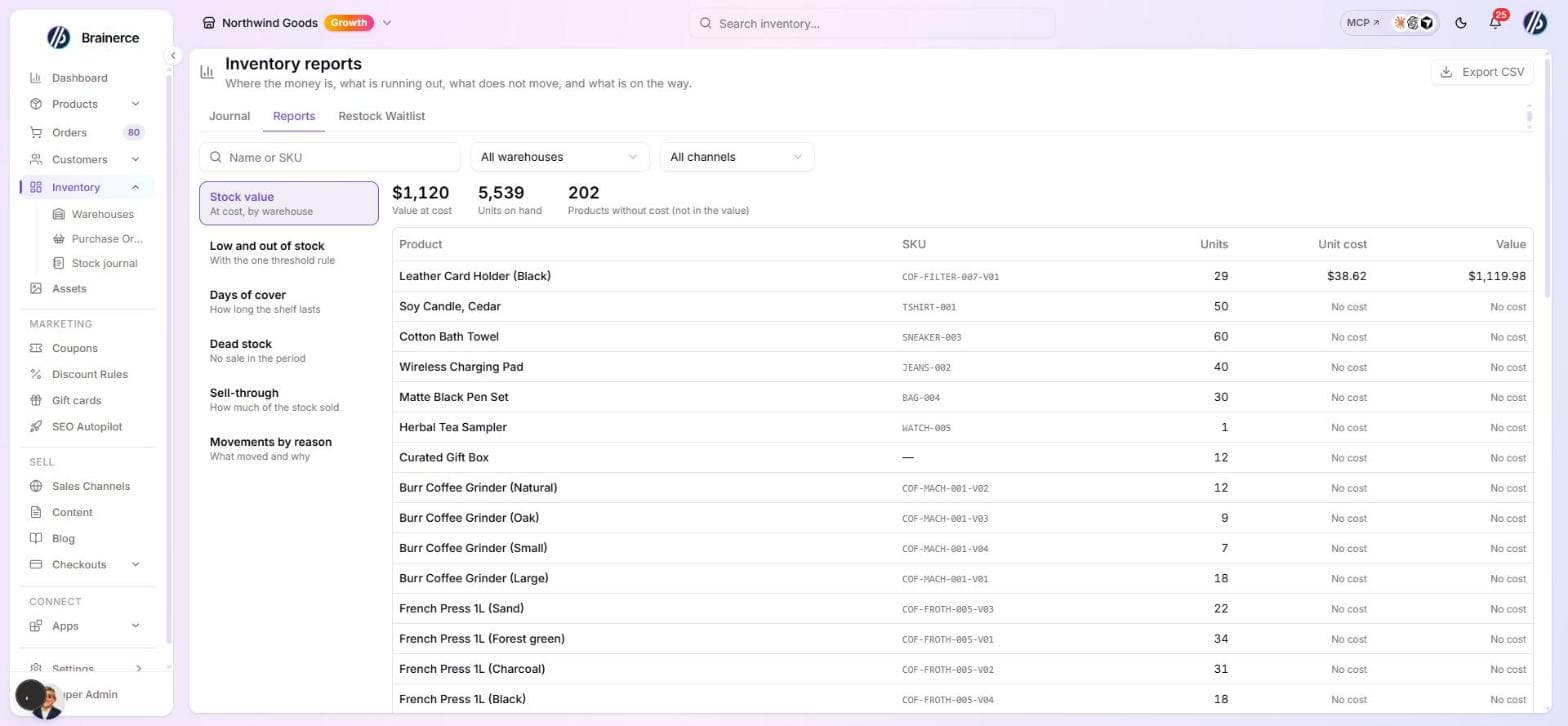
- A product with stock and no cost price is listed as "No cost" and left out of the total. It is never priced at its selling price, because that would mix what you paid with what you charge. The count of those products is shown beside the total. Set a cost price on them to include them.
- Only tracked stock is valued. Products with unlimited stock and kits are not.
- With a warehouse picked, the units are the ones that warehouse holds.
Low and out of stock
Every tracked item at or under its low-stock threshold, and every item that is sold out, for the whole store. The Threshold column shows the number used and Threshold from says where it came from: the variant, the product, the store (the highest low-stock threshold across your sales channels) or the warehouse. It is the same rule as the Inventory page, the alert email, the AI assistant and the MCP connection, so they list the same items. See Set up low-stock alerts.
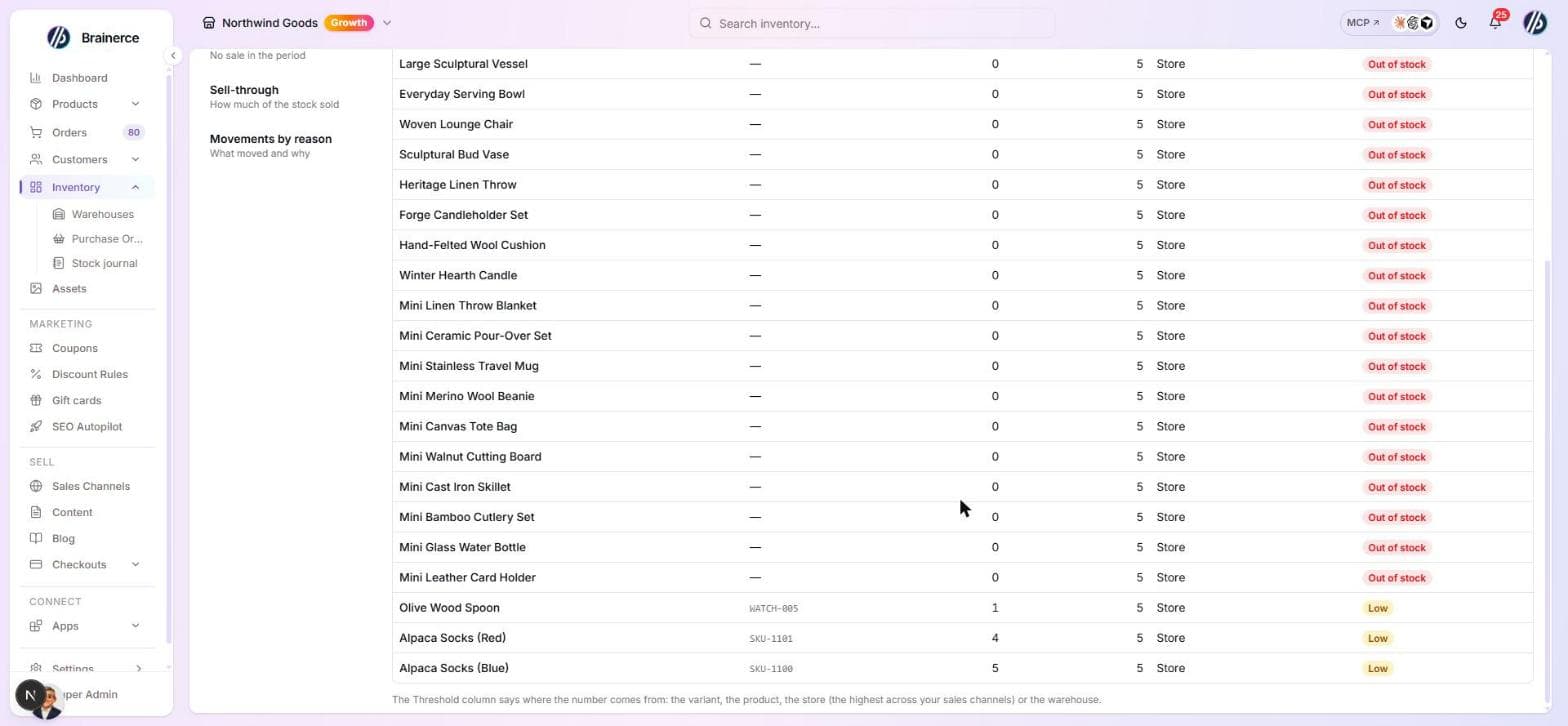
With a warehouse picked, it looks at the units available at that warehouse, and uses that warehouse's own alert number when you set one.
- Sold out is zero available, and it is not "low".
- Items with unlimited stock never appear.
- A product with variants is listed once per variant.
Days of cover
How long the shelf lasts: available stock divided by the average units sold per day over the last 30 days (paid orders only), rounded down, shortest first.
- A product that sold nothing in those 30 days has no rate and is not listed. A made-up number would be worse than none.
- It does not account for supplier lead times or stock already on order.
Dead stock
Products with stock on hand and no paid sale in the period you picked (90 days by default), with the date of the last sale and the value tied up (at cost, as in the value report).
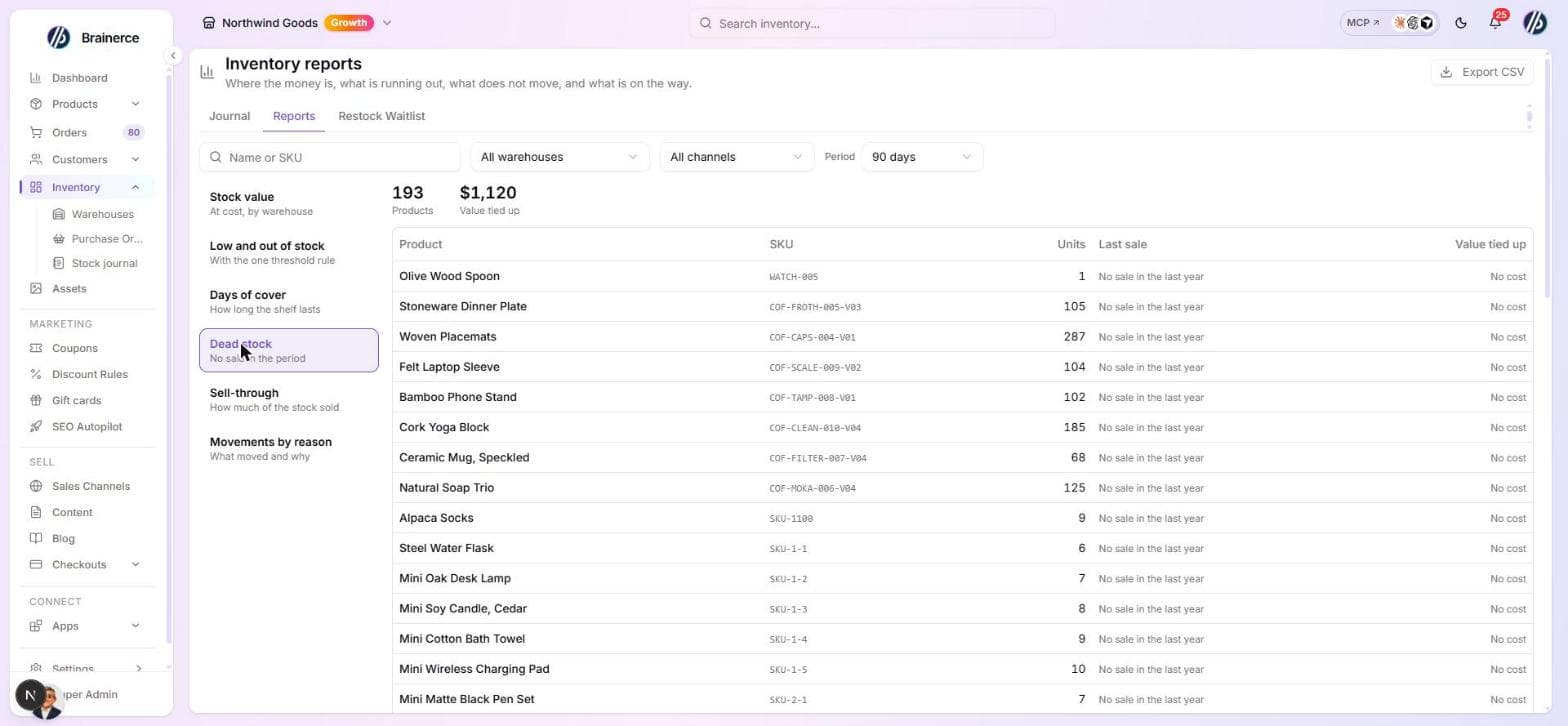
- "Last sale" looks back at most one year. A product with no sale in that year shows No sale in the last year.
- A product with no cost price shows No cost instead of a value.
- Kits are not included.
Sell-through
For each product: units sold in the period, units left, and sell-through = sold divided by (sold plus left).
- There is no daily stock history, so "left" is always what you have now. The report answers "of what I sold and still hold, how much sold", for a period that ends today. It cannot tell you the sell-through of last March as it stood in March.
Movements by reason
The stock journal grouped by reason (manual update, import, purchase order receipt, transfer in, transfer out, order cancelled and so on) and by warehouse: how many movements and the net change in units, for the period.
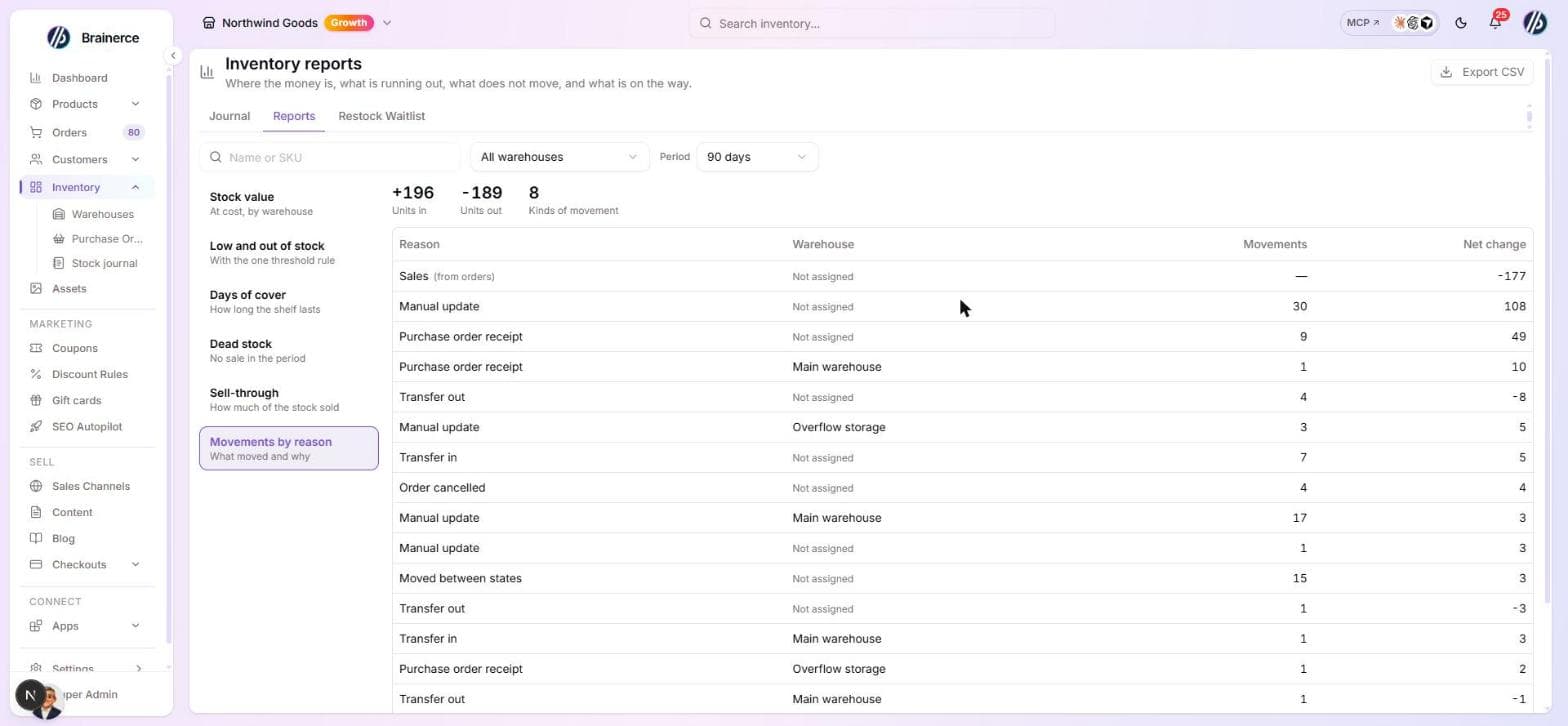
- A sale writes no row in the stock journal. Sales are added to this report as one line, Sales (from orders), read from your paid orders, and that line has no warehouse. So this report cannot tell you which warehouse a sale came from.
- Movements from before warehouses were recorded on them show as Not assigned.
- With a warehouse picked, the sales line is left out, because it has no warehouse.
What the reports do not do
- They do not show stock on the way (open purchase orders and transfers): that is the Incoming column on the Inventory page, and the open orders on the purchase orders page.
- They do not keep history. Every figure is read when you open the report.
- They do not change anything: reading a report never moves stock.
What's next?
Set up low-stock alerts
Get an email warning before a product runs out, and show "only N left" on your storefront. These are two separate things, controlled in different places.
Warehouses, suppliers and purchase orders
Multi-location stock in warehouses, assigning existing stock, which warehouse ships each order, splitting a line across warehouses, supplier records, purchase orders and backorders. There is no stock count screen.