 Brainerce Help
Install your first app
Find an app in the marketplace, install it, connect your account, check its sync and activity, and pause, disconnect or uninstall it later.
Apps connect your store to outside services: payment gateways, shipping carriers, the Google connector and the Migration Tool today. Open Apps in the sidebar to browse.
Browse the marketplace
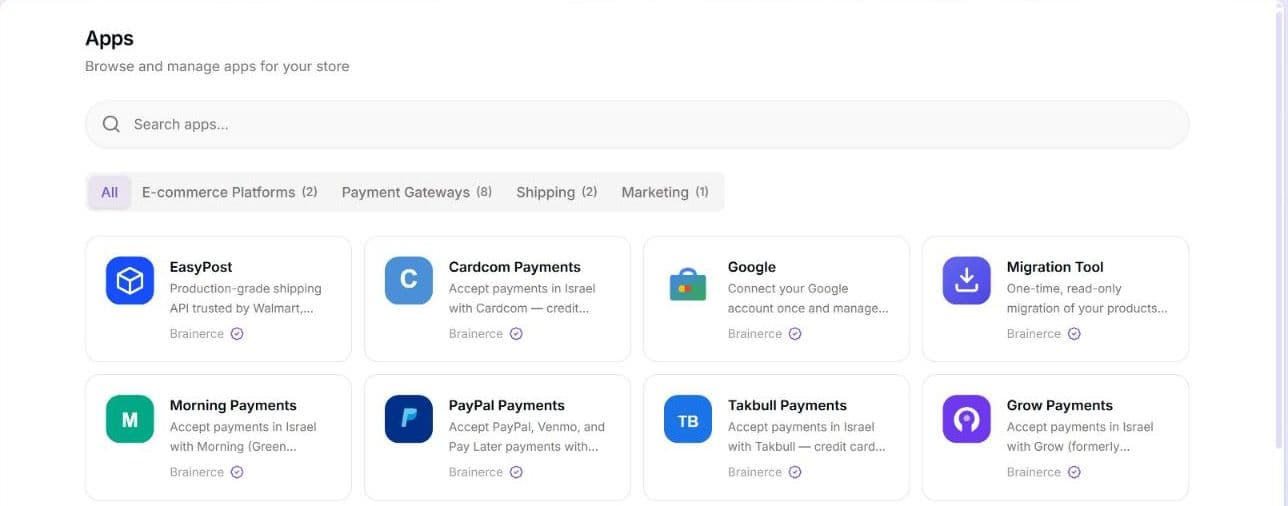
The Apps page is the marketplace, a grid of available apps you can search (Search apps...) and filter by category. The row of tabs is All plus one tab for each category that has at least one app, with the number of apps in brackets, so a category with nothing in it has no tab. Today those are Payment Gateways, Shipping and E-commerce Platforms.
Each card in the grid shows only the app's name, a one-line description and its developer. Click a card to open the app's own page. There you see About this app, the Permissions it asks for, its screenshots, its version and the Pricing, Ratings & reviews and Installs facts, before you install anything.
Your installed apps are listed under the Apps sub-menu in the sidebar, not a tab on this page.
Install an app
- In the marketplace, open the app you want.
- Read its Permissions section. Installing gives the app exactly those permissions, and there is no separate permission screen after the click.
- Click Install App.
- You land on the app's own page, on the Connection tab. If the app connects to an external account (a payment provider or a sales channel), click Connect Account and sign in or authorize, or enter the credentials it asks for.
That's it. The app now appears under Apps in the sidebar. Installing is not the same as connecting: until the account is connected, the app page says Not configured, a payment gateway takes no payments and a connector syncs nothing.
If the store already has the app, its listing page shows Installed with an Open button instead of Install App.
What the tabs on an installed app mean
Open an installed app from the Apps sub-menu in the sidebar. Its page has these tabs:
- Connection: the account and credentials. Test Connection checks that they work and shows Connection successful or Connection failed. A payment app also shows its Test or Production mode, Edit settings and Disconnect.
- Sync: appears only once the app is connected. It shows Sync Status (for example "40 of 50 resources synced", how many failed, Last synced or Never synced) and a Sync Now button. Choose what to sync: products are Always synced; you can switch on the other groups (Product Catalog, Sales & Customers, Inventory & Logistics) and, for orders, pick Last 100 orders, Last 1,000 orders or All orders (slow for a large store).
- Activity: appears only once the app is connected. It is a summary, not a log of every event: per kind of item, how many were synced, failed or are pending (for example "12 products synced", "2 orders failed"), the time of the last sync, Recent errors, and when the app was installed. It does not list individual webhook events, even though its subtitle mentions them.
- Google has its own page layout instead of the tabs above: Overview, Readiness, Merchant Center, Google Ads, Analytics and Settings. A YouTube tab appears only once YouTube Shopping is available for your account. It has no Connection, Sync or Activity tab: connecting a sales channel and uninstalling live in Settings, and syncing is on the Merchant Center tab. See Google readiness.
A suspended app cannot sync. Sync Now works only on an app whose status is Active. A suspended app shows Suspended, and you resume it first. See Pause an app without removing it.
A shipping app that is already configured sends you straight to the Shipping page instead of showing these tabs, because day-to-day shipping lives there. Its settings open from that page. See Connect HFD and Connect Cheetah.
Manage an installed app
- Configure its settings.
- Test Connection to confirm it's working.
- Sync Now to push or pull data on demand. For connectors you choose what to sync (products are always on; toggle orders, customers, inventory, coupons, shipping) and how many past orders to import (last 100 / last 1,000 / all).
- Set as Default on a payment app, so it is the provider checkout uses. A payment app that adds a method next to your card processor (PayPal is the example) shows Additional method instead: it is offered alongside the default and is not the one your money settles through.
- Disconnect a payment app or a connector. This clears the connected account, and a payment app then takes no payments until you connect it again.
- Uninstall it (the Danger Zone at the bottom of the app's page; for Google it is on the Settings tab, and it is not repeated on the other tabs).
Pause an app without removing it
Suspend and Resume are not on every app's page. They exist for shipping apps, in the app's settings opened from the Shipping page: Suspend pauses the app, and Resume starts it again. A suspended app keeps its settings, gets no new events from your store and cannot sync. For a payment gateway or a connector, Disconnect is the way to stop it, and reconnecting means entering the credentials again. Any other app has no pause button in the dashboard.
Uninstalling removes the app's configuration and connected accounts. Your orders, products and customers stay. Two things are deleted with the app and never come back: every customer card saved through a payment app, and the map linking your products to their items on a connected platform (so a reinstall can duplicate your catalog over there). You'll be asked to confirm because this can't be undone. Full detail: Uninstalling an app.
Connect a sales channel to an app that sends a product feed
Some apps, Google today, send one product feed per sales channel, because each storefront can have its own account. After you install it, a Connected sales channels section appears at the top of the app's page, above the tabs. Click Connect channel (or Connect your first channel the first time), pick the channel in Install {app} for which sales channel?, then complete the sign-in. Each channel then shows Connected, or Pending setup until the sign-in is finished.
- Every channel needs its own connection. If you add a storefront later, connect it here as well. A channel that is not connected has no feed.
- No sales channel yet? The picker says No sales channels yet and offers Go to Channels. Create the channel first.
- Disconnect removes that channel's saved sign-in and leaves the other channels working.
Who can do what with apps
Each app action has its own permission, so a team member can be allowed some and not others:
| What you want to do | Permission needed | Owner | Manager | Staff | Viewer |
|---|---|---|---|---|---|
| Browse the marketplace, open an installed app, Test Connection, read sync status and activity | View apps | Yes | Yes | No | Yes |
| Install App | Install apps | Yes | Yes | No | No |
| Enter credentials, change settings, Sync Now, Connect channel | Configure apps | Yes | Yes | No | No |
| Uninstall, Suspend, Resume, Disconnect | Full app management | Yes | No | No | No |
A Manager can install and configure an app, including entering a payment provider's keys, but cannot uninstall, suspend or disconnect one unless the owner ticks Full app management on that member. See Team and permissions.
Cost
Apps are free to install, and there's no limit on how many you can add on any plan. (A connected service like a payment provider may charge its own fees, for example card-processing fees.)
Common apps
- Payment gateways: Stripe, PayPal, Cardcom, Grow, Morning (Green Invoice), Sola Payments, Takbull and Rivhit (iCredit); which suit you depends on your country. MAX and Tranzila are not in the marketplace and cannot be installed yet. See Configure payment methods.
- Shipping carriers: Shippo, EasyPost, HFD and Cheetah (deliveries in Israel). You connect your own account and they bill you directly. See Connect HFD and Connect Cheetah.
- Sales-channel connectors: Google is the only one in the marketplace today. There is no Shopify or WooCommerce app to install, and the TikTok, Meta and WhatsApp apps are built but not released to the marketplace yet; Shopify and WooCommerce appear only inside the Migration Tool, as one-time read-only import sources. See Import from another platform and Connecting your storefront.
Two ways to browse
Apps in the sidebar is the normal way in. There is also a Marketplace page at /marketplace, a second browsing surface over the same catalog. Either will install the same app; Apps is the one to use, since installed apps then appear beneath it in the sidebar.
Can an AI assistant install or manage apps for me?
Partly, and never the secret parts. BOBO can tell you which apps are installed and whether a payment provider is connected, and an assistant connected over MCP can browse the marketplace, install an app, change its ordinary settings, pause, resume or remove it, and start a sync. No assistant can enter or read an API key, a password or a token, connect a payment provider, or switch it to live mode. Do those in the dashboard on the app's Connection tab. See Connect an AI assistant and BOBO, your AI agent.
What's next?
Need help with an app? Email [email protected].