 Brainerce Help
Configure payment methods
Connect a payment provider so customers can pay at checkout, then make it available in the right regions.
Your customers can't complete a purchase until you connect at least one payment provider. In Brainerce you connect providers through the Apps marketplace, then choose which providers are available in each region.
See which payment gateways you can use
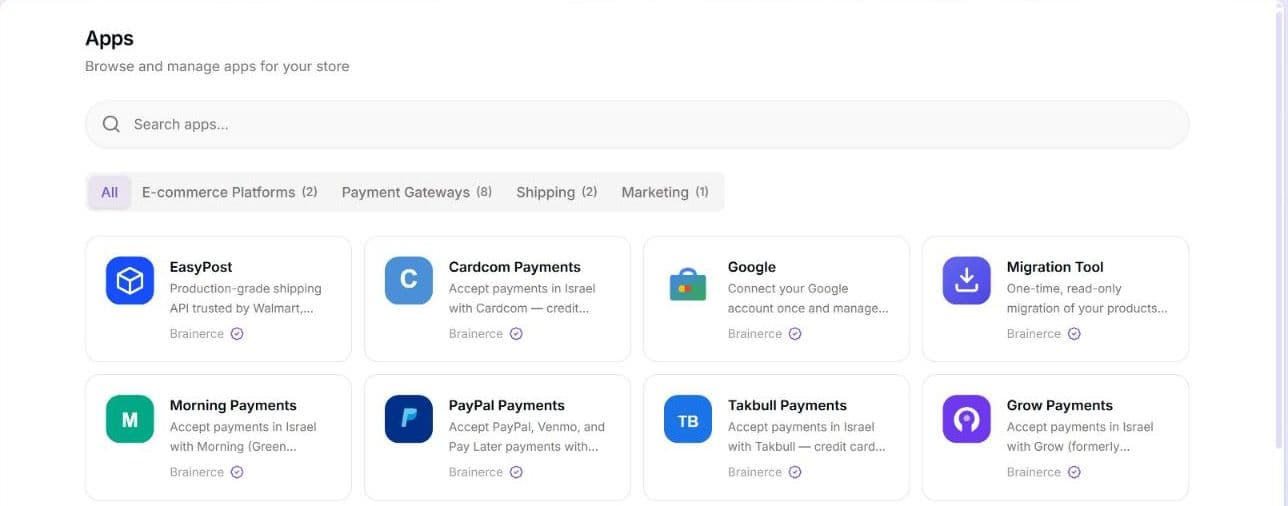
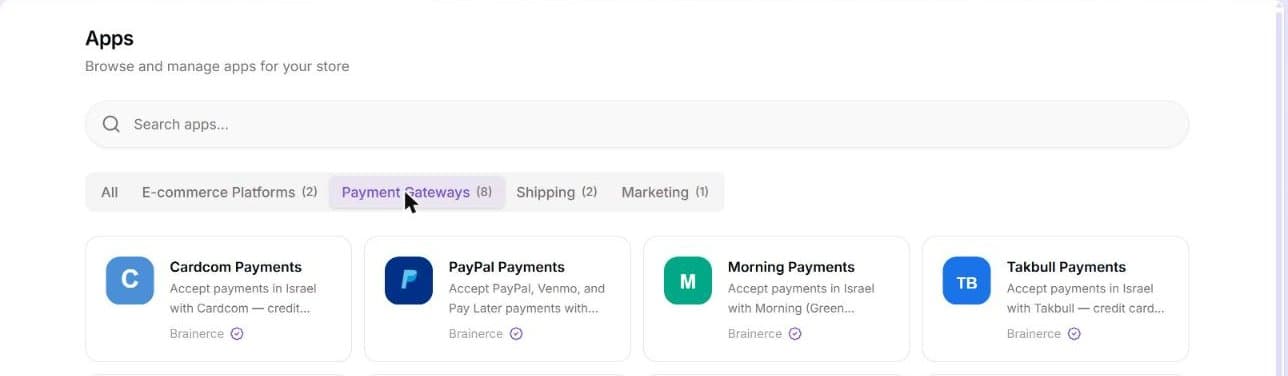
Every store sees every published gateway. Open Apps and check the Payment Gateways category: Stripe, PayPal, Cardcom, Morning (Green Invoice), Grow, Takbull, Rivhit (iCredit) and Sola are all there.
MAX and Tranzila are not available yet. Both are still in draft, so they do not appear in the marketplace and cannot be installed, whatever your plan. Do not plan a launch around either of them.
Where each gateway can sell:
- Stripe and PayPal are international. PayPal is not offered for regions in India, Indonesia, Bangladesh or Pakistan.
- Cardcom, Morning, Grow, Takbull and Rivhit (iCredit) serve Israel only.
- Sola serves the United States only.
Some gateways take one currency only. Grow, Morning and Takbull charge in shekels (ILS) only, and Sola in US dollars (USD) only. Cardcom refuses a currency it has no code for (it takes ILS, USD, EUR, GBP, AUD, CAD, JPY and CHF). PayPal takes 24 currencies (AUD, BRL, CAD, CNY, CZK, DKK, EUR, GBP, HKD, HUF, ILS, JPY, MXN, MYR, NZD, NOK, PHP, PLN, SGD, SEK, CHF, THB, TWD and USD), not every currency: a checkout in another one, such as INR, KRW or AED, is refused for PayPal before the customer is charged. Tranzila will be shekels only when it opens. A checkout in any other currency is refused before the customer is charged, with a message that names the currency, so sell those regions through a different gateway. This also applies to a region in another currency when your store currency is not the gateway's currency: see Which currency the customer is charged in.
Country matters at the next step, not this one: a provider can only be switched on for a region whose countries it supports. So the question is never "is this gateway available to me" but "does it cover the region I'm selling into".
The marketplace list isn't filtered by your country, so changing your store country won't make a missing gateway appear. If a provider won't switch on where you need it, check the countries on that region under Settings → Regions, not your store country.
1. Connect a payment provider
- Open Apps in the sidebar and go to the Browse tab.
- Find the payment gateway you want and click its card.
- Click Connect.
- Finish the setup. Depending on the provider, you'll either be redirected to log in and authorize Brainerce, or asked to enter your account details (such as a terminal number or API key).
- When you return, the provider shows as Active on the Installed tab.
Already have an account with the gateway? Don't sign up for a second one. If a provider's setup screen leads with its own signup or application form, that is for merchants who don't have an account yet; it is not the only way in. Look for the fields that ask for your existing credentials (terminal number, API key, secret) and enter those instead. If you only see the signup form and no credential fields at all, that's a fault on our side rather than a rule about your account: email [email protected] and say which gateway, rather than opening a duplicate account with the provider.
2. Test mode vs. live mode
Most providers start in Test mode so you can place practice orders without moving real money. Grow is the exception: it has no Test mode at all, see Grow has no Test mode for merchants.
- Open the provider from the Apps section of the sidebar, where each installed app appears by name.
- Switch Mode from Test to Live when you're ready to take real payments.
Keep a provider in Test while you're setting up, then switch to Live before you launch.
Check the badge: some providers connect straight into Live. "Starts in Test" holds when you pick Test yourself during setup. If you finished the provider's own application on their site and they issued you a real terminal, the app shows Live from the moment it connects, because that is what you have. Whatever the badge says is what your customers are being charged against, so read it once before you announce your launch.
Switching Live → Test is easy; switching back is not. Moving a connected provider to Test takes effect immediately and asks you for nothing. Moving it back to Live reopens the credentials form and will not proceed until you re-enter your terminal number, API key or secret. If the provider issued those to Brainerce directly (which is what happens when you complete their own application form rather than typing keys in yourself) you may not have a copy to re-enter, and your store cannot take real payments until you get one from the provider. If the badge says Live and you weren't expecting it, check with the provider that you hold your own credentials before you flip the switch, or email [email protected] first.
3. Make providers available in each region
A connected provider only appears at checkout for regions where you've enabled it. This is the most common reason a working provider doesn't show up for some customers.
- Go to Settings → Regions.
- Open the region you want to edit.
- In the Payment Providers section, turn on the providers that should serve that region.
- Click Save.
Only providers that serve the region's countries are shown. The list does not check the region's currency, so make sure the provider can charge in it: Grow, for example, charges in shekels only, and PayPal takes 24 currencies, not all. A checkout in a currency the provider cannot take is refused before the customer pays; the provider is still shown in the list.
Manage connected providers
Open an installed provider from the Apps section of the sidebar to:
- Set as Default makes this card processor the one that takes the payment when the customer does not pick another. It appears only on a card processor that is not already the default. The current default carries a Default badge.
- Edit settings to re-enter credentials. It shows while the provider is in Live mode; to move a provider from Test to Live, switch the Mode to Live and the credentials form opens.
- Test Connection checks that Brainerce can still reach your account at the gateway and shows Connection successful or Connection failed.
- Disconnect drops the credentials but keeps the app installed.
- Uninstall removes it entirely.
To stop a provider appearing at checkout without uninstalling it, turn it off for the region in Settings → Regions.
Default provider and Additional method (PayPal)
Brainerce separates the one card processor that settles an order from additional methods that are offered next to it. Every gateway in this article is a card processor except PayPal, which is an additional method: its page shows an Additional method badge, it has no Set as Default button, and it never becomes the default while a card processor is connected. At checkout your website shows it as a separate payment option next to the card payment.
- A store that connects only PayPal still works. With no card processor connected, PayPal takes the payments by itself.
- Several card processors can be connected, but one is the default. If you connect a second one, use Set as Default on the one that should take payments, and turn the others on or off per region in Settings → Regions.
Standing orders: can this provider charge a saved card again?
Each connected provider shows a Standing orders panel that says, in plain words, whether it can charge a saved card on a schedule. This is what monthly donations, memberships and other recurring charges are built on. If the panel says the provider cannot, connect another provider before you build a recurring campaign around it. Grow (not yet), Morning, Takbull and Sola cannot do this. Stripe, PayPal, Cardcom and Rivhit (iCredit) can.
Installments: let customers split a card payment
Providers that can split a payment show an Installments card below the connection details, with the description "Let customers split a card payment into multiple charges over time". At the moment these are Cardcom, Rivhit (iCredit), and the two gateways that are not installable yet, MAX and Tranzila. Takbull has its own setting for it, described below. Morning, Stripe, PayPal, Grow and Sola have no installments setting in Brainerce.
- Open the provider under Apps.
- In Installments, set Max number of installments to a whole number from 1 to 36. 1 switches installments off.
- Optionally set Minimum order amount for installments (optional). Orders below it are not offered installments at checkout.
- Click Save. You see "Installments settings saved".
- Installments work for shekel stores only. If the store currency is not ILS, the card shows a warning ("Installments are only available for stores billing in ILS") and the setting has no effect. A checkout in any other currency is always one payment.
- Your terminal at the gateway must allow the number you set, or the gateway can refuse the checkout. Ask the gateway before you raise it.
- Cardcom adds one more limit of its own. Each installment has to be at least 25 shekels, so a small order is offered fewer installments than your maximum, and an order under 50 shekels is always one payment.
- Takbull uses a field named for maximum payments in its settings (1 means no installments, up to 12) instead of this card, and it is shown in the provider's settings form after you connect.
- Grow has no installments setting in Brainerce. Brainerce does not send a number of payments to Grow, so what the Grow payment window offers is decided on Grow's side.
Cardcom settings
After you connect Cardcom, open it under Apps to see its settings form:
- Operation Type is ChargeOnly (charge the card now) unless you change it. Leave it. When a customer asks to save their card, Brainerce switches that one payment to charge and save by itself. Only change the value if Cardcom told you to.
- Page Language is the language of the payment form: he, en or ru (default he).
- Checkout Render Mode is embedded or hosted, described in the next section.
Click Save Configuration to store them (you see "Configuration saved successfully"). A change applies to the next payment, not to one already open.
Redirect or embedded payment page: your website chooses, not the dashboard
Some gateways can show their payment page two ways: by sending the customer to the gateway's own page and back (a redirect), or inside a frame on your checkout page (embedded). Which one a customer sees is decided by your website's code, within what the gateway supports. There is no redirect or embedded switch in the dashboard, and there will not be one: only the website knows whether it has a frame to show the page in.
- Each gateway declares which modes it can serve. Cardcom, Grow and Sola are embedded only (Grow shows its own payment widget inside your checkout page); Stripe, PayPal, Morning and Takbull are redirect only; iCredit, MAX and Tranzila can serve either (MAX and Tranzila are not installable yet).
- Cardcom has one related setting, Checkout Render Mode, and it does not change redirect or embedded. Both of its values appear inside a frame on your checkout. embedded (the default) shows a Brainerce card form built on Cardcom's secure fields. hosted shows Cardcom's own payment page inside the frame instead. Change it under Apps, Cardcom, in the settings form shown after you connect.
- If your website asks for a mode the gateway does not offer, the customer gets the gateway's normal page. Nothing breaks and no payment is lost.
- If your website asks for nothing, the gateway's normal page is used, which is what happened before this existed.
- Whoever builds your website chooses this. If you want a different mode, ask your developer, or tell your AI builder: the option is called
preferredRenderTypeand is documented in the developer docs.
Selling in Israel
These are the gateways a store selling in Israel chooses between (Stripe is included for comparison), and they differ in ways that matter more than the fee:
| Provider | Cards | Bit | Apple Pay and Google Pay | Installments | Automatic VAT invoice |
|---|---|---|---|---|---|
| Cardcom | Yes | Yes, if your terminal has Bit | Only on Cardcom's own page (Hosted), if enabled on your terminal | Yes | Yes, if your Cardcom account has its documents module |
| Morning (Green Invoice) | Yes | Yes | Yes | No | Yes |
| Takbull | Yes | Yes | No | Yes | Yes |
| Grow (formerly Meshulam) | Yes | Yes | Yes (Apple Pay needs one file on your website) | Set at Grow, not in Brainerce | No |
| MAX, not yet installable | Yes | No | No | Yes | Yes |
| Tranzila, not yet installable | Yes | Switch Accept Bit | Switches Accept Apple Pay and Accept Google Pay | Yes | No |
| Rivhit (iCredit) | Yes | Not confirmed | Not confirmed | Yes | Yes |
| Stripe | Yes | No | Yes | No | No |
How to read the table:
- "Yes" means the gateway's own payment page or window offers it. Brainerce does not draw a Bit, Apple Pay or Google Pay button of its own, with one exception: Cardcom's embedded card form can show a Bit button above the card fields.
- Your own account decides what the customer really sees. A method also has to be switched on for your terminal or account at the gateway. If a customer reports that a method is missing, ask the gateway to enable it.
- Sola takes cards only. PayPal takes PayPal wallet payments and cards (see below).
- Stripe shows Apple Pay and Google Pay when they are enabled in your Stripe account, along with whatever other payment methods you switch on there.
Grow (Meshulam): registration, shekels and refunds
Grow has no Test mode for merchants. Unlike Stripe, PayPal or Cardcom, the Grow app has no Test switch and no test card. Grow keeps its sandbox for the platform only and does not allow a merchant to trade on it, so every payment taken through Grow is a real payment with real money. To check a live Grow store, place a small real order and refund it (see the refund limits below).
To practise before Grow approves you, use Sandbox Payments. Open Sales Channels, open the channel's settings while it is in Test mode, and turn on Sandbox Payments. Orders placed that way go through the whole checkout without any payment provider at all, so they never reach Grow.
Going live means registering with Grow. Fill in the registration form (business number, phone, website). Grow reviews your business, and while that is pending you cannot take any payment through Grow. When Grow approves the registration, the app connects by itself and runs in Live mode from then on.
A slow Grow payment is held, not failed. Grow sometimes takes several minutes to confirm a payment. While it has not confirmed, the checkout stays on Processing and the order appears as soon as Grow does. The customer is not told the payment failed and is not asked to pay a second time. See A payment stays on Processing.
Choosing a Grow plan (pricing and fees). The registration form asks you to pick one of Grow's three plans, and Grow registers your business on the plan you pick:
| Plan | Monthly fee | Fee per transaction |
|---|---|---|
| Monthly | ₪69 | 0.75% |
| Annual (Grow annual) | ₪59 | 0.75% |
| Annual, paid upfront | ₪29 | 1% |
The full terms of each plan are on Grow's fees page, linked from the form as View fee terms. Brainerce does not charge these fees and cannot change your plan after you register: to move to another plan, contact Grow.
Already have Grow details? Enter them instead of registering again. If you disconnected Grow and want to reconnect, or Grow support gave you your details directly, open Grow under Apps and open Already have an account? Enter your API keys under the registration button. Enter your Grow User ID exactly as Grow shows it; add an API Key and Page Code only if Grow issued your business its own. Registering a second time does not work, because Grow refuses a business that is already registered. A Grow account that was not opened through Brainerce needs Grow support first: ask them to connect your business to Brainerce.
Grow takes shekels only (ILS). Grow cannot charge in dollars, euros or any other currency. A checkout in another currency is refused before the customer is charged, so sell those regions through a different gateway.
Grow has no subscriptions or standing orders here. Brainerce cannot save a card with Grow and charge it again later, so memberships, standing orders and monthly donations need a different gateway.
A Grow refund issues no credit note. Grow produces no document when you refund, so the refund line on the order has no document number or link. Issue the credit note yourself on the Grow website after the refund.
Grow refund limits. A refund on the same day as the payment cancels the whole charge, so a partial refund is only possible from the next day; Brainerce tells you this instead of sending it. Grow allows at most two refunds per payment through Brainerce; for a third, contact Grow. A refund also needs a balance in your Grow account.
PayPal: connect with your own credentials
PayPal is open to every merchant. You connect it with the Client ID and Client Secret of your own PayPal app, and the money settles straight into your PayPal account. There is no "open a PayPal account for me" option on the setup screen: if you do not have a PayPal business account yet, create one with PayPal first.
- The customer leaves your website to pay. PayPal shows its own page and sends the customer back (a redirect). It takes PayPal wallet payments and cards.
- Test mode works without credentials. Switch Test on and PayPal runs on a shared PayPal sandbox that Brainerce holds. No real money moves.
- You can refund from inside Brainerce. A refund you make in PayPal's own dashboard is reported back to Brainerce and recorded on the order. See A refund you make in your payment provider's dashboard.
- PayPal is not offered in India, Indonesia, Bangladesh or Pakistan, so it cannot be switched on for a region made of those countries.
iCredit (Rivhit): what to expect
iCredit is the card gateway run by Rivhit. In the marketplace it is listed as Rivhit (iCredit), under Payment Gateways. Here is what it does, so you can judge whether it is the right gateway for you:
- It works in shekels only (ILS). Selling in another currency needs a different gateway.
- The customer pays on iCredit's own payment page. By default the customer leaves your website, pays there and comes back afterwards. Your website can ask for the same page inside a frame on your checkout instead (see Redirect or embedded payment page). There is never a Brainerce card form for iCredit.
- Installments, saved cards and 3D Secure are supported, and you can refund from inside Brainerce. Full refunds only: iCredit reverses a payment-page sale in full and issues the credit document with it. A partial refund is refused, not rounded up to a full one; take a partial refund inside your iCredit console and then record it on the order by hand.
- It issues a tax invoice or a receipt with every charge. See Invoices below.
- Bit, Apple Pay and Google Pay are marked "not confirmed" above because we have not yet run a live charge on a real iCredit terminal. Treat them as unavailable until this page says otherwise, rather than assuming they work.
What iCredit calls the credential you will need
The one thing you paste into Brainerce is the payment page ID (the identifier of one of your iCredit payment pages). It is worth knowing the name, because searching your iCredit console for "token", "key" or "API" will not find it. The iCredit console is in Hebrew, so the labels below are described rather than quoted.
Inside your iCredit console: open the payment pages section, then the list of payment pages, press the edit button on the payment page you want, and copy the payment page ID field from that page's settings.
Two things follow from that, and both surprise people:
- It belongs to a payment page, not to your business. If you have no payment page set up in iCredit yet, there is nothing to copy. Create one there first.
- It is both your identity and your password. Anyone holding it can charge through your terminal, so treat it the way you treat a password. Do not paste it into an email or a chat.
Trying iCredit will not need any of that. Test mode runs on a shared demo terminal that Brainerce holds, so you switch it on and get a working practice checkout without entering a credential at all. No real money moves and no real tax invoice is issued. You only need the payment page ID when you switch to taking real payments.
Refunds need a separate permission on an iCredit terminal too (the credit permission). Being allowed to charge a card does not mean you are allowed to credit one. Ask iCredit to confirm the credit permission is switched on before you need it: 03-7466300, extension 3. See The refund was declined by the credit card company.
MAX refunds need an API password, and it is optional when you connect
MAX asks for a terminal number, an API key and an API password. The first two are enough to take money. The API password is the only one that can give money back, and MAX will not accept the API key in its place for a refund, a cancellation or a charge to a saved card.
The field is optional in the connect form, so it is easy to skip. A MAX terminal connected without it charges cards perfectly and can never refund one. The order simply has no Create Refund button, with a note that says refunds are not available for this provider and links nowhere. Nothing at setup tells you this, and no test payment fails.
On a test connection there is never a password. The shared MAX test terminal is issued none, so refunds are always unavailable in test mode, whatever you do. That is expected.
The fix is to open your MAX installation under Apps, choose Edit settings, and re-enter your credentials with the API password included. See There is no Create Refund button on a MAX order. MAX is still in draft and cannot be installed yet, so this applies from the day it opens up rather than today.
Refunds need their own permission
Being able to charge a card does not mean you can refund one. Israeli acquirers grant the credit permission separately from the charge permission, and a terminal is often provisioned with only the charge side. Nothing warns you at setup: payments work, and the gap only shows up the first time you try to refund, as a refund declined by the credit card company. Ask your gateway to confirm the credit permission is enabled before you need it. See The refund was declined by the credit card company.
On MAX there are two independent things to get right, and they have opposite symptoms. No API password saved means there is no refund button at all, and you fix that yourself under Apps in a minute. No credit permission on the terminal means the button is there, you press it, and the credit card company refuses the credit, and only MAX can fix that. A MAX terminal can be short of both, and sorting one out does nothing for the other.
A refund you take in the gateway's own dashboard does not reach Brainerce
This one is worth knowing before you pick a gateway, because it never comes up until the first refund.
Only Stripe, PayPal and Grow report a refund back to us. Refund a charge in one of those and Brainerce marks the order refunded by itself.
Cardcom, iCredit, MAX, Morning, Sola and Takbull report nothing. Credit a customer in the Cardcom dashboard, or in your iCredit, MAX, Morning, Sola or Takbull screens, and the money genuinely goes back while Brainerce never hears about it: the order still says paid, the promo code the customer used stays spent, their lifetime spend is unchanged and their loyalty points stay with them. There is no sync and no catch-up job. So with those six, always issue the refund inside Brainerce and let it call the terminal for you. If you already refunded outside, see The money went back but the order still says paid.
Morning is the awkward case by design. Morning's API has no refund at all, so Brainerce hides the Create Refund button on a Morning order and points you at Morning's dashboard instead. On Morning that is the refund you are forced to make outside, every time, and it is also one Brainerce will never learn about, so you always record it by hand afterwards. If refunds are frequent for you, weigh that against Morning's automatic invoice before you choose it.
A MAX terminal with no API password lands you in the same place by accident, and the note on the order does not even give you a dashboard link. That one is worth checking before you conclude MAX cannot refund: see MAX refunds need an API password above.
Connect Morning (Green Invoice)
You paste two things from your Morning account: a Key ID and a Secret. Brainerce works out the rest. Open Apps, open Morning, paste both, and press Verify & save.
- API keys need Morning's Best plan or higher. On a lower plan Morning refuses the key and Brainerce tells you the key does not allow API access. Upgrade the plan in Morning first, then create the key. Brainerce cannot upgrade the plan for you.
- Where to create the key. In Morning open Personal area, then Developer tools, then API keys, and press the green plus. The Secret is shown once, when the key is created, and Morning cannot show it again. Copy it straight away. If you lost it, create a new key.
- You do not enter a plugin ID or a document type. Brainerce uses the default payment plugin of your Morning business. The document it issues follows your VAT status in Morning: a tax invoice receipt if you are an authorised dealer (עוסק מורשה), a receipt if you are VAT-exempt (עוסק פטור). If that is wrong for you, open the settings under the connection and choose the document type yourself.
- Your Morning account needs a payment gateway connected first. Connect a digital payments gateway in Morning under Payments, then Clearing. A valid key on an account with no gateway is not saved as connected, and Brainerce tells you no payment gateway is connected in Morning.
- Morning cannot refund through Brainerce. Morning's API has no refund, so a refund is always made in Morning's own dashboard, and Brainerce never learns about it. See A refund you take in the gateway's own dashboard does not reach Brainerce.
Invoices
Brainerce does not issue tax invoices. There is no invoice document, no numbering, and nothing sent to the customer after an order beyond the order-confirmation email.
If you need a tax invoice issued automatically, and in Israel you generally do, connect a provider that issues one: Morning (Green Invoice), Takbull, Rivhit (iCredit) or Cardcom (Cardcom needs the documents module on your Cardcom account). The invoice is then produced by that provider, under your account with them, not by Brainerce. With Stripe, PayPal, Grow or Sola you are invoicing separately, outside the platform.
MAX also issues invoices, but you cannot install it yet. It is still in draft and does not appear in the marketplace. If automatic invoicing is why you were choosing MAX, use Morning, Takbull or iCredit instead.
Rivhit (iCredit) issues a tax invoice or a receipt too. iCredit produces the document itself as part of the charge, under your own account with Rivhit, and the document number and a link to it appear in the invoice column of your orders list. When you refund an iCredit order from Brainerce, iCredit issues the credit note with the refund, and that appears in the same column on the refund's line under the order. Cardcom does the same; card-only providers issue no document either way.
Which document iCredit issues is set inside iCredit, not in Brainerce. Whether you get a combined tax invoice and receipt or a receipt only follows the way your terminal is configured at Rivhit, which usually follows whether you are registered as an authorised dealer (who charges VAT) or an exempt dealer (who does not). There is no setting on our side that changes it, so if you need a different document, ask Rivhit to change it on your terminal.
Bit, Apple Pay and Google Pay
Bit comes with the gateway. It is not a separate app you install, so pick a gateway that offers it rather than looking for Bit in the marketplace. Cardcom, Morning, Takbull and Grow offer it. Do not pick Rivhit (iCredit) for Bit. We have not confirmed that Bit works through it, so treat it as unavailable there.
- Cardcom: the Bit button needs Bit on your terminal. Cardcom's embedded card form (the default Checkout Render Mode) shows a Bit button above the card fields only when Cardcom reports that your terminal has Bit. With no Bit on the terminal, the button is not shown and nothing else changes.
- Cardcom: Apple Pay and Google Pay are not in the embedded form. The embedded card form has no Apple Pay or Google Pay button. They can only appear on Cardcom's own payment page, which you get by setting Checkout Render Mode to hosted, and Cardcom decides per terminal whether to offer them. Ask Cardcom before you promise either to customers.
- Grow: Apple Pay needs a verification file on your website. Apple only shows Apple Pay on a domain it has verified. The Grow payment window needs the file at
/.well-known/apple-developer-merchantid-domain-associationon your store's domain. A store made with the Brainerce starter template already serves it. A store built another way has to serve that file itself, or Apple Pay does not appear. - Tranzila (not installable yet): each method is a switch in the settings, off by default. Accept Bit, Accept Apple Pay, Accept Google Pay and Accept PayPal each add that method to the Tranzila payment page, and each also has to be enabled on your Tranzila terminal first. Bit is shown only for orders over 5 shekels and needs a Bit seller account on the terminal. Apple Pay appears on Apple devices only and is a paid Tranzila service that Tranzila must activate for you.
- Takbull and Bit. Takbull's payment page offers every method enabled in your Takbull account, and Brainerce records a Bit payment as Bit. Brainerce does not offer Apple Pay or Google Pay through Takbull.
- No gateway lets you set Bit or a wallet per region or per customer. A method is offered or not offered by the gateway's page for the whole store.
Paying with a gift card
A gift card is a means of payment too, and it does not come from this page. It is not a provider, there is nothing to install, and it is not enabled per region.
- A gift card can pay part of an order. The customer types the code, the card covers what it can, and they pay the rest through one of the providers above. You still need at least one provider connected.
- A gift card can pay all of an order. When the card covers the whole total, no provider is involved and nothing is charged.
- You still issue every gift card by hand from the dashboard. A customer cannot buy one on your website.
- Gift cards are still in rollout, so there is no Gift cards entry in your sidebar yet.
- The code box at checkout is part of your website and has to be built, like the coupon field. See a feature you turned on is not showing on your website.
Why can't my customers pay?
| Symptom | Likely cause and fix |
|---|---|
| No payment options at checkout | No provider is enabled for that customer's region. Check Settings → Regions. |
| Provider connected but checkout still fails | Provider is still in Test mode. Switch it to Live. |
| Provider connected but never offered | It isn't enabled for the customer's region. Check Settings → Regions. |
| "Currency not supported" error | The checkout currency isn't one that provider takes. Grow, Morning and Takbull take shekels only, Sola takes US dollars only and PayPal takes 24 currencies (not INR, KRW or AED, for example). Use a provider that takes the currency, or sell that region in your store currency. |
| Provider shows as Pending / not Active | The connect step didn't finish. Reconnect from Apps. |
| Customer paid but no order yet, checkout on Processing | The provider has not confirmed the payment yet. Nothing is wrong and nothing failed: see A payment stays on Processing. |
| Payments stopped right after the store was transferred to you | Payments are paused from the moment a store transfer is accepted, and they stay paused until the new owner connects their own payment provider and it shows as Active. A provider the previous owner left connected does not count, and neither does installing without connecting, or waiting. See Payments are paused after a store transfer. |
A payment stays on Processing
With Grow, Rivhit (iCredit), MAX and Morning, the customer's browser can finish the payment before the provider has confirmed it. When that happens the checkout sits on Processing in your Checkouts list and the order is created as soon as the provider's confirmation arrives. That can take a few minutes.
- The payment is not recorded as failed. The customer is not told it failed, and they are not offered a second payment for the same basket.
- You do not need to do anything. Do not delete or retry it by hand: a checkout on Processing cannot be deleted from the Checkouts list.
- If the order still has not appeared after a long wait, look the payment up in your provider's own dashboard before you contact the customer, and email [email protected] with the checkout ID if the provider shows the money was taken.
What's next?
Still stuck? Email [email protected] and we'll help you get paid.
Abandoned checkout recovery emails
Email customers who left without paying, automatically in up to three steps with an optional single-use discount code, or by hand from the Checkouts list. What counts as abandoned, who is skipped, and how to read the recovery numbers.
Add custom checkout fields
Collect extra information from customers at checkout (gift messages, company names, tax IDs, delivery notes) and optionally add a surcharge.