 Brainerce Help
Abandoned checkout recovery emails
Email customers who left without paying, automatically in up to three steps with an optional single-use discount code, or by hand from the Checkouts list. What counts as abandoned, who is skipped, and how to read the recovery numbers.
When a customer enters their email at checkout and leaves without paying, Brainerce can email them a link back to their basket. This page covers the automatic recovery emails, the manual Send recovery email action, the discount code option, and the things recovery does not do.
Turn on automatic abandoned cart emails
Automatic recovery emails are off in every new store. Until you switch them on, nothing is sent on its own, even though the abandoned checkouts still appear in your list.
- Open Checkouts in the sidebar.
- Click the table's ⋮ menu (in the last column header) and choose Checkout Settings.
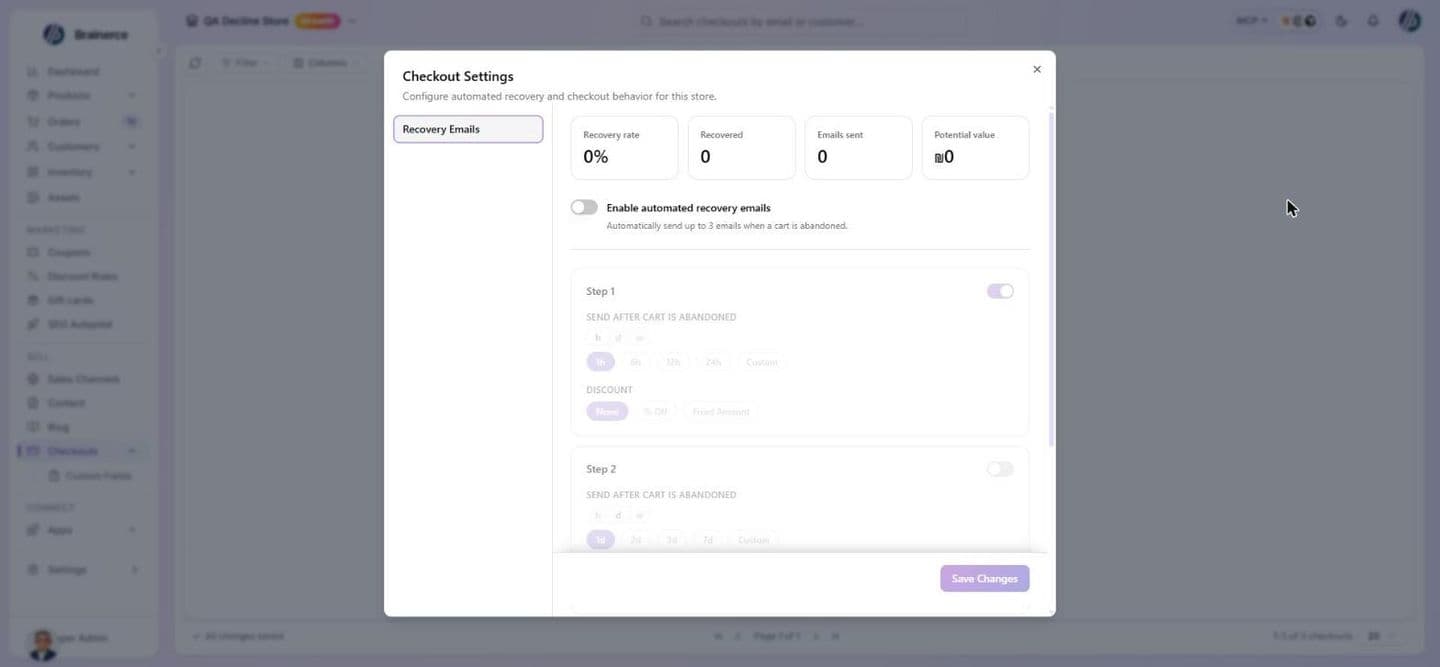
- In Recovery Emails, switch on Enable automated recovery emails. It sends up to 3 emails when a cart is abandoned.
- Set up the steps (below), then click Save Changes.
A store with no checkouts yet has no table and so no ⋮ menu. The Checkouts page then only says No checkouts found. Open the same settings from Customers → Campaigns instead: the Abandoned cart recovery row lists the emails that go out on their own, with an on and off switch and a settings button. See Automatic emails.
You need the right roles. Seeing the settings and the numbers needs a role that can view orders. Saving a change, switching recovery on or off, and sending an email by hand needs a role that can update orders. Deleting a checkout needs a role that can cancel orders, which a Staff member does not have by default. See Team and permissions.
Recovery emails are marketing email. They need a Business postal address in Settings → Email → Sending and domain or they are refused at send time without any warning. See Customize email templates. The email itself is the Abandoned Cart template, which you can edit there; every step uses the same template.
When a checkout counts as abandoned
A checkout is treated as abandoned when all of these are true:
- The customer entered an email address at checkout. A shopper who never typed an email cannot be emailed, so nothing is sent for them.
- No order was created and nothing has touched the checkout or the cart for 60 minutes.
- Brainerce checks for abandoned checkouts every 10 minutes, so in practice it is marked abandoned 60 to 70 minutes after the last activity.
There is no backfill. A checkout that has been idle for more than 48 hours when Brainerce looks is never picked up. Turning recovery on today does not email customers who left last week.
Each checkout gets one sequence only. If a customer clicks a link, comes back, and leaves again without buying, the sequence does not start over for that checkout.
The three steps
Under Recovery Emails you see Step 1, Step 2 and Step 3. Each one has:
- Enabled, to switch that email on or off. Out of the box only step 1 is on.
- Send after cart is abandoned, how long after the checkout was marked abandoned that email goes out. Pick hours, days or weeks, or type your own value. The defaults are 1 hour for step 1, 24 hours for step 2 and 3 days for step 3. The delay counts from the moment the checkout was marked abandoned, not from the customer's last click.
- Discount, optional. See the next section.
You can have a single email or all three. Later steps are skipped for anyone who has already bought, so a customer who orders after step 1 never receives steps 2 and 3.
Add a discount code to a recovery email
Each step can carry its own discount. Choose None, % Off or Fixed Amount, then set the Discount value and Coupon expires in (hours).
- Brainerce creates a single-use code for that one checkout when the email goes out, so the code in one customer's email cannot be shared around for repeated use.
- The code expires after the number of hours you set (a whole number, 1 or more).
- A % Off discount can be 1 to 100. A value above 100 is refused when you save. A Fixed Amount is an amount in your store currency, shown with your currency symbol, and starts at 1.
- A new discount starts at 10 and 48 hours until you change it.
- The code is put into the email, but only if the Abandoned Cart template shows it. The standard template does. If you have rewritten the template, check that it still prints the discount code, or the customer never sees it.
- The codes appear in your coupon list like any other coupon.
A discount on step 1 costs you margin on customers who might have come back anyway. Many stores send step 1 as a plain reminder and keep the discount for step 2 or 3.
Also recover logged-in customers who never reached checkout
With recovery enabled, a second switch appears: Also recover abandoned carts (logged-in customers). It is off by default.
Normally only customers who got as far as typing an email at checkout are emailed. With this on, a customer who is signed in and left items in their cart for an hour without ever starting checkout is emailed too, because Brainerce already knows their email from the account. It uses the same steps, discounts and email as above. Guests who never started checkout are still not emailed, because there is no email address.
A signed-in customer is emailed only if they agreed to marketing email. Accounts start as not agreed unless the customer ticked the marketing box when they signed up or checked out, so with this switch on you reach the signed-in customers who opted in, not every signed-in customer. See Who is not emailed.
Each of these carts appears in your Checkouts list as a Pending checkout with the customer's email, created by Brainerce when it picks the cart up, so the list can hold a checkout the customer never opened.
Send a recovery email by hand
Open the row's menu in the Checkouts list and choose Send recovery email. It sends the Abandoned Cart email at once, with no discount code. You need a role that can update orders.
The action only appears when all of these hold:
- The checkout has an email address.
- It has no order.
- Its status is Pending, Address Entered or Payment Pending. It is not offered on Expired, Failed, Processing or Completed checkouts.
- No recovery email was sent for it in the last 24 hours. After a send the row shows Sent ... ago under Recovery Status, and trying again returns "Recovery email was already sent within the last 24 hours for this checkout".
A hand-sent email follows the same consent rule as the automatic ones. If the customer has a profile that has not agreed to marketing email, nothing is sent and the toast says "This customer has not agreed to marketing emails, so no recovery email was sent". A guest with no profile can be emailed. The row menu still shows the action, because the page cannot see consent.
Two things to know before you send one by hand:
- A hand-sent email counts as the recovery email for that checkout. If you send it before Brainerce has marked the checkout abandoned, the automatic sequence never starts for that checkout: no step 1, 2 or 3 will follow. If the automatic sequence has already started, its remaining steps still go out.
- The filter for these is Recoverable. The Recoverable filter in the Checkouts list shows the checkouts that have an email, no order and one of those three statuses, which are the ones a manual email can reach. The 24 hour wait is separate: a checkout you emailed yesterday still shows under Recoverable.
Who is not emailed
Recovery skips a checkout, quietly, in these cases:
- The customer has not agreed to marketing email. A recovery email is marketing. If the email address belongs to a customer profile (an account, or a customer created by an earlier order) that has not agreed to marketing email, or that unsubscribed, nothing is sent, quietly. A profile starts as not agreed unless the customer ticked the marketing box, so do not assume every returning customer gets recovery emails. A guest with no customer profile has no consent record to check and is emailed. The same rule applies to the Send recovery email action.
- They already bought. This includes a customer who clicked an earlier email and then placed an order through a fresh checkout.
- Recovery or that step was switched off before the email was due. Turning a step off stops emails already waiting for it.
- The basket is empty, or the store is suspended.
- The checkout is Failed, Processing or Completed by the time a step is due. Steps still go out for Pending, Address Entered, Payment Pending and Expired checkouts.
What the link in the email does
The link does not reopen the old checkout. It puts the customer back into their cart on your website with the same items restored, and they start checkout again from there. The link keeps working for 30 days. A checkout itself lasts only 30 minutes, which is why recovery works from the cart, see Why does a checkout say Expired?.
Automatic emails are sent even for checkouts that have since expired. The Expired label does not cancel a recovery email that is already waiting.
Read the recovery numbers
At the top of Recovery Emails four cards summarise how recovery is doing:
- Recovery rate: the share of checkouts you emailed that later turned into an order.
- Recovered: how many checkouts were won back.
- Emails sent: the emails the automatic steps have sent. An email you send by hand with Send recovery email is not counted here, but that checkout does count toward Recovery rate and Potential value.
- Potential value: the combined total of checkouts you emailed that have not been recovered yet.
A recovery is counted when a customer who received a recovery email completes an order from the restored cart. An order placed without a recovery email going out first is not counted.
Potential value is shown in your store currency, in whole units. The number is the sum of the checkout totals as stored, not converted, so on a store that also sells in other currencies treat it as a rough figure.
What recovery does not do
- It does not email shoppers without an email address. There is nothing to send to until the customer has typed an email at checkout or is signed in.
- It does not email customers who opted out of marketing.
- It does not keep a checkout alive. A checkout still expires 30 minutes after the customer last saved a checkout step. The customer starts a new one from the restored cart.
- It does not reserve stock. Items in a recovered cart are on sale to everyone until the customer pays. See Does checkout hold my stock for the customer?.
- It cannot be restricted to certain products or customer groups. The same steps apply to every abandoned checkout in the store.
Next steps
- Checkouts overview
- Customize email templates to edit the Abandoned Cart email
- Coupons to see the recovery codes