 Brainerce Help
Customize email templates
Edit the automatic emails customers receive, send from your own domain, and check delivery.
Brainerce sends transactional emails automatically: order confirmations, shipping updates, refunds, and more. Customize them under Settings → Email.
The emails you can edit
The email editor covers your store's transactional emails, including:
- Orders: order confirmation, new order (alert to you), shipped, cancelled, completed, refunded, order note
- Customers: welcome (a notice to you about a new customer), email verification, orders linked (guest orders attached to a new account), abandoned cart, new inquiry (alert to you), inquiry reply, inquiry confirmation
- Team & store: store invitation, team invitation, role change, store deleted
- System: low-stock alerts, export ready
That is 20 emails in all. Back-in-stock alerts, supplier purchase orders, backup reports and failed-campaign notices are also emails Brainerce sends, but they are not in this list, so you do not edit them here.
Looking for a multi-message welcome series, or a follow-up after delivery? The welcome email here is a single, one-time notice to you about a new customer, sent once and edited here like any other. A separate feature, a short series of up to three welcome messages plus a post purchase follow-up, each with its own timing and its own on or off switch, lives under Customers → Campaigns. See Automatic welcome and follow-up emails.
Edit a template
- Go to Settings → Email and pick a template.
- Edit it in the visual editor. Drag in blocks, insert variables (like the customer's name or order number), and preview on desktop, tablet, or mobile. You can also switch to code view or use the AI chat panel to make changes by describing them.
- Click Save. Each saved change is versioned, so you can restore an earlier version from the history.
The Email page has four tabs across the top:
- Edit emails is the editor. It is the only tab about a single email.
- Sending and domain holds the sender name, the reply-to address, the business postal address, the switches for which emails go out, click tracking and your own sending domain. It applies to every email your store sends, not to the one you have open.
- Send log lists every message the store has sent and what happened to it.
- Health checks your automatic emails. A red number on the tab counts the emails that need attention, and it shows on every tab.
A small chip at the end of the tabs shows the address your mail is sent from and whether that domain is verified. Click it to open Sending and domain.
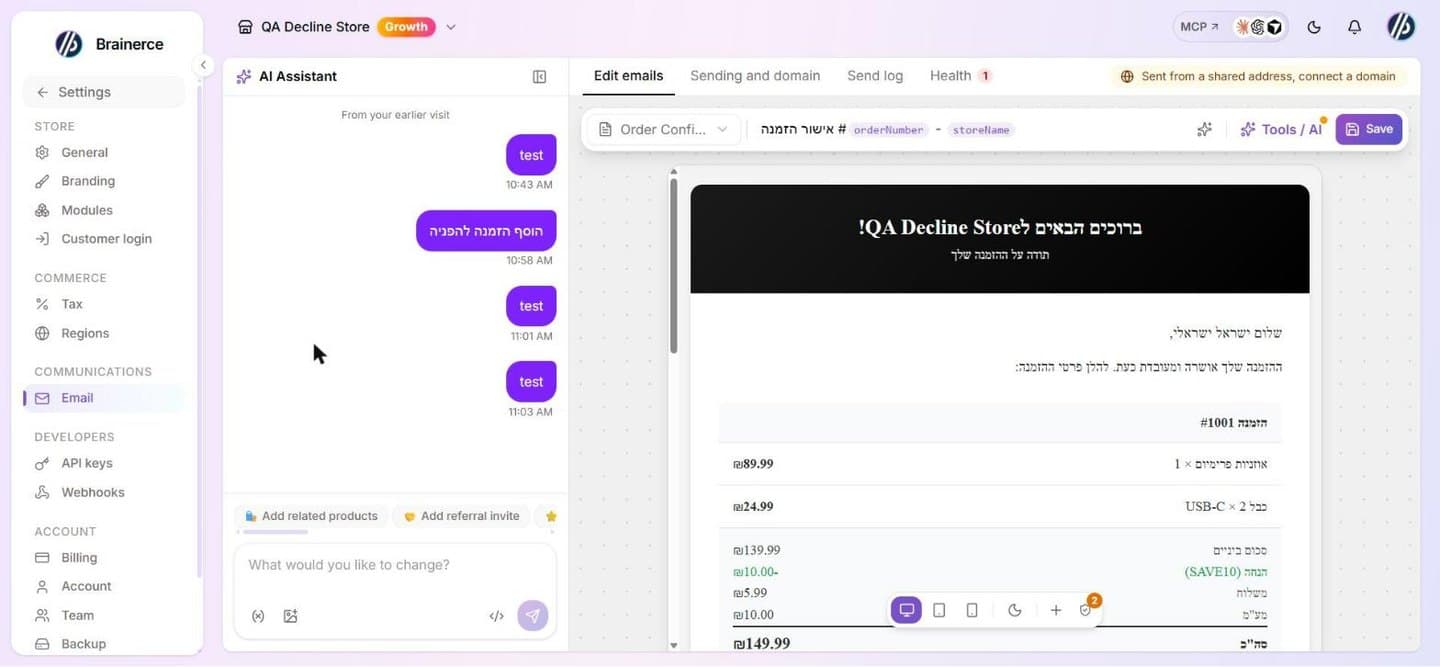
Click a text to edit it, or get another version
Click any text in the preview, such as a button, a heading or a paragraph. A small toolbar opens with bold, size, colors, move and delete, and a box where you can type the new text.
For text without inner formatting, Another version writes three rewrites of it: warmer, shorter, more direct. Click one and it replaces the text at once; press undo to go back. Variables in the text, such as the customer's name or the order number, stay in every version, and amounts, dates and codes stay as they are. Each round costs 1 AI credit.
Write a new email with AI
Click + next to an email type and describe the email you want in the chat, in your own words. For example: "We are a small coffee shop, write a warm shipping email that says delivery takes 2 to 4 business days and that customers can reply with questions."
The AI writes the whole email in about half a minute. Nothing is saved until you click Save, and you can keep asking for changes in the same chat first. Writing a whole email uses about 2 AI credits.
Change an email with the AI chat
Describe the change in the chat ("make the header green", "add a tracking button under the summary"). You can also click an element in the preview first, so the change applies only to it. Each message you send uses about 1 AI credit; editing text by hand and clicking Save are free, and sending these emails to customers never costs credits (see AI credits).
- You see each change as it happens. The chat lists every edit as it lands, and the preview updates live.
- The chat remembers the conversation. After "add a tracking button" you can say "make it green", and it changes that button.
- Undo works from the chat too. Type "undo" or click the undo button. The chat marks the undone change, and the AI knows it is gone.
- Questions get answers, not edits. Ask "what color is the main button?" and nothing in the email changes.
- If a request is unclear, the AI asks which part you mean instead of guessing.
- Ask for options and pick one with a click. "Give me three headlines" shows three buttons and changes nothing until you click one. When the AI needs to ask you something, the answers come as buttons too.
- Suggestions for what to do next. After a change, the AI suggests two or three next steps for this email. Click one to send it.
- The changed parts are outlined in the preview for a few seconds, so you see where the edit landed.
- A request with several parts is checked part by part. Ask for "a green button and a shorter headline" and the chat lists both parts under "What you asked for". Each part gets a check mark when its edit lands. A part that was not done is marked "not done", even if the AI's reply sounds like it was, so nothing is quietly skipped.
- Compare with how it was. Under each change there is "Show how it was". The preview shows the email from before that request, with a "How it looked before this change" label, and nothing in it can be clicked. Press "Back to the current version", send a new message, or edit the email to return. Comparing changes nothing.
- Restore to before a change. Under each change there is "Restore to before this". It brings the email back to how it was before that request. Changed your mind? Press undo right after, and the change comes back.
- Your explicit instruction wins. The AI follows good email practice by default: readable colours, content that always shows, short marketing copy, the currency symbol. When you ask for something specific that goes against it, such as white text on a gold button, a line that shows only when there is an order link, or the code ILS instead of ₪, it does what you asked and mentions the concern once.
What the AI remembers between visits
The conversation for each saved email stays in this browser. Reload the page or come back later and it is still there, marked "From your earlier visit". Those older changes may no longer match the email (for example if you left without saving), so they do not offer "Restore to before this". The conversation is kept on this computer only, not in your account.
Preferences you confirm are remembered for the whole store. When you say something lasting, such as "we always address customers in the plural" or "never use emojis in subject lines", the AI offers to remember it. Click Remember and every later edit, in templates and in campaigns, follows it. The remembers N preferences button above the chat lists what it remembers; click the X next to one to forget it. Nothing is remembered unless you click Remember.
Prices show the currency symbol, such as ₪ or $
Prices in your emails show the currency symbol a customer recognises, for example ₪89.99 or $89.99, not the code ILS or USD. If you would rather show the code, ask the AI chat to "show the currency code instead of the symbol", or write {{currencyCode}} where {{currency}} is today.
A test email shows the same symbol, your store's real name and the current year. The products, customer and address in it are made up examples, written in the template's language.
Change colors with the AI chat
The AI chat changes only the email you are editing. Ask it to "make the header purple" and only that email changes.
It does not change your store's brand colors. Those are used by every email, your customer pages and invoices, so they are changed in one place: Settings → Branding. The same page holds your brand fonts and How your brand sounds, which the AI reads every time it writes or rewrites an email for you. If your store has no branding yet, you can ask the chat to "set up my brand from my website": it shows what it found as a card, and nothing is saved until you press Use these. See Branding and appearance.
Order details stay in place
Variables such as the customer's name, the order number or the payment method fill in real details for each order. The AI does not remove them unless you ask it to remove that part of the email. It also will not add a second copy of something the email already shows, such as the shipping address.
Paste a ready-made email
The editor here is the same one the campaign composer uses, so it has the same </> button next to the chat input: paste the HTML of a finished email (from Claude, ChatGPT or a designer), press Preview to see it on the canvas, then Apply to the email. It replaces this template's content until you save, and Undo brings the old one back; nothing is saved until you press Save. The code is kept as written, scripts are removed, and pictures hosted elsewhere are copied into your media library unless you untick the box. Unlike a campaign, a template's merge fields depend on the email, so the panel does not tell you which of them it does not recognise: open the variables button next to the chat input to see the ones this email can use. The full description, including Add as a block, is in Writing it.
Check an email before you save
The quality check button in the editor toolbar (the shield) checks the email as it is right now, even before you save. It shows a number when it finds something, for example:
- information customers expect in this email type, such as a way to contact you
- buttons or links that lead nowhere
- an email that is not marked as Hebrew right to left
- an email so long that Gmail would cut it off
- text that is hard to read against its background
Each finding has a Fix with AI button that asks the chat to fix it.
Leaving with unsaved changes
If you switch to another email or close the page with unsaved changes, the editor asks first. An Unsaved marker next to Save shows when there are changes to save.
What address do my emails come from?
Open Settings → Email, open the Sending and domain tab, and look under From name. The line there is exactly what a customer sees in their inbox. The chip at the end of the tabs shows the same address.
Until you verify a domain of your own, it reads Your Store <[email protected]>. That is a Brainerce address, and every store on Brainerce sends from it.
Why sharing an address with other stores costs you
Gmail, Outlook and Yahoo decide whether an email reaches the inbox or the spam folder largely by looking at the address it came from and how people have reacted to that address before. While your store sends from the shared Brainerce address, that history is not yours: it is the combined history of every store on the platform. One merchant emailing a bought list can push your order confirmations into spam, and there is nothing you can do about it from your side.
Verify your own domain and you leave that pool. The reputation becomes yours alone, built only by the way you send, and the email says it is from you rather than from us.
Send from your own domain
- Go to Settings → Email and open the Sending and domain tab.
- Under Custom Email Domain, click Connect a domain, enter the domain your website is on, such as
yourstore.com, and click Add. Nohttp://and nowww.. - You get a short list of records. Copy each one into your domain host, meaning the account where your website address is managed (GoDaddy, Cloudflare, Namecheap, your web developer's panel, wherever you bought the domain).
- Come back and click I added them, check records. Brainerce looks each record up in public DNS and shows a green tick next to the ones it sees. For the others it says what is wrong. To reopen the records later, click Manage on the Custom Email Domain card, then Records next to the domain.
- When every record shows Found, the domain moves to Awaiting AWS approval. AWS then confirms it on its own, usually within minutes to hours, and the domain changes to Approved for sending. You do not need to do anything. Click Refresh status to see where it is, or come back later: Brainerce also re-reads the status every 10 minutes.
The whole job is copy and paste. Nothing is being redirected and nothing is being switched over. The check only reads public DNS. It never changes your records.
If a record does not show Found
Each record that is not Found says why:
- Not found. The record is not in DNS yet. If you added it a few minutes ago, it may still be spreading. Check again in a little while.
- Wrong value. A record exists at that name but with a different value. Replace it with the value shown.
- Wrong name. Your DNS host added your domain name to the end of the record name a second time, so the record sits at the wrong name. Remove the domain name from the end of the name you typed and save.
- Hidden by a proxy. On Cloudflare, turn the proxy off for that record (grey cloud, DNS only). With the proxy on, the record is hidden and AWS cannot see it.
- Duplicate record. There are two SPF records at the same name. Keep only one.
- Could not check. We could not reach DNS for that record just now. Try again in a moment. This does not mean the record is missing.
If AWS stops checking
AWS stops checking a domain 72 hours after you add it. The domain then shows Verification failed, and the dashboard cannot restart the check. Remove the domain and add it again. The records change, so paste the new ones. Until the domain is approved, your emails keep going out from the shared Brainerce address.
What adding these records does not do
It is worth being blunt about this, because it is the part merchants worry about:
- Your website is not touched. These records only authorise sending. Your site stays exactly where it is and keeps loading the same way.
- Your existing mailboxes are not touched. If
[email protected]runs on Google Workspace, Microsoft 365 or anything else, it keeps working unchanged. - Your customer list is not touched. Nobody is moved, resubscribed or unsubscribed, and nobody's marketing consent changes. Verifying a domain changes the address your emails leave from and nothing else.
- Nothing breaks while you wait. Until verification passes, your emails keep going out from the Brainerce address exactly as before. There is no window where mail stops.
DNS changes can take up to 48 hours to reach everyone, though it is usually much faster.
Verifying does not give you a mailbox
Verification authorises sending, and only sending. It does not create a mailbox: nothing is delivered to the sending address your mail now comes from ([email protected] unless you chose another), and your own mail provider (Google Workspace, Microsoft 365, whoever handles your @yourstore.com mail) has never heard of that address. Replies reach you through the Reply-To address instead, which is why it needs to be one you actually read.
Can I choose the sending address, or use more than one domain?
You can choose the part before the @, but not the whole address, and you cannot use more than one domain.
- The part before the @: yes. Open Settings → Email, open the Sending and domain tab, and fill in Sender address, for example
info, so your mail comes from[email protected]. Leave it empty and it staysnotifications. Use letters, numbers, dots, hyphens and underscores, up to 64 characters, starting and ending with a letter or number, and never two dots in a row. Capital letters are turned into small ones. - The field is greyed out until you have a verified domain. Until then every store sends from the shared Brainerce address, which is not yours to name.
- It does not create an inbox.
[email protected]is still send-only, even if you already have a realinfo@mailbox at your mail provider: replies go to your Reply-To address, not to that mailbox. - The domain part: no. The domain is always one you verified. A store sends from one verified domain: if you add a second, mail goes out from the one verified most recently. You can also only claim a domain once across all of Brainerce, so a domain another store has already verified cannot be added.
- Every email changes at once. Order emails, campaigns, automated sequences and supplier purchase orders all use the address you set. Mail already sent keeps the address it went out with.
Email logs
The Send log tab in Settings → Email shows every message the store has sent and what happened to it, 20 rows per page, with columns To, Subject, Event, Status and Date (the time it was sent, or the time it was queued while it has not gone out yet). Search by recipient email address, or filter by All Events and All Status. The event filter lists the order emails, the welcome notice, low stock alerts, abandoned cart and the three inquiry emails; other emails still show in the list but have no entry in that filter. A failed message shows its error under the status. Refresh reloads it. Six statuses:
| Status | Meaning |
|---|---|
| Queued | Accepted, waiting to send. |
| Sending | In flight. |
| Sent | Handed to the mail provider. |
| Delivered | The receiving server accepted it. |
| Bounced | Rejected: bad address, or the receiving server refused it. |
| Failed | We couldn't send it at all. |
This is where to look when a customer says they never got a confirmation. Sent without Delivered points at the recipient's side; Bounced usually means the address is wrong; a run of bounces is worth fixing quickly, because it damages your domain's reputation and starts affecting everyone else's mail too.
Unsubscribe links: marketing only
Two kinds of email leave your store, and the unsubscribe link belongs to only one of them.
Marketing email, meaning campaigns and abandoned-cart recovery, exists to promote a sale, so the law requires a working opt-out. Brainerce adds it for you: a footer link plus the one-click unsubscribe header Gmail and Yahoo expect from bulk senders. You don't have to add anything, and the send is blocked rather than delivered without one.
Transactional email (order confirmations, shipping updates, refunds, password resets, team invitations) is exempt, and an unsubscribe link there does real damage. It offers the customer an opt-out you can't honor (you still have to send the next receipt), and a click opts them out of all your marketing, every future campaign and abandoned-cart email, when all they wanted was fewer receipts. Their order emails keep arriving regardless, so nothing looks wrong to them while you quietly lose a subscriber, and only the customer themselves can undo it. See Can a customer re-subscribe?. So these templates carry no unsubscribe link, and the editor flags one if it finds it.
If you want an unsubscribe link in your own footer design, point it at the {{unsubscribeUrl}} variable and wrap it so it hides itself on transactional mail:
{{#if unsubscribeUrl}}<a href="{{unsubscribeUrl}}">Unsubscribe</a>{{/if}}Never point it at # or a URL you typed yourself. {{unsubscribeUrl}} is replaced at send time with a signed link that actually works. Anything else looks live and does nothing, which is how a customer who wants out ends up clicking "report spam" instead.
Set the name customers see
Open Settings → Email, open the Sending and domain tab, and set From name to whatever you want customers to see, usually your store's name. Under the field you can see the full From line the email will carry, name and address together.
Set Reply-To in the same place. Once you have a verified domain, Sender address there sets the part before the @ (notifications unless you change it), and the address is send-only either way. See When a customer replies below before you point customers at it.
Your business postal address: no marketing email sends without it
On that same Sending and domain tab sits Business postal address, and it is the one field on this page that stops mail dead. Leave it empty and nothing promotional can go out: no campaign, no abandoned-cart recovery, no birthday reward, no welcome or follow-up series. They are refused at send time, quietly, whatever the switches say. Order confirmations, shipping updates and password resets are not affected and keep going.
It has to be a real address, because it is printed in the small print at the bottom of every marketing email, where every recipient can read it. Marketing mail is required to carry one, in Israel and in the United States alike, and Brainerce has nowhere else to get it from. If you run the shop from home, use a shop, an office or a post box you collect from instead of the address you live at; once it goes out to a list, it is out.
Setting it is a one-time job. Open Settings → Email, open the Sending and domain tab, type the address, and save. The warnings on the Customers → Campaigns page can also save it for you without leaving that page. See Your postal address for what the law wants beyond the address itself, which is more than Brainerce adds for you.
When a customer replies to an email
Set a Reply-To address under Settings → Email → Sending and domain: a real mailbox you read, such as [email protected]. Every automatic email carries it, so a customer who hits Reply reaches you.
Leave it empty and Brainerce falls back to the account owner's email address. What it never falls back to is the address the mail was sent from. The sending address (notifications@…, or whatever you chose as Sender address) is send-only on the Brainerce domain and on your own verified domain alike: a reply to it is delivered nowhere, the customer gets a bounce, and you never learn they wrote.
Brainerce has no inbox of its own. Replies go to whichever mailbox your reply-to address belongs to (your Gmail, your helpdesk, your support alias) and are not shown anywhere in the dashboard.
Choose which emails go out
On Settings → Email → Sending and domain, a single Email notifications master switch at the top turns all transactional email on or off at once (it shows an "X/20 enabled" count). Below it, four groups (Orders, Customers, Team & Store, System) hold one switch per email, each with a Customer or Store Owner badge (or both) for who receives it. Click Save Changes to keep your choices. If your store has multiple languages, each template can be authored per language.
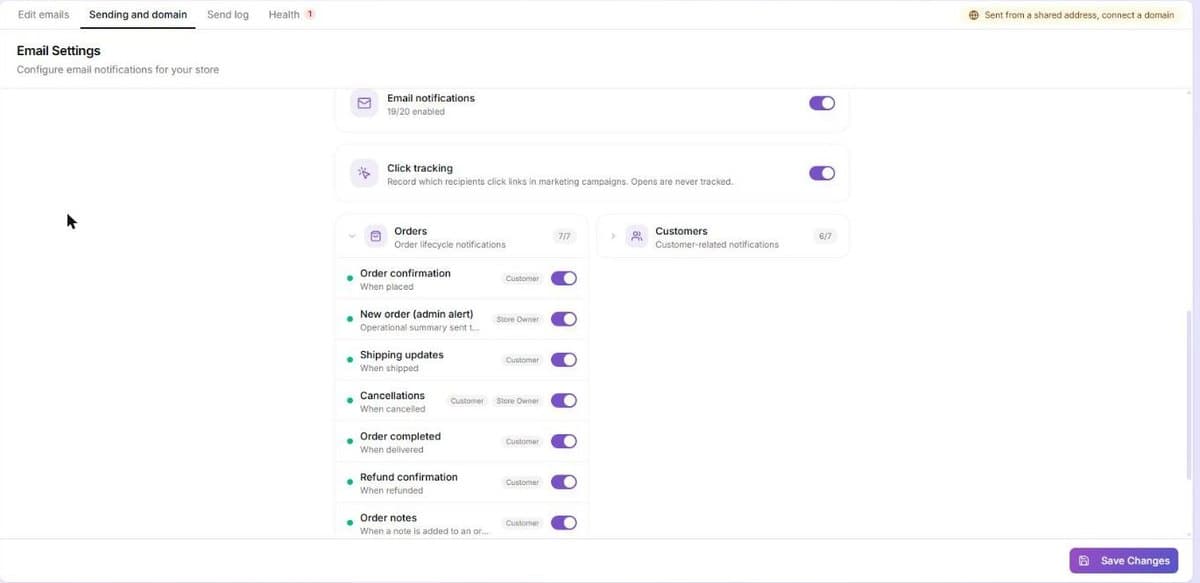
| Who gets it | On by default | |
|---|---|---|
| Order confirmation | Customer | Yes |
| New order (admin alert) | Store owner | Yes |
| Shipping updates | Customer | Yes |
| Cancellations | Customer and store owner | Yes |
| Order completed | Customer | Yes |
| Refund confirmation | Customer only | Yes |
| Order notes | Customer | Yes |
| Welcome emails | Store owner | Yes |
| Email verification | Customer | Yes |
| Orders linked | Customer | Yes |
| Cart recovery (abandoned cart) | Customer | No |
| New inquiry (admin alert) | Store owner | Yes |
| Inquiry reply | Customer | Yes |
| Inquiry confirmation | Customer | Yes |
| Store invitations | Customer badge (the invited person) | Yes |
| Role changes | Customer badge (the member whose role changed) | Yes |
| Store deleted | Customer badge (the team members) | Yes |
| Team invitations | Customer badge (the invited person) | Yes |
| Low stock alerts | Store owner | Yes |
| Export ready | Store owner | Yes |
Cart recovery is the only email that starts off. Switch it on in the Customers group if you want abandoned-cart reminders. Abandoned-cart email is marketing, so it also needs your business postal address.
The Welcome emails switch controls a notice that goes to you, the store owner, when a new customer signs up; the Welcome Email template is that notice. It is not the message your new customer receives. A welcome message to the customer comes from the welcome series under Customers → Campaigns, described above.
Click tracking is a separate switch beside the master switch. It is off by default and applies to marketing campaigns only: when on, Brainerce records which recipients click links. Opens are never tracked.
Turning the master switch off stops every transactional email in the table, including the order confirmation to the customer and the alerts to you.
A switch nobody has touched shows as on, and the email is sent. On a store that never changed these switches, Order completed, Refund confirmation and Inquiry confirmation appear on, matching what happens when mail goes out. Only Cart recovery starts off. Turn a switch off and press Save Changes to stop that email.
You do not get a copy of the refund confirmation. It goes to the customer only, and there is no switch for a copy to the store owner. Among the emails that go to the customer, only Cancellations also sends you a copy by default. There is no setting in this window to change who receives a copy.
Change the subject line, with AI ideas
The Subject row under the editor toolbar shows the subject customers see for this email, and you can edit it there. Variables such as {{orderNumber}} fill in the real value when the email is sent.
The sparkle button in that row writes three subject lines with the preview text that inboxes show after the subject. It keeps the variables your current subject uses, such as the order number, and can add your store name. Use this sets the subject and puts the preview text into the email as hidden text. Each round costs 1 AI credit. Save the template to keep the change.
Add products to an email with one sentence
Ask the AI chat for products, for example "add 3 best sellers under the order summary", "show new arrivals" or "add products on sale". It adds a block of real products from your catalog, with image, name, price and a link to your store.
- Best sellers are the products that sold the most units in paid orders over the last 30 days. If nothing sold in that time, the newest products are added and the reply says so.
- New arrivals are the products added to your catalog most recently. On sale are products with a sale price.
- Names, prices and images always come from your catalog, never from the AI, and prices are shown in your store's currency.
- Only active products are shown. Press undo to remove the block, or "Show how it was" to compare.
The product links open your storefront, so a sales channel needs its storefront address first; until then the AI tells you it could not add products and why. If your store has more than one storefront address, the AI cannot tell which one to link to. Use the Add block button and pick the storefront there. On sale means a sale price that is active today and lower than the regular price.
Check that your automatic emails work (email health)
The Health tab in Settings → Email checks the emails your store sends on its own: order confirmation, order shipped, order completed, order cancelled, refund, and abandoned cart. A red number on the tab counts the emails that need attention, and a red or orange dot on the Tools / AI button in the editor means the same.
Each email is built the way it is sent, once for each common order situation:
- a regular order with a coupon
- a pickup order
- an order with several taxes
- a digital product with a download link
- a shipment with a tracking number, and one without
- a full refund and a partial refund
For each situation it checks that the customer actually sees the order number, every product, the amount, the tracking link, the pickup point address, the download link and the link back to the cart. It also catches an email that would not send at all, text such as {{orderNumber}} printed as is, and a list printed as "[object Object]".
The check uses sample orders, not your customers' real orders, so no customer data is read. This also means a pickup email that is broken is found even if your store has never had a pickup order.
Fix with AI opens that email in the editor and writes the fix into the AI chat. Nothing changes until you send the message and save.
What the Health tab does not check: how the email looks in Outlook or in dark mode, and whether the email arrived in the inbox. For the look, use the quality check and the dark preview in the editor. For delivery, open the Send log tab.
Test, reset, and track
- Send Test Email (Tools / AI → This email) sends the current template to an address you choose. Each store can send up to 100 test emails a day (and 5 a minute); past that the button answers that the limit is reached until the next day. An address that unsubscribed or bounced is skipped.
- Reset (Tools / AI → This email) restores the original template; Delete, in the same group, removes a custom template.
- The Send log tab shows every message and its status (Sent, Delivered, Bounced, or Failed) so you can confirm delivery.
Your logo and brand colors are applied to emails automatically. See Branding and appearance.
Where Email Settings, Logs and Email health went
There is no gear button on the Email page any more, and the Tools / AI menu no longer opens Email Settings, Logs or Email health. They are the tabs across the top of the page: Sending and domain (what used to be Email Settings), Send log and Health. Nothing was removed, and an old link to Email Settings opens Sending and domain.
The Tools / AI menu now holds only what you can do to the email you have open: AI suggestions, undo, version history, code view, sample data, and the This email group (send a test, reset, delete).
What's next?
Need help with email? Email [email protected].