 Brainerce Help
Checkouts
See and recover abandoned checkouts, add custom checkout fields, and connect payment methods.
The Checkouts page is your list of checkouts: carts customers started, both completed and abandoned. Use it to recover lost sales, inspect a checkout, and customize the data you collect at checkout.
What you can do here
- See every checkout. Filter by status (Pending, Address Entered, Payment Pending, Processing, Completed, Failed, Expired) and by whether it's recoverable. Open one to see the cart, customer, and totals.
- Recover abandoned carts. Send a recovery email to a customer who didn't finish, manually from the row (Send recovery email), or automatically in up to three steps with an optional discount code. Automatic recovery emails are off until you turn them on: click the table's ⋮ menu (in the last column header), choose Checkout Settings, then Recovery Emails. Full details: Abandoned checkout recovery emails.
- Custom checkout fields collect extra info at checkout (gift message, company name, tax ID, delivery instructions). See Add custom checkout fields.
- Export / clean up to export checkouts, or delete them individually or in bulk. A checkout that is Completed or Processing, or one where a payment has already been received, cannot be deleted.
The Checkouts list: columns, statuses, filters and actions
Checkouts in the sidebar lists every checkout, newest first, 20 to a page. With no checkouts at all it shows No checkouts found and no table.
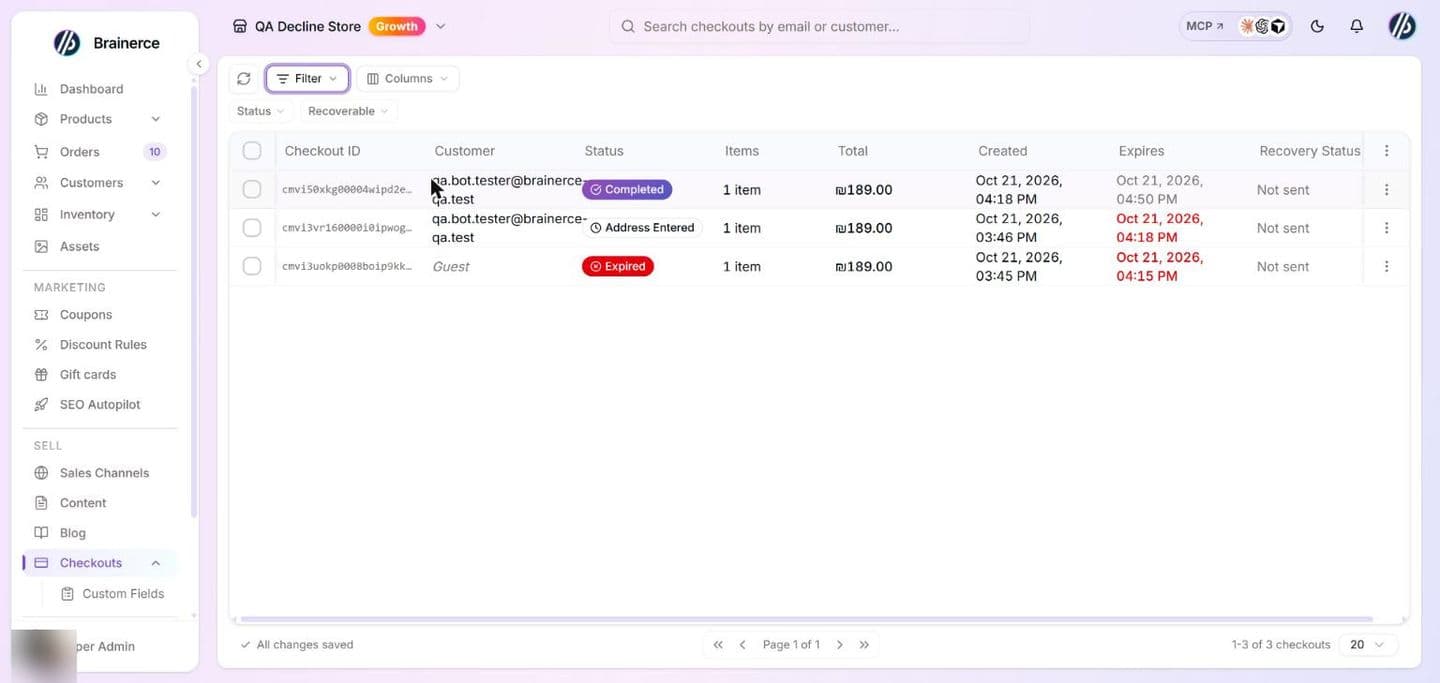
| Column | What it shows |
|---|---|
| Checkout ID | The checkout's reference. |
| Customer | The email the customer typed at checkout, or Guest when they never gave one. |
| Status | One of the seven statuses below. |
| Items | How many items are in the basket. |
| Total | The checkout total in its currency. |
| Created | When the checkout started. |
| Expires | When it stops being usable: 30 minutes after the customer last saved a checkout step (it starts 30 minutes after the checkout was created). Shown in a warning color once the time has passed. |
| Recovery Status | Not sent, or Sent 3h ago after a recovery email went out for it (seconds, minutes, hours or days). |
Show, hide and reorder columns with Columns (Working with tables).
| Status | Meaning |
|---|---|
| Pending | The customer started checkout and has not entered an address. |
| Address Entered | The customer has entered their shipping details. |
| Payment Pending | The customer reached the payment step and has not paid yet. |
| Processing | The customer paid and the payment provider has not confirmed it yet. See A checkout on Processing. |
| Completed | Paid, and an order exists. |
| Failed | The payment failed. |
| Expired | The 30 minute limit passed before the customer finished. |
Find and filter. The search box in the top bar finds a checkout by part of its checkout ID, the email on it, or the name, email or phone of the customer account it belongs to, ignoring capitals. Refresh (top left) reloads the list. The Filter button offers two filters, Status (one of the seven) and Recoverable (Yes: only Pending, Address Entered and Payment Pending checkouts that someone could still bring back). Both combine with search, and the chosen filters show as chips under the toolbar. Changing the search or a filter returns you to page 1. Sorting by a column header reorders only the page you are looking at.
The row menu (⋯):
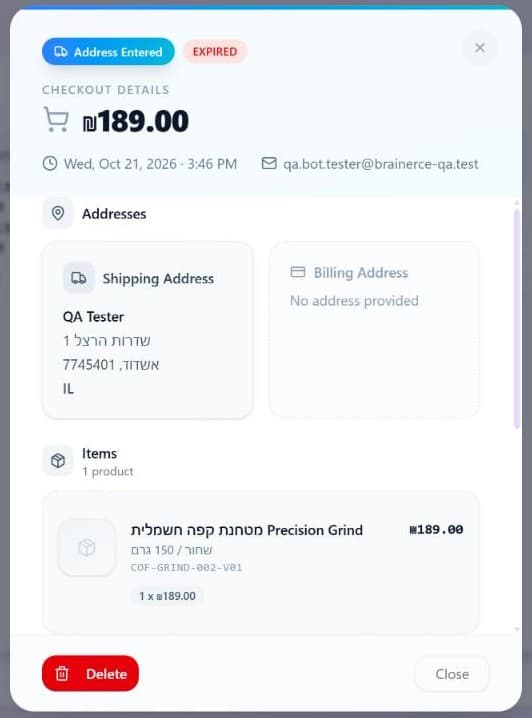
- View Details opens Checkout Details: the customer (email and phone), the shipping and billing addresses or No address provided, the cart (Product, Qty, Price, with the variant and SKU), and the Summary with Subtotal, Coupon and any discount rules, Shipping (with the method name, or Free), Tax and Total. When a gift card covered part of the checkout it also shows Gift card and Amount charged. At the foot it shows the checkout ID, the coupon code, when it Expires and a link to the Order once there is one. A checkout waiting on the provider shows Processing Payment, and one past its time shows Expired. The window has a Delete button.
- Send recovery email appears only while the conditions in Send a recovery email by hand hold.
- Delete removes the checkout and releases any stock it was holding. It is not offered on a Completed or Processing checkout, and it is refused when a payment has been received on the checkout, because the payment record is kept so you can refund it. It needs a role that can cancel orders (a Staff member does not have it by default).
Select rows for bulk actions: Export downloads a CSV named checkouts-export- and today's date (Export as CSV and Export as Excel give the same CSV file) with these columns: checkout ID, customer (email or Guest), status, items, total, currency, created and expires. Delete removes the selected checkouts. Completed and Processing ones in the selection, and ones that already received a payment, are skipped without a warning, so the count deleted can be lower than the count you ticked.
The table's ⋮ menu holds Checkout Settings, where the recovery emails are set up (Abandoned checkout recovery emails). Checkouts cannot be edited or created from the dashboard: they come from your storefront.
What "Pending checkouts" means, and the Dashboard card "N checkouts idle for over an hour"
Pending is a status in the Checkouts list: the customer started checkout and has not entered an address yet. It is not an order and no payment has been taken. If your Dashboard says "N checkouts idle for over an hour", that is the Abandoned Checkouts card, which counts checkouts left alone for at least an hour (and active within the last 48 hours). See The Operations tab, card by card. To follow up, filter Recoverable to Yes or send a recovery email.
How Brainerce checkout works
Brainerce's checkout is embedded in your storefront via the SDK, and it's not a separate hosted page:
- Your storefront controls the visual design and layout.
- Brainerce handles the data (cart, pricing, coupons, payment processing, order creation).
- Custom fields you define here are passed to the SDK and appear in the checkout UI automatically.
Payment methods are connected from the Apps marketplace and switched on per region under Settings → Regions, not from this page. The order-confirmation email is configured under Settings → Email.
Does checkout hold my stock for the customer?
By default, no. Out of the box a store reserves stock only when the payment goes through, so while a customer is filling in their address, those items are still on sale to everyone else. Two people can reach the payment step with the last item in the basket, and whoever pays first gets it.
If you'd rather hold stock earlier, change it per storefront under Sales Channels → your channel → Inventory. There are three choices:
| Setting | When stock is held |
|---|---|
| Reserve on Payment | Only once payment completes. This is the default. |
| Reserve on Checkout | From the moment the customer starts checkout. |
| Reserve on Add to Cart | From the moment they add the item to their cart. |
Pick either of the last two and a Reservation Timeout appears: 15 minutes by default, and you can set anything from 1 to 60. When the timer runs out the stock is released back on sale, whether or not the customer is still on the page. You can also turn on Show Countdown Timer to display the remaining time to the customer, which is what stops it feeling arbitrary when their basket empties.
Holding stock early protects the customer's basket but takes items off sale for everyone else, so on fast-moving inventory a short timeout is usually better than a long one.
Why does a checkout say Expired?
A checkout lasts 30 minutes, and the clock restarts each time the customer saves a step. That's a fixed limit, not a setting. It starts when the checkout is created, and it starts again from zero whenever the customer saves their details, an address, a delivery type or a shipping or pickup choice. Browsing or typing without saving does not extend it. A customer who wanders off mid-checkout and comes back more than 30 minutes after their last saved step can't finish it; they'll need to start again from their cart.
Expired checkouts stay in the list so you can see them. The automatic recovery emails still go out for them, but the manual Send recovery email action and the Recoverable filter leave Expired checkouts out: they only cover Pending, Address Entered and Payment Pending. The recovery email doesn't reopen the old checkout. Its link drops the customer back into their cart with the same items restored, so they start checkout again from there. That link keeps working for 30 days after the checkout was created.
A checkout on Processing is waiting for the payment provider
A checkout shows Processing while the payment provider has not yet confirmed a payment the customer just made. With Grow, Rivhit (iCredit), MAX and Morning this can last a few minutes. It is not a failure: the customer is not told the payment failed and is not offered a second payment, and the order is created on its own as soon as the provider confirms. You cannot delete a checkout while it is on Processing. See A payment stays on Processing.
Does a customer lose their cart if they walk away?
No. A customer who leaves with items in the cart finds the same cart when they come back. This holds even when they got as far as typing their email at checkout.
Once a customer has typed their email at checkout, Brainerce marks the cart abandoned after about an hour without any activity (checked every 10 minutes, so 60 to 70 minutes). That is what lets the automatic recovery emails start. The checkout itself is already in your list from the moment it was created. The mark does not empty the cart. When the customer returns to your website in the same browser, or logs in to their account, the cart is back with every item and the abandoned mark is lifted.
- How long it lasts. A cart that was marked abandoned can be brought back for 30 days after it was marked. After that they start with an empty cart.
- A different browser or cleared browser data. A guest's cart is remembered by their browser, so a customer who clears their data or switches device can't find it on their own. The link in your recovery email still brings it back, and a customer who logs in gets the cart saved on their account.
- Recovery emails keep going until the order. The emails in your recovery sequence don't stop just because the customer came back to browse. They stop once the customer places the order.
- It works whether or not recovery emails are on. The cart is kept even if you never turned on Recovery emails. That setting only decides whether Brainerce emails the customer.
Is there a limit on how many items a customer can put in the cart?
Yes. A cart on your website holds at most 50 separate items. Try to add a 51st different product and the shop gets an error back: "A cart can hold at most 50 different items. Remove something before adding more." It is a fixed limit, there is no setting for it, and it cannot be raised for your store.
Quantities are not limited. The 50 counts separate lines in the basket, not units. A customer buying 500 of one thing is fine, and adding more of something already in their basket always works, even at the limit. Only adding a new product is refused. Nobody's existing basket breaks either: a customer at the limit can still change quantities and remove things.
This applies to your website only. Orders you build yourself in the dashboard, orders that come in through an API key, and carts BOBO puts together for you are not capped, deliberately, so a 200-line wholesale order is still something you can put together by hand.
The limit exists because completing a checkout works through every line in the basket in one go, and a basket with thousands of lines slows down checkout for every other store on the platform, not just yours. 50 is comfortably above what a real shopper does.
A bundle offer that hits the limit can land only half of itself
A bundle offer adds several products in one go, and it is not all or nothing. If a customer is near the 50 line limit and accepts a bundle of four products, and the basket fills up on the third, the first two are already in there and they stay there. The customer sees the "cart can hold at most 50 different items" error, does not get the bundle price they were shown, and is left with two stray items to remove by hand.
Nothing tidies that up for them. There is no automatic rollback, no setting for it, and no warning beforehand. If a customer tells you their basket has things in it they never chose, a bundle that landed halfway is the first thing to check.
What keeps this rare is that it only bites near the limit, and a shopper with 47 lines already in their basket is not the shopper a bundle offer is written for.
An order bump cannot do this. A bump adds one product, so it either goes in or it is refused, and the basket is left exactly as it was.
Next steps
Google Analytics, Google Tag Manager and the Meta pixel
Connect the Google app and your GA4 tag loads on your storefront by itself, but only page views report automatically. The Meta and TikTok pixels are not available as apps yet, so use Google Tag Manager for them today.
Abandoned checkout recovery emails
Email customers who left without paying, automatically in up to three steps with an optional single-use discount code, or by hand from the Checkouts list. What counts as abandoned, who is skipped, and how to read the recovery numbers.