 Brainerce Help
Working with tables
How to customize, reorder, pin, and resize columns in every Brainerce table.
Almost every screen in the dashboard (Products, Orders, Customers, Inventory, Coupons) is built around a data table. Every table in Brainerce behaves the same way, so once you've learned the controls here you'll feel at home everywhere.
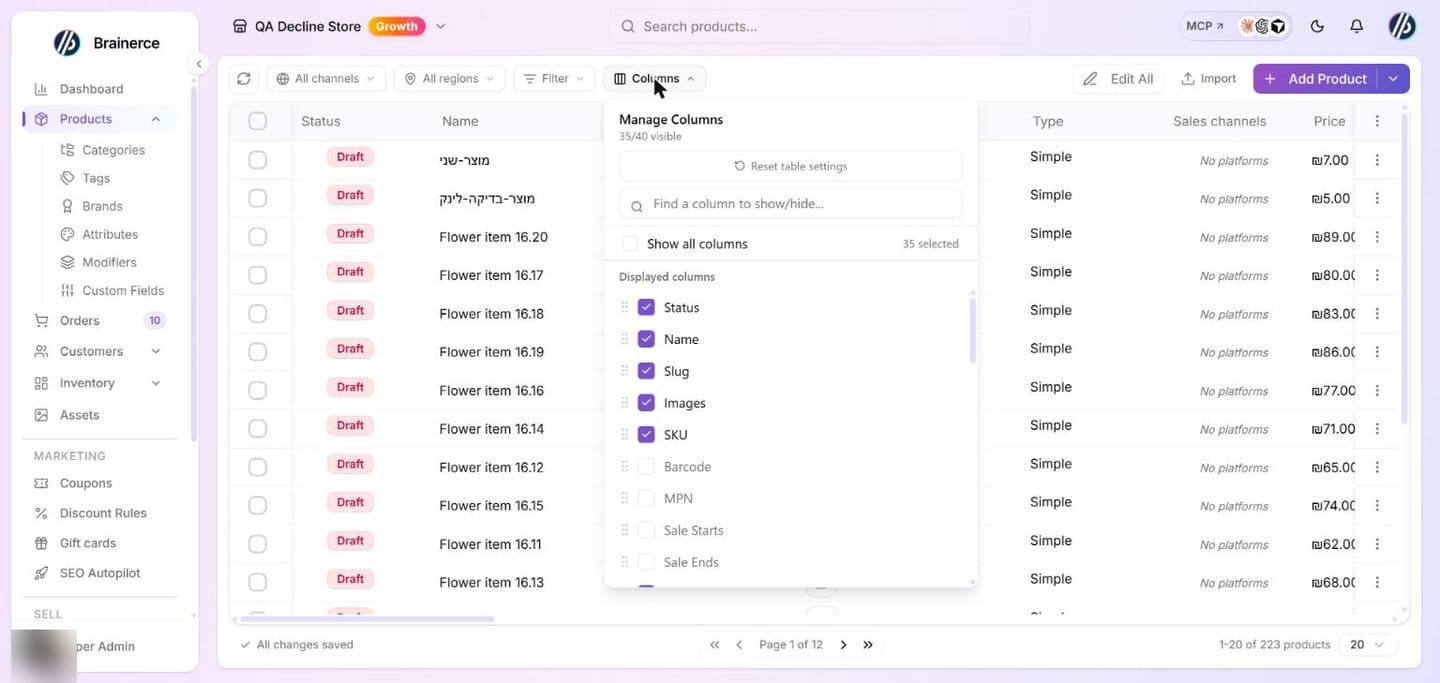
What you can do with any table
- Reorder columns by dragging a column header to a new position.
- Resize columns by dragging the edge of a column header to make it wider or narrower.
- Pin columns left or right to keep important columns visible while you scroll horizontally.
- Show or hide columns to turn on only the data you care about.
- Save your view per-table, so your column choices stick for next time, on every device.
Each table remembers its own layout independently, so the way you set up Products doesn't affect the way Orders looks.
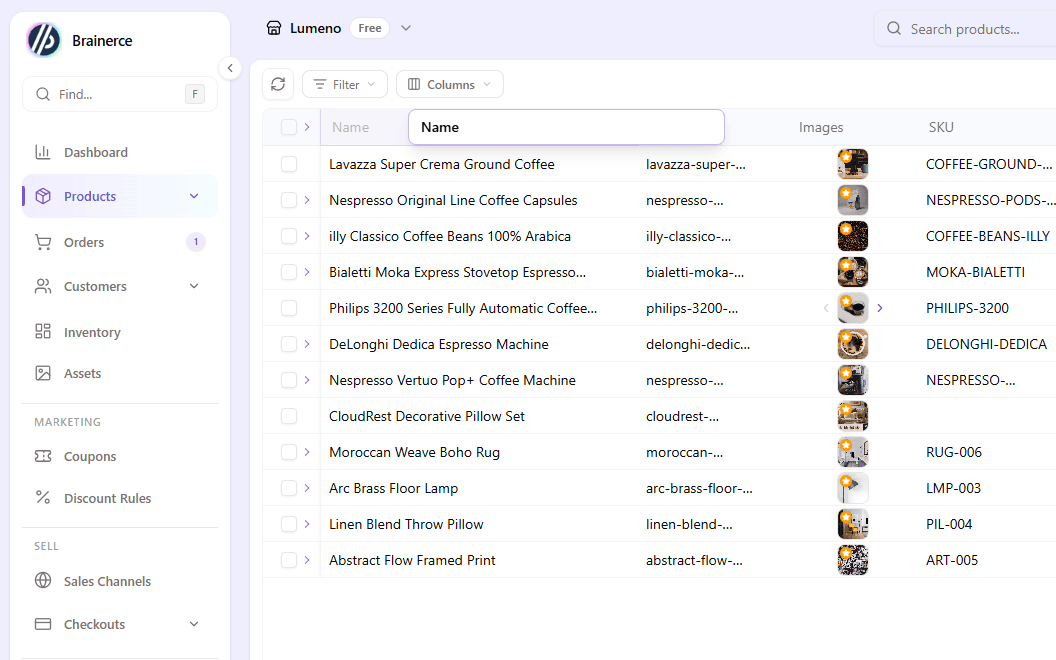
Reordering columns (drag & drop)
- Hover over the column header you want to move.
- Click and hold the header, then drag it left or right.
- A floating copy of the header follows your cursor, and an outline highlights the slot it will drop into. Release to drop it.
Resizing columns
- Move your mouse to the right edge of a column header and the cursor turns into a resize handle.
- Click and drag left or right to set the width you want.
- Release to lock the new width.
Pinning a column left or right
Pinned columns stay frozen while the rest of the table scrolls. That is useful when you have lots of columns and want to keep, say, the product name always visible on the left and the actions menu always visible on the right.
- Open the column's header menu (click the small arrow / menu icon in the header).
- Choose Pin to left or Pin to right.
- To remove the pin, open the same menu and choose Unpin.
The Columns button: manage every column from one place
Above every table, next to the Filter button, you'll find a Columns button. Click it to open the Manage Columns popover, the single hub for everything column-related on that table.
From here you can:
- See how many columns are visible out of the total, for example
30/32 visibleat the top of the popover. - Search for a column by name with the search box (handy when a table has dozens of fields).
- Show / hide a column by ticking or unticking the checkbox next to it. The table updates immediately.
- Show all columns by flipping the Show all columns toggle to make every field visible in one click.
- Reorder columns by dragging: grab the drag handle (the dotted icon on the left of each row in the list) and drag it up or down. The table reorders in real time.
- Reset table settings. Click Reset table settings at the top of the popover to undo all your customizations and go back to Brainerce's default layout for that table.
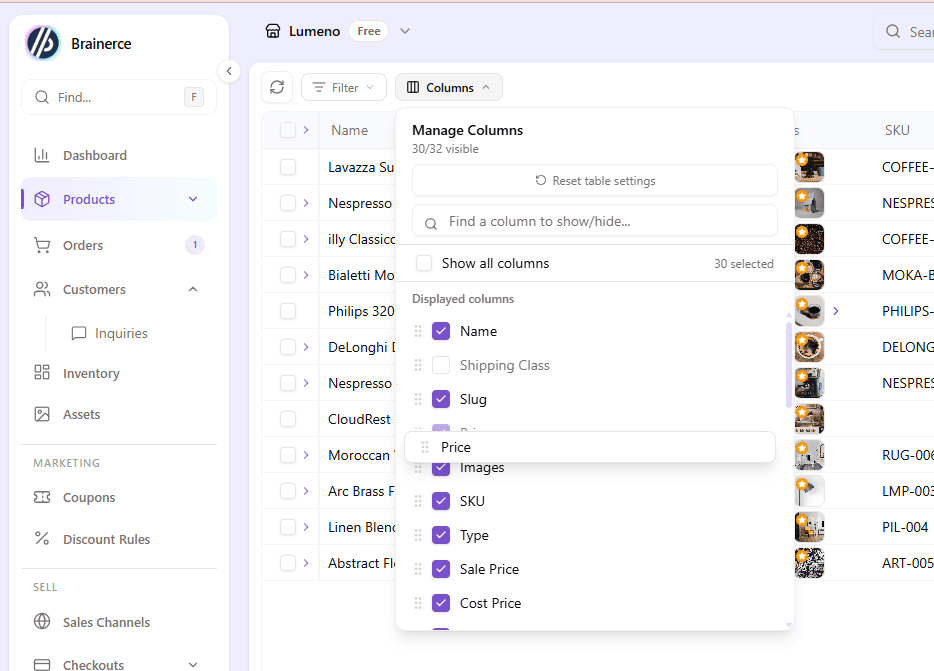
Two ways to reorder columns. Pick whichever feels natural:
- Drag the header directly on the table (covered above).
- Drag inside the Columns popover using the drag handles next to each column name. This is easier when you want to move a column far across the table or work with many columns at once.
The ⋮ menu: export and import
At the far end of the table's last column header is a ⋮ menu with the table's other settings. On screens that hold exportable data (Products, Coupons, Inventory, Customers, Orders and others) it also carries Export and Import, for editing many rows in a spreadsheet. On a screen with no table, the same tools sit behind a small ⇅ button. See Edit your data in a file.
Selecting rows and bulk actions
Tick the box at the start of a row, or the box in the header to select every row on the page. A bar then shows how many are selected ("3 items selected") with Clear selection and the actions this table offers. Which actions you see depends on the table, and on your permissions, but the full set is:
- Export, as CSV or Excel
- Duplicate
- Deactivate (asks "Are you sure ...?" first; the items are hidden from active listings, not deleted)
- Bulk Edit: switch on only the fields you want to change, set their values and press Apply Changes; fields left off are untouched
- Delete
Editing cells in the table
On tables whose cells can be edited in place, click a cell to select it and press Enter (or double-click) to edit. Ctrl + C, Ctrl + X and Ctrl + V (⌘ on a Mac) copy, cut and paste cells, Delete or Backspace clears them, Shift with an arrow key or Shift + click selects a range, and Ctrl + A selects all cells. Esc clears the selection. Right-click for a menu with Copy, Cut, Clear and Delete rows.
If you paste more rows than the table has, a window asks "Do you want to add more rows?" with Create new rows (add them and paste everything), Keep current rows (paste only what fits) or Cancel.
A small status shows Saving..., All changes saved or Save failed as you edit. Press Ctrl + / (⌘ + / on a Mac) on a table to see the full list of keyboard shortcuts for it.
Row height, find, and pages
- Row Height in the table settings menu: Short, Medium, Tall or Extra Tall.
- Find in table: Ctrl + F (⌘ + F) opens a search box inside the table with "N of M" matches, Enter for the next match, Shift + Enter for the previous and Esc to close.
- Pages: the bottom of the table shows the row range ("1-20 of 134 products"), Page N of M, first, previous, next and last page buttons, and Items per page (10, 20, 50 or 100).
Sorting & filtering
Most tables also support:
- Sort from the column header menu (Sort asc, Sort desc, Remove sort) or from the Sort button above the table, where Add sort lets you sort by several fields in order and Reset sorting clears them.
- Filter using the Filter button above the table to narrow results (e.g. by status, date range, tag). Chips show what is active and Clear all filters removes them.
- Search with the input in the top bar, which matches across the table's main fields.
The column header menu also has Hide column, Pin to left and Pin to right.
Your view is saved automatically
Anything you change (column order, widths, pins, hidden columns) is saved per-user, per-table. Switch devices and your layout follows you. To start over, click Reset table settings inside the Columns popover.
Tips
- Pin the most important column on the left so you always know what row you're looking at when scrolling sideways.
- Pin the actions column on the right so the row menu is always reachable.
- Hide columns you don't use, because a shorter table is easier to scan. Open Columns and untick what you don't need.
- Use the search inside Columns: on tables with many fields (Products has 32!), typing a few letters is faster than scrolling.
Next step
→ Add your first product and try out the table controls on the products list.
New store setup checklist: what to configure first before launching
A launch checklist for a new store in the sequence that avoids rework. Connect a storefront first, then products, regions and currency, VAT, payment providers, shipping, and a real test order before going live. Covers physical, digital and EU selling.
The top bar, notification bell and user menu
What each control across the top of the dashboard does, covering the store switcher, the search box, the MCP button, the notification bell and your user menu with language, appearance, feedback and sign out.