 Brainerce Help
Process an order
From a new order to completed, covering confirm payment, move the order forward, refund, and cancel.
When a customer checks out, an order appears in Orders with status Pending. From there you confirm payment, move it forward through its statuses, and handle any refund.
Confirm payment
Each order shows a Payment Status in its own column (Paid, Pending, Authorized, Failed, Refunded, Partial Refund or Cancelled) plus the Provider used. Behind the scenes a payment that has settled is called "captured", but the column says Paid. For the full picture, open the order's ⋯ → Manage Payment. It shows the provider, amount, status, and refund history. Manage Payment only appears on an order that has a payment record, so it is missing on an order you created by hand and never marked paid.
An order whose payment is still being confirmed. With some providers (Grow, iCredit, MAX, Morning) the payment can take a few minutes to be confirmed after the customer pays. Until it is, there is no order yet: the checkout sits on Processing and the order appears on its own once the provider confirms. See A payment stays on Processing.
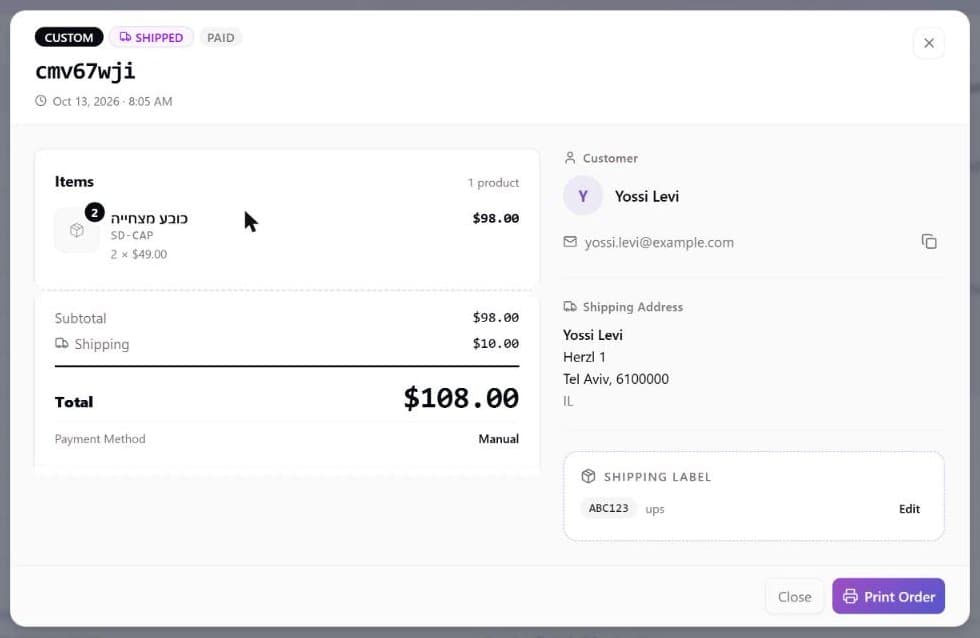
The total is not always what the customer was charged. If a gift card settled part of the order, the order summary shows a Gift card ····1234 line under the total and an Amount charged line below it. That last figure is what your payment provider actually took off their card, and it is the one to quote when a customer asks what they paid. The same lines appear on Print Order. See The order total is not always what the customer was charged.
Mark an order as paid (cash on delivery, bank transfer, card machine)
When money reaches you outside Brainerce, nothing tells the store the order was paid, so it sits on Pending and refuses to move to Shipped. Open the order's ⋯ → Mark as Paid to record the payment yourself.
Use it for cash on delivery, a bank transfer that landed in your account, a card machine in the shop, an invoice a business customer settled, or any payment Brainerce did not process.
Marking an order paid records a real payment against it, so the amount shows up in your revenue reports and the order can be shipped like any other. It does not charge the customer or move any money; it records money you have already received. Brainerce takes the order total as the amount paid; there is no way to record a partial payment.
On an order a gift card helped pay for, this records only what you actually collected. Brainerce subtracts what the card already covered and books the remainder, which is the Amount charged line on the order summary. On a 500 order that a 200 gift card helped pay for, it records 300, not 500, so your revenue figures match the money that reached you.
An order a gift card paid for in full needs no marking. The card already settled it, so there is nothing collected out of band and Brainerce records no payment against it. If such an order still shows as unpaid, that is worth reporting rather than working around.
This cannot be undone. There is no "mark as unpaid". If you mark the wrong order, issue a refund to reverse it.
The action only appears while an order is still unpaid. Once it is paid or refunded, it disappears from the menu. It is also missing on a Cancelled order (nothing is collected against an order that is not going to ship), on a draft and on a restored or imported order. It sends no email to the customer. You need a role that can update orders.
Move the order forward
Set the order's Status from the dropdown on its row, typically Processing → Shipped → Delivered → Completed. An unpaid order will not go to Shipped, Completed or Fulfilled. Record the payment first with ⋯ → Mark as Paid (see Mark an order as paid). To record a carrier and tracking number, use Add tracking on the Shipping page (offered while no carrier app is connected): it marks the order shipped and can email the customer. Some statuses email the customer by themselves: Shipped, Cancelled, and Delivered or Completed (a direct move between the two sends no second email). See which status changes email the customer. See Order status and shipping for the full lifecycle, tracking, and how to add your own statuses (the built-in ones cannot be renamed).
If your store has more than one warehouse, each line on the order shows Ships from, and you can change the warehouse until the order ships. See Warehouses and purchasing.
Refund an order
Open the order's ⋯ → Refund (or the Create Refund button in the order's items panel) to issue a full or partial refund, including selecting specific items, restocking inventory, and notifying the customer. You need a role that can refund orders: a Manager and the Owner can, a Staff member cannot by default, and the Refund menu item is hidden from them. Full details: Refund an order.
Cancel an order
To cancel, set the order's Status to Cancelled from the dropdown. The dropdown also lists Cancelled on orders that can no longer be cancelled, but picking it there is refused with a red message and the status stays as it was. An order can be cancelled only before it ships: once it is Shipped, Delivered, Completed, Fulfilled, Partially refunded or Refunded, refund it instead (see which status changes are allowed). Cancelling puts the items back on sale. It does not return any money: if the payment was already captured, issue the refund separately via ⋯ → Refund. Cancelling also frees the promo code use the order took, gives back the discount rule's usage allowance, takes the order out of the customer's order count and total spent, takes back the loyalty points it earned, and emails the customer the cancellation email (you get a copy too). Deleting an order that has not shipped releases its stock, promo code use and loyalty points in the same way (see What deleting an order does), but sends no email and leaves no record. Cancelling needs a role that can cancel orders, which a Staff member does not have by default, and so does deleting an order: a Staff member does not see Delete Order. Deleting is refused while the order still holds a captured payment: refund it first (cancelling does not return the money), then delete.
Other order tools
- Create order. Build an order by hand (for example a phone order) with the Create Order button on the Orders page. Every field, the stock effect and the limits are in Create an order by hand. In short: Status offers Pending, Processing or Completed, Payment offers Pending or Paid (Paid records the payment at once, exactly like Mark as Paid), and Payment Method is a label that charges nothing. It sends no email, and it links the order to the customer profile with the email you type (a new profile is created when there is none).
- Customer note on an existing order. The Customer Note (visible to customer) column is editable in the table, and what you type there is shown to the customer on their order. Saving a note also emails it to the customer (the Order notes email, if that switch is on in Settings → Email), every time you save one, so a typo fix goes out as a second email. Clearing the note sends nothing. The dashboard cannot change an order's payment method after it is created. Keep internal remarks in an order custom field instead.
- Print. Open an order's summary and choose Print Order for a printable receipt.
- Export selected orders. Select orders and choose Export to download a CSV with eight columns: order number, customer, email, status, platform, total, currency and date. For a full export of your orders, use the table's ⋮ menu, Export and import (the same export as a backup). Orders in a backup come back as read-only history, see Backup. Every column, filter-less search and the delete action are described in The Orders list.
- Order custom fields. Add your own fields to orders (a warehouse bin, PO number, gift note…) under the orders table's ⋮ menu → Order Settings → Custom Fields. Each becomes a column you can edit inline or from the order's summary. Fields can be Text, Multiline text, Number, Checkbox, Dropdown or Date. See Order custom fields.
Is there a private or internal note on an order?
No. An order has no private note field. The only note on an order is the Customer Note (visible to customer): the customer sees it on their order, and every save of a non-empty note is also emailed to them. Never put a staff remark there.
For a remark only your team should see (packing instructions, a supplier reference, a reminder), create an order custom field and leave it Internal only (the Public switch off). Type its value in the Internal Fields part of the order's Summary window, or inline in the field's column. Custom field values are not shown to the customer on any storefront page, whatever the Public switch says; they reach a customer only through an order-email block that you add yourself.
Draft orders
You cannot create a draft order from the dashboard. The Create Order window only creates real orders (Pending, Processing or Completed). Rows with the Draft status appear only for legacy drafts that came from a Shopify connection, which is no longer offered. A draft row can only be deleted: its ⋯ menu offers Delete Order, and selecting only drafts turns the bulk Delete Orders button into Delete Drafts. There is no Complete Order or Send Invoice action. The AI assistant and a connected AI agent can create an order as a Draft (a quote, which cannot be created as paid) and later move it to Pending or Cancelled.
Restored orders are read-only
An order that came back from a backup restore is history only. Its ⋯ menu offers Delete Order (to a role that can cancel orders) and nothing else: you cannot mark it paid, refund it, ship it or edit it.
What's next?
Create an order by hand
Every field of the Create Order window, what the order does to stock, payment and customers, and why a changed price is refused.
Order status and shipping
Move an order through its statuses, record a carrier and tracking number, and customize the status list to match how your team works.