 Brainerce Help
Refund an order
Issue a full or partial refund, choose whether to restock and notify the customer, and understand when the money lands.
You can refund a whole order or just part of it from the order's page. Refunds send the money back to the customer's original payment method through your payment provider. If a gift card paid part of the order, that share goes back onto the gift card instead; see Refunding an order paid with a gift card below.
Why you cannot refund an order: the Refund button is missing or the refund fails
Short answer: an order can be refunded only after its payment is captured. If the Refund item is missing from the order's ⋯ menu, the payment is not captured yet (unpaid, still pending, or failed), and the dashboard does not offer a refund at all. If the button is there but the refund fails, one of these is the usual cause:
- The payment was never captured, so there is no money to send back. Wait for the payment to settle, or cancel the order. Cancelling returns no money.
- Your payment provider is not one Brainerce can refund through. Refund through the provider's own dashboard, then record it on the order.
- A MAX order with no API password. The button disappears. See There is no Create Refund button on a MAX order.
- A Grow payment: no partial refund on the day of the payment, and at most two refunds per payment. See Refunding a Grow payment.
- The card company declined it. See The refund was declined by the credit card company.
- A gift card paid part of the order and the refund would return more to the card than it paid. See Refunding an order paid with a gift card.
- The order came back from a backup restore or was imported from another platform. Those orders are read-only history and cannot be refunded here.
- Your role cannot refund orders. Refunding needs the Refund orders permission. A Manager and the Owner have it, a Staff member does not by default, and the Refund menu item and the Create Refund buttons are then not shown. The same applies when the refund is attempted through the admin MCP tools or the AI assistant: it is refused. See Team and permissions.
How to open the refund dialog
There are three ways to open the refund dialog, and all of them end in the same Create Refund dialog:
- The order's ⋯ menu in the Orders list, then Refund.
- The order's ⋯ menu, then Manage Payment, then Create Refund. Manage Payment also shows the payment status, amount, and refund history.
- The Create Refund button in the order's items panel (open it from the Items column).
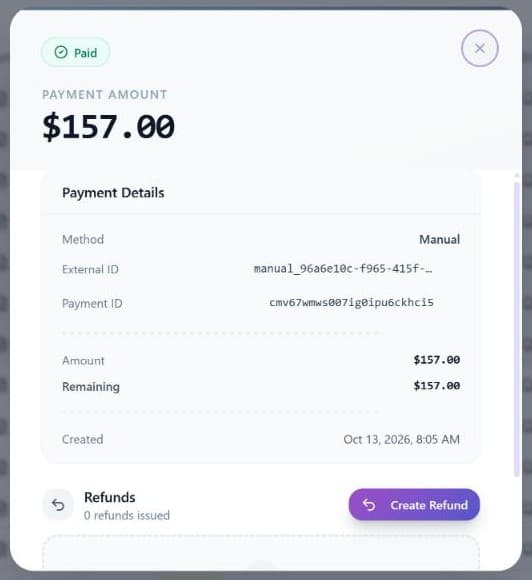
You can only refund once the payment is captured (or partially refunded with money still left) and your payment provider supports refunds in Brainerce, unless a gift card settled the whole order, in which case there is no provider payment to wait for and you can refund it straight away. Until the payment shows as captured, the dashboard does not offer the refund at all. The Refund item is missing from the ⋯ menu, and the order's items panel says "No payment to refund" and that refunds are only possible after the payment is captured. An unpaid order has nothing to refund: wait for the payment to settle, or cancel the order instead. (If a refund is attempted through the API on an order with no settled payment, it is refused with "No refundable payment found for this order".) Some providers require you to refund from their own dashboard; if so, the order shows a note instead of the Create Refund button. Morning (Green Invoice) is the only provider that does this by design, and a refund you make in Morning's own screens never comes back to Brainerce. The order here will still say paid afterwards. Record it yourself: see The money went back but the order still says paid.
Morning is not the only order that can lose the button. A MAX order loses it too when your MAX terminal was connected without an API password, and that note carries no link to anywhere. It is fixable in about a minute, and it is not the same thing as a refund being declined. See There is no Create Refund button on a MAX order.
That "No refundable payment found" error means nothing settled this order at all, neither a card payment nor a gift card. It is not what you get on an order a gift card paid for.
The order total is not always what the customer was charged
The Total on an order is what the order was worth. That is not always what came off the customer's credit card, and the difference is worth reading before you refund anything.
When a gift card settled part of the order, the order summary shows the gift card under the total, and then an Amount charged line:
| Line on the order | Example | What it means |
|---|---|---|
| Total | ₪500 | What the order was worth. VAT was worked out on this figure. |
| Gift card ····4821 | -₪200 | Paid by the gift card, so your payment provider never took it. |
| Amount charged | ₪300 | What your provider actually charged the customer's card. |
The same three lines print on Print Order, so the receipt the customer keeps matches what they see on their card statement.
A gift card pays, it does not discount. The total deliberately stays at ₪500, because VAT was calculated on ₪500. Nothing on this list reduces the order's value, your revenue figure or your tax figures.
Only the last four digits of a gift-card code are ever shown, here and everywhere else in Brainerce. The full code is not stored, so no screen can show it to you and support cannot look it up. Those four digits are what the customer reads off their own email, and they are enough to find the card under Marketing → Gift cards.
Issue a full refund
- Open the refund dialog: the order's ⋯ → Refund, or Manage Payment → Create Refund.
- Choose Full Refund (the full order total is pre-filled).
- Choose your options:
- Restock inventory returns the items to stock (on by default).
- Notify customer via email lets the customer know (on by default).
- (Optional) Add a Reason for your own records.
- Click Create Refund.
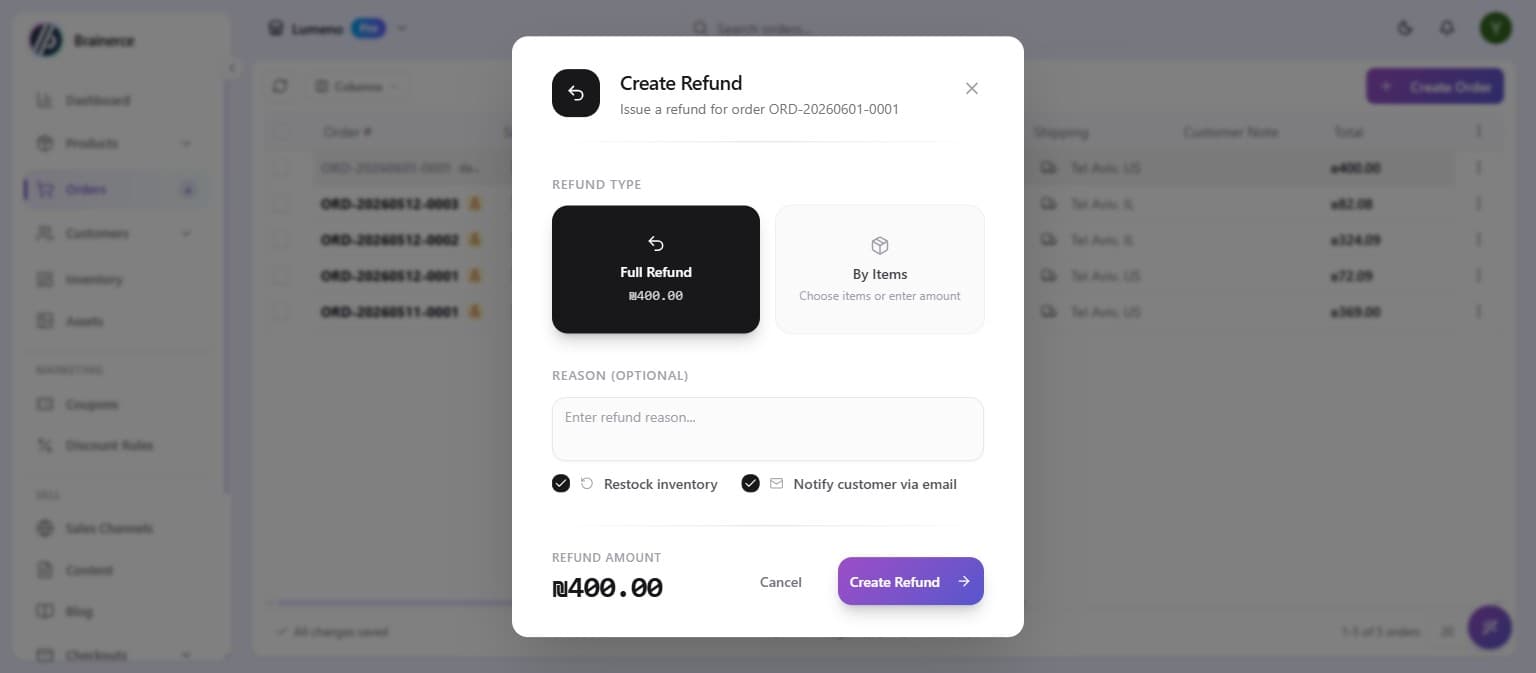
If a gift card paid part of this order, a full refund does not all go back to the credit card. It returns everything that settled the order, split between the gift card and your payment provider in the same proportions they paid. Before you promise a customer a figure on their card, check the Amount charged line on the order, and see Refunding an order paid with a gift card below.
Refund specific items
To return only part of an order, choose By Items instead of Full Refund.
- In the Create Refund dialog, choose By Items.
- Under Select items, tick the items coming back and set the quantity to refund for each, and the Refund amount adds up automatically. You can also type your own amount in the Refund amount box (for example, to refund shipping only, or give a goodwill amount).
- Set Restock inventory and Notify customer as needed, add a reason, and click Create Refund.
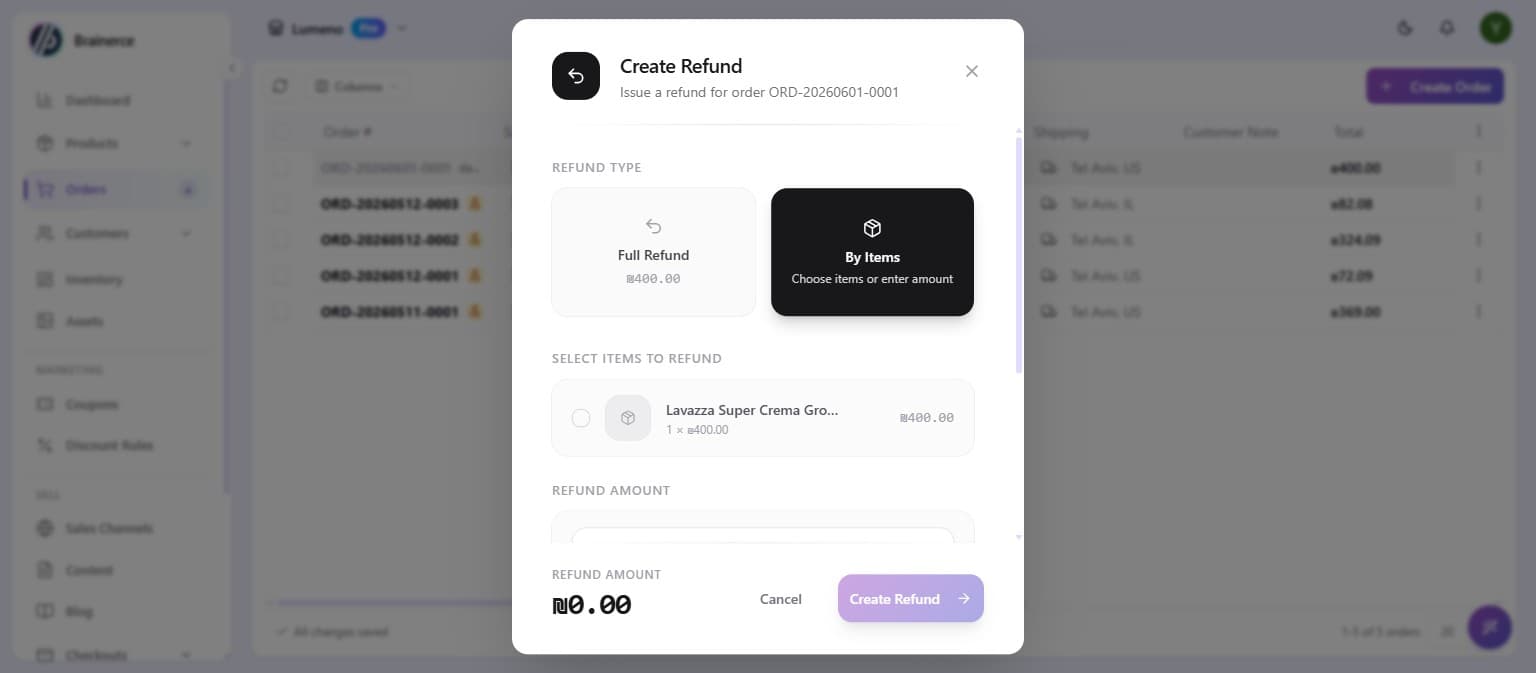
You cannot choose where the money comes out of. If a gift card settled part of the order, whatever amount you enter here is split proportionally between the gift card and your payment provider. There is no option to send it all to the credit card and none to send it all to the gift card. The dialog spells the split out under the amount before you confirm, so read that line rather than telling the customer the whole figure is coming back to their bank.
If the same product appears on the order twice, check your stock afterwards. An order can list the same product or variant on two separate lines. That happens when the two were bought with different options, gift wrapping or a note. When you refund by items, Brainerce can put the money back correctly but may not be able to tell those two lines apart for the Restock inventory step, so one of them can be left out. The refund itself still goes through and the customer is unaffected. This only applies to refunding specific items. A full refund always restocks every line.
How much a refund by items gives back: tax, discounts and promo codes included, shipping not
When you leave the amount as it is, Brainerce refunds what the customer actually paid for those units, not the list price. That means:
- Tax (VAT) is included. Refunding 1 of 2 items at $50 with 10% tax gives back $55, the same as the customer paid for it.
- Discounts are included. If a promo code, coupon or automatic discount lowered the order, each item carries its share of that discount, so the refund is the discounted price and never more than the customer paid.
- Shipping is never included. A refund by items does not return any of the delivery fee or checkout fees. To refund shipping, type your own amount in the Refund amount box.
- Items already refunded are counted. The dialog shows how many units of each item were refunded before, and you cannot pick more than are left. A refund never gives back more than is still left on the order.
The amount the dialog shows is calculated the same way, but the final figure is worked out when you click Create Refund, so it can differ by a cent from rounding. On older orders the price per item is estimated from the order totals, and the dialog says so under the amount. Check it before you confirm.
Typing your own amount replaces this calculation: the customer gets exactly what you typed. Click Reset to items total to go back to the calculated amount.
How much tax goes back to the customer in a refund
Every refund records how much of it is tax. You see it under the refund in the order as of which tax, and a Refunded tax total sits above the list. Your accountant needs this to correct the VAT or sales tax you reported for the sale.
The tax is the tax the customer was charged on that order, never today's rate. If you changed a tax rate, added one or deleted one after the sale, nothing about an old refund changes. Brainerce works from the tax it froze on the order when the customer paid.
- A refund by items returns each item's own tax. Refund 1 of 3 items that carried 10.00 of tax and 3.33 goes back, then 3.34, then 3.33. However you split the refunds of one item, they add up to exactly the tax that item was charged.
- A refund with an amount you typed is split in proportion. If the order was 110.00 with 10.00 of tax, a refund of 33.00 carries 3.00 of tax. Brainerce does not know which items you meant, so it uses the order's overall share of tax.
- The last refund takes whatever is left. When a refund brings the order to fully refunded, it carries the rest of the order's tax, so all the refunds of an order together equal the order's tax to the cent, never more.
- Prices that include VAT work the same way. The VAT is already inside what the customer paid, so the refund shows how much of the refunded amount is VAT.
- With two or more tax rates (for example 5% and 9.975%), each refund also records how much of its tax belongs to each rate.
- Shipping tax comes back only with the whole order. A refund by items never returns shipping. The shipping, and the tax on it, is counted only in the refund that completes the order, so a partial refund does not say how much of it was postage.
What this does not do. It does not recalculate tax, change the order or issue a tax document. It only records, next to each refund, how much of the money was tax. The credit note, if your provider issues one, is a separate document (see Where the credit note for a refund appears).
Refunds made before this was added show no tax figure. They were recorded without it, and Brainerce does not guess it afterwards. The Refunded tax total leaves them out and says so. Newer refunds on the same order are counted in full.
In the orders file of a backup export, the orders.csv you get when you download a backup that includes orders (see Backup), the last two columns are refunded_amount and refunded_tax for each order. The quick Export of selected rows in the Orders list has only eight columns (order number, customer, email, status, platform, total, currency and date) and carries no refund columns. An order with no refunds shows 0.00. If every refund on an order is an older one with no tax figure, refunded_tax is left blank instead of showing a made-up 0.
Restock inventory: what the tick box actually does to your stock
Restock inventory decides whether the refunded units go back on your shelf. What "back on the shelf" means depends on whether the goods ever left it, and Brainerce works that out from the order's status. Three things happen, and only one of them is the obvious one.
Restock on, order not shipped yet. The units were being held for this customer and nothing physical moved. The hold is released and they go straight back on sale. Your total stock number does not change, because the goods never left.
Restock on, order already shipped or delivered. The goods went out of the door, so they were taken off your stock when you shipped. Refunding with restock adds them back. Use this when the customer has actually sent the items back to you and you have received them.
Restock off. The units are written off. This is the part merchants do not expect, so read it twice: turning Restock inventory off on a full refund of an order you have not shipped does not leave the goods on sale. It records them as gone, the same as if you had shipped them. That is deliberate, because "refund without restocking" normally means the goods are damaged, the customer kept them, or you wrote them off as goodwill. If what you actually want is the money back and the goods back on sale, turn Restock inventory on.
When a refund changes no stock at all
Some refunds move money and deliberately leave your stock alone. Brainerce does this on purpose, because moving stock in these cases would take units away from a different customer's order.
- Refunding an order you already cancelled. Cancelling the order already put its items back on sale. A refund afterwards moves money only, even with Restock inventory ticked.
- A full refund of an order that was already partly refunded. The earlier partial refund may have returned some of the units already, and a full refund on top cannot tell which. It moves money only. If you need those remaining units back on sale, refund them as specific items instead, or correct the count from the product's stock screen.
In both cases the refund itself still goes through and the customer still gets their money. Only the stock count stays where it is.
Refunding the same item twice
You can refund the same line more than once, for example a customer returns one shirt now and a second one next week. Brainerce will never take back more units than the line actually had. If a line was for three shirts and you already refunded two, a request to refund three more returns only the one that is left. This protects the stock other customers' orders are holding.
Pressing Create Refund twice
A double click on Create Refund in the dashboard issues one refund, not two. The button is disabled while the request runs, and each attempt carries a one-time key, so a second send of the same refund returns the first one instead of refunding again. This protects the dashboard dialog only. Two refunds of the same amount made on purpose (two separate dialogs, one hoodie then the other) are two refunds. A refund sent through the API or an AI agent without an Idempotency-Key header is not protected: sending it twice refunds twice, up to what is left to refund.
Saying what happened per item
The Restock inventory tick box applies to the whole refund. If you refund through the API or through an AI agent connected to your store, you can go further and say what happened to each line separately: the units are going back on sale, they are coming back to you from the customer, or they are gone. That per-line choice is not in the dashboard dialog yet, so in the dashboard the tick box is the whole of the decision.
Refunding an order paid with a gift card
If a gift card paid part or all of the order, the money does not all come back the same way.
Gift-card value goes back to the gift card, never to a bank card and never as cash. There is no setting that redirects it.
- The refund is split proportionally across everything that paid. An order settled ₪200 by gift card and ₪300 by credit card, refunded ₪100, returns ₪40 to the card and ₪60 to the credit card. You just enter the amount; Brainerce works out the split.
- The card's share appears on the card immediately, in its movement history as Refunded to the card.
- An order paid entirely by gift card involves no payment provider, so there is no 3 to 10 day wait. The value is back on the card as soon as the refund is recorded.
A gift card never gets back more than it paid on that order. Brainerce adds up everything already returned to the card for this order, and a refund that would push it past what the card paid is refused with the message "This refund would return more to the gift card than the card paid on this order". Nothing is moved when that happens, neither on the card nor at your payment provider. Refund the remaining amount only.
The split cannot be undone. Once the refund is recorded, the gift card's share is back on the card and nothing reverses it. If you refunded the wrong amount, refund the remaining difference separately, or adjust the card's balance by hand.
If the refund fails at your payment provider, check the gift card before you retry. Brainerce puts the gift-card share back before it calls your payment provider, so the value can already be on the card while the provider's half failed. Retrying the same amount will not credit the card a second time. Retrying a different amount will, so refund the outstanding difference rather than re-entering the original figure.
If a customer insists on cash instead, settle that outside Brainerce and then adjust the card's balance down, or you will owe the same money twice. See Gift card liability and refunds.
There is no Create Refund button on a MAX order
On a MAX order the Create Refund button can be missing altogether. Where it should be, the order shows a short note saying refunds are not available for this provider, and unlike Morning that note points nowhere: there is no link, no reason and nothing to suggest it is fixable. It is.
The API password is what is missing
A MAX terminal that was connected without an API password cannot refund anything. MAX asks for three things: a terminal number, an API key, and an API password. The first two are enough to take money. The API password is the only one that can give money back, and MAX will not accept the API key in its place for a refund, a cancellation or a charge to a saved card. Connecting without it is easy to do, because the field is optional in the connect form.
Nothing warns you about this at any point. The connect form does not say the password is what refunds need, no test payment fails without it, and the note on the order does not name it. You find out on the day of your first refund, which is usually the worst possible day.
On a test connection there is never a password. The shared MAX test terminal is issued none at all, so refunds are always unavailable in test mode. That is expected and there is nothing wrong with your store.
Add the password and the button comes back
- Go to Apps and open your MAX installation.
- Choose Edit settings.
- Re-enter your MAX credentials, this time including the API password from your MAX terminal. Ask MAX for it if you were never sent one.
- Save, then open the order again. Create Refund is there.
The password is stored encrypted and is never shown back to you, so keep your own copy.
This is not the same as a refund being declined
A MAX terminal can be short of two separate things, and fixing one does nothing for the other:
- No API password saved means no Create Refund button at all. That is this section.
- No credit permission on the terminal means the button is there, you press it, and the credit card company refuses it. That is The refund was declined by the credit card company below, and it is a phone call to MAX rather than anything you can change in Brainerce.
If you have no button, adding the password is the whole job and there is no point calling anyone about permissions yet.
MAX is still in draft and cannot be installed yet, so this applies from the day it opens up rather than today.
The refund was declined by the credit card company
Sometimes the refund fails and the error says the credit card company declined it. That message is not coming from Brainerce. Your payment provider asked the credit card company to send the money back, and the credit card company said no. Trying again straight away gives the same answer.
With Cardcom, the usual reason is that your terminal was never given permission to issue credits. Permission to charge a card and permission to credit one are granted separately, so a terminal can take payments happily for months before anyone discovers the credit side was never switched on. Call Cardcom, ask them to enable refund permission on your terminal, then issue the refund again once they confirm.
Rivhit (iCredit) refunds in full only. A partial refund is refused by iCredit, never rounded up to a full one: for a partial amount, credit the customer in your iCredit console and then set the order status by hand as described below. For a declined full refund it is the same permission and the same answer as Cardcom. An iCredit terminal can be allowed to charge cards without ever being allowed to credit them, and nothing tells you at setup: the refund is simply declined the first time you need one. Call iCredit on 03-7466300, extension 3, ask them to enable the credit permission on your terminal, then issue the refund again in Brainerce once they confirm. A credit you issue in iCredit's own screens instead never reaches Brainerce, and the order here stays marked paid: see The money went back but the order still says paid.
MAX needs the same credit permission, and it is the second of two separate things a MAX terminal can be missing. If the Create Refund button is there and the refund comes back declined, your API password is saved correctly and the gap is on the terminal itself. Call MAX, ask them to switch the credit permission on, then issue the refund again once they confirm. If there is no Create Refund button in the first place, this is not your problem yet and calling about permissions will not help: see There is no Create Refund button on a MAX order above. MAX is still in draft and cannot be installed yet, so this applies from the day it opens up rather than today.
Brainerce cannot force the refund through. There is no override, no retry that behaves differently, and no setting on our side that changes the answer. Until the credit card company accepts the credit, the only way to get the money to the customer is one you arrange yourself, such as a bank transfer.
If you give up and credit the customer in the Cardcom dashboard instead, Brainerce will never know. Cardcom does not report a refund taken in its own screens back to us. The order here stays marked paid, the promo code the customer used stays spent, their lifetime spend is not reduced and the loyalty points stay with them. Nothing arrives later. Record it by hand once you have done it: see The money went back but the order still says paid.
A full refund on the same day the order was paid can behave differently. Same-day full refunds are sent as a cancellation of the original charge rather than as a new credit, and a cancellation is sometimes accepted where a credit is refused. That is why a refund on an older order can be declined while a refund on today's order goes through. Partial refunds are always sent as credits, whatever the date.
Nothing was sent to the customer. The refund is recorded as failed and the order is left exactly as it was, so you can issue it again once the permission is sorted out.
Refunding a Grow payment: same-day, two-refund limit and no credit note
Grow (Meshulam) accepts refunds from Brainerce, with three rules that come from Grow, not from us.
- No partial refund on the day of the payment. Grow cancels the whole charge when a refund arrives the same day, so a partial refund is only possible from the next day. Brainerce tells you this instead of sending the request. For a same-day refund, refund the full amount, or wait until tomorrow.
- At most two refunds per payment through Brainerce. For a third, contact Grow.
- The refund needs a balance in your Grow account. If Grow declines the refund, the order is left exactly as it was and you can try again once Grow allows it.
Grow issues no credit note for a refund. The refund line on the order shows no document number or link. If you need a credit note, issue it yourself on the Grow website after the refund. See Grow (Meshulam): registration, shekels and refunds.
Grow has no test mode for merchants, so a Grow refund always moves real money. Refunds you take in Grow's own dashboard are reported back to Brainerce (see below).
What the customer sees
- If Notify customer is on, they receive a refund confirmation email.
- The funds return to their original payment method. Timing depends on the provider and the customer's bank, usually 3 to 10 business days.
- Anything a gift card paid goes back onto that gift card, not to their bank. It is on the card's balance straight away, with no 3 to 10 day wait, and it will never appear on their card statement or bank statement. If a customer expected the whole amount back on their card and only part of it arrived, this is the explanation. The order's Amount charged line tells you how much their card was charged in the first place.
Where the credit note for a refund appears
Expand the order in the orders list and the refund shows on its own line under it. The refund line's Invoice column carries the credit note (sometimes called a credit invoice) the payment provider issued for that refund: the document number, and a link to the document when the provider gives one. It sits in the same column as the order's own invoice, one line down, so both documents for the order are read off the same screen.
Only providers that issue your tax documents produce one. iCredit (Rivhit) and Cardcom issue the credit note together with the refund, and it appears here. Stripe, PayPal, Grow, Sola and Takbull refund the card and issue no document at all, so on those the refund line shows a dash, and the credit note, if you need one, comes from whatever invoicing system you use. Morning has no refund in Brainerce to begin with.
A number without a link is still a real document. Cardcom needs the terminal's API password to fetch the link, and it never fetches one on a shared test terminal. When the link is missing, the number is still shown, and the same document is in your provider's own dashboard and in the email the provider sent your customer.
Refunds made before this column existed show a dash. The credit note is captured at the moment of the refund, so older refunds were never recorded with one. The document itself is in your provider's dashboard as before.
A refund you record by hand has no credit note here. Recording a refund you already took in your card terminal (see The money went back but the order still says paid) only updates the order; the credit note stays where the provider issued it.
What a partial refund does not undo: promo codes, loyalty points and customer totals
A refund puts money back. It does not automatically unwind everything else the order set in motion, and a partial refund and a full refund behave differently here. This catches people out on goodwill refunds in particular, because a small partial refund leaves the rest of the order standing in every other respect.
Refunding part of an order in Brainerce leaves all of this alone:
- The promo code the customer used is still spent. Its use count is not given back, so a code limited to one use per customer stays used up for them, and a code with a total limit of 500 stays at the number it reached.
- A discount rule's usage allowance is not given back either. That is a separate counter from the promo code's, and it is left as it was too.
- The customer's lifetime spend is not reduced, so their total on their customer profile still counts the full original order.
- Loyalty points earned on the order are kept. See Pending points and the return window.
Refunding the whole order reverses all four: the promo code's use is released (a code limited to one use per customer can be used by that customer again), the discount rule's usage is voided, the customer's lifetime spend comes down by the order total, and the loyalty points earned on it are taken back. If the customer already spent those points on a reward coupon they have not used yet, that coupon is cancelled; a coupon they already used is not recovered.
This is deliberate, not an oversight. After a partial refund the customer still has the order and still had the benefit of the discount, so giving the code back would let them use it twice for one purchase.
If you want the code released, refund the whole order. There is no separate control for it, and no way to hand a promo code back to one customer by hand. The nearest workaround is to issue that customer a new single-use code.
A refund you make in your payment provider's dashboard
Whether Brainerce ever finds out depends on which provider took the money, and the two halves of that list behave nothing like each other.
Stripe, PayPal and Grow report the refund back to Brainerce. The order is marked refunded or partly refunded, and a full refund releases the promo code, reduces the customer's lifetime spend and takes back the loyalty points, exactly as it would if you had refunded here.
Cardcom, iCredit, MAX, Morning, Sola and Takbull report nothing. A refund you take in one of those dashboards never reaches Brainerce at all. Read The money went back but the order still says paid below before you do it.
Refunds made in your payment provider's dashboard now appear in the order
On Stripe, PayPal and Grow, a refund you take in the provider's own dashboard is now listed in the order's refunds, with how much of it is tax, just like a refund made here. It shows up as soon as the provider tells Brainerce.
- It counts everywhere a refund counts. Your revenue figures are reduced by it, and the next refund you make here is limited to what is still left after it.
- The refund limit takes it into account. A refund you make from Brainerce is capped at what the customer has not yet been given back, and the refund recorded from the provider counts. If you ask for more than is left, the refund is refused and nothing is sent to the provider. After a partial refund taken in the provider's dashboard, the dashboard's Refund and Create Refund buttons stay available on that order, because they are offered while the payment shows as captured or as partially refunded. The limit above still applies: you can only refund what has not been given back yet, and a request for more is refused. Check the refunds already listed on the order before you press the button, so the same money is not refunded twice.
- It appears once. If the provider sends the same notice twice, or announces a refund you made from Brainerce, it is not added again.
- The tax is worked out in proportion to the amount. A provider refund names no items, so Brainerce uses the order's overall share of tax, and the refund that completes the order carries the rest.
- Refunds taken before this was added are not in the list. Only the ones that arrive from now on are. An older one still shows on the payment, but not in the order's refunds or in your revenue.
- It does not help on Cardcom, iCredit, MAX, Morning, Sola or Takbull. Those providers never tell Brainerce about a refund taken in their dashboard, so nothing appears until you record it yourself (see The money went back but the order still says paid).
The refunds list is shown on an order whenever it has any refund, even where this provider has no Create Refund button.
Two things are different even on Stripe, PayPal and Grow, and both need you to act.
Stock does not come back. The refund dialog in Brainerce asks whether to restock; a refund made in your provider's dashboard has nobody to ask, so nothing is returned to stock. If the customer sent the goods back, put the quantity back yourself on the product. This is on purpose: guessing wrong in the other direction would show stock you do not have and let it be oversold.
On an order that a gift card helped pay for, refunding the card in Stripe, PayPal or Grow is not a full refund of the order. The gift-card part is still outstanding, so Brainerce marks the order partly refunded and keeps the promo code and the loyalty points. To close it out, refund the gift-card part here.
The money went back but the order still says paid
You refunded the customer in Cardcom, iCredit, MAX, Morning, Sola or Takbull, the money left your terminal, and the order in Brainerce is still marked paid. That is expected, and it is not a delay.
None of those six tell Brainerce about a refund taken in their own dashboard. Nothing on our side changes: the order stays paid, the promo code the customer used stays spent, the discount rule's usage allowance stays used, the customer's lifetime spend is not reduced, the loyalty points they earned are not taken back, and stock is not returned. There is no sync, no overnight job and no button that fetches it. Waiting will not help, and neither will reconnecting the app.
Refund in Brainerce instead and all of that follows by itself. Open the order, choose Manage Payment, then Create Refund. Brainerce sends the refund to your terminal and records it here in the same step, which is the only way the order, the promo code and the points end up right. On Cardcom, iCredit, MAX, Sola and Takbull, do this rather than opening your terminal's own screens.
On MAX this works only if your terminal has an API password saved. Without one there is no Create Refund button to press, and you are stuck in Morning's position: refund at MAX, then record it here by hand with the steps below. Adding the password is a one minute job and it puts the button back, so do that first: see There is no Create Refund button on a MAX order.
Morning (Green Invoice) is the exception by design, and it is the awkward one. A Morning order has no Create Refund button at all, because Morning's system offers Brainerce no refund to call. The order shows a note pointing you to Morning's own dashboard instead. So on Morning you have no choice: refund in Morning, then come back and record it here by hand with the steps below. Expect to do that every time.
Do not press Create Refund for money you already sent back
Because Brainerce never heard about your terminal refund, the payment here still reads captured and Create Refund is still offered on the order. Pressing it asks your provider for a second refund of the same money. Never use it to write down a refund you have already made outside Brainerce. Use the manual steps below instead.
Record a refund you already took in your card terminal
There is nothing to import, so you record it by hand. In the Orders list, open the order's status dropdown and set it to Refunded.
That one change releases the promo code, gives back the discount rule's usage allowance, reduces the customer's lifetime spend and takes back the loyalty points the order earned, which is everything a full refund in Brainerce would have reversed.
Three things it does not do, so do them yourself:
- Stock is not put back. If the goods came back, raise the quantity on the product under Products.
- The payment still reads captured, with no refund recorded against it. The order status is the only trace, so put your terminal's own refund reference in the order's notes while you remember it.
- No email goes to the customer. A status change to Refunded sends nothing, so tell them the money is on its way yourself.
Refunded is a final status. Once you set it the order cannot be moved to anything else, so make sure the refund really went through at your terminal first.
Refunded can only be picked on an order that is Paid, Shipped, Delivered, Completed or Fulfilled. An order still on Pending or Processing (the usual state of a paid order that has not shipped) refuses it with a red message, because those statuses cannot jump to Refunded. For an order that has not shipped, set it to Cancelled instead: it reverses the promo code, the discount rule usage, the customer's lifetime spend and the loyalty points in the same way, and it also puts the held units back on sale. It emails the customer the cancellation email, so tell them why. See which status changes are allowed.
A partial refund you took outside cannot be recorded this way. On a paid order the status dropdown offers Refunded and nothing in between, and marking a partly refunded order fully refunded would hand back a promo code and strip loyalty points the customer is still entitled to. If you have not refunded outside yet, refund that part in Brainerce instead. If you already have, leave the order's status alone and keep your own note of the amount.
Good to know
- Refunds go back the way the money came in, so you can't refund to a different method. Card payments return through the original payment provider, and anything a gift card paid returns onto that gift card. On an order both of them settled, one refund is split between the two, proportionally, and you cannot direct it to one or the other. See Refunding an order paid with a gift card.
- A refund you take in your provider's own dashboard only reaches Brainerce from Stripe, PayPal and Grow, and from those it now appears in the order's refund list with its tax share. Cardcom, iCredit, MAX, Morning, Sola and Takbull do not report refunds at all, so on those the order stays marked paid until you record it yourself. See The money went back but the order still says paid.
- You can't refund more than was captured. Refund the rest later if needed (the order shows as Partially refunded in between).
- The credit note for a refund shows on the refund's own line in the orders list, in the same Invoice column as the order's invoice, for iCredit and Cardcom only. See Where the credit note for a refund appears.
- Refunds go through the payment provider that took the money. Nothing is pushed back to Shopify or WooCommerce. Those connectors have been retired, so if you have older orders that arrived through them, refund them in Brainerce and reconcile on the other side yourself.
What's next?
Need a hand with a refund? Email [email protected].