 Brainerce Help
Standing orders: subscriptions and recurring donations
Charge a customer's saved card on a repeating schedule, monthly or daily, for a subscription product or a recurring donation, including monthly donations donors start themselves on your donation page. A product charge becomes a real paid order; a donation charge is recorded on the Donations page.
Standing orders is how Brainerce bills the same customer again and again without asking them to check out each time. You build a plan that says what is charged, how much and how often, then you put a customer on it. From then on Brainerce charges their saved card on schedule, on its own.
Find it in the sidebar under Sell → Standing orders, once the module is switched on. You need permission to manage store settings to create plans or start schedules, because a recurring plan is payment configuration.
"I can't find Standing orders in the sidebar"
Standing Orders is switched off in every new store. It is the only feature in Brainerce that starts hidden, because it only works when your payment provider can charge a saved card without the customer being there, and most shops never bill anyone on a schedule.
To turn it on: Settings → Modules → Standing Orders, then Save. The page appears under Sell straight away. Nothing is lost by leaving it off, and nothing is lost by turning it on and back off later: plans and schedules stay exactly as they were.
If the page is there but a plan is refused when you save it, the module is not the problem and your payment provider is. Which payment providers can do this, further down, says which ones can charge a saved card and what the refusal messages mean.
Where a recurring donation shows up
A plan set to Donation does not create an order when it charges, on purpose: a gift is not a sale and would distort your sales figures. Each successful cycle is recorded on the Donations page instead, marked "From a standing order", and counts toward the raised total there.
Monthly donations donors start themselves: the "Monthly donation" plan
A donor can choose to give monthly on your donation page. When they do, the first gift is charged on the spot and their card is saved, and Brainerce puts them on a standing order for you. You do not add them by hand.
- The plan is created for you. The first time a donor gives monthly, a plan called Monthly donation appears on this page. Every donor who gives monthly is a schedule on it, each with their own amount.
- The next charge is a month after the first gift, and every month after that, until the number of gifts the donor chose is reached or the schedule is cancelled.
- Each monthly gift keeps the details of the first one: the same campaign, fund, dedication and receipt details.
- Pause and cancel work as for any schedule (see below). You can also do it from the Donations page, without this module: open one of the donor's gifts and use its Monthly donation section.
- Donors can pause or stop it themselves from the personal link in their donation emails. With Stripe they can also update the card it charges from that link; with Grow, Cardcom or any other provider they cannot, and have to contact you. You cannot change a donor's card from the dashboard. See How a donor updates the card on a monthly donation.
See Monthly donations for what the donor sees and what "Monthly setup failed" means, and How donors manage their monthly donation for the donor's link.
A plan set to Product works the other way and creates a real paid order every cycle, as described below.
What a standing order actually does
Once a customer is on a plan, a job runs every morning (07:00 UTC) and looks for schedules that are due that day. For each one it charges the card the customer saved earlier, records the attempt, and rolls the calendar forward to the next charge date. Nobody has to be at a keyboard, and the customer does not have to be at their computer.
The first payment is different: when you add a customer yourself, it is taken immediately, at the moment you add them to the plan, so you find out straight away if the card is declined. If that first charge fails, the schedule is not started at all.
Subscriptions and recurring donations: the two plan types
When you create a plan you pick its Type:
| Type | What it is for | Creates an order? |
|---|---|---|
| Subscription | A product the customer keeps receiving: a coffee box, a service retainer. | Yes |
| Donation | Recurring giving, where nothing is shipped and nothing is sold. | No, by design |
Both use exactly the same billing machinery. The difference is what happens after the money moves, and how the income is reported and taxed. A donation deliberately stays out of your sales pipeline, so a monthly giving programme never inflates your product sales figures.
How often the card is charged: monthly and daily intervals
Two settings control the rhythm, under Charge every:
- Month, with a How many count. Set 1 for monthly, 3 for quarterly, 12 for yearly.
- Day, with a How many count. Set 7 for weekly, 14 for fortnightly.
Those are the only two units, so express everything else as a count of them: weekly is 7 days, fortnightly is 14 days, yearly is 12 months.
On monthly plans you can also set Day of the month. Day 3 means the 3rd of every month, which is what a standing order means to most people. In a short month it moves to the last day and then returns: a plan anchored to the 31st charges on 28 February and is back on 31 March, rather than sliding earlier for good.
Stop after sets a finite number of charges (12 payments and then it ends). Leave it empty and the schedule runs until somebody cancels it.
There is no free trial. Nothing in a plan delays the first payment, so you cannot offer "first month free" through standing orders. The first charge always happens on the day you add the customer.
Every successful charge creates a real order
On a Subscription plan, choose the Product sold. Each successful charge then creates a normal paid order for that product, so the customer gets a receipt, the sale appears in your orders list, and it counts in your reports like any other sale. The order is marked as paid and its payment method reads as recurring.
If you leave the product empty, the money still moves but no order is created. No receipt for the customer, nothing in your orders list, nothing in your reports, only a line in the charge history. This is the single most common way a standing order disappoints a merchant, so set the product when you create the plan.
Donation plans have no product on purpose and never create an order. That is correct behaviour, not a misconfiguration.
Customers cannot subscribe themselves to a product yet
There is no subscribe button for products on your storefront. Brainerce has no plan-picker page, no signup flow and no self-serve subscription checkout that a shopper can complete on their own. The storefront surface for this is not built yet.
Monthly donations are the exception. A donor can start one on your donation page; see the "Monthly donation" plan above.
Every other schedule is started by you, from the dashboard, with the Add a subscriber button on the Standing orders page. Practically, that means standing orders for products suits an arrangement you agree with a customer directly (a retainer, a repeat delivery) rather than a self-serve subscription business where anyone can sign up at 2am without you.
The customer must already have a saved card
This applies when you add a customer yourself. (A donor who gives monthly on your donation page saves their card with the first gift, so this does not apply to them.)
You cannot put a brand new customer on a plan. A card is only vaulted when a customer completes a purchase while signed in and chooses to save it, so the customer needs at least one previous checkout behind them.
If the Card to charge picker is empty, the dashboard tells you why: this customer has no saved card, so they cannot be put on a schedule yet. The fix is a normal purchase first, saving the card, and then adding them to the plan.
Which payment providers can do this
Only a payment app that can charge a vaulted card off session, without the customer present. The provider picker on the plan form lists only the installed apps that can, and if none of yours can, the form says so and creating a plan is blocked rather than failing months later at the first renewal.
Grow, Morning, Takbull and Sola can never be used for a standing order. Grow cannot charge a saved card on a live store yet, and Morning, Takbull and Sola have no saved-card charge at all, so none of them appears in the picker and a plan on any of them is refused. The provider picker is the source of truth for the rest: if your provider is not in it, it cannot do this.
Two more provider rules worth knowing:
- If a provider is flipped into test mode after a schedule was armed, that schedule is suspended and never charged. Real money and test money are never mixed.
- The reverse holds for a monthly donation a donor started while the provider was in test mode: it is charged only while the provider stays in test mode, and is suspended when you switch the provider to live, so it never charges a real card. Those test gifts carry a Test badge on the Donations page. They never count toward a campaign's public progress, and they leave your totals once the provider takes real money (while it is still in test mode the totals include them and say so).
- If a provider loses the ability to charge saved cards, the affected schedules are ended cleanly instead of retrying forever.
When a payment fails
A declined charge marks the schedule Payment failing and counts a strike. After three failed attempts the schedule is cancelled automatically and stops trying.
Monthly donations a donor started themselves are paused instead of cancelled. The donor is emailed after each failed try, and after the third you get an email that it was paused. Resume it from the Donations page to try the same card again with a fresh 3 tries. With Stripe, the donor can instead update the card from their link, and the monthly donation resumes by itself and charges the missed gift right away; with other providers the donor cannot change the card. See When a monthly payment fails.
Not everything that is not a success counts as a strike:
- Needs confirmation means the bank asked the customer to approve the payment (3D Secure). This is not a decline and costs no strike. The schedule waits for the customer.
- A network problem or an outage on our side counts nothing either. The charge is simply retried on the next daily run, so a bad hour never cancels a healthy standing order.
The banner at the top of the Standing orders page counts the ones needing you: how many are failing to collect, how many are waiting for a customer to confirm a payment, how many are paused, and how many are running on a card that expires within 30 days. That last one is worth acting on before it becomes a decline.
Resuming a schedule that was waiting for confirmation asks you a question: did that payment actually go through? Brainerce refuses to guess, because guessing wrong charges the customer twice for the same period. Check with your payment provider before you answer.
Pause, resume and cancel a standing order
Each row on the Standing orders page has these actions:
- Pause stops the charges. There is no date to choose, and a paused schedule never restarts by itself: it stays paused until you click Resume, and it keeps counting in the banner so it is not forgotten. The next charge date is kept, so the cycle picks up where it left off. Pause is offered on Active and Payment failing rows.
- Resume puts it back in the run. It is offered on Paused and Needs confirmation rows.
- Cancel schedule. By default it stays active until the period the customer already paid for runs out, and then stops, so nobody loses time they paid for. Cancelling cannot be undone, but you can sign the same customer up again.
- View charges opens the full charge history: every attempt on that schedule, paid or failed.
A cancelled schedule has no actions left except View charges.
Changing the price does not change what existing customers pay
Every schedule freezes its amount at the moment it starts. Edit the plan's amount later and existing customers keep paying what they signed up for; only people added after the change pay the new figure. This is deliberate, so an edit can never silently reprice people who trusted you with a card.
Turning a plan off with Plan is active works the same way: it stops new signups, and everyone already on it keeps their schedule until it ends.
Letting the customer choose the amount
Tick Let the customer choose the amount and the plan has no fixed price. You set a Minimum (required) and optionally a Maximum, and the amount is chosen when the customer is added. This is built for donations, where a supporter picks their own monthly figure.
For tiered pricing (Bronze, Silver, Gold) do the opposite: create one plan per tier with a fixed amount.
The Standing orders page: columns, status badges and the banner
Each row is one customer on one plan.
| Column | What it shows |
|---|---|
| Customer | The customer's name or email. Customer deleted or Unnamed customer when the profile is gone or has no name. |
| Plan | The plan's name. |
| Amount | What this customer pays each cycle, frozen when they started. |
| Status | Active, Payment failing, Needs confirmation, Paused or Cancelled. |
| Next charge | The date of the next charge. Reads Paused on a paused schedule and Stopped on a cancelled one. |
| Card | The card brand and last four digits being charged, or No card when the saved card is missing. |
| Charges | How many charges have been made on this schedule. |
| Status | Meaning |
|---|---|
| Active | Will be charged on its next charge date. |
| Payment failing | The last charge was declined. Each decline is a strike, and the third cancels the schedule (see below). |
| Needs confirmation | The bank asked the customer to approve a payment. No strike. The schedule waits. |
| Paused | Skipped by the daily run until it is resumed. Monthly donations also land here after three failed tries. |
| Cancelled | Ended. It cannot be restarted: sign the customer up again instead. |
The banner at the top appears only when something needs you, and shows the counts that apply: failing to collect, waiting for the customer to confirm a payment, paused and waiting for you, and with a card expiring within 30 days. With nothing to act on, there is no banner.
The table has no filter bar and no search box. Use the page controls to move through your standing orders.
Add a subscriber and New plan: every field
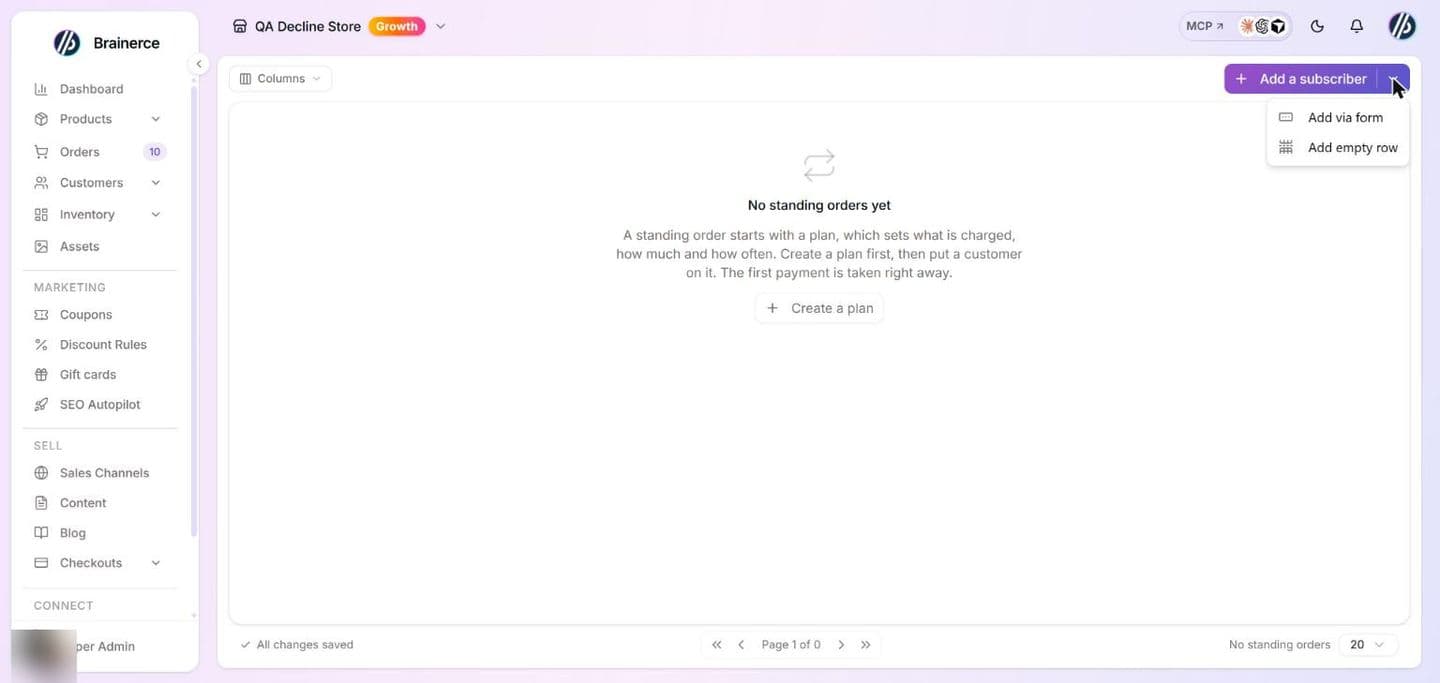
The button Add a subscriber opens the form below. The small arrow beside it has a second entry, labelled Add empty row, that opens the New plan form (it adds a plan, not a row). With no standing orders yet, the empty page has a Create a plan button for the same thing.
Add a customer to a plan puts an existing customer on a plan and takes the first payment now.
| Field | What it does |
|---|---|
| Plan | Choose a plan. With no plans the form says to create one first. |
| Customer | Search by name or email, then choose. |
| Card to charge | One of the customer's saved cards. With none, the form explains that a card is only saved when a signed-in customer completes a purchase and chooses to save it. |
| Amount | Only for a plan where the customer chooses the amount. It must be at least the plan's Minimum. |
Click Start the schedule. The first payment is taken immediately. If the card is declined the schedule is not started. Messages: Choose a plan, a customer and a card, This plan needs an amount, Schedule started and the first payment was taken.
New plan fields:
| Field | What it does |
|---|---|
| Name | Required, up to 120 characters. |
| Description | Optional, up to 500 characters. |
| Type | Subscription or Donation. Fixed after the plan is created. |
| Product sold | Subscription plans only. The list offers the first 100 products of your catalog, so with more than 100 products one past that point cannot be picked here. |
| Charged through | Required. Only your connected payment providers that can charge a saved card without the customer present. Fixed after creation. With none, the form says to connect one first. |
| Amount | A fixed price per cycle, at least 0.01 with at most two decimals, in your store's currency (the plan's currency). |
| Let the customer choose the amount | Replaces Amount with Minimum (required) and an optional Maximum. Both at least 0.01. |
| Charge every and How many | Month or Day, and a count from 1 to 365. Fixed after creation. |
| Day of the month | Monthly plans only, 1 to 31. Optional. |
| Stop after | Number of charges, at least 1. Empty means no end. |
| Plan is active | Off stops new signups; existing schedules keep running. |
An existing plan can be edited only for its Name, Description, amounts and Plan is active. The cadence, type, provider and product cannot be changed once the plan exists, because customers already on it froze those at signup. The Standing orders page has no list of plans and no Edit button on a row, so to change a plan's amount or switch it off ask your developer or the AI assistant.
The charge history window
View charges on a row opens Charge history: every attempt on that schedule, successful or not, each marked Paid, Failed, In progress or Needs confirmation. With no attempt yet it says Nothing has been charged yet.
What's next?
- Process an order shows what to do with the orders these charges create.
- Connect payment methods covers getting a provider connected in the first place.
- What Brainerce does not support is the honest list of remaining gaps.
Handle returns and exchanges
How to take items back and put them into stock, using refunds with restock.
Donations: taking one-off and monthly gifts
Take donations on your storefront with a donation page that does not go through the cart. Covers turning donations on, what a donor sees, monthly donations a donor starts themselves, how donors pause or stop a monthly donation from the link in their email, how a donor updates an expired card (Stripe only), failed monthly payments, test donations, donation campaigns with fundraising goals, funds (where the money goes), dedications such as in memory of, receipt details like ID numbers, tax receipts (section 46) issued through Cardcom, annual receipts, credit receipts for refunds, refunds, and the things Brainerce deliberately does not do.