 Brainerce Help
Carts in the Checkouts list
See the carts shoppers have right now next to your checkouts, who they belong to, and what is in them. Filter the list to carts only.
The Checkouts list also shows carts: baskets shoppers filled and have not taken to checkout. A cart becomes a checkout only when the shopper presses the checkout button. Seeing both in one list lets you follow a shopper from basket to payment, and see who is shopping and what they leave behind.
This is rolling out gradually. If you do not see the Carts / checkouts and Cart type filters in the Filter menu of your Checkouts list, carts are not turned on for your store yet, and the list shows checkouts only, as before.
How carts appear in the Checkouts list
Carts and checkouts are mixed in one list, newest first. A cart is placed by when the shopper last changed it, and a checkout by when it started. A cart row has no checkbox, because carts are read only.
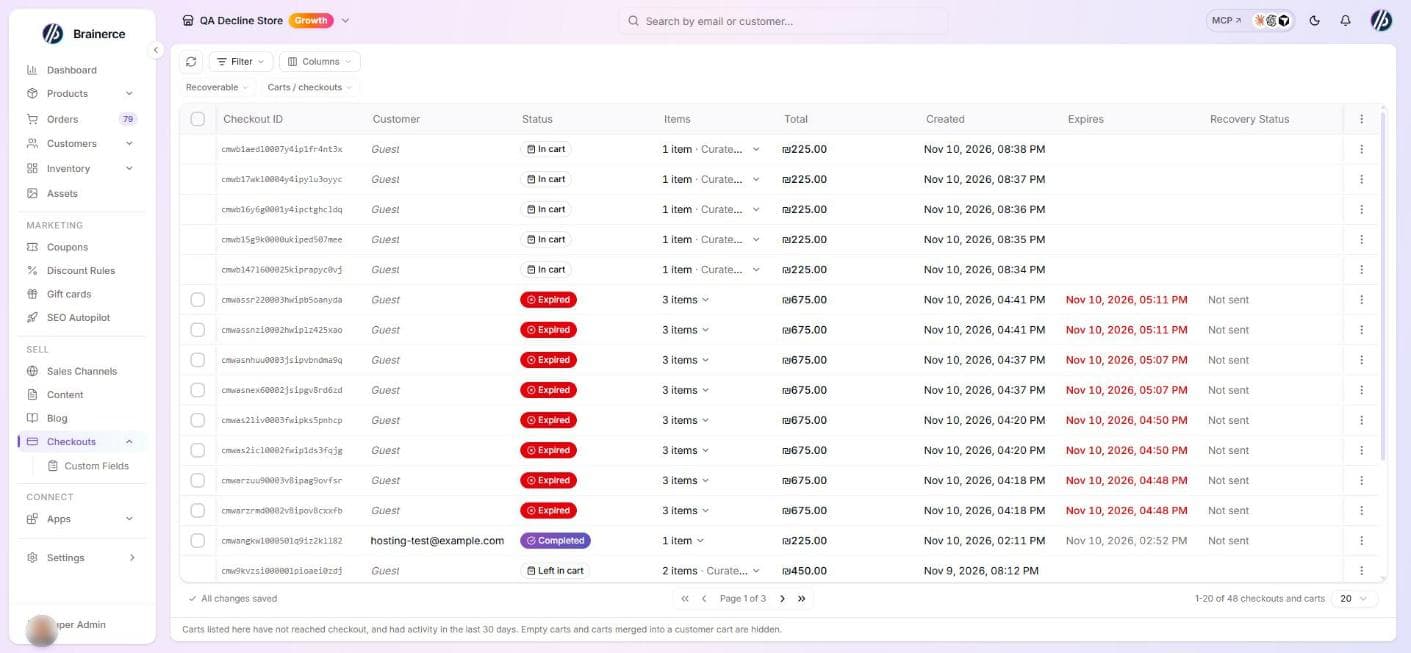
A cart row looks like this:
| Column | What a cart row shows |
|---|---|
| Checkout ID | The cart's reference. |
| Customer | A registered customer's name and email. For a guest, the email they typed at checkout, or Guest when they never got that far. |
| Status | In cart (the shopper changed it within the last hour) or Left in cart (an hour or more without a change, and the shopper has not started checkout). A cart can stay in the Left in cart state for weeks: Brainerce does not close carts by itself. |
| Items | How many items are in the cart, and the name of the first product. Click it to see everything in the cart (see below). |
| Total | The cart total after any discount, in the cart's currency. |
| Created | When the cart was created. |
| Expires and Recovery Status | Empty. A cart has no expiry and no recovery email. |
See what is in a cart
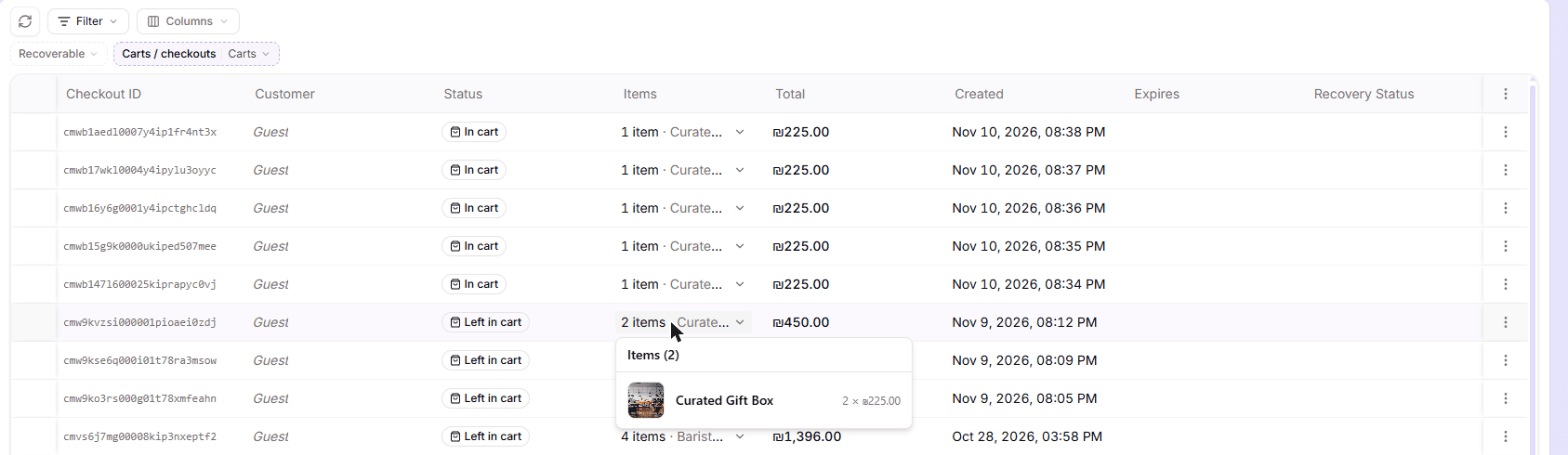
Click the Items cell of a cart to open a short list of what is in it: a picture, the product name, the variant, and the quantity times the price. The same list opens from the Items cell of a checkout. For a cart with many lines, the first few show at once and the rest load a moment later.
Open a cart with the ⋮ menu and View details to see the same lines in a window, with the subtotal, the discount and the coupon, and when the cart was created and last changed.
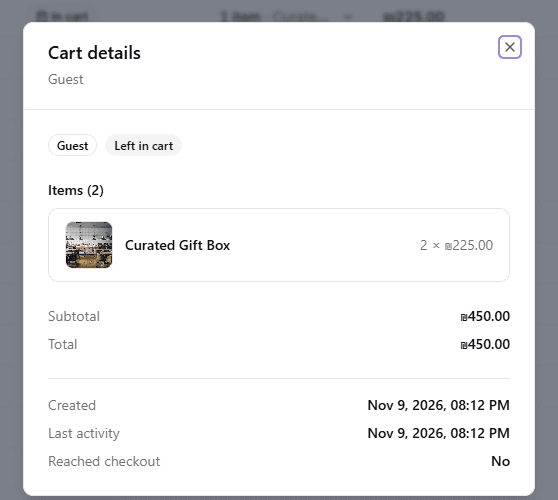
View details is the only action on a cart: you cannot delete a cart or send an email from it. To email a shopper who left, use Abandoned checkout recovery emails, which work on checkouts.
Show only carts, or only checkouts
Open Filter, switch on Carts / checkouts, and pick Carts or Checkouts.
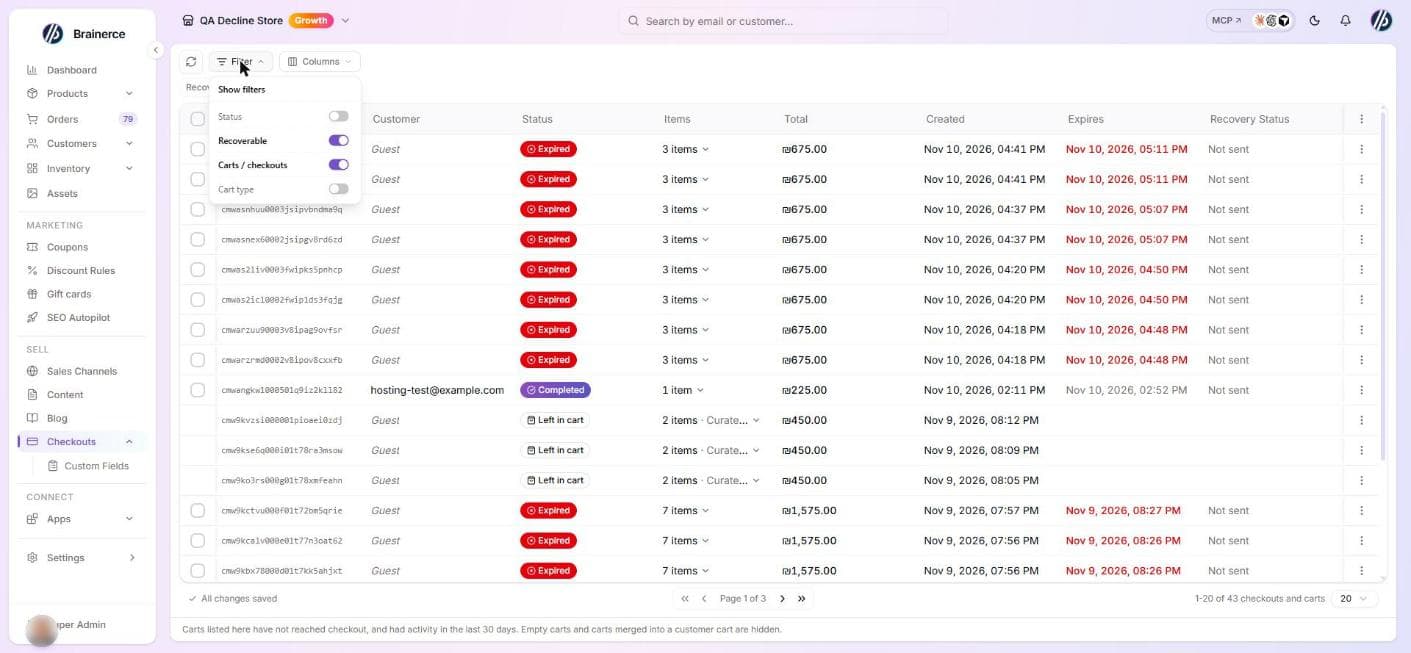 With nothing picked you see both. The footer under the table says what it is counting: checkouts and carts, carts or checkouts.
Cart type shows one kind of cart, and it shows carts only:
| Type | What it means |
|---|---|
| Guest | A shopper who is not logged in. You only know who they are if they entered an email at checkout. |
| Registered customer | A logged-in customer. Their name and email are shown. |
| Deleted customer | A customer whose data was erased. The cart stays, without their name or email. |
| AI agent | A cart an AI shopping assistant built for a shopper. |
| Google (UCP) | A cart that came through Google's cart transfer. |
The Status and Recoverable filters belong to checkouts, so using either of them hides every cart.
What the list does not show as a cart
- A cart that reached checkout. It is already in the list as its checkout, so it is not listed a second time. That includes a cart that was abandoned, expired or paid for. To see where it stands, open the checkout.
- Empty carts. A logged-in customer gets an empty cart as soon as they log in, so showing those would bury the real ones.
- Carts that were merged. When a guest logs in, their cart is copied into their customer cart, and the old one is left out so the items are not counted twice.
- Carts with no activity for 30 days. There is no way to widen this from the list. The line under the table says so.
- Google test carts. Carts from Google's sandbox and self-test are not shopper activity.
- A test cart looks like a real one. A cart you create yourself from the dashboard, with the AI assistant or through the API cannot be told apart from a shopper's.
- A guest who never reached checkout has no name or email. Nothing identifies them, and Brainerce does not guess.
Team members who are limited to some sales channels do not see carts
A cart is not tied to one sales channel, and carts show customer names and emails. A team member whose access is limited to specific channels sees checkouts only, with no cart rows and no Carts / checkouts filter. Give them access to all channels to let them see carts. See Team and permissions.
Which products get added to carts but not bought
The Dashboard shows this per product, in the Products & Customers tab: how many times each product was added to a cart, how many carts reached checkout with it, and how many orders paid for it. See The Products & Customers tab.
You can also ask BOBO, for example "which products do people add to the cart but don't buy", or "show me the idle carts".