 Brainerce Help
Storefront bot
An AI assistant on your storefront that answers shopper questions from your catalog and your own notes, and tells you what it couldn't answer.
The storefront bot is a chat assistant for your shoppers. It answers questions, finds products, tells people where their order is, and helps them buy, on your site.
Its defining constraint is worth stating first: it only answers from your catalog and what you tell it. It does not improvise store policy. If it hasn't been told your returns window, it won't invent one.
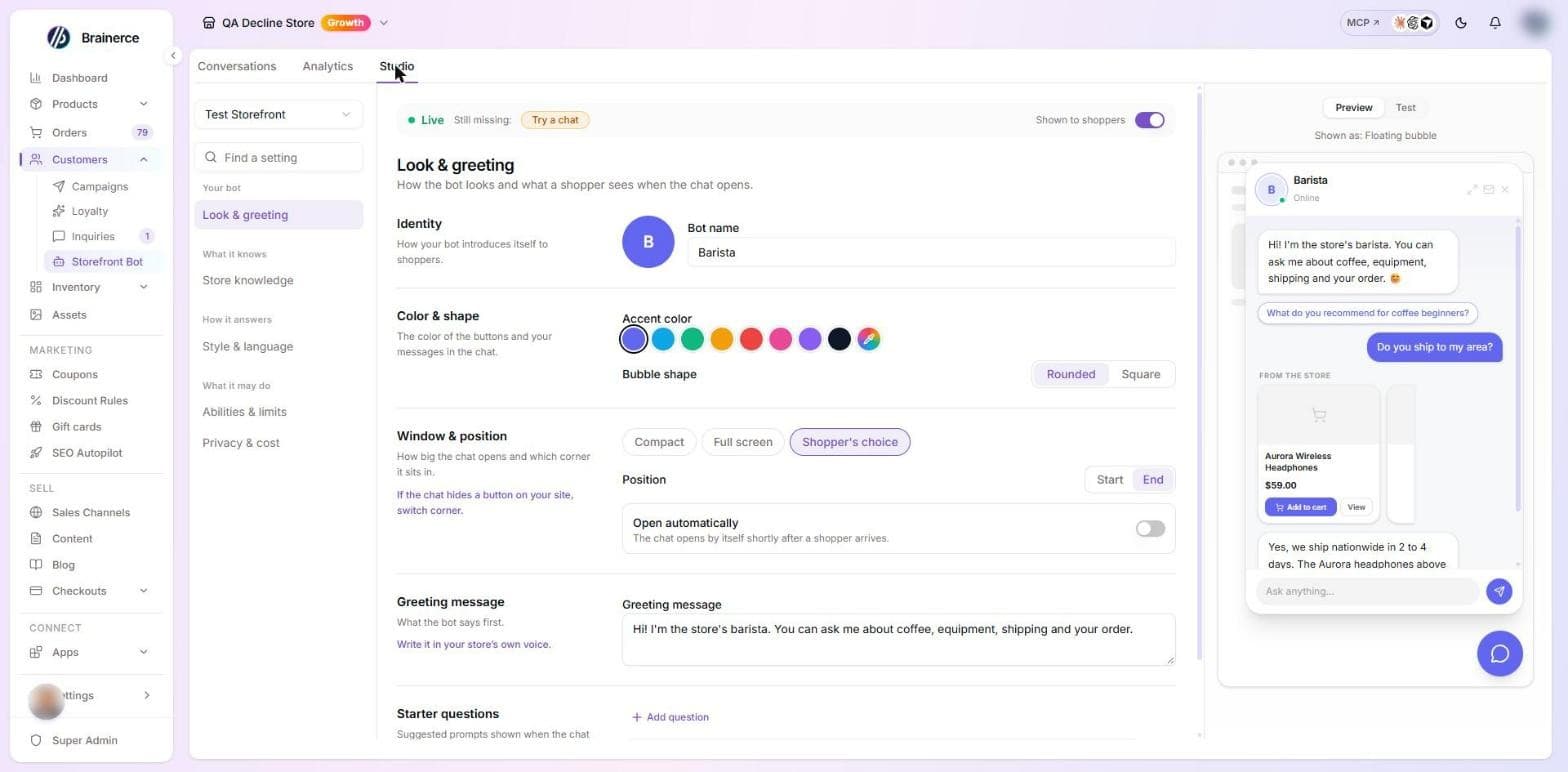
Find it at Customers → Storefront Bot. The page has three tabs (Conversations, Analytics and Studio) and everything you configure lives in Studio, on five pages: Look & greeting, Store knowledge, Style & language, Abilities & limits and Privacy & cost. Every setting is visible on its page, and the search box at the top of the side list takes you to a setting by a word.
Every setting belongs to one sales channel: the bot is configured per storefront. If you have more than one, pick the channel at the top of Studio before you change anything. Switching channel with unsaved edits asks you first, and a store with no sales channel yet sees "No storefront connected yet" instead of the settings.
Teaching it about your store
Under Studio → Store knowledge, add the things a shopper asks that a product page doesn't answer: shipping times, returns policy, sizing guidance, brand voice.
The custom instructions field is the highest-leverage thing here. Anything you put in it, the bot always knows. It holds up to 2,000 characters:
We ship worldwide in 3 to 5 business days. Free returns within 30 days. Always mention our loyalty programme.
FAQ pairs: exact answers to common questions
Also under Studio → Store knowledge, FAQ pairs are questions with the exact answer you want, and the bot gives them almost word for word. Press Add FAQ, write the Question (up to 300 characters) and the Answer (up to 1,000), and press Save changes. You can keep up to 30, reorder them with the arrows, and search them once the list grows.
Shipping times, payment methods and contact details
Also under Studio → Store knowledge, you can switch on Shipping, payment and contact details. The bot then reads your shipping zones and rates, your free-shipping threshold, your payment methods and your contact details from your store settings, so it can answer "how long does delivery take?" without you typing the answer anywhere. It updates on its own when you change those settings.
It is off by default, because it adds a few lines to every chat. It only knows what is set up in your store: if you haven't set up shipping, there is nothing to read. It never reads orders, customer data or anything you haven't published.
What the bot can answer exactly
Some questions have one right answer, and the bot gets them from your whole published catalog rather than guessing: "what is the cheapest?", "what is the most expensive?", "what do you have under 100?", "what do you have in the coffee category?", "how many products do you have?". It uses the price your shopper would really pay (the price on this sales channel, a sale price, the cheapest option when a product has options). A product with no price set (0) is left out of these answers. If your catalog is very large, it checks the 300 newest products and says so.
It also learns which language your product names are written in and searches in it, so a shopper who writes in English to a store with Hebrew product names still finds what you sell. By default it answers in the language the shopper wrote in, whatever that is. The languages you tick under Studio → Style & language → Languages choose the chat window's own labels (English, Hebrew, Arabic, Spanish and French are on offer). If you want to limit the bot itself, switch on "Answer only in these languages": a shopper who writes in a language you did not tick then gets an answer in your first ticked language, with one short sentence saying which languages the bot can help in. With that switch off, ticking only English does not stop the bot from answering a Hebrew shopper in Hebrew. The bot does not translate your catalog or your texts: product names, FAQs and instructions stay as you wrote them.
If the bot searches and finds nothing, it says it couldn't find the item. It does not say your store doesn't carry it, because a search can miss what a person would find.
Pages the bot can read
Under Studio → Store knowledge you can also pick up to five published pages, such as your returns policy or size guide. The bot answers from their text. A page that is still a draft is never shared, and a page limited to another sales channel is left out.
Personality and avatar
Under Studio → Style & language you set how the bot sounds: the Tone (Friendly, Formal, Playful or Concise), the Response length (Concise, Balanced or Detailed) and whether it may Use emoji. Under Studio → Look & greeting you pick its name (up to 40 characters), avatar and colors. Match it to how you'd want a person on your shop floor to talk. That is the whole job.
Avatar. Choose one of the ready-made avatars, Upload your own picture, or Generate with AI from a short description. Uploading costs nothing; generating uses AI credits.
Look & greeting: greeting, starter questions, window and position
All on Studio → Look & greeting:
- Greeting message. What the bot says first, up to 500 characters.
- Starter questions. Short suggested questions shown as buttons when the chat opens, so a shopper can start with one press. The page lets you add up to six. Use questions shoppers really ask.
- Color & shape. The accent color of the buttons and your messages, and Rounded or Square bubbles.
- Window & position. Compact (a regular panel in the corner), Full screen, or Shopper's choice (compact, with a button to expand). Position puts the chat bubble at the Start or the End of the screen. Open automatically makes the chat open by itself shortly after a shopper arrives. Full screen has no position and no automatic opening. If the chat hides a button on your site, switch the corner.
The Preview at the side of Studio shows these as a shopper sees them, before you save.
What the bot is allowed to do
Studio → Abilities & limits has five switches. Turning one off doesn't just hide a feature: the bot genuinely loses the ability, so it can't promise something you've disabled.
| Switch | Default | What it does |
|---|---|---|
| Product Q&A | On | Answers questions about products, specs and live availability, and can add items to the cart. It reads stock for the storefront the shopper is on, says plainly when something is out of stock, and never adds an out-of-stock item. It only quotes a number of units left when your low-stock warning is on. Switching it off leaves a bot that can't discuss your products at all. |
| Recommendations | On | Suggests products based on what the shopper is looking for. Needs Product Q&A on as well. |
| Order tracking | On | Looks up order status and shipping updates. See below. |
| Returns & refunds | On | Explains your return policy and guides refunds, using what you wrote under Store knowledge. It cannot open, check or approve a return for the shopper, and it cannot see their return requests: it has no returns tool. A signed-in shopper asks for a return from their order in your storefront account (see Handle returns and exchanges), and the bot does not read your Return rules either, so write your return window and instructions under Store knowledge too. |
| Bundle nudges | Off | Suggests add-ons and bundles to grow order value. Needs Product Q&A on as well. The one switch that starts off, so turn it on deliberately. |
The contact form is separate from these switches. Even with everything above disabled, a shopper can still leave a message, until you switch the contact form off (see below).
Adding to the cart from the chat
When a shopper asks the bot to add something, or presses the add button on a product card in the chat, the product goes into the shopper's cart through your storefront itself. Your cart icon and cart page update the same way they do when a shopper adds a product on its page, and the shopper pays at your normal checkout. If your storefront has not connected the chat to its cart, the shopper is taken to the product page instead, and your developer can fix that.
The bot says it is adding the item, and the cart has the final word. An out-of-stock product is never added, and the shopper is told. A product with options the shopper has not chosen yet is shown as a card so they choose there.
What the bot does not do, whichever switches you turn on:
- It does not set or change a price. Every price comes from your catalog and your store settings.
- It does not create or apply a discount or promo code. The Max discount it may offer limit only caps what it says about discounts that already exist.
- It does not edit, cancel or refund an order. It can only tell a signed-in shopper where their own orders are.
- It does not touch anyone else's cart or anything else in your store. It works only with the cart of the shopper it is chatting with.
Topics to avoid, a discount ceiling and a minimum of recommendations
Also on Studio → Abilities & limits:
- Topics to avoid. Type topics the bot should politely decline, for example "competitors, medical advice, politics" (up to 500 characters). It steers back to shopping.
- Max discount it may offer. A percentage that caps any discount the bot may mention. Empty means no cap. The bot cannot create a discount or a promo code either way: this only limits what it says about discounts that already exist.
- Min products to recommend. When the shopper asks for suggestions, the bot shows at least this many fitting products (up to 8) so they can compare. It needs Product Q&A and Recommendations on, and it does not apply when a shopper asks about one specific product.
Rules in your own words
Under Studio → Abilities & limits → Rules you can write what the bot should always do, never do, or when it should hand the shopper to your team. Plain words are enough: "Always mention free shipping over $50", "Never promise a delivery date", "Hand over when the shopper is angry". Try a new rule in Test before you save it. You can add up to 20. A rule is an instruction the bot is told to follow, not a lock, so check the important ones in Test.
The contact form and who gets the message
When the bot can't help, it offers the shopper a short form, and what they write lands in Inquiries. Under Studio → Abilities & limits → Contact form you can:
- Switch it off. The bot then never offers the form and the chat window hides its message button, so no shopper is handed to your team. The bot says plainly that it can't help instead. A hand-over rule can't work without the form.
- Set the subject of the inquiry. Empty uses the standard subject.
- Email more people. Up to five extra addresses get the new-inquiry email. You always get it too.
- Write a line above the form, shown when the bot opens it, instead of the standard wording.
Limit what the bot can spend per day
Under Studio → Privacy & cost → Daily spend ceiling you can set a limit in dollars. It covers the AI cost of your whole store, across all channels, not one channel. Left empty, there is no ceiling. Once it is reached, the bot tells shoppers it is taking a short break, until the next day. The day is counted in UTC, so the reset is not at midnight in your time zone.
Test the bot before shoppers see it
The strip at the top of every Studio page shows whether the bot is on and what is still missing: a greeting message, starter questions, some knowledge about your store, and a test chat of your own. Press an item to go straight to its setting. The on / off switch sits in the same strip. It does not check whether shoppers can see products on the channel, so look at your catalog for that.
To try the bot, switch the panel at the side of Studio from Preview to Test. You chat with the bot using the settings on your screen, including changes you haven't saved yet, so you can see how a new instruction changes an answer before you save it. Under each answer, What the bot did lists what it looked up.
Test mode leaves no trace: nothing is stored, nothing appears under Conversations or Analytics, and shoppers never see it. It runs as a guest, so it can't look up an order. Each test message uses AI credits, like a shopper's chat.
Order tracking: "where is my order?"
This is the most common thing shoppers ask a chat widget, and it's on by default. The bot looks up that shopper's own recent orders and their shipping status. It never asks for an order number or an email address. It identifies people from the account they're already signed in to, so it can't be talked into revealing someone else's order.
What the shopper sees. One card per order (up to the three most recent): the order number, a progress line (placed, preparing, shipped, delivered), the dates, the first few items with photo and quantity, the total, and a "Track shipment" button when the order has a tracking link. A cancelled or refunded order shows its status instead of the progress line. The bot's own message under the cards is one short sentence and doesn't repeat them. A storefront on an older version of Brainerce's storefront code doesn't draw the cards: the shopper gets the bot's written answer instead. A shopper with no orders on this storefront is told so plainly.
It works for signed-in shoppers with nothing to set up, as long as your storefront uses a current version of Brainerce's storefront code (SDK 3.11.0 or later). The bot recognises the shopper from the account they're already signed in to on your site. A shopper who is not signed in gets a short message saying the bot can't see a signed-in account on this page, and what to try: send the message again if they just logged in, refresh the page, or contact you. The bot never asks for an order number or an email address instead, because that would let anyone ask about someone else's order.
If shoppers tell you "I'm logged in and the bot still says it can't find my order", the most likely cause is a storefront built on an older version of the storefront code, which the bot can't see the login on. Ask your developer to update the brainerce package on the storefront. Nothing in this screen warns you: the switch above still reads Order tracking, on. Your developer can find the details in the storefront bot integration guide.
Signing out clears the chat. When a shopper signs out, or someone else signs in on the same device, the earlier conversation is wiped from the screen and can't be reopened, so the next person never sees someone else's orders. A shopper's order conversation is only ever shown back to that same shopper.
Shoppers only ever see orders placed through the sales channel the bot is running on.
Conversations
Every chat is listed under Conversations, with its full transcript. Read these: they are the least filtered account you will ever get of what confuses people about your store.
A conversation can escalate to your team when the bot can't help, and those land in Inquiries so they don't get lost in a chat log nobody checks.
Above the list, the filters Unread, Handed to team, Signed in and Guests narrow it down. A chat the bot handed to your team carries a Handed to team label. Open a long chat and press Summarize to get the gist at the top. A summary uses AI credits, and a chat of 10 messages or fewer is too short to summarize.
How long conversations are kept
Under Studio → Privacy & cost → Keep conversations for, choose a period from the list: 30, 90, 180, 365 or 730 days, or Forever. Once a chat has had no new message for that long, a daily job deletes it for good, with its messages. Leave the box empty and chats are kept forever, which is how every store starts.
Before you save a period that would delete chats today, Studio tells you how many and asks you to confirm. Deleting can't be undone.
What it does not delete: the contact inquiries a chat created (they stay in Inquiries, only the link back to the chat is gone), and the anonymous counters behind Analytics, such as what shoppers searched for.
Remembering returning customers (customer memory)
Under Studio → Privacy & cost → Customer memory you can let the bot remember what a shopper tells it, such as "I wear size M" or "I prefer dark colors", so it can help faster the next time they chat. It is off until you switch it on.
- Only signed-in shoppers. A guest is never remembered, even with memory on, because there is no way to know who comes back.
- The shopper decides. With Ask the shopper first (the default and the safer choice), a signed-in shopper sees one question in the chat. Nothing is saved until they say yes, and a shopper who says no is never remembered. They can change their mind at any time.
- What it keeps. Only short preferences the shopper said themselves, in the groups you allow: sizes, taste and style, needs and limits, preferred language. Up to 20 per shopper.
- What it never keeps, whatever you choose: contact details, addresses, payment details, order contents, health, or anything about children. If a shopper types a phone number or an email into a preference, it is refused.
- How long. You choose from 30, 60, 90, 180 or 365 days (90 by default). After that the preference is deleted. A preference the shopper repeats starts its clock again.
- The shopper stays in control. A What I remember about you button in the chat window lists everything, lets them edit or delete each item or all of them, and has two switches: remember new things, and use what is remembered. They can also say "forget that" in the chat.
- You can see it too. Open a customer and look for What the shopping assistant remembers. The card appears only once that customer has made a choice about being remembered or something is saved for them; on any other record it is not shown. You can delete one item or all of it, for example when a customer asks you to.
- Test mode never reads or writes memory, because it runs as a guest.
Already covered by my store's privacy terms skips the question, and the bot starts remembering signed-in shoppers right away (a shopper who says no is still never remembered). Choose it only if your privacy policy already tells shoppers this, and you are responsible for any rules where you sell. This page is not legal advice.
Memory is not order history and does not change prices, discounts or what the bot is allowed to do. It only lets the bot start the conversation already knowing the shopper's stated preferences.
Analytics
Pick Last 7 days, Last 30 days or Last 90 days at the top. The page shows Conversations, Messages, Avg. messages per chat, Escalations to team and Product card clicks, a Conversations per day chart, a By language split, and the one to actually act on: what shoppers looked for and didn't find.
From chat to order shows how far chats go: how many were shown a recommendation, opened a product, added it to the cart, and ordered. The order number is a floor, not the full count. A guest can't be followed from the chat to checkout, so only shoppers who were signed in are counted, and only for orders placed within 7 days of opening a recommended product or adding it to the cart.
That list is a product-gap report. Sometimes it means you don't stock something. More often it means you do stock it but under a name nobody searches for.
When the bot hands a shopper to your team, it also notes in a few words what it could not answer. Why shoppers were sent to your team lists those reasons, most common first. Next to each search and each reason there is Add as FAQ: it opens Studio → Store knowledge with the question already filled in. Write the answer and press Save changes, and the bot can answer it next time. Nothing is added until you save.
Turning it on, and how to turn the storefront bot off or hide it
Three things all have to be true before a shopper sees the bot:
- A connected storefront. The bot lives on your site, so there has to be a sales channel to attach it to.
- The bot switched Live in Studio. It starts off: until you switch it Live the widget shows nothing at all, even when the code is already on your site. The Live switch saves the moment you flip it, while everything else in Studio waits for Save changes.
- The widget added to your storefront, which is one line of code your developer adds once.
The Storefront Bot has no switch under Settings → Modules: the page is there for every store. To stop shoppers seeing the bot, turn off the Shown to shoppers switch in the status strip at the top of Studio (the strip reads Not shown to shoppers while it is off). It saves the moment you flip it, and the widget on your site then shows nothing.
If all three are done and the bot still doesn't appear, the widget stays silent rather than showing an error, and there are only a few possible causes: the bot isn't Live, your AI credits have run out, or the sales channel's domain doesn't match the site the bot is loading on. Check the domain on the sales channel first. That's the one that bites when you move a working storefront to a new address.
What's next?
- Contact inquiries is where escalated conversations arrive.
- Connect your storefront is required before the bot has anywhere to live.
Automatic welcome and follow-up emails
Two emails that send themselves, a welcome email for new customers and a follow-up after delivery. What triggers each one, whether your existing customers get mailed, and how to turn one on.
Loyalty & Rewards
A built-in points program where customers earn points on every purchase and redeem them for discounts. Tiers, bonuses, referrals, and birthday gifts included.