 Brainerce Help
Email campaigns
Send a one-off marketing email to a group of customers now or at a scheduled time, and understand the reputation guard that can pause sending.
A campaign is a one-off marketing email to a set of customers: a birthday offer, a restock announcement, a seasonal promotion. It is separate from your transactional emails, which fire automatically on order events.
Looking for a fundraising drive with a goal and a progress bar, such as a building fund appeal? That is a donation campaign, a different feature that sends no email. See Donation campaigns.
Where to find campaigns: Customers → Campaigns
Customers → Campaigns in the sidebar. It is the first row under Customers, which is where the people a campaign goes to live.
That page is one table of every campaign you have sent or drafted, with its status, how many people it reached, how many opened and clicked, and what it brought in. It uses the same table as Products and Orders, so you can choose which columns to show, change the row height and sort. Two entries in the table's settings menu (the three dots at the top of the first column) open larger windows for what is not a row: Automatic mail lists the emails that go out on their own, and Audiences and templates holds the ready-made audiences and your saved templates. Automatic mail also has its own button in the page header, beside New campaign, and it opens the same window. The page is also where you start a new campaign. While it loads, you see grey placeholders in the shape of the page, and a failed load says so with a Try again button instead of showing an empty list.
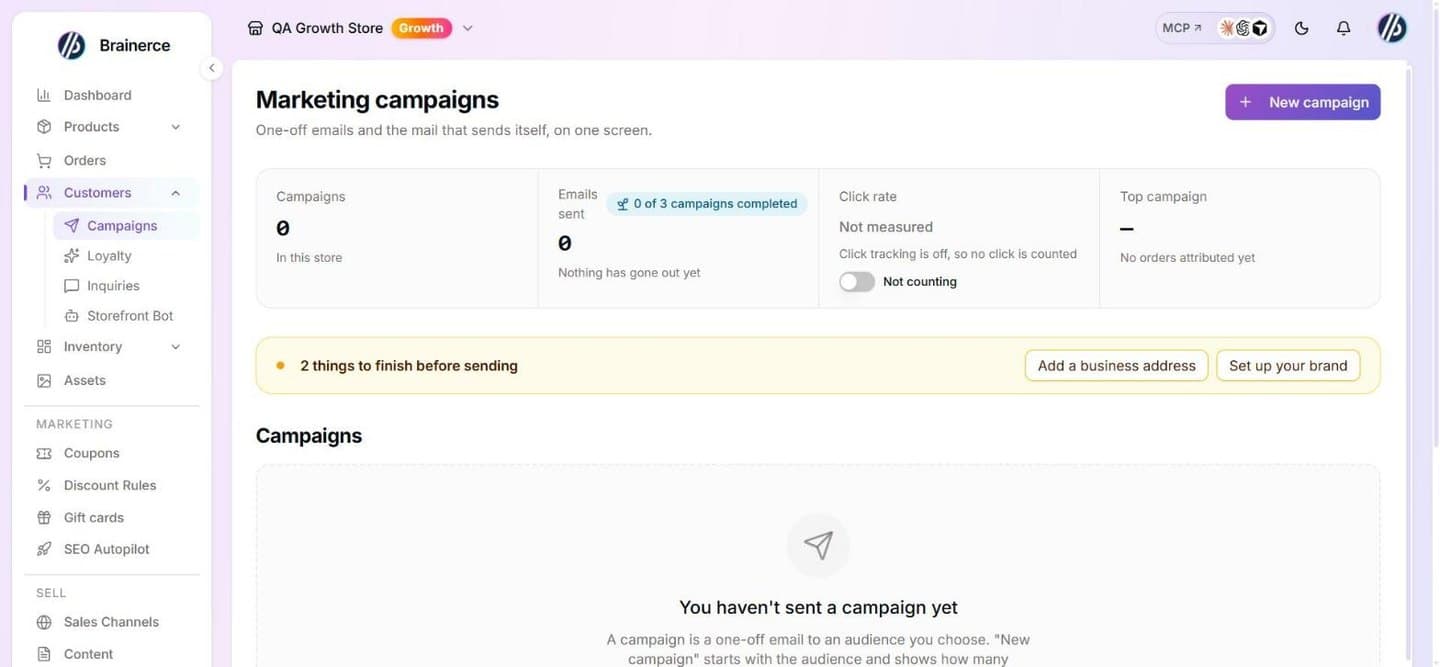
Seeing the customers is enough to open the Campaigns page. Writing or sending one still needs permission to edit customers, so a teammate with view-only access to customers sees the page, the numbers and the history but gets no New campaign button, no audience shortcuts to press, and no row actions that change or send anything (they can still open a report).
Starting a campaign, and choosing who gets it
The top of the window shows where you are in three steps: Audience, Email and Review and send. A step you have finished shows a tick. If you start from an audience card on the Campaigns page, or from a selection in the Customers list, the audience is already chosen, so the window shows two steps and opens on Email.
You can go back from Email to Audience by pressing the audience chip in the bar over the email (its tooltip reads Change) or the Audience step. This works only until you press Save draft: once a draft is saved from this window, the audience is fixed (see Save a draft and come back to it later). Once you are on Review and send there is no way back to the email: close the window and start a new campaign if you want to change what you wrote.
Start from the Campaigns page
Press New campaign at the top of Customers → Campaigns. The first thing it asks is who the email goes to.
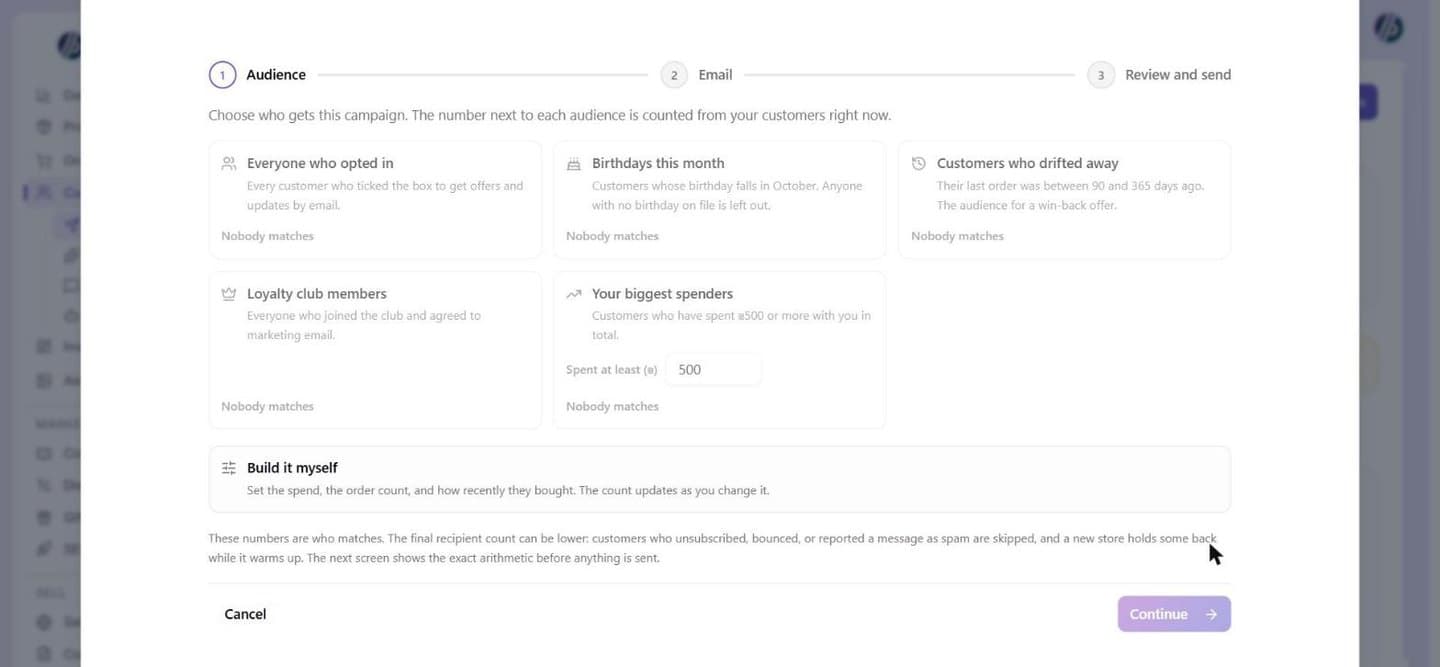
Press the small arrow beside New campaign to start from a ready-made audience instead. The menu lists them with a live count of how many customers match right now, and pressing one opens the email with that group already chosen. The same audiences are listed, with their descriptions, in the Audiences and templates window. A group nobody matches is greyed out and cannot be started. The menu also has From a saved template, which opens the same first step so you can load a template you saved earlier. The audiences are:
- Everyone who opted in. Every customer who ticked the box to get offers and updates by email.
- Birthdays this month. Customers whose birthday falls in the current month. Anyone with no birthday on file is left out.
- Customers who drifted away. Their last order was between 90 and 365 days ago. This is the win-back list.
- Loyalty club members. Everyone who joined the club and agreed to marketing email. This card only shows up if your store has the loyalty club.
- Your biggest spenders. Customers who have spent 500 or more with you in total, in your own currency, so 500 shekels in an Israeli store and 500 dollars in an American one. You can change that number inside the composer.
Those counts are who matches, not a promise of who receives it. Customers who unsubscribed, bounced or reported a message as spam are dropped afterwards, and a new store holds some people back while it warms up. The confirmation step shows you the exact arithmetic before anything is sent.
Start from the Customers list
Both of the older routes still work, unchanged:
- Filter the Customers list, then press New campaign there, and everyone matching the current filter is the audience.
- Tick specific rows in the Customers list and choose Send marketing email, and those rows are the audience.
Write the email with AI, after you pick the audience
Choose who receives the campaign first. AI does not choose the audience for you. On the Email step, the AI helper beside the email writes and edits it: describe what the campaign is about in your own words, for example 20% off for customers who have not ordered in a few months, and it drafts the email and a subject line in your store's language, in your brand colors, fonts and tone from Settings → Branding.
This is a draft, not a send. Nothing is sent and nothing is booked: you read the email, change anything you like, and press through Review and send, where the exact recipient count and credits are shown before anything goes out. Each AI request uses AI credits, and you can change the audience by pressing the audience chip over the email, until you have saved a draft from that window (after that the audience is fixed).
The AI helper can also set up your brand from the same chat. Write something like set up my brand from myshop.co.il, or describe your business in a sentence. It shows a card with the logo, colors, fonts and tone it found or suggests. Nothing is saved and your email does not change until you press Use these. It does not design a logo, and it does not change your brand on its own: you always approve the card first. Reading a website or describing a business each uses 1 AI credit, the same as in Settings → Branding.
Apply your saved brand to the email
Under the chat, the Apply brand button asks the AI helper to dress the open email in the brand you already saved: your colors on the header, buttons and links, your heading and body fonts, and your logo in the header if the email has none. It changes only this email, and you can undo it. It uses your saved brand and does not look anything up, so if you have not set a color or font yet it changes nothing and suggests setting up your brand first. It does not change what is saved in Settings → Branding, and it does not touch your text, links or audience. Like any AI edit it uses AI credits.
Build the audience yourself
Build it myself sits beside the ready-made cards inside the composer. You can set a minimum amount spent (Spent at least, in your store currency), a minimum number of orders (At least this many orders), Last order (any time including customers who never ordered, ordered in the last 30 days, ordered in the last 90 days, no order for 90 days or more, no order for 180 days or more), Club members only, and Customers with an account only, no guests. Every Last order choice except the first leaves out customers who never ordered, because they have no last order to measure. The count updates as you change each one.
Marketing consent cannot be switched off here. Only customers who agreed to marketing email are ever included, because a campaign is not allowed to reach anyone else, so there is no setting for it and no way to widen it.
Whichever way you came in, the composer tells you how many recipients it resolved to. Read that number before you go further.
Advanced rules: matching ALL or ANY of a set of conditions
Inside Build it myself, press Use advanced condition builder to switch from the simple filters above to a rule builder (the same button then reads Use simple filters). The simple filters are always combined with AND, so a customer has to match every one of them. The advanced builder lets you mix conditions with OR as well as AND, so you can build an audience a flat filter never could, like "in the US OR in Canada" or "a top spender OR a loyalty member."
Each row is one condition: a field, a comparison ("is", "is at least", "contains", and so on), and a value. A Match all / Match any control sits above each group of rows: all means every row under it has to be true (AND), any means just one of them has to be (OR). Press Add group to nest a second all/any box inside the first, for something like "spent at least 500 AND (in the US OR in Canada)."
The fields on offer are: total spent, number of orders, days since the last order, country, region, loyalty club membership, loyalty points, birthday month, birthday day, customer role, has an account, active in a sales channel, and came in through a sales channel. Marketing consent is not one of them. Every campaign already requires it automatically, on top of anything you build here, so the field is left out of the list on purpose here. It is not an oversight, and creating a campaign whose audience conditions somehow included it anyway would simply be refused.
Limits: groups can be nested up to 5 levels deep, with at most 50 conditions in total, and at most 10 of those can be the two sales channel conditions. Birthday month takes 1 to 12 and birthday day takes 1 to 31.
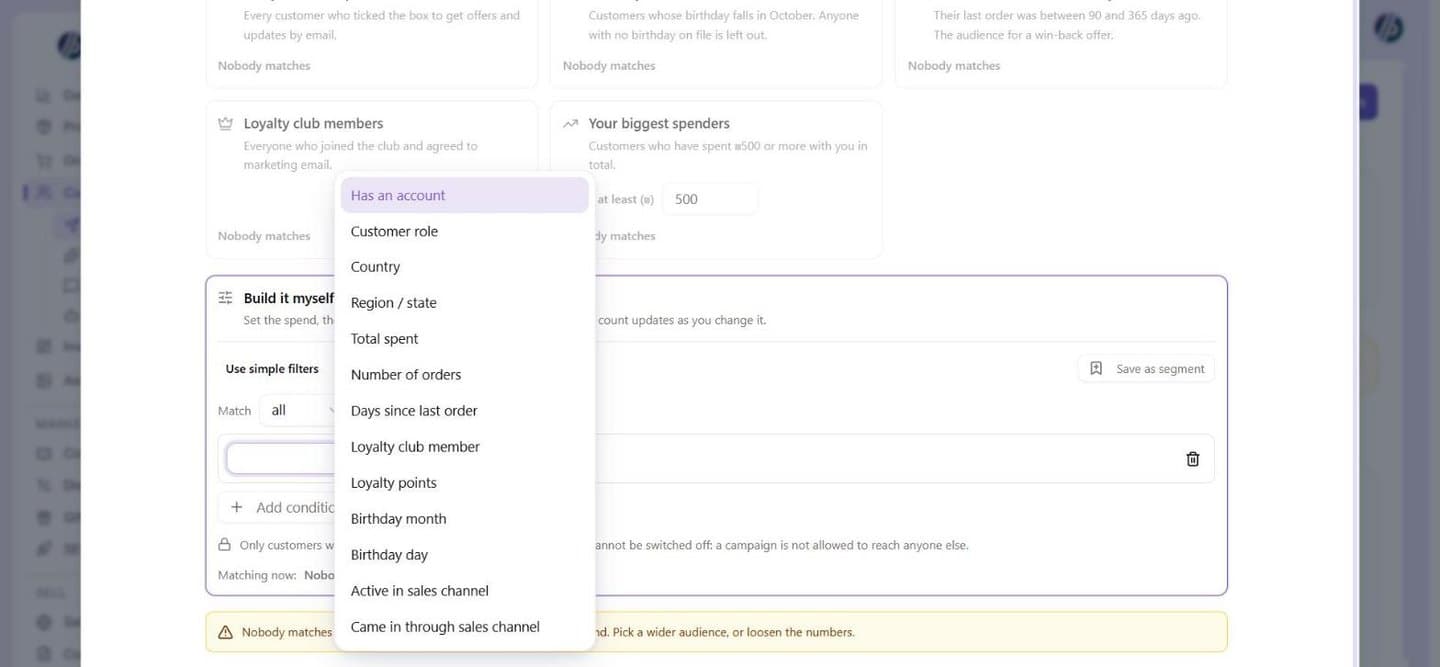
The live count above the rules updates as you edit them. For advanced rules and saved segments it gives two numbers, N match this segment, M can receive marketing email, explained in Matches versus people who can receive the email. The ready-made audience cards and the simple filters show one number, which is a match count and not a delivery promise, for the reasons given earlier.
Save a segment to reuse it later
Once your advanced rules look right, press Save as segment and give it a name. From then on it shows up as its own card, next to the ready-made audiences ("Everyone who opted in", "Birthdays this month", and so on), on every campaign you start for this store. Press it and its rules are applied immediately, with a live count like any other card.
A saved segment is a snapshot at the moment you use it, not a live link. Editing or deleting a segment later never changes a campaign you already sent, scheduled, or resolved with it; only a campaign you build with that segment afterwards sees the new rules. There is no history of a segment's past versions to look back at, and changing its rules simply overwrites what was there.
Segment names must be unique within your store, so saving a second one with the same name is refused rather than silently replacing the first. There is no folder, tag, or search for a long list of segments yet: the picker on the audience screen just lists every one you have saved, newest first.
Matches versus people who can receive the email
When you pick a saved segment or build advanced rules, the count reads N match this segment, M can receive marketing email (for one match: "1 matches this segment"). The two numbers are different on purpose:
- N is everyone the rules match, whether or not they agreed to marketing email.
- M is how many of them a campaign sent today would actually mail. Three groups are taken off N to get M: customers with no marketing consent; customers whose address is on your suppression list (unsubscribed, bounced, reported as spam or blocked by hand); and, while your store is still warming up (fewer than 3 completed campaigns), customers who never placed an order that stuck and who signed up more than 90 days ago. For a store with more than 20,000 suppressed addresses, M can be slightly higher than the real figure.
The badge turns amber when M is 0. When M is 0, Continue stays off and a note says nobody in the segment can receive marketing email right now, because there is nothing to send. This is the number to trust, not N: "1 match" next to a campaign that can reach nobody is exactly what this replaces. The ready-made cards and the simple filters count consenting customers only, so their single number is already close to M, and the confirmation step still shows the exact arithmetic before anything is sent.
Write a draft anyway. For Build it myself and for a saved segment that matches nobody or reaches nobody, a Write a draft anyway button appears beside Continue. It opens the email step so you can write the email and save it as a draft. It does not make the campaign sendable: Continue to confirm stays off while the audience is empty, and the way out is to go back and change the audience with the audience chip, which works only until you press Save draft. Once the draft is saved its audience is fixed, so if you want a different audience, start a new campaign.
Can I come back to a campaign I did not send? Reopening a draft
Yes. A campaign you started and did not send stays in the list as a Draft. Press Continue editing in the three dots menu at the end of its row (or press the subject on the row) and the editor reopens on the email step with the name, subject, sender fields and email exactly as you left them. Press Continue to confirm and your changes are saved onto the same campaign, not a copy, and the audience is counted again before you review and send.
Three things worth knowing. The AI chat on the side starts empty: it does not remember what you asked in an earlier session. A draft that never got as far as counting its audience shows no audience count on its chip until you continue. And a campaign that has already started sending can no longer be edited, so Continue editing only exists for drafts; a campaign that was counted but not yet sent opens its report, with the button to send or schedule it.
Save a draft and come back to it later
On the Email step, Save draft sits beside Continue to confirm in the bar over the email (on a narrow window it shows as an icon only, with the name in its tooltip). It saves what you have written as a Draft without counting the audience and without sending anything, and a message says Draft saved. You can find it under Campaigns, Drafts.
- It works without a business address or a reply-to address. Those are checked only when you send, so a missing address never costs you the email you wrote. Add them before you press Continue to confirm.
- It needs a campaign name, a subject and some text in the email. With one of them missing nothing is saved and the message says Name, subject, and message are required.
- It is switched off while the audience is being counted, and when you started from hand-picked customers and none of them can receive marketing email.
- Every later save updates the same campaign. Press it again after more edits, or press Continue to confirm, and the one draft is changed; no second copy is made. The same holds for a draft you reopened with Continue editing.
- The audience cannot be changed after the first save. From then on the audience chip and the Audience step in this window no longer take you back, and a reopened draft keeps the audience it was created with. To send the email to different people, start a new campaign (a saved template brings the email back).
Closing the window with unsaved edits asks Close without saving? with three buttons: Keep editing, Save draft and close and Close and discard. Save draft and close saves as described above and then closes; if the save cannot happen (a name, subject or text is missing, or the save fails) the window stays open and says why. Close and discard throws the edits away.
Why fewer people got it than matched your audience
Some customers match your audience and still are not mailed. The composer shows that count separately, as "matched your filter but were not mailed", and there are exactly three reasons:
- No marketing consent. The customer never opted in, or has since unsubscribed. Sending to them anyway is what gets a sending domain blocked.
- A suppressed address. The address hard-bounced, was reported as spam, or unsubscribed. Mailing it again damages delivery for every other customer on your list.
- Held back while your store warms up. Until your store has completed three campaigns, Brainerce leaves out customers who have never placed an order that stuck (cancelled and refunded orders don't count) and who signed up more than 90 days ago. Nothing is wrong with these customers and they are not unsubscribed; they return to the audience automatically once your store is warm.
None of the three is optional and none of them is a bug.
To see which of them applies to a particular person, look at the Marketing column in the Customers list. It names the reason per customer (Not subscribed, Unsubscribed, Bounced, Marked as spam, Blocked). Only Subscribed customers can be mailed.
Writing it
Give the campaign an internal name ("Birthday discount, July") in the bar at the top of the editor: click the name there and type. Customers never see it; it's how you'll recognise the campaign afterwards. The email takes the whole screen, and one small bar floats over its top edge, reading like the top of an email: To shows who the campaign goes to as a chip with its name and how many customers match (when you picked a ready-made audience or built one, click the chip to go back and change it, until you press Save draft; a campaign started from a Customers list selection or filter shows its size and has no way back), then, while your store is still warming up, a small Warming up chip that opens the explanation of why fewer people are mailed, then the Subject (click it to type; it shows {{variables}} as small chips), then the Tools / AI button, and Save draft and Continue to confirm at the end. The from name and reply-to address are under Tools / AI → Sender.
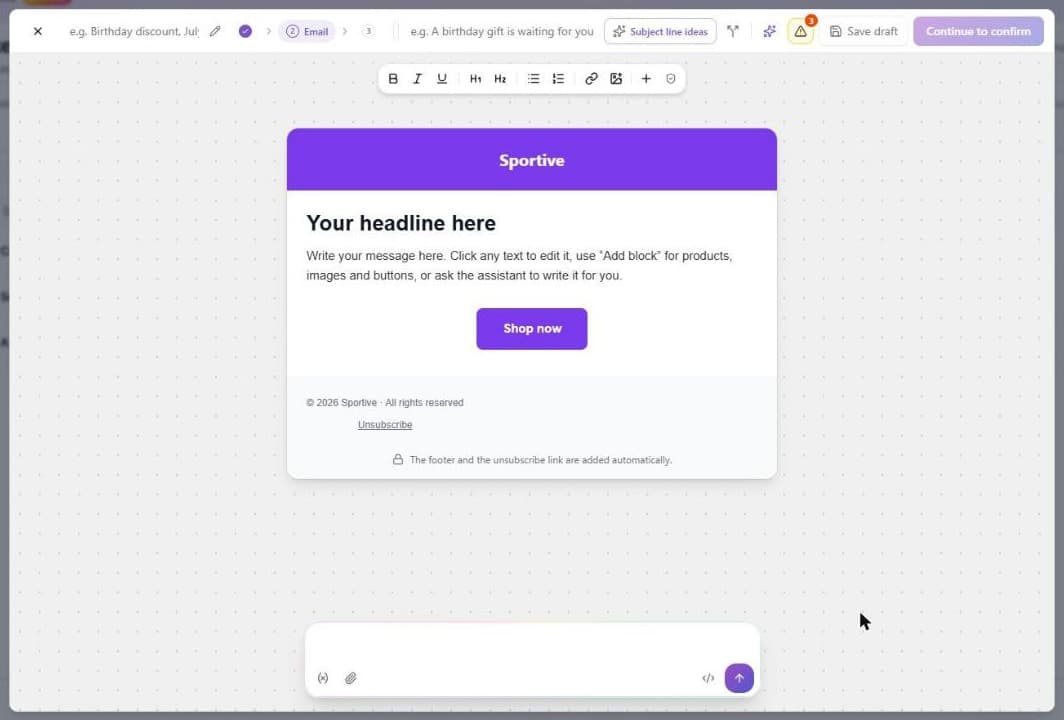
The email itself opens as a complete, branded design: your logo on your brand colour, a headline, a paragraph and a button you can change, and the unsubscribe footer already in place.
Writing in the email: type in it, and ask the AI for bigger changes
There is one editor and no switch to look for. Click into the text of your email and type, as in a document: a small bar above it has bold, italic, underline, two heading sizes, bullet and numbered lists, a link and an image. A block with a button or products (from Add block) is edited by clicking it and changing its text; hover it to move it up or down or to remove it. The footer and the unsubscribe line are shown at the bottom and cannot be changed, because every email must carry them.
Select words and a side panel opens with the line style (paragraph or heading), bold, italic, underline, lists, text colour and alignment, plus a box to ask the AI about just those words. Select a button or another block and its own panel opens (text, link, colour, corner roundness, width, alignment). The text editor does not offer font choices or font sizes. Ask the AI assistant for those, or for anything bigger: a new layout, a colour change, a translation, a whole new email. If the email ends up with a design the text editor cannot edit without changing it (a layout the AI built, an email you pasted), the editor changes to the visual canvas by itself, where you click an element to edit it. Nothing about your email changes when that happens.
Everything below works in the same window. In the visual canvas you work on the email the same way you work on your transactional emails:
- Click any text to edit it right in the preview. Click a button to change its label, colour or link.
- Add block, the plus button in the bar under the email, drops in a hero, a paragraph, a button, an image, a divider, a footer, or products from your catalogue.
- The AI assistant in the panel beside the email has no title bar of its own; the buttons to collapse it and to see what the AI remembers about your store sit in its top corner. It changes what is already there: "make the headline shorter", "use our brand purple on the button", "translate it to Hebrew". Select an element first and the change applies to that element only. Each message you send costs 1 credit (the same as an email edit in Settings, see AI credits); clicking text to edit it yourself is free.
- Tools / AI (or Ctrl and / on the keyboard) opens one menu with everything else. It also doubles as a request line: type a sentence and press Enter to hand it to the assistant.
- Generate with AI, in that menu, drafts a whole new email from a description ("Birthday discount email, casual tone, 15% off") and replaces what is on the canvas. It costs 2 AI credits per run.
- Ask the AI for a picture. Tell the assistant "add a hero image of ..." and it creates one and puts it in the email. Each image costs 7 AI credits on top of the message, and at most 3 images are made per request. The image is stored on Brainerce's servers, not in your media library.
- Start from a saved template, in the same menu, lists the campaigns you saved before; pick one to load it.
- In Canvas, the device buttons in the bar under the email show it at desktop, tablet and phone width. In the Tools / AI menu, Sample data fills in a sample customer name (Typical, Long name, Empty values, Long order or a Hebrew name), and Code View shows the HTML if you want to edit it by hand (the same menu item then reads Visual Editor to take you back).
To keep the email for next time, open Tools / AI and tick Save this as a reusable template.
Can I paste an email I made in Claude, ChatGPT or another tool?
Yes. In the chat on the side of the editor, press the </> button next to the input box (its tooltip reads Paste a ready-made email (code)). Paste the HTML of the finished email and press Preview. The email shows on the canvas with a label saying it is not applied yet, and nothing in your campaign has changed. Press Apply to the email to make it your campaign, or Back to go back to the code. If you only have one section (a hero, a banner, a row of products) rather than a whole email, switch the panel to Add as a block before you preview: the code is added to the email you already have, as its own section after the element you selected on the canvas, or at the end if you selected nothing. A whole document pasted this way contributes only its body, and styling that lives in a <style> block at the top of that code does not come along, so the panel says so. After you apply it, it is an ordinary email in the editor: click any text to change it, add blocks, ask the assistant, or run the quality check. Undo (in Tools / AI, or in the message that appears after you apply) brings back what was there before.
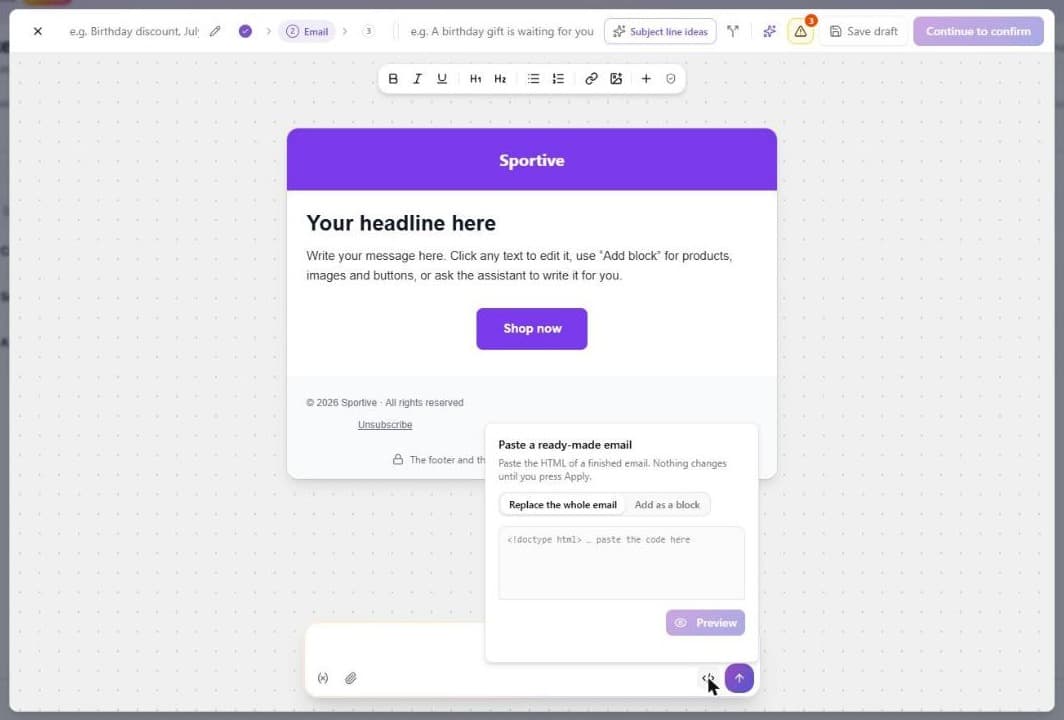
What happens to the code you paste:
- It is kept as you wrote it. The doctype, the
<style>block, the Outlook comments (<!--[if mso]>) and your own layout all stay. Brainerce does not rewrite your design. - Scripts are removed. An email cannot run a
<script>, and some inboxes treat one as a reason to block the message. - Pictures hosted somewhere else are copied into your media library, unless you untick the box under the findings. The copy is stored on Brainerce's servers and the email points at it, so the picture does not disappear when the original link expires. A picture that cannot be copied keeps its original address, and a message tells you so. Pictures used as a CSS background (
background-image) are not copied. Until a picture is copied it can look broken in the preview here, even though it will show in your customers' inboxes if the link still works. - Merge fields work only from the list Brainerce fills in.
{{firstName}},{{storeName}}and the others in Writing it are replaced for each customer. A field from another tool, such as{{STORE_URL}}or*|FNAME|*, is not replaced: the panel names each one before you apply, and in the email it would go out empty (a link that leads nowhere) or as the literal text. Replace them with a real address or one of Brainerce's fields before you send. - Raw output is refused.
{{{ }}}and{{& }}stop the Preview button, because a campaign using them is rejected when you continue. - The unsubscribe link and your postal address are still added at send time if your email does not have them, the same as for any campaign. Brainerce does not check that the email is marked as an advertisement or carries your contact details: see What Israeli law asks for that Brainerce does not add for you.
The panel also tells you the size of the code. Gmail shows only about 102KB of an email and cuts the rest, including the unsubscribe link, so a larger email is flagged.
Check the campaign before you send: dead buttons, hard to read text, dark mode
The quality check button (the shield) in the bar under the email checks the campaign as it is right now. It finds buttons or links that lead nowhere, text that is hard to read against its background, a missing unsubscribe link, an email so long that Gmail would cut it off, and an email that is not marked as Hebrew right to left. Each finding has a Fix with AI button that asks the assistant to fix it. It is the same check as in Settings → Email.
The moon button next to the device buttons shows roughly how the email looks in an inbox set to dark mode, where some email apps flip the colours. It is an approximation: every email app does this a little differently.
Where the AI points the Shop now button
When Generate with AI or the assistant adds a shopping button, it links the button to your storefront's web address, taken from the domain of your sales channel. If none of your sales channels has a domain yet, the AI does not make one up: the button gets no link, and the quality check shows it as a button that leads nowhere, so you can type your address in before sending.
If a colour you ask for makes a button hard to read, for example white text on a gold button, the assistant also changes the text colour in the same step.
Adding products to a campaign
Press Add block and choose Products. Search your catalogue, pick up to twelve products, choose one or two per row, and press Add. Each product card shows the product's image, its name, its price (with the regular price struck through when a sale price is active) and a Shop now button that opens the product on your store.
Two things to know:
- The price and image are copied in at the moment you add the block. If you change a price afterwards, the email keeps the old one until you remove the block and add it again. The link always opens the live product page.
- The link needs your storefront's address. Product cards link through the domain set on your sales channel. If your store has more than one storefront, the picker asks which one the links should open. If no channel has a domain yet, products cannot be added to an email until you set one under Settings → Sales channels.
Add products to an email with one sentence
Ask the AI chat for products, for example "add 3 best sellers under the order summary", "show new arrivals" or "add products on sale". It adds a block of real products from your catalog, with image, name, price and a link to your store.
- Best sellers are the products that sold the most units in paid orders over the last 30 days. If nothing sold in that time, the newest products are added and the reply says so.
- New arrivals are the products added to your catalog most recently. On sale are products with a sale price.
- Names, prices and images always come from your catalog, never from the AI, and prices are shown in your store's currency.
- Only active products are shown. Press undo to remove the block, or "Show how it was" to compare.
The product links open your storefront, so a sales channel needs its storefront address first; until then the AI tells you it could not add products and why. If your store has more than one storefront address, the AI cannot tell which one to link to. Use the Add block button and pick the storefront there. On sale means a sale price that is active today and lower than the regular price.
Get subject line ideas with AI
The sparkle button inside the subject field writes three subject lines for your campaign, each with the preview text that inboxes show after the subject. Pick a tone (clear, warm, short, or urgent), choose an option, and see how it looks in a phone inbox before you use it.
- Use this puts the subject in the field and the preview text into the email as hidden preview text. Press undo in the editor to take the preview text out again.
- A/B test with two fills the subject and the second subject of the split test below with two of the options.
- More options writes three new ones. Each round costs 1 AI credit.
The ideas come from the email itself: every amount, date and code in them is in your email. The urgent tone only uses a deadline your email already states; if there is none, you get clear subject lines instead. A preference you asked the AI to remember, such as "no emojis", applies here too. "Fits on a phone" means about 41 characters or fewer, which most phones show in full.
Can I test two subject lines against each other?
Yes. In the composer, press the small split icon at the end of the subject field (its tooltip reads Test a second subject line). A second subject field opens below it, with a note that says what the test does. Press the icon again to switch the test off. It is off by default, so a normal campaign shows only one subject field.
Your list splits in half. One half gets the first subject line, the other half gets the second one, and both halves are sent, in full. Nobody is held back waiting to see which one does better.
Does Brainerce pick a winner for me?
No. There is no automatic winner, and nothing switches over to the better subject line partway through a send. Both halves get their assigned subject and that is the whole of it. Deciding what to do with what you learn, for your next campaign, is up to you.
What the report shows for the two subject lines
Once the campaign has sent, the report shows both subject lines side by side, each with its own figures: recipients, sent, estimated opens, clicks, unsubscribes and bounces. Clicks are counted only once you have click tracking turned on. Opens are an estimate and there is no switch for them, and they are the weakest number to judge a subject-line test by, because mail clients such as Apple Mail load the images of both versions in the background. See Opens (estimated). Compare clicks.
Can I paste my own HTML email?
Yes. Open Tools / AI and choose Code View, replace the HTML with yours, and it is kept exactly as you wrote it, then sent to your customers unchanged. Your tables, your <style> block, your background colours and your Outlook fallbacks all survive, because nothing rewrites them. Switch back to the visual view to click through it, add blocks and use the assistant on it like any other email.
Placeholders in your own HTML: ours are the only ones that get filled in
If your HTML came from another mailing tool it probably still contains that tool's placeholders, such as {{STORE_URL}} or {{UNSUBSCRIBE_URL}}. Those are not ours and they come out empty. A button built on one becomes a dead link that goes nowhere, and nothing warns you before the campaign sends.
These are the only merge fields we fill in:
{{firstName}}and{{lastName}}the customer's name, blank if we do not have it{{storeName}}your store name{{currentYear}}the current year, for a copyright line{{unsubscribeUrl}}the opt out link for this specific recipient{{shopUrl}}the web address of your store, taken from your enabled sales channel. Use it as the link of every button. It is empty when your store has no sales channel address, and a button built on it then goes nowhere{{supportEmail}}and{{supportPhone}}the contact details from your store settings{{brand.primaryColor}},{{brand.secondaryColor}},{{brand.logo}}your store's colours and logo{{lastOrder.number}},{{lastOrder.total}},{{lastOrder.currency}},{{lastOrder.itemCount}}and{{lastOrder.items}}the recipient's own most recent order
Anything else inside double curly braces is replaced with nothing at all. For a button that opens your shop, use {{shopUrl}} or write the address into the HTML as a real one, such as https://yourshop.com. A link that is empty or just # is flagged in the "Worth a look before you send" list above the editor, but it does not stop the send, so a button built on any other placeholder still goes out dead.
When the AI writes an email for you, a discount code appears only if you typed one in your description. If you asked for a code and gave none, it writes [CODE] where the code goes, and the same list reminds you to replace it. The AI never makes up a code, because a code that does not exist in your store would be refused at checkout.
Referencing a customer's last order
A campaign can recap what a customer last bought, such as "thanks again for order {{lastOrder.number}}" or a small list of what was in it. This pulls from the recipient's own order history; there is still no way to attach a coupon, a discount rule or order-specific tracking to a campaign (see Can I attach a promo code or a voucher to a campaign? above).
Most recipients on a marketing list have never ordered. A newsletter signup, a birthday-list contact who has not bought yet, and a guest who only browsed all have nothing here: {{lastOrder.number}} and the other lastOrder fields are simply empty for them, because there is no order to show. If you type {{lastOrder.number}} straight into the visual canvas, it will show blank for part of your audience and the email will look unfinished. Ask the AI assistant to build the "recap your last order" section for you, and it wraps the whole block in a guard so recipients with no order history just don't see it, rather than seeing a gap; do the same by hand in the code view with {{#if lastOrder}}...{{/if}} around anything that references it.
The items list ({{lastOrder.items}}) covers up to 10 lines from that one order. It is not a list of everything the customer has ever bought, and it is not a product recommendation. For suggesting other products, use the Products block described above instead.
You do not need to build the unsubscribe link yourself. If your HTML does not already contain one, we add the opt out link and your postal address to the bottom of the email before it goes out, inside the page rather than after it, so every inbox shows it. Your campaign is still refused if you have not set a postal address.
Can I attach a promo code or a voucher to a campaign?
No. A campaign is an email and nothing more. There is no field anywhere on it for a promo code, a voucher, a gift card or an automatic discount rule, and no start and end date on the campaign itself.
If what you actually want is a short series that sends itself, like a welcome email or a post purchase follow-up, each of which can carry its own discount, that is a different feature. See Automatic welcome and follow-up emails.
To run a sale by email, create the code first under Marketing → Coupons, then type that code into the message you are writing here. The code lives in your words, not in a setting, so check the spelling before you send: nothing in the campaign validates it for you.
Who it comes from, and where replies go
Under the subject sit two optional fields that matter more than they look.
From name is the name the customer sees in their inbox. Left empty, it's your store name.
Reply-to address is where a reply lands. Left empty, Brainerce uses the default reply-to from Settings → Email → Sending and domain, and failing that the account owner's email. The composer names the address it will use, so you can check it before sending.
What it never uses is the address the campaign is sent from. Whether that's a Brainerce address or your own verified domain, it only sends: nobody reads it, and a reply to it bounces back at the customer. That includes "take me off this list" replies, which is the reason a campaign with no reply address anywhere is refused rather than sent.
If there is no reply address anywhere, a small yellow warning button with a number on it appears in the bar at the top of the email, next to Continue to confirm; hover it and it reads Before sending: 1 to fix. Click it and type an address in the Reply-to address field: the button turns green and reads Before sending: all set, and it goes away once you close it. The address is saved for this campaign only, not as your store default. Until a valid address is filled in, Continue to confirm stays grey, and an address the system cannot use (a typo with no @, for example) is pointed out right under the field.
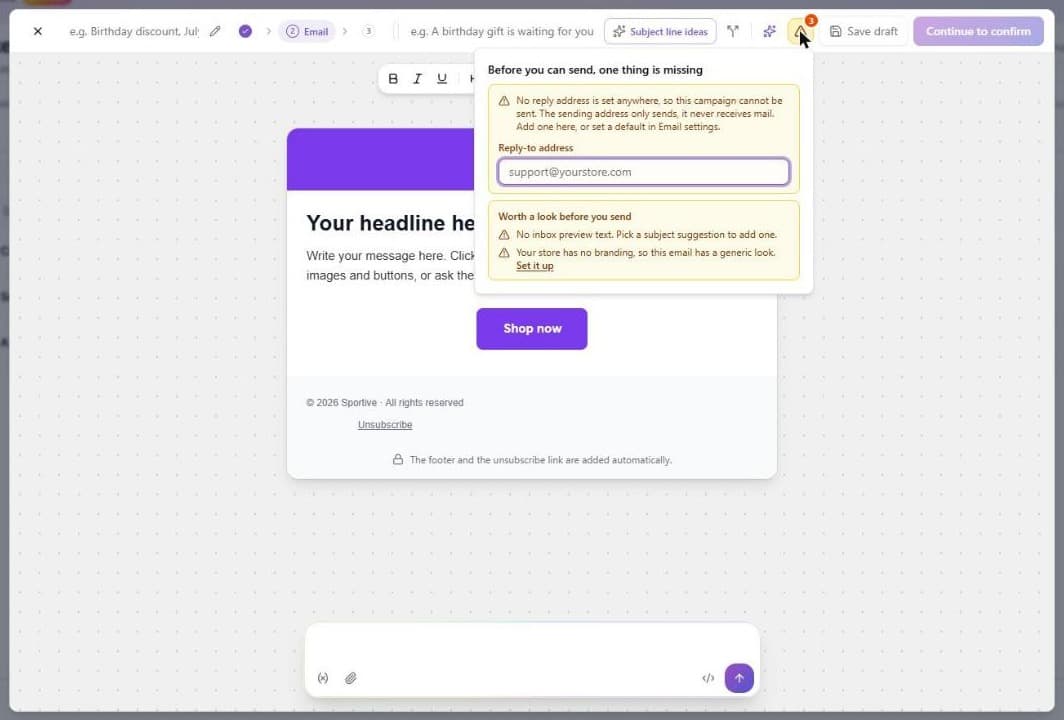
The button also lists things that are worth a look but never stop the send, under Worth a look before you send. They are: your store has no branding, so the email has a generic look (Set it up opens the brand setup); a button or link goes nowhere; a button points at your store address but the store has no sales channel address yet; the email still shows [CODE] where a discount code goes; and there is no inbox preview text (pick a subject suggestion to add one). The number on the button counts the missing reply address and these notes together, so it can read 3 while only one thing blocks the send.
Your postal address: campaigns are refused without one
Every promotional email has to show a real physical postal address where the reader can see it. That is the law, not a Brainerce preference: CAN-SPAM in the US, and part of what section 30A of Israel's Communications Law asks of a commercial advertisement (the law's own Hebrew term for it). Brainerce puts it in the footer for you, next to the unsubscribe link, so you never type either into the email itself. Israeli law asks for three more details and a word in the subject line that we do not add: see What Israeli law asks for that Brainerce does not add for you below.
It has to be your address, and Brainerce has nothing to guess it from, because no business address is stored for your store anywhere else. So until you set one, the send is refused with "No postal address for this store", and the campaign stays unsent. Nothing is charged and nothing goes out.
You can set it without leaving the composer: the warning sits behind the same small yellow warning button next to Continue to confirm and has a field in it, so type the address, press Save, and carry on writing. Your draft stays where it is. It also lives permanently under Settings → Email → Business postal address, and you only ever set it once. A shop, an office, or a mailbox you actually collect post from all work; it is visible to every recipient, which is the entire point of it.
The same rule covers abandoned-cart emails, birthday-reward emails and the automatic welcome and follow-up series, which are all promotional too: those stop going out just as quietly until the address is set, and a message a series missed while the address was empty is never sent afterwards. Order confirmations, shipping updates, password resets and other transactional mail are unaffected: they never carry a postal address or an unsubscribe link and are not supposed to.
Can I use my home address? Every recipient sees it
You can, and you should think about it first. The address is printed in the small print at the bottom of the email, where every single person you mail can read it, forward it and keep it. That is what it is for: a reader has to be able to see who sent this and where they are. It is not stored privately and there is no setting that hides it.
So if you run the shop from your kitchen table, a home address in that line is a home address published to your whole list. A shop, a studio, an office, a co-working address, or a post office box you actually collect from all satisfy the requirement, and any of them is a better answer than where you sleep. Set whichever one you use under Settings → Email → Business postal address.
Watch the composer's warning in particular: when your store has a warehouse address saved, the box arrives already filled in with it, and for a home-based shop that warehouse address is usually your home. Read the line before you press Save; you can type over it.
What Israeli law asks for that Brainerce does not add for you
Brainerce adds exactly two things to a marketing email: your business postal address and the unsubscribe link. Nothing else is added, and nothing else is checked.
If you mail customers in Israel, the relevant rule is section 30A of the Communications Law, and it asks for more than the address. An advertisement has to carry the advertiser's name, address, telephone number and email address, and the Hebrew word for "advertisement" has to appear at the start of the subject line. Brainerce does not put your phone number or your email into the footer, does not add your business name there, and does not put that word in your subject line, not even on a campaign written in Hebrew. The send is allowed through on the address alone, so passing our check is not the same as complying.
What to do about it: type the word into the subject line yourself when the campaign is an advertisement, and write your business name, phone number and contact email into the body of the message, near the bottom, every time. There is no setting that does either one for you. We cannot add them automatically, because only you know whether a particular message counts as an advertisement. If a lot of money rides on getting it right, ask a lawyer rather than this page.
The warning has no box to type in, so why can't I save the address?
Because saving it changes a store setting, and that needs the store settings permission. A teammate invited to run marketing does not have it by default: they see the same warning with no field, and the address has to be added by the store owner (or anyone with that permission), either from the same warning, or under Settings → Email.
Sending
The confirmation step restates the recipient count and warns you plainly: this is irreversible. Choose Send now and the email goes immediately to everyone selected. Choose Schedule and it goes out at the date and time you pick, without you pressing anything (see Can I schedule a campaign to send later? below). Either way there is no test send to yourself and no recall once it has gone.
Read the recipient number one more time here. It is the last chance.
A send can be refused at this step, and the refusal names the reason: no reply-to address anywhere, no business postal address in Settings → Email → Sending and domain, an audience that changed since you previewed it, or one of the sending limits below. A refused campaign is not sent, not charged, and stays editable. Fix the setting it names and press send again.
How many credits does a campaign cost?
A campaign costs 1 credit for every 50 emails, and it is charged once, at the moment it goes out, on the number of people it is sent to. The figure you are shown is rounded up to a whole credit, and what is taken from your balance is never more than that: a campaign to 960 people is shown as 20 credits, and one to 10,000 people as 200. Customers who are left out because they never opted in, unsubscribed or are held back while your store warms up are not counted. You see the price before anything is sent:
- On the audience screen a line under the audiences says "Sending to everyone here costs up to N credits". It is a ceiling: it counts everyone who matches, and the next screen takes off the people who cannot be mailed, so the real figure can only be lower.
- On the last screen, Review and send, the card at the top shows What this send costs: the exact credits, how many recipients that is, your balance, and what you will have left. For a scheduled campaign it says the credits come off when the campaign goes out, not when you book it.
Writing the email with the AI assistant or Generate with AI costs credits too, separately, as described above under Writing it. That cost is not included in the figure on the last screen.
What if I do not have enough credits to send?
The last screen shows your balance in red with how many credits you are short, and the send button is switched off, for Send now and Schedule alike. Nothing is sent and nothing is charged, and your email and audience are kept. Press Get more to top up from the same window (on the Free plan the button reads Upgrade to PRO, because Free cannot buy credit packs). The send button switches on by itself as soon as the credits arrive.
The audience screen warns you earlier, in amber: "Your balance may not cover everyone here". That is only a warning and never blocks you, because the number it checks is the upper limit described above. The block on the last screen is the real one.
There is no way to send to only part of the list within your balance. To send for fewer credits, close the window and start again with a smaller audience.
Sending limits: how many campaigns per day, and how many recipients
Two hard limits apply at the moment you press send:
- 5 campaigns per 24 hours. This is a rolling window, not a midnight reset, so the sixth send inside 24 hours is refused with "Daily campaign send limit reached. Try again tomorrow." Plan a busy week around it; a big launch day is one campaign, not five variations.
- 50,000 recipients per campaign. A larger audience is refused outright and has to be split into several sends, and those sends count against the 5-per-24-hours limit too, so a 300,000-customer list needs six campaigns spread over two days.
Neither limit can be changed from the dashboard. There is no setting for either one anywhere in it. The 5 per day figure is a default that Brainerce can set differently for a single store, so contact support if you have a real need for more; the 50,000 cap has no override. They are deliberate deliverability guards: a store that suddenly sends far more mail than usual is the exact pattern mailbox providers throttle.
Can I schedule a campaign to send later?
Yes. A finished campaign can be booked for a date and time up to 90 days ahead, and Brainerce sends it then, whether or not you are logged in. "Send this on Thursday at 9am" is exactly what it is for.
How to schedule a campaign: the steps
- Write the campaign as usual and press Continue. The confirmation step opens with the recipient count.
- At the top of the confirmation step, switch Send now to Schedule.
- Pick the date and the time (24 hour clock, in 5 minute steps).
- Drag the Drag to schedule slider all the way across, the same gesture as sending now.
The campaign moves to the Scheduled tab on the Campaigns page, with the booked date and time in the Went out column, and nothing is sent until that moment.
Which time zone a scheduled campaign uses
The time you pick is read in your store's time zone, the one set under Settings → General, not the clock on your computer. If you have never set it, the store is on UTC, and a campaign booked for 9:00 lands at 9:00 UTC, which is 12:00 in Israel in summer. Check the setting once before you schedule anything; the confirmation step shows the store time it is reading, and warns you if the store is still on UTC.
How far ahead, and how soon: the 5 minute and 90 day limits
- At least 5 minutes ahead. A time closer than that is refused with "too soon", so you cannot book a send for "now plus one minute". Use Send now instead.
- At most 90 days ahead. Anything further is refused with "too far". A send booked half a year out is usually a forgotten one, so plan the holiday campaign inside the 90 days. You can still edit a booked campaign: a scheduled campaign stays editable right up until it fires, and it recomputes its audience at that moment.
- Times snap to 5 minute steps. 9:03 becomes 9:00.
Who receives a scheduled campaign: the audience is recalculated at send time
The recipient count you see when you book is an estimate. When the campaign actually goes out, Brainerce works out the audience again from the same rules, so it reaches the people who match on the send date, not the people who matched when you booked it.
Concrete example: a Birthdays this month campaign booked on 28 September for 1 October mails the October birthdays, not the September ones. A customer who unsubscribes between booking and sending is left out; a customer who signs up and opts in between the two is included. Someone who was on the list on Tuesday and off it on Friday does not get the email.
When credits are charged for a scheduled campaign
Credits are not charged when you book. They are charged at the moment the campaign sends, on the real recipient count from that moment. Booking only checks that you have enough credits for the estimate; if there are not enough credits for the real count at send time, the send is stopped and nothing is charged (see When a scheduled campaign is stopped below).
How to cancel or move a scheduled campaign
Open the three dots menu on the row of a scheduled campaign: Change send time and Cancel the schedule are there, and only a scheduled campaign has them. You can also open the campaign from the Scheduled tab. The report dialog shows the booking: when it goes out, in which time zone, and the estimated recipients as of now, with two buttons:
- Reschedule picks a new date and time, under the same 5 minute and 90 day limits.
- Cancel schedule takes it off the calendar. Nothing was sent and no credits were charged. If you are still in the composer you land back on the confirmation step, where you can send it now or pick another time. From the report dialog the campaign simply stays in your list as ready; to send it after that, start a new campaign (a saved template brings the body back).
Both work until the moment it sends, and not after. Once the send has started the campaign is an ordinary sent campaign: there is no recall, exactly as with Send now. If you need to stop a campaign that is due in three minutes, cancel it now rather than reading on.
Can I edit a scheduled campaign?
No. While a campaign is scheduled its subject, body and audience are locked, and there is no edit button. To change anything:
- Cancel schedule from the report dialog.
- Start a new campaign. If you ticked Save this as a reusable template when you wrote it, pick that template and the body comes back; otherwise copy the body across.
- Make the change and schedule the new one.
The cancelled campaign stays in your list as ready, and its report stays readable.
When a scheduled campaign is stopped: the "schedule stopped" message
Brainerce re-checks the sending rules at send time, the same ones it checks when you press Send now. If one of them fails at that moment, the campaign is not sent, no credits are charged, and the campaign goes back to ready with a red schedule stopped chip on its row. The chip, and the report dialog, show the reason.
You also get an email about it, sent to the store owner, that names the campaign, the time it was booked for, and the reason. Nothing in it needs urgent action, because nothing went out.
The reasons are the ones listed under Sending: the business postal address was removed from Settings → Email → Sending and domain, the reply-to address is gone, the reputation guard has paused marketing, the day's sending limit was already used up by other campaigns, there were not enough credits for the real recipient count, or the audience had shrunk to nobody. Fix the setting the message names (when it is the postal address, the message carries a button straight to it), then book the send again from a new campaign; the stopped one keeps its report and its reason.
Why your campaign shows no clicks
Click tracking is off until you turn it on. Until you do, Brainerce sends your campaign without rewriting the links in it, so it has no way to know that anyone pressed one, and every campaign reports zero clicks no matter how well it did. Opens are separate: they are estimated for every email without any switch, see Opens (estimated).
You can switch it on without leaving the page: the Click rate figure at the top of the Campaigns page has the switch right under it, and it stays there after you turn it on. It also lives under Settings → Email → Sending and domain. Flipping it changes a store setting, so it needs the store settings permission. A teammate invited to run marketing usually does not have that one and sees the explanation without a switch; the store owner can turn it on for them.
You are also asked at the last step. On the confirm and send step, while counting is off, a box asks Count who clicks on this campaign? with the same switch. It says what it does: each link in the email passes through a Brainerce address so the click can be counted, it applies to every campaign from then on, and it is worth a line in your privacy policy. Brainerce never turns it on for you: the switch stays off until you flip it, and the box disappears once it is on.
Turning it on only affects campaigns sent afterwards. A campaign that already went out cannot be measured after the fact.
What you can see per campaign is how many were sent, how many failed, how many bounced, how many were held back by the suppression list, how many people unsubscribed, and, once tracking is on, how many clicked, which link they pressed and an estimate of how many opened it.
Opens (estimated): what the number means and what it does not
Every email sent to a customer carries a one-pixel invisible image, with no switch to turn on, and Brainerce counts a recipient as having opened the email the first time that image loads. Because it is always on, it is worth a line in your privacy policy, and if you send to people in Europe they may need to have consented to open tracking. The campaign report, the Campaigns list and the tile above the list show it as Opens (estimated).
It is an estimate, not an exact open rate. Apple Mail loads every image in an email automatically, in the background, whether or not the person ever reads it, and some security tools do the same. Image blocking pushes the other way: someone who reads the email with images switched off is never counted. So the real number can be higher or lower than the one you see.
Brainerce splits the two. Opens (estimated) counts the opens that look like a person reading. A second, muted figure, loaded automatically, counts the recipients whose email only ever loaded in the background. Those are not counted in the percentage. The split is a best guess from where and how the image was fetched, so a few opens can land on the wrong side.
What the figure is not. It does not tell you who read the email, it is not shown to customers, and Brainerce does not use it to send anything: there is no "send again to people who did not open" and no segment built from opens. Clicks and the Revenue column are the figures to trust.
In a subject-line test, do not pick a winner by opens. Apple Mail loads both versions in the background, so the opens of version A and B look alike for reasons that have nothing to do with the subject. The report says so under the test results. Compare clicks.
Not measured is not zero. A campaign sent before open tracking existed shows Not measured in the Opens column, not 0%. Only emails sent after it launched can be counted.
Receipts and other emails to customers carry the pixel too, not only campaigns. Their opens are stored per email but only campaigns show a report today. Emails sent to you, the store owner, never carry it.
A campaign sent before 3 September 2026 shows Not measured in the Unsubscribed column instead of a number. Opt-outs were only tied back to the campaign that prompted them from that date on, so an older send has nothing to count, and a 0 there would read as "nobody left" about something nobody recorded.
The Revenue column: what it counts, and why you cannot add it up
Every campaign that has gone out shows a Revenue figure: money from orders placed by the people who were mailed it, within 7 days of the send. Cancelled and refunded orders are left out. The column header repeats the 7 days so you never have to remember the window.
Read it as a signal, not as a receipt. It does not prove the email caused the order, and the figures do not add up to anything. If two campaigns went to overlapping groups of customers in overlapping weeks, the same order is counted for both of them, so adding the column up produces a number bigger than your store actually took. That is why Brainerce never totals it for you, and why you should compare campaigns against each other rather than summing them.
A campaign that has not gone out yet shows a dash here, because there is no window to measure.
See which orders came after a campaign
The same rule marks the orders themselves. In the Orders list, an order placed within 7 days of a campaign that was mailed to its customer shows a blue Campaign chip beside the order number. Hover it to see the campaign's name and the day it went out. Open the order and a blue block under the title says the same, with a link to the campaign.
- Matched by customer, not by click. Brainerce marks the order because that customer was sent the campaign and then ordered. It does not check that they opened the email or pressed anything in it. A customer who bought a product you featured in the email, and a customer who bought something unrelated, both get the chip.
- It does not tell you which product in the email they bought. Brainerce does not link an order to the products shown in a campaign. If you need that, compare the order's items with the campaign yourself.
- One campaign per order. If the customer was mailed several campaigns in the last 7 days, the chip names the most recent one. The Revenue column of the older campaign still counts the order, which is why the column cannot be added up.
- Guest orders and customers who were not sent the campaign get no chip, and neither do cancelled and refunded orders, which the Revenue column also leaves out.
- An order can carry both a green and a blue chip. Green means the cart had been sent a recovery email; blue means a campaign was mailed to the customer. Both can be true at once, and neither is proof of what made the customer buy.
The numbers above the list, and what they cover
A compact strip of five figures sits above the table: how many campaigns your store has, how many emails went out, the click rate, Opens (estimated), and your top campaign by the number of orders attributed to it. Buttons above the table split it into All, Drafts, Scheduled, Sending and Sent, and a search box finds a campaign by subject or name. The search box only appears while all your campaigns fit on one page, because it reads the page you are looking at and would wrongly say "nothing found" for a campaign on page two. The table columns are Subject, Status, Went out, Sent, Opened, Clicked and Revenue, and the row menu. The subject and the internal Campaign name are separate columns, because they are different things: the name is only your label and is hidden until you turn it on. Created, Audience, Unsubscribed, Not delivered and Credits are there too, also hidden by default; the table's settings menu (Manage columns) turns any of them on. There is no sorting, because the table shows one page of campaigns at a time and a sort would reorder only that page. The note about opens being an estimate is the (?) beside the Opened column title. A campaign is always in one of these states: Draft, Resolving audience, Ready, Scheduled, Queueing, Sending, Completed, Failed or Cancelled.
As soon as you have more than one page of campaigns, those tiles and the counts on the tabs cover the page you are looking at, not your whole store. The campaign count is the one exception: that is always store-wide. The page says which it is in small print underneath, so read that line before you quote a number to anyone.
The click rate reads Not measured while click tracking is off, rather than a confident 0%, and the opens tile reads it for campaigns sent before open tracking existed. The opens tile counts only the opens that look like a person and is an estimate, as explained under Opens (estimated).
The three dots on a row: what you can do with a campaign
Each row has a three dots menu at its start. It only lists what makes sense for that campaign's status, so there is nothing to press that Brainerce would refuse.
- Continue editing (drafts, and campaigns that were counted but not sent). Reopens the editor.
- Preview the email (any status, including for teammates who cannot edit). Shows the saved email with sample customer data, so you can see how it looks without sending it. The unsubscribe link and the address footer a real send adds are not in the preview.
- Open the report (anything that is not a draft). Who it reached, what happened to each recipient, and which links were pressed.
- Change send time and Cancel the schedule (scheduled campaigns only). See How to cancel or move a scheduled campaign.
- Duplicate (any status). Creates a new draft called "name (copy)" with the same subject, email, sender fields and audience rules. Nothing about the earlier send is copied: no recipients, no results, no schedule, no credits. The audience is counted again when you continue it, so a copy of last month's campaign reaches the people who match today.
- Send a test email (any status). Sends the saved version to one address. The address has to belong to someone on your store account, so use your own or add the person as a team member first; any other address is refused. It is limited to a few tests a minute and a daily number shared with the template tests in Settings. The unsubscribe link in a test is only a placeholder, and the business address footer a real send carries is not added, so a test shows your content, not the legal wrapper. A test is never counted as a send, an open or a click.
- Delete the draft (drafts only). Asks first and cannot be undone. A campaign that has been counted, scheduled or sent cannot be deleted: it keeps its report. If you no longer want a booked one, cancel the schedule; there is no way to remove a sent campaign.
What else is on the Campaigns page
- The settings menu of the table. The three dots at the top of the first column are the settings of the whole table, as opposed to the three dots on a row, which act on one campaign. Besides the table's own column and row height options, it holds the click tracking switch (and says that opens have no switch) and a link to Sender and domain. You only see what your permissions let you open.
- Email that goes out on its own, in its own window. Abandoned-cart recovery, the newsletter signup benefit, and the welcome email and post purchase follow-up are listed in the Automatic mail window with an on or off badge and a link to their own settings, so every email sent in your name is visible in one place. Birthday greeting is listed too, but it is not a scheduled send: the row reads You send it and shows how many customers have a birthday this month, with a button that opens the Birthdays this month audience. Nothing greets a customer on their birthday by itself. A row only appears if you have permission to see that feature.
- The figures first, in one strip. Campaigns, emails sent, click rate, opens and the top campaign sit above the table. While your store is still new, emails sent carries a small Warming tag with the progress (press it for why every campaign reaches fewer customers for now).
- One small pill when something is missing. Beside New campaign, N things to finish before sending appears, in yellow, only while there is something to do: Add a business address opens the address field right there (until you save one the automatic emails are marked Waiting for a business address and do not go out), and Set up your brand opens the brand setup in a window. The line disappears once both are done.
- Saved templates, in the Audiences and templates window. Every template you saved from the composer is listed there, and this is the only place you can delete one. Deleting a template never touches a campaign you already sent.
- The report for one campaign. Press the subject on a row and its report opens over the list (a draft opens its editor instead): who it reached, what happened to each recipient, and which links were pressed if tracking was on.
The campaign report: delivery figures, links and "About this audience"
Press a campaign row and its report opens. It shows the figures for that one send: Sent, Suppressed, Failed, Bounced, Unsubscribed, and Clicked once click tracking is on, then Orders and Revenue (with the 7 day window in its label). Below them, a Recipients table lists each address with its status (Pending, Sending, Sent, Failed, Suppressed or Bounced), when it was sent and the error if there was one, and you can filter it by status. A campaign you ran a two subject line test on also shows Subject A and Subject B side by side.
With click tracking on, Links that were clicked lists up to the most clicked links, with the number of People and Total clicks for each. Two buttons pointing at the same address are counted together, because the address is all a click carries. With click tracking off the report says so and has a Turn it on button instead.
About this audience appears on a report only when there is something worth knowing, and it is advice, never a block. It can say how many people matched your filter but were not mailed, how many have no recorded consent event (their opt-in exists as a flag with nothing behind it, usually because they were imported), how many have never received an email from your store, how many are role addresses such as info@ or sales@ (these complain far more often than personal addresses), and how many have not bought, clicked or signed up in 12 months (mailing dormant contacts is the biggest single cause of spam complaints). On a very large audience the figures cover a sample, and the report says so. Nothing in this list stops a send. Apart from the people already left out for consent or suppression, Brainerce does not remove anyone on these grounds.
Unsubscribes and opting out
Every campaign carries a one-click unsubscribe: both the link in the footer and the header that makes Gmail and Apple Mail show their own "Unsubscribe" button next to your name. You cannot switch it off, and a campaign cannot be sent without it.
The footer link is written in your store's language, so a Hebrew store's customers read the Hebrew words for "unsubscribe from the mailing list" and a French store's read "Se désabonner". You do not set this and cannot change the wording: an opt-out a reader cannot recognise is the fastest way to be reported as spam instead, which costs you far more than the unsubscribe would have. The button Gmail and Apple Mail add themselves is worded by the mail app, in the reader's own language, not yours.
When someone unsubscribes:
- Their badge in the Customers list flips to Unsubscribed, so you can see who left and when the list stops growing. That is a different badge from Not subscribed, which means someone who never opted in. See what the Marketing column means.
- They are removed from every future campaign audience, not just this one. You do not have to remember to exclude them.
- Clicking twice, or clicking after their mail app already sent the one-click request, changes nothing further. It is safe to be triggered more than once.
Unsubscribing does not stop order emails. Order confirmations, shipping and tracking updates, and password resets keep arriving exactly as before. Those are transactional messages the customer needs in order to complete and receive a purchase, and opting out of marketing never blocks them. A customer who says "I unsubscribed but I still got an email from you" has almost always received one of these, and that is correct behaviour, not a bug.
Can a customer re-subscribe after unsubscribing?
Yes, but only the customer can do it, and only by confirming through a link they already hold.
If someone who unsubscribed opens a "Confirm you want email from …" message from your store and presses the button on it, the unsubscribe is lifted: their profile goes back to Subscribed in the Customers list and they return to future campaign audiences. That click is the customer's own verified action, which is the only thing that counts as re-consent.
You cannot send them a new confirmation link, and there is no re-subscribe button. Nothing in the dashboard triggers a confirmation email. Nothing you do to the customer record helps either: editing the customer or re-importing them from a CSV both leave the unsubscribe standing.
Coming back through your own site does work, though. If your storefront has a newsletter signup form and the person enters their address there themselves, they get a fresh confirmation link, and clicking it lifts the unsubscribe. That is the customer coming back on their own, which is the one thing that counts. You cannot do it for them; you can only have a form on the site for them to find.
Bounced, spam-reported and hand-suppressed addresses never come back, even on a confirmation click. If the address hard-bounced, was reported as spam, or was suppressed manually, confirming does nothing at all: the customer is shown "We are unable to send email to this address" and stays out of every audience. Those are deliverability and compliance blocks rather than preferences, and a click cannot reverse them. The same holds when an address unsubscribed and then bounced or was reported: the bounce or complaint wins, and the confirmation is refused.
The reputation guard
If deliverability degrades, through too many bounces or complaints, Brainerce pauses marketing sending automatically and shows a banner explaining why.
This protects your sending domain. A domain that keeps mailing after a spike in complaints stops reaching inboxes at all, including your order confirmations, so the guard is protecting your transactional mail as much as your marketing.
You cannot lift the pause yourself. A store paused for bounces or complaints that could un-pause itself would simply send to the same bad list again, so a person at Brainerce reviews it first, as every large email platform does. When you have dealt with the cause (cleaned the list, removed the source of the bad addresses), use Request a review on the banner and answer two questions: how the list was collected and what you fixed. Each answer needs at least 10 characters. We reply by email, and marketing resumes when we approve it. You can send one request every 24 hours; the banner then reads that a review was requested.
Marketing stays paused while the review is open. That includes your campaigns, abandoned-cart recovery emails, birthday rewards and automated email sequences. Nothing is lost: steps already waiting in a sequence are held and go out once the pause is lifted. After we lift a pause, a second pause within a short time is reviewed more strictly, so fix the cause properly the first time.
Transactional email is unaffected by the pause. Order confirmations keep going out.
A campaign that is sending slowly: daily volume limits per store
A campaign can be accepted and still go out over several days. Brainerce limits how many marketing emails one store sends in any 24 hours, and the rest wait and continue on their own as the window moves on. You do not need to resend, and nobody receives a duplicate.
- A new store ramps up. The first day of marketing mail is limited to 500 emails, then 1,000, then 2,500, then 5,000, counted from your first marketing send. After the fourth day only the general limit below applies.
- Without your own verified sending domain, the limit is 2,000 a day. Until you verify a domain under Settings → Email, your marketing mail goes out under Brainerce's shared address, which every store shares, so the volume is capped. Verifying your own domain lifts this cap.
- No store may take more than a share of the platform's daily marketing allowance (about 15 percent of it), so one large send cannot crowd out other stores.
These limits count every kind of marketing email together: campaigns, abandoned-cart recovery, birthday rewards, and welcome or follow-up series. Order confirmations, shipping updates and password resets are never held by them. The limits cannot be changed from the dashboard.
Why a campaign can sit there without sending
There is a second, rarer reason marketing sending stops, and it looks different: the campaign stays in Sending and nothing goes out, with no banner and no error.
That happens when Brainerce stops receiving delivery reports from Amazon, the service that actually carries your email. Those reports are how bounces get recorded, how spam complaints get blocked, and how the reputation guard above knows when to step in. If they stop arriving while mail is still going out, every one of those protections is switched off without failing, so Brainerce holds marketing sending rather than mail thousands of people with no way to see the damage.
There is nothing for you to fix, and nothing in your settings causes it. It is a fault on our side, it is alerted to us automatically, and your campaign resumes on its own within minutes of it being repaired. You do not need to recreate the campaign, and nobody receives a duplicate when it restarts. If a campaign has been sitting unsent for more than an hour, contact support and mention that delivery reporting looks stalled.
Your order emails, shipping updates and password resets are never held by this. Only marketing keeps its brakes off at that point, so only marketing waits. Cart recovery emails and birthday rewards count as marketing here and wait with it.
What's next?
- Customer profiles covers building the audience with filters and tags.
- Customize email templates covers order confirmations, shipping updates, and other one-time transactional email.
- Automatic welcome and follow-up emails covers the short series that sends itself when someone signs up or their order is delivered.
Newsletter signup on your storefront
Collect email addresses from a popup or footer form on your site, how the confirmation step works, and why your subscriber count grows slower than your signups.
Automatic welcome and follow-up emails
Two emails that send themselves, a welcome email for new customers and a follow-up after delivery. What triggers each one, whether your existing customers get mailed, and how to turn one on.