 Brainerce Help
Turning features on and off
Modules hide parts of the dashboard you don't use, and explain why a feature you expected has disappeared from the sidebar.
Settings → Modules decides which parts of Brainerce you actually see in your dashboard. A store selling one-off digital downloads has no use for shipping zones or stock counts; switching those modules off takes them out of the way.
This is also the first place to look when a feature you were using seems to have vanished.
Who can use it: the page needs the Manage store settings permission (Owner and Manager have it by default).
What a module controls
A module is a dashboard switch. Turning one off hides it from these places:
- its entry in the sidebar
- its fields in the product form
- its column in the products table
- its section in bulk edit
- for some modules, the AI assistant's tools (see the table below)
Your data is never touched. Hiding a module is a display change only. Turn it back on and everything is exactly where you left it.
Turning a module off does not change your storefront. Coupons still work at checkout, automatic discount rules still apply, shipping zones and rates still price orders, and stock is still tracked behind the scenes. A module hides the screens you work in. To stop a coupon, a discount rule or a shipping rate from applying, deactivate or delete it on its own page (turn the module back on first if you need the page in your sidebar).
The modules
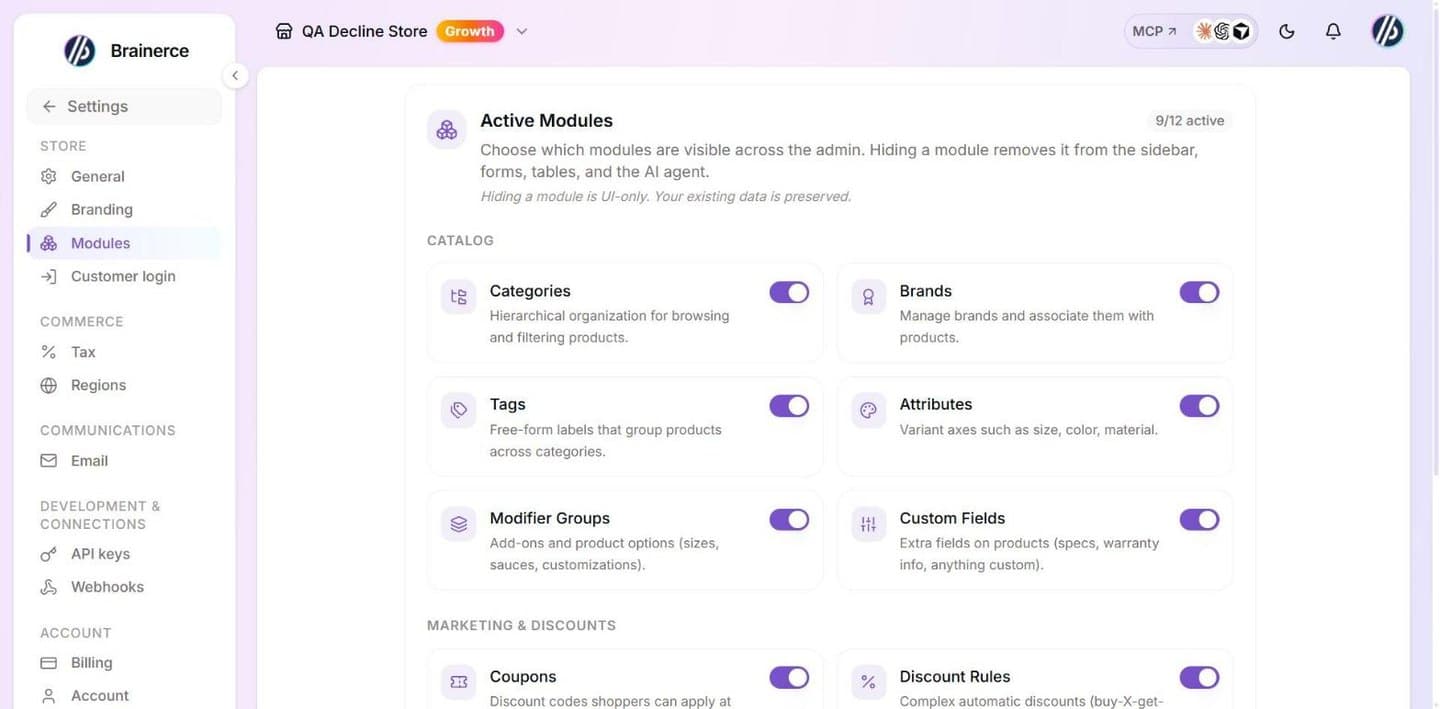
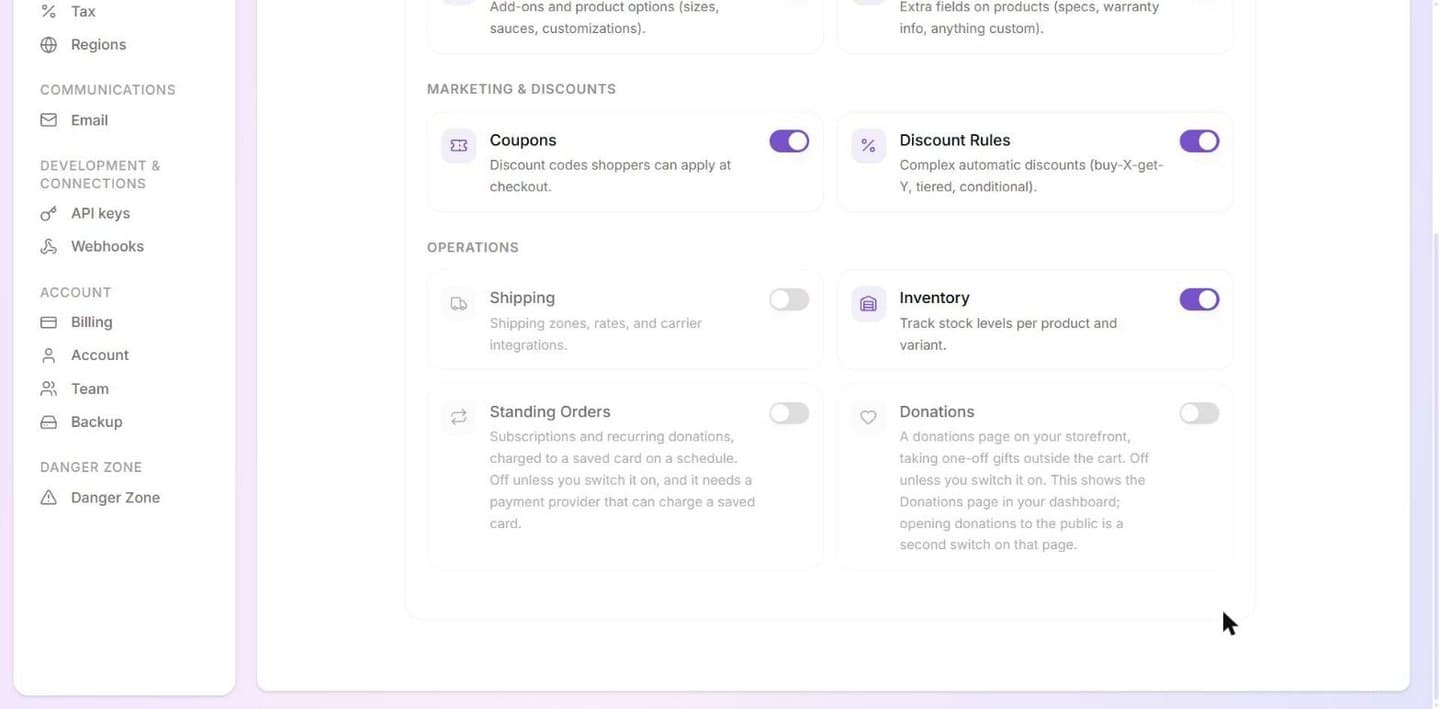
You see twelve switches. The page title shows how many are on, for example 10/12 active, and the switches sit under three headings: Catalog, Marketing & discounts and Operations.
| Module | What it hides when off | AI assistant tools hidden too? |
|---|---|---|
| Categories | Product categories, and the Categories page. | No |
| Brands | Product brands, and the Brands page. | No |
| Tags | Product tags, and the Tags page. | No |
| Attributes | Product attributes (variant options such as size, color), and the Attributes page. | No |
| Modifier Groups | Modifier groups and their add-on options (sizes, sauces, customizations). | Yes |
| Custom Fields | Custom product fields (specs, warranty info, anything custom). | No |
| Coupons | The Coupons page. | Yes |
| Discount Rules | The Discount Rules page. | Yes |
| Shipping | The whole Shipping section (zones, rates, carriers, shipments). | Yes |
| Inventory | The Inventory section. | Yes |
| Standing Orders | Subscriptions and recurring donations, and the Standing Orders page. | No |
| Donations | The Donations page. | No |
The last column matters when you wonder why the assistant no longer does something. Switch off Coupons and the assistant can no longer create or edit a coupon for you. Switch off Brands and it still can: only the five modules marked Yes remove assistant tools. For Standing Orders and Donations the assistant can still create plans, manage schedules and tell you how much you have raised while the module is off, so if you asked for something and then could not find the page, the module is where to look.
Standing Orders and Donations start off. Every other module starts on. Standing Orders needs a payment provider that can charge a saved card on its own, and most stores never bill anyone on a schedule. Donations are for organisations that take gifts, which most shops do not. Switch one on here to enable it. Standing Orders then appears under Sell in the sidebar; Donations does not yet, because Donations is in limited rollout and its sidebar link stays hidden until we open it for your store.
Turning the Donations module on does not start taking donations. It shows you the Donations page, and that page carries a second switch that opens the public donation endpoint. Two switches, on purpose: ticking a module in your dashboard should never quietly open a payment endpoint to the internet. See Donations.
Storefront Bot and Events have no switch on this page. Events are not available yet (the module starts off and Brainerce opens it for a store itself). The Storefront Bot is on for every store and you cannot turn it off from here. Each switch has a one-line description under its name. A module that is off appears faded.
Turn a module on or off
- Go to Settings → Modules.
- Toggle the modules you want. The header shows the active count.
- Click Save. A bar at the bottom of the page says "You have unsaved changes" and offers Discard if you change your mind. Nothing is saved until you press Save.
"Where did Shipping go?"
New stores start with every module on (apart from Standing Orders and Donations), because the sign-up screens no longer ask for a business type. If a section is missing from your sidebar and you never turned it off yourself, look at this page first, then at the next paragraph: a store set up with the older setup wizard, which did ask for a business type, started with a preset like this:
| Business type chosen in the older wizard | Modules it switched off | Everything else |
|---|---|---|
| Digital products | Shipping, Inventory, Brands, Attributes, Modifiers | stays on |
| Services | Shipping, Inventory, Brands, Attributes, Modifiers | stays on |
| Restaurant | Brands, Attributes. Shipping and Inventory stay on | stays on |
| Physical products | Modifiers | stays on |
Read that table exactly as written: only Digital products and Services turn Shipping off. A restaurant keeps Shipping and Inventory, because a restaurant delivers and runs out of things.
Modifiers is off in three of the four presets. Only Restaurant starts with add-on options switched on, so if you picked Digital products, Services or Physical products at setup and cannot find the add-ons/extras section on a product, that is why. Switch Modifier Groups back on above and it returns.
None of this is permanent. Come to this page and switch anything back on.
What's next?
- General store settings covers the rest of your store's configuration.
- Shipping, if you just turned the Shipping module back on.
Branding and appearance
Upload your logo and set brand colors used across your emails, customer-facing pages, and invoices.
Regions and currencies
Sell in several currencies at once (US dollars, euros, shekels, pounds) by grouping countries into regions, each with its own currency, payment providers and, if you need it, its own choice of whether prices include tax.