 Brainerce Help
View and edit a customer profile
Find a customer, see their order history and lifetime value, edit their details, and organize them with tags.
Every person who buys from you gets a customer record. The Customers section is where you look them up, review their history, and keep their details tidy.
Find a customer
- Open Customers in the sidebar.
- Search by name, email, phone, or tag in the search box. Typing VIP lists the customers who carry a tag with that name, next to anyone whose name, email or phone contains it. Only customer tags count here: product tags and order tags are separate lists.
- Narrow the list with filters:
- Marketing consent: Consent given or No consent. This one matches on the consent tick box alone, not on whether a campaign can actually reach the address. The Marketing column is what answers that.
- Account Status: Registered or Guest.
- Sales Channel finds only customers who shop on the storefront you pick.
- Lifetime Spend finds customers above or below an amount you set.
- Orders filters by how many orders they've placed.
- Last Order finds people who ordered within the last N days, or who did not order in N days.
- Loyalty Membership (Club member or Not a member) and Loyalty Points (a minimum number of points). These two only appear when your store has the loyalty program.
- Birthday month and Birthday day. They are off until you switch them on in the Filter menu. Set both for one date, such as 17 April. The day on its own means that day in every month. Customers with no birthday on file are left out. See Birthday gifts.
- Click any row to open that customer's details.
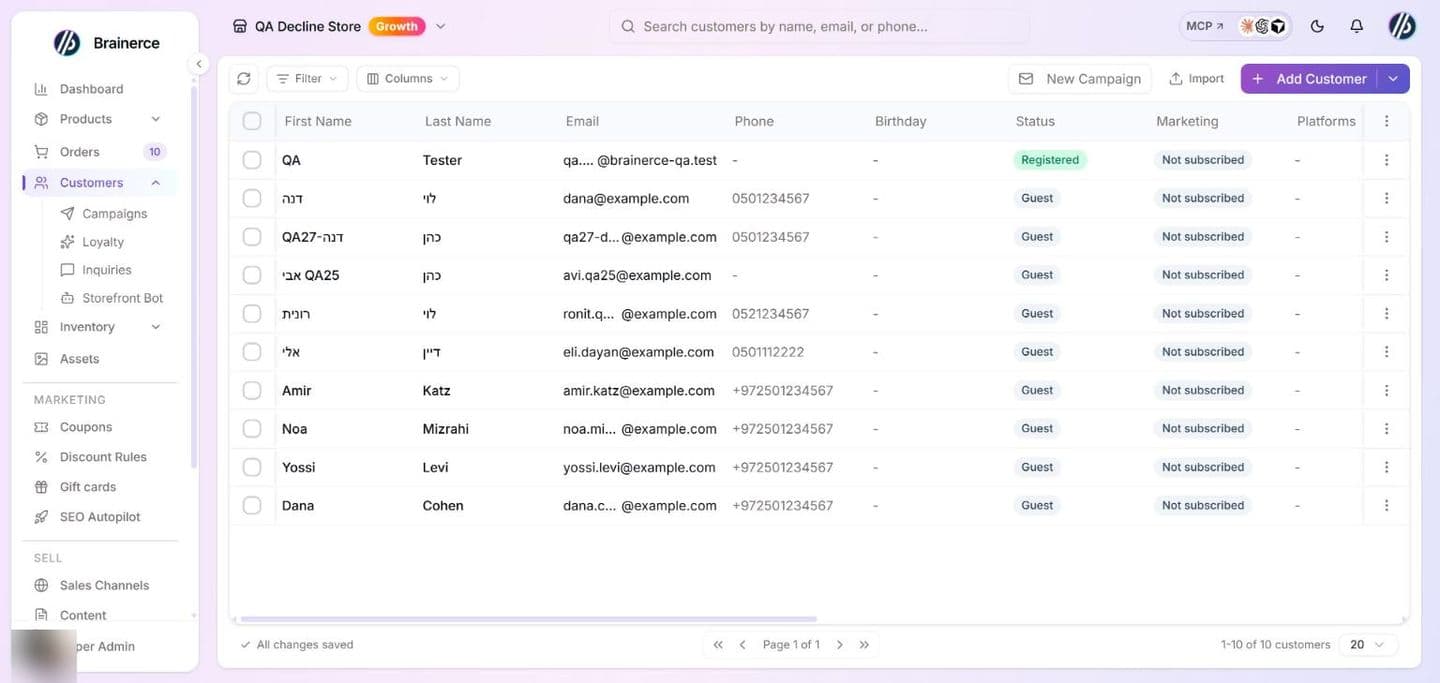
What the Marketing column means
The Marketing column in the Customers list answers one question: can a campaign actually reach this person? That is not the same as the consent tick box on their record. An address can be ticked and still be unmailable, and this column is the one that tells the truth. It sits next to Status, near the start of the list. If you have dragged your columns into your own order in the past, it stays where you left it instead: drag it where you want it, or use Reset all in the Columns panel to go back to the standard order.
| Badge | What it means | Can a campaign reach them? |
|---|---|---|
| Subscribed | They opted in and nothing blocks the address. | Yes |
| Not subscribed | No consent yet: never opted in, or sent a confirmation email they haven't clicked. | No |
| Unsubscribed | They opted out of marketing. | No |
| Bounced | Mail to this address hard-bounced. | No |
| Marked as spam | They reported one of your emails as spam. | No |
| Blocked | Suppressed by hand, or unsubscribed and since bounced or reported, no way back. | No |
Ticking the consent box on an unsubscribed customer does not make them mailable again. The badge stays Unsubscribed and campaigns keep skipping them. Only their own click on a confirmation link brings them back, which is covered in Can a customer re-subscribe after unsubscribing?. This is the most common reason a campaign reports 0 recipients for someone who looked subscribed.
The Marketing consent filter only knows two states. It is named for what it does: it filters on the consent tick alone, so a customer who unsubscribed after you ticked their box turns up under Consent given while their badge reads Unsubscribed. When the two disagree, the badge is the one that decides whether mail goes out. There is no "only people I can actually mail" filter to pick instead.
The Marketing card on a customer record
Open any customer and the Marketing card shows the same badge the list does, with a line under it saying what would change it. The consent switch sits below the badge, and on a suppressed address the card says outright that turning it on will not make the address mailable again.
Read the badge before you touch the switch. The switch records that you believe this person consented. On a customer who is Not subscribed and has nothing blocking the address, turning it on and clicking Save Changes makes them Subscribed straight away, with no confirmation email, and Brainerce keeps a record that you gave the consent. Only do that for someone who really asked for your email. It does not undo an unsubscribe, a bounce, or a spam report, because those are the recipient's own actions and only the recipient can reverse them. There is no button here that emails an unsubscribed customer to ask them to opt back in, and that is deliberate: mailing someone who opted out is exactly what the opt-out forbids.
What's in the customer record
Clicking a customer opens their record as a panel over the list. There is no separate profile page, and everything below is editable in place.
| Section | What it shows |
|---|---|
| Contact Information | Email, phone and name, plus the Birthday (month and day, no year; it feeds the birthday gift email) |
| Account | The Password field, shown only in the Add Customer window, not on an existing customer |
| Marketing | Whether a campaign can reach this address, plus the consent switch |
| Addresses | Saved shipping and billing addresses |
| Account Status | Registered vs. guest, plus created and last-updated dates, and for a registered customer the Send password reset link button |
| Orders | Total orders, lifetime value, and last order date |
| Connected Platforms | A Synced badge for each outside platform this customer is linked to, or "Not synced to any platform yet". Read only |
| Sales channels | Every storefront of yours this customer shops on. Sits below the two-column sections, with the platform picker |
| Saved items | The products this customer saved to their wishlist. Only on a registered customer, see Wishlist and saved items |
| Role | A free-text segment your storefront code can read |
| Tags | Labels you add to group and segment customers |
| What the shopping assistant remembers | What this customer told your storefront bot, when customer memory is on |
| Points program | Balance, tier, earned, redeemed and pending points, recent activity, and an Adjust points button. Only when your store has the loyalty program |
| Privacy | Export customer data and Erase personal data. Only the store owner sees it, see Export or erase a customer's personal data |
What the shopping assistant remembers
This card is on every customer record and lists the short preferences the customer gave the storefront bot (a size, a taste, a need, a language), each with the date it will be forgotten, and whether they agreed to be remembered (Agreed to be remembered, Said no, Withdrew permission or Has not decided). Press Delete on one item, or Delete all (it asks you to confirm) when a customer asks you to forget them. It says Nothing saved. when there is nothing. The bot only remembers signed-in shoppers, and only while customer memory is switched on in the bot's Privacy settings. You cannot add or edit a memory here, only delete.
The points program card
When your store has the loyalty program, the record shows the customer's points balance, tier (with progress to the next tier), earned, redeemed and pending points, and a short activity list. Adjust points adds or removes points with a reason, the same as in the Members tab of Customers → Loyalty. A customer who has not joined shows Not enrolled in the loyalty program yet.
Connected Platforms and Sales channels are not the same thing. Connected Platforms is about outside systems: which platform this customer record is linked to, shown as a Synced badge here and as small platform icons in the Platforms column of the list. Sales channels is about your storefronts: which of the sites you built on Brainerce this person shops on.
Customers are never imported from Shopify or WooCommerce. The Migration Tool brings across products, their categories, and orders, and deliberately leaves customer records behind, so a migrated store starts with an empty customer list. See Import from another platform.
Which sales channels a customer belongs to
One customer record covers your whole store, so the same person can shop on several of your storefronts and still be a single customer, and you will not get a duplicate record per channel. That is what the Sales channels column on the list, and the channel picker in the record, show you.
A channel is added to a customer automatically the moment they are seen on it: when they register, sign in (including with Google), or complete a checkout there. Nobody has to tag them by hand.
You can add or remove channels yourself in the record's channel picker. Removing one is a correction, not a block: it does not stop that person from buying on that storefront, and the channel comes back on their next sign-in or order there. There is no way to bar a customer from a sales channel.
Customers who have never bought and never signed in on any channel show no channels at all. That is normal, for example someone you added here by hand, or imported from a file.
Where a customer came from
Came from is the first storefront a customer ever arrived through. It is recorded once, at the moment they first register, sign in or check out, and then left alone, and later activity on other channels never changes it, which is what makes it useful for "which storefront is winning me customers".
It is empty, with no origin marked on their Sales Channels badges, whenever nobody ever saw where they came from:
- You added the customer here in the dashboard.
- You imported them from a CSV or JSON file.
- They shop on a storefront connected by store ID rather than as a sales channel.
- They existed before Brainerce started recording this.
You cannot set or correct it from the dashboard. There is no Came from field on the customer record. It is evidence of something that happened, not a setting, so the only way to write it is the API, and for most stores the right answer to a wrong or missing value is to leave it empty rather than invent one.
Where you can see it: in the Sales Channels column of the customers list, the
badge of the origin channel comes first and its tooltip says "Came from this
channel". Clicking a channel badge filters the list to the customers who shop on that
channel, which is the Sales Channel filter, not a filter on where they came from.
The dashboard has no filter on Came from; the API does (acquisitionSalesChannelId).
Came from is not the same as the channels a customer shops on, which you can change.
Edit a customer's details
The record opens ready to edit; there is no separate Edit button. The first section is Contact Information; change what you need and click Save Changes at the bottom. Everything on the record, including tags, role and channels, is saved by that one button (addresses are the exception: they save in their own small window).
You can edit far more than the basics here:
- Name, phone and marketing opt-in are the everyday fields.
- Birthday, month and day, with no year field, so no age is stored. It is what the birthday gift email goes by, and the gift still only reaches customers who accepted marketing.
- Email: changing it changes the address they sign in and receive mail at. The new address is marked unverified until the customer verifies it, and another customer of your store already using that address is refused with "A customer with this email address already exists".
- Password. There is no Password field on an existing customer, and nobody on your team can type, see or change a customer's password. A password can be set by you only when you add the customer (see Add a customer manually). What you can do afterwards is email the customer a link so they choose a new one themselves: see Send a customer a password reset link. There is no button that turns a guest into a registered customer or a registered customer back into a guest. A guest becomes registered when they register on your storefront.
- Role is a free-text segment your storefront code can read through the SDK to unlock role-gated features (wholesale pricing, early access). It is never shown to the customer, and it is at most 50 characters. Clear the field and save to remove it.
- Sales channels are which of your storefronts they shop on. Channels are added automatically when the customer is seen on them, so a channel you remove here comes back on their next sign-in or order there.
- Tags, Addresses, and platform sync.
You can also open the same record from the list's ⋯ menu with Edit in form.
Send a customer a password reset link
Use this when a customer says they cannot sign in or forgot their password and would rather ask you than use the storefront's Forgot password link. In the customer record, open the Account Status card and click Send password reset link, then confirm. The customer receives the same reset email the Forgot password link sends: a link that works once and expires after 15 minutes.
- You choose nothing and see nothing. The customer picks their own new password from the link. You cannot see, type or change it, and the link itself is never shown to you.
- Setting the new password signs the customer out everywhere. Every phone and browser they were signed in on has to sign in again with the new password. This is also what you want if you suspect someone else got into the account.
- It also clears a sign-in lock. After 10 wrong passwords within 10 minutes the storefront refuses that email for 10 minutes, even with the right password, and it says "Invalid email or password" like any other wrong password. The lock ends by itself. Choosing a new password from your link ends it immediately.
- Only customers with a password can be sent one. The button appears for registered customers. A guest (no account) has no password to reset, so there is nothing to send and Brainerce says so. A customer who signs in only with Google or another social account has no password either and is refused the same way.
- Limits. A customer can be sent at most 3 reset links an hour (their own Forgot password requests count towards the same 3), and one store can send at most 30 an hour. Past either limit Brainerce tells you to try again later and sends nothing.
- Who can do it. The same people who can edit customers. If your access is limited to some sales channels, you can only do it for customers on those channels, and a customer who belongs to no channel can only be handled by an unrestricted admin.
- It needs a storefront address. The link points at your storefront's domain, so one of your sales channels must have a domain set. Without one Brainerce refuses instead of sending a link that goes nowhere.
- Each send is recorded in Brainerce's audit log with who sent it and for which customer, never with the link. There is no dashboard screen that lists these records yet.
Manage addresses
In the Addresses card, click + Add Address (or the pencil icon to edit). A small window opens. First Name, Last Name, Address Line 1, City, Postal Code and Country are required. Company, Address Line 2, State/Province, Phone and Label (e.g. Home, Work) are optional. Tick Set as default address if it should be the default, then Save Address. The trash icon deletes an address after a confirmation. Addresses save immediately in their own window; they do not wait for Save Changes. Addresses exist only on an existing customer, so Add Customer has no Addresses card: create the customer first, then open it.
Organize with tags
Use the Tags card to label customers, for example VIP, Wholesale, or Newsletter. Type to find a tag or create one with + name; the tags are saved when you click Save Changes, not as you pick them. Tags are one of two ways to segment customers. The other is Role, a free-text field your storefront can read via the SDK. Use tags for how you group people, and Role for what your storefront code should do differently. There is no free-text notes field.
Add a customer manually
Customers are created automatically when someone checks out, but you can also add one yourself:
- On the Customers list, click + Add Customer.
- Enter the email (required), plus name, phone, birthday (month and day, no year), any tags, and optionally a Role.
- (Optional) Set a password to create a registered account, or leave it blank to add the customer as a guest. A password needs at least 8 characters with an uppercase letter, a lowercase letter, a number and a special character; the form only checks the length, and the server refuses a weaker one with that message. Then click Create Customer.
You can also Import customers from a CSV or JSON file from the toolbar. Birthdays travel with the file in two whole-number columns, birth_month (1 to 12) and birth_day. A single combined column (birthday, birth_date, date_of_birth or dob) is read too, but spreadsheets reformat dates, so two columns are the safe choice. A birthday that cannot be read never rejects the row: the customer imports without a birthday (so no birthday gift) and the review warns you.
Export has two forms, and they carry different columns:
- Tick the customers you want and the export buttons appear in the bar at the bottom of the screen. It exports only the rows you selected, and both the CSV and Excel choices download a
.csvfile with ten columns: Email, First Name, Last Name, Phone, Status, Marketing (the same badge the list shows), Total Orders, Tags, Role and Created At. This quick list has no birthday, no addresses and no sales channels, and it is a list for reading, not a file to import back. - Export in the ⋮ menu of the table's last column header starts the export wizard, the one used to edit data in a file (the menu item appears when your store offers editing in a file). Its customers sheet carries the profile (names, phone, preferred language, role,
birth_monthandbirth_day), the tag names and the addresses, so a file you edit there and import again keeps every birthday. See Edit your data in a file. It never contains passwords, order totals or the marketing consent flag.
Delete a customer
Open the row's ⋯ menu and choose Delete Customer, or tick several rows and use Delete Customers in the bulk bar. A delete is now an erasure of the person's personal data, not only of the customer row, and it can't be undone. A bulk delete takes up to 500 customers in one go.
The same erasure is also on the customer's own page, in the Privacy card, with a preview of what it will do, a required reason and an Export customer data button. Only the store owner sees that card. See Export or erase a customer's personal data.
What a delete removes, and what it keeps
Removed with the customer:
- Their profile: name, email, phone and birthday.
- Their saved addresses, tags, saved cards, sign-in links (Google and the like), wishlist, welcome-series enrolments and sales channel links.
- Their loyalty membership with its points history and badges, and the referrals they made as the referrer.
- What the storefront bot remembered about them, their yes or no to being remembered, and their chats with the bot.
- Their closed contact inquiries, with the messages in them, and their back in stock subscriptions.
Kept, with the person taken out:
- Product reviews. The review text stays, because it is content on your shop. The customer link, the email and the name are removed, and the review shows Anonymous.
- Email logs and campaign send lists. The type, the status and the date stay so your send statistics still add up. The email address and the subject are removed.
- A referral where they were the referred friend. The row stays so the reward is still explained, without their email and IP address.
- Newsletter signups. The coupon terms stay, the email address and browser details are removed.
- The proof of their marketing consent. It is cut down to a marker made from a hash of the address, with no IP address and no browser details, and it is deleted after 24 months.
- The unsubscribe and bounce list. The address stays on it in plain form, so you never email someone who opted out or whose mailbox bounced.
Not changed by a delete, because it is a later release: orders, checkouts, shipments, donations, event registrations, gift cards and recurring payment records keep the name and address they were made with. That is why a customer with any order can't be deleted yet (see below).
Not done by a delete: the payment provider is not told to remove a card it saved (our copy of the card is removed, the provider's is not), the email provider and any ad audience are not notified, and a backup you made keeps the customer until that backup expires. If you restore a backup, the erased customer comes back and has to be erased again.
Deleting several customers at once does not stop at the first one that can't be removed. Brainerce deletes every customer in your selection it can, then tells you how many succeeded and lists the ones it skipped, with the reason for each.
Some customers can't be deleted, and Brainerce will say why
Delete is refused, with a message that names every reason that applies. None of them is an error you can retry your way past.
- They have an order. Orders keep the buyer's name and address, and orders can't be anonymised yet, so removing the customer would leave their personal data on the order. This is the most common reason today.
- They have an active recurring payment schedule. Cancel the schedule first. Until you do, the payment provider is still holding their card.
- They hold a paid loyalty membership that is still billing. Cancel the membership first. A membership marked past due counts as still billing, because it is retried daily rather than ended.
- They have been charged for a paid loyalty membership at any point. Those charges are money you actually took, and Brainerce keeps them as your financial record. It applies even when the membership was cancelled long ago.
- They have an open contact inquiry. Resolve or close it first.
- A gift card for or from them is scheduled to be delivered later. Wait for the delivery or cancel it.
- They are registered for an upcoming event. Cancel the registration or wait until the event has passed.
When the customer has orders or charges, the record stays. You can still edit their details and unsubscribe them from all marketing, and you can contact [email protected] about a data request.
These checks run per customer, including inside a bulk delete: one blocked customer never holds up the rest of your selection.
What's next?
Need help with a customer record? Email [email protected].
Customers
View customer profiles and purchase history, email campaigns, contact inquiries, loyalty and rewards, and the storefront chat bot, all in one place.
Export or erase a customer's personal data
Download a copy of one customer's data, or erase it when they ask (GDPR, right to be forgotten). What is removed, what is kept, who can do it, and what is not done yet, including orders.