 Brainerce Help
Edit your data in a file (export and import)
Download products, coupons, stock and more as a spreadsheet, change them in Excel, upload the file, see exactly what would change, approve it, and undo it for 30 days.
You can change many items at once by downloading them as a spreadsheet, editing it in Excel, and uploading it again. Brainerce shows you exactly what would change before it writes anything, and you can undo the import for 30 days.
This is not a backup. A backup is a full snapshot you restore from (see Backups and restore). Editing in a file is for changing prices, names, stock, coupons and similar data in bulk.
Where the button is
Every screen that holds this kind of data has Export and Import: Products, Coupons, Discount rules, Shipping, Tax, Warehouses, Inventory, Regions, Blog, Content, Loyalty, Customers, Orders and Channels. On a screen with a table they are in the ⋮ menu in the header of the table's last column, next to the table's other settings. On a screen without a table (for example Blog, Tax or Channels) they are behind a small ⇅ button near the top. Each screen starts with its own data ticked, so Export on Coupons exports coupons.
They appear on a screen only when two things are true:
- You may use that kind of data. For example, you need a Products permission to see it on Products (see Who can use it).
- That kind of data is switched on for editing in a file. Kinds are switched on one at a time, so a screen can show neither yet.
The menu has Export and Import, and Recent imports while you have an import you can still undo. Products and Customers are different: they keep their own Import button in the toolbar, so the ⋮ menu there holds Export only. On Products that toolbar button also takes a file you exported from Brainerce and opens it in the review described below. On Customers it is the customer CSV importer and does not open the review. The full list of past imports, with Undo import, is on the Backup page.
Export a file to edit
- Open the menu (the ⋮ of the table, or the ⇅ button) and choose Export.
- On Products, choose the whole catalog, a filter (category, brand, status or channel), or the products you selected. To export only some products, tick them in the table first and use Export to edit in a file in the bar that appears. On other screens the file holds all of that screen's items.
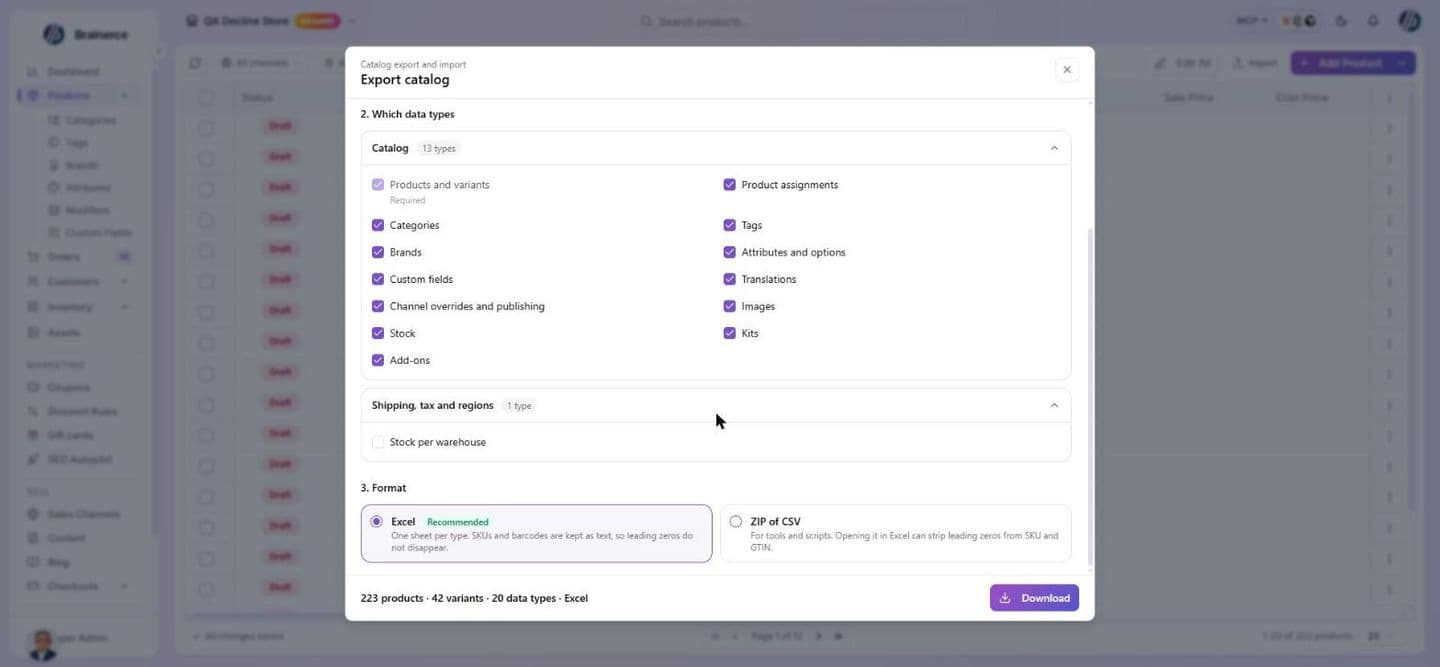
- The kinds of data for that screen are already ticked. If the dialog shows a More data types link, click it to add others you are allowed to read (they sit in groups: Catalog, Shipping, tax and regions, Marketing and pricing, Content and communication, Loyalty and customers, Channels, orders and settings; choosing none is refused with "Choose at least one data type"); on Products every offered type is already listed, so you may not see the link.
- Choose Excel (recommended) or ZIP of CSV (for scripts and tools; Excel can damage leading zeros in SKUs and barcodes when it opens a CSV).
- Download the file when it is ready. A copy also stays in your backup history in Settings.
Categories, brands, tags and attributes have no Export button of their own
The Categories, Brands, Tags, Attributes, Custom fields and Modifiers screens under Products do not have an Export or Import menu. Their data is part of the Products export. Open Products and choose Export: the catalog data below is already ticked, and you can untick what you do not need. The same goes for translations, kits and add-ons: there is one file for the whole catalog, started from the Products screen. Order bumps and bundle offers are in a different group, so click More data types to tick them.
Product data you can put in the file
On the Products screen the export dialog groups the catalog data into rows. Products and variants are always in the file. These catalog rows are ticked when the dialog opens (untick any you do not want), except where noted:
- Product assignments (which category, tag, brand or attribute option each product has)
- Categories, Tags, Brands
- Attributes and options
- Custom fields (the field definitions and the value each product has)
- Translations (the text of each item in each of your store languages)
- Channel overrides and publishing (the price, SKU and other values you set for one sales channel, and which products are published on which channel)
- Images
- Stock
- Kits (what is inside each kit)
- Add-ons (modifier groups, the add-ons inside them, which products use them, and the variants that are excepted)
Two more are not ticked by default: Stock per warehouse (see below), which sits in the Shipping, tax and regions group of the export dialog, and Order bumps and bundle offers, which only appears when your store has that data type switched on for editing in a file.
Only the data your store has switched on for editing in a file is offered, and only what your permissions allow, so you may see fewer rows than this list.
What the products sheet shows
Besides the product's own fields, each row of the products sheet lists categories, tags, brands and sales channels by name, several names separated by |. The sheets after it (variants, categories, tags, brands, images, custom fields, add-ons and the rest) carry the same links by ID for the program, and the variants are on their own sheet, one row per variant.
Every row carries a hidden ID, so the file can be matched back to your items. Do not delete or edit the ID column. To add a new item, add a row with the ID cell empty (the file has a template sheet for it).
Name columns are there for reading, not for editing
On the sheets that only carry IDs, the file adds name columns next to them so a row says what it is about. A variant row shows its product_name, a product assignment shows the product and the category, tag, brand or option it links, a channel row shows the channel_name, an image row shows the product, a kit row shows the kit and the component, and an add-on assignment shows the product and the add-on group.
- The translations sheet says what each row translates. Each row has an entity_name column with the item's name in your store's own language (a variant appears as "Mug / Small"), next to the language, the field and the translated text.
- Changing a name column changes nothing. The program follows the IDs. To rename a product, edit its name on the products sheet. To rename a category, edit it on the categories sheet.
Stock per warehouse
If your store has more than one warehouse, the stock column cannot be used to change stock, because one number cannot say which warehouse holds the units. Tick Stock per warehouse in the export instead (it is not ticked by default). It has one row per product, or variant, and warehouse. Units that no warehouse row holds yet are shown in your default warehouse. To put stock in a warehouse that has no row, add a row for it. A store with no default warehouse shows no row for those units, and writing a warehouse row then replaces them with the rows in your file (you get a warning before you approve).
Changing categories, tags, brands and sales channels in the file
Edit the names in the cell of the product. For example, write Shoes | Sale in categories.
- A name you already have is recognized. Capital letters and accents do not matter.
- A name you do not have yet is shown to you before anything is written, in Decisions needed: create it, skip the link, or skip the product. Nothing is created without your answer.
- Adding is the default. A name you add to a cell is added to the product. A name you delete from a cell is not removed from the product unless you choose Replace for that kind in the review.
- A cell you did not touch changes nothing, even if you edited the matching sheet. If you edited both, the cell of the product wins.
- Sales channels are written as
Name (vc_...). Keep the part in brackets: a channel cannot be created from a file, so a name without it cannot be found. - Hidden on a channel (draft): the
channel_publishsheet has a status column,activeordraft. A draft stays published on that channel but is hidden from its storefront, cart and checkout. Change it there; an empty cell for a new row meansactive. Undoing an import puts the status back, and removes only the publish rows that import created. - A name that itself contains
|is written with a backslash in front of the|. Leave that as it is.
Import the file
- Open the same menu, choose Import, and upload the file (up to 16 MB). On Products, click the Import button in the toolbar instead and drop the file there: when it is a file exported from Brainerce (an Excel file or a ZIP of CSV files made by Export), the importer does not read it itself. It says This file is a Brainerce export and offers Open in the import wizard, which opens the review below. A spreadsheet from another system, or a CSV you built yourself, stays with the AI importer described in Bulk import products from CSV.
- Brainerce lists only the kinds of data it found (What to do with each data type), each with a chip: Changes found, No changes found, Needs attention or Not compared (a kind you skip is not compared). For each one choose Skip or Update and overwrite. Replace by the file is shown but not enabled in this version. Kinds that show no change are skipped by default. A kind you are not allowed to change shows skip only, with the reason. Under Update and overwrite:
- Update existing items writes the file's values into items already in your store.
- Add new items creates the items that are in the file and not in your store. At least one of these two stays on.
- Clear cells that are empty in the file is off by default. Switch it on only if an empty cell should erase the value in your store. Names and other required fields are never cleared.
- Choose which fields to overwrite lists the fields with Select all and Select none. A field you untick is left as it is, and with none ticked existing items do not change.
- For the links between products and Categories, Tags, Brands and Attributes you pick Skip, Add or Replace per kind.
- Save a copy of the affected data before anything is written is available as a tick (and is always on for a stricter approval); you download the copy from the report after the import. If a row points at something your store does not have, the Decisions step asks what to do (Create all, use an existing item, or skip the rows that use it) before the preview.
- Review What will change: every item with its current value and the value from the file. You can untick single items. Rows that were changed in your store after you exported are shown separately and are not overwritten unless you say so.
- Approve. The import runs in the background and you see a report.
The steps are Upload, Data types, Decisions, Preview, Approval and Run and report. While an import is running, or stopped halfway, nothing else can be imported or restored in the store. If one stopped, a banner says "The catalog import from did not finish" and the menu offers Continue the import that stopped at the top (on screens without a table, the ⇅ button also shows an amber dot).
Problems the file check stops on
The upload accepts xlsx, zip or csv (two files only when both are CSV, such as the products and variants files). Before anything is written the file is checked, and a problem is listed with its sheet and row ("Sheet products, row 12"); fix the file and upload it again, or change your choices. The checks cover: an ID that is not valid or appears twice, a spreadsheet error in a cell such as #REF!, a cell that should hold a number, a date or yes or no and does not, a SKU or barcode that is not valid, a new item with no values to create it, a row that points at an item that does not exist, a link mode that does not fit the data type, a data type that cannot be imported yet, and an import that would go over your plan's limit.
What the import does not do
- It never deletes anything. There is no hard delete. Removing items because they are missing from the file (Replace) is not available in this version.
- It does not overwrite a field you did not edit, and an empty cell means "no change", not "clear it", unless you switched on Clear cells that are empty in the file.
- It does not touch orders other than adding past orders as read-only history, and it never changes payments, refunds or points balances.
- Customers' marketing consent is never switched on from a file. A consent request is sent to the customer by email, and an unsubscribed customer stays unsubscribed.
- Installed apps are skipped. A file cannot grant permissions or carry secrets.
- It does not publish new products to any sales channel. Publish them afterwards.
After the import: photos, channels and stock
The values are saved first. The follow-up work then runs in the background: downloading new photos, sending changes to Google, Meta and other connected platforms, publishing or hiding a product on a sales channel, and updating stock on platforms. So a photo or a channel listing can appear a few minutes after the report says Completed.
- Nothing is lost if the process stops. The follow-up work is saved together with the change. If the import stopped halfway, Continue the import that stopped also sends what was waiting.
- If a step could not be sent (for example a platform was unreachable), the report says how many follow-up steps did not finish. They are tried again automatically for a while, so you do not need to import again. Importing the same file again does not help, because the values are already saved.
- A customer's marketing consent email is sent once the change is saved. After a rare interruption, a customer can get the confirmation email twice.
Undo an import
For 30 days the report has Undo import. It puts back the values the import wrote, and removes or switches off what it created. It does not delete.
Undo is careful, not total:
- An item that changed in your store after the import (a sale, a manual edit) is skipped and reported, never overwritten.
- Changes already sent to connected platforms such as Google or Meta are sent again, and the external listing can get a new ID.
- Orders added by an import are not removed.
- Stock history keeps its rows; the undo adds a reverse row.
You can also abandon an import that stopped halfway. The banner offers Continue the import or Abandon the import. Abandoning keeps what was already written (you can still undo it from Recent imports) and the actions that did not run will never run; it frees the store for a new import.
Before a large import, download a full backup (see Take a backup now).
To find an import again, open the menu and choose Recent imports: a table of Created, File, Status (Waiting for approval, Queued, Running, Partly done, Completed, Failed, Cancelled, Undoing, Import undone) and What changed (updated, created, removed per data type), with Details, Undo import (N days left), Download data copy and Continue for an import that stopped. Store owners and settings managers also see the same list under Settings, Backup.
Who can use it
What you may do depends on the permission for that kind of data, not on one all-powerful permission:
| You want to | You need |
|---|---|
| Export a kind of data | To be allowed to view it (for example, view products) |
| Change existing items from a file | To be allowed to edit that kind (for example, edit products) |
| Add new items from a file | To be allowed to create that kind (for example, create products) |
| Undo an import | The same permissions the import needed |
- A kind you may not change is skipped. It is shown in the import with skip only, and a request that asks for it is refused.
- Shipping, tax, warehouses, regions, email templates, sales channels and the store's settings need the store settings permission.
- Team members limited to certain sales channels cannot use export and import. An export reads the whole catalog, so ask the store owner or an admin.
- Who sees an import. An import is visible to the person who started it, to store settings managers, and to anyone allowed to read every kind of data in it.
- Who can download or delete an exported file. The person who made it, and anyone allowed to read every kind of data in it. Only the person who made it, or a store settings manager who may also read its data, can delete it.
What's next?
- Backups and restore for full snapshots and getting data back.
- Manage products for bulk actions and inline editing.
- Team & permissions to give someone the right permission.
Bulk import products from CSV
Upload a CSV from Shopify, WooCommerce, Magento, or your own spreadsheet. Brainerce's AI maps every column for you, you review, and a hundred products land in seconds. Covers both importers, what each carries over, and what neither brings.
Stock & inventory
What Inventory, Reserved and Available mean, how to set a product's starting stock, and where each stock task is explained.