 Brainerce Help
The top bar, notification bell and user menu
What each control across the top of the dashboard does, covering the store switcher, the search box, the MCP button, the notification bell and your user menu with language, appearance, feedback and sign out.
Every dashboard page has the same bar across the top. This page lists each control, left to right.

Store switcher
On a computer the store switcher sits at the start of the bar. It shows the name and plan badge of the store you are working in; click it to see every store you can reach, grouped as My Stores and Shared with me when you have both.
- Click a store to switch to it. Each browser tab remembers its own store, so you can work in two at once (see Create your store).
- Each row shows the store's plan badge, a role badge (Owner, Manager, Staff or Viewer) on a store shared with you, and a Suspended badge on a suspended store.
- The arrow button at the end of a row opens that store in a new tab. It is not shown on the store you already have open.
- A Free store you own has an Upgrade button on its row that opens the plan page for that store. A store shared with you has no such button, because only its owner can pay for it.
- Add Store at the bottom starts a new store. See Running multiple stores for how free and paid stores count.
- "No stores available" appears when your account has none yet.
On a phone the switcher is inside the menu you open with the menu button at the top left.
Search box
The search box appears only on pages that have a list to search, and its hint text says what it searches: "Search products...", "Search orders...", "Search customers by name, email, or phone...", "Search coupons by code or title...", and so on. It filters the list on that page as you type; the x clears it. It is not a search across the whole dashboard. On a page with no list, such as Settings, there is no search box.
Affiliate chip
If you are an approved affiliate, a small earnings chip appears beside the other controls. Switch it off or back on from your user menu.
MCP button
MCP opens the window for connecting Claude, ChatGPT, Cursor and other AI tools to your store. It appears only for people who can view API keys, and on a narrow screen it moves into the user menu. See MCP.
Dark mode switch
The sun and moon button switches between light and dark. The same choice, plus a third System option, is in the user menu under Appearance.
Notification bell
The bell lists things that need your attention. A badge shows how many are unread, and the panel title shows "N new". It holds these kinds of item:
- the result of a BOBO schedule (a green calendar), with Open the result;
- a schedule that did not work (a red calendar), with See what happened;
- a scheduled marketing campaign that failed to send, with Open campaigns;
- a reply from us to feedback you sent;
- a plan limit warning (a grey bell), for example "(store name): approaching monthly order limit", "monthly order limit reached", or the daily or monthly AI credits running low or out. These go to the account owner only, not to Managers, Staff or Viewers, and they come with an email. They do not link anywhere; see Plans & limits and AI credits.
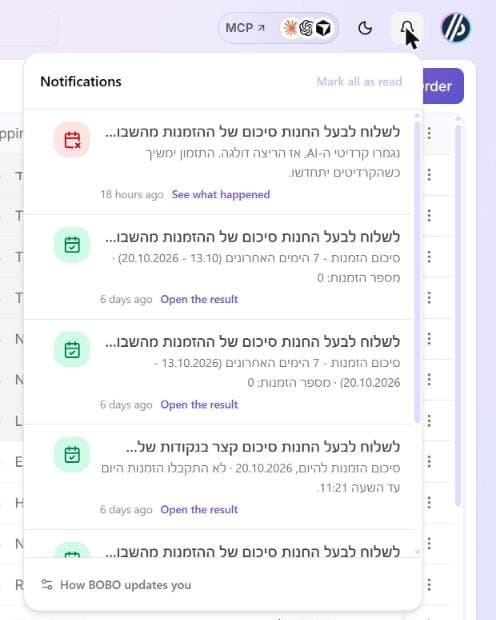
The bell belongs to you, not to the store you have open: it lists items from every account you belong to, so a row can be about a store other than the one on screen. Click a row to open what it points to; it then turns read. Mark all as read clears the badge. An empty bell says "You're all caught up". The list refreshes by itself about every two minutes while the page is open, and again when you return to the tab, and it shows your 20 most recent items.
The link at the bottom, How BOBO updates you, opens the choice of whether schedule results also reach you by email. New orders are not in the bell: new-order alerts are a separate browser notification you turn on under Settings → Account.
User menu
Click your picture at the end of the bar. The menu shows your name and email, then:
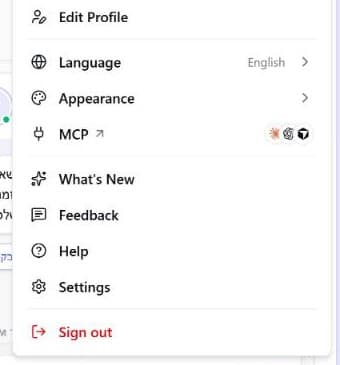
| Item | What it does |
|---|---|
| Edit Profile | Opens your sign-in profile, where your name, email, password and two-factor authentication are managed. |
| Language | Switches the dashboard between English and Hebrew. Hebrew switches the whole dashboard to right-to-left. This is not your store's language: that is set under Settings → General. |
| Appearance | Light, Dark or System, and a Color Theme (Brainerce, Modern Minimal, Claude, Vercel or Catppuccin). Both apply to your dashboard only. |
| MCP | The same window as the MCP button (shown only to people who can view API keys). |
| What's New | The release notes of the three most recent versions of the Brainerce SDK (the code library that storefronts use): version number, date, a red Breaking tag when a release changes something existing code relied on, and the notes. It is not a changelog of the dashboard screens. "No updates yet." when there are none. |
| Feedback | Send us a note: choose Bug, Feature or Other, add a subject (up to 200 characters) and a description (up to 5,000 characters), and optionally up to 5 images (JPG, PNG, WebP or GIF, 5 MB each). Replies come back to your bell. |
| Help | Opens this Help Center in a new tab. |
| Settings | Opens Settings. |
| Sign out | Signs you out of this browser. |
Approved affiliates also see an affiliate section in this menu.
Keyboard shortcuts
- Ctrl + K (⌘ + K on a Mac) opens and closes the BOBO panel; Ctrl + \ switches it between side panel and centered, and Esc closes it. See BOBO.
- On a table, Ctrl + / shows the table's shortcuts, and Ctrl + F searches inside it. See Working with tables.
- There are no "go to Products" style navigation shortcuts.
What's next?
Working with tables
How to customize, reorder, pin, and resize columns in every Brainerce table.
Selling gift cards, returns, tax invoices, compound tax, WhatsApp, Meta and TikTok: what Brainerce does not support
An honest list of features Brainerce does not have, including selling gift cards on your storefront, an RMA returns workflow, tax invoices and compound tax, plus the WhatsApp, Meta ads, TikTok, Shopify and WooCommerce connections that are not available yet, and what to do instead.