 Brainerce Help
Order bumps
Show a one-click add-on offer at checkout, a product the customer can add without leaving the checkout flow.
An order bump is an offer shown to the customer on the checkout page, just before they confirm payment. With one click they can add the extra item to their order, with no second cart trip and no new page.
They convert well because the customer has already committed to buying. The checkout form is filled in; friction to add one more item is near zero.
Classic examples
- "Add a 2-year warranty for $9.99."
- "Add a carrying case for $14 (usually $22)."
- "Add gift wrapping for $4."
- "Add a second unit at 50% off."
How order bumps differ from bundle offers
| Order bump | Bundle offer | |
|---|---|---|
| Where shown | Checkout page | Cart page |
| When it shows | When trigger product is checked out | When trigger product is in the cart |
| Discount | Optional (%, fixed, or no discount) | Required (% or fixed) |
| Best for | Warranty, last-minute add-ons, gift extras | Cross-sells, complete-the-look, accessory pairs |
How to create an order bump
- Go to Products in the sidebar.
- Scroll the products table to the right until you see the Order Bumps column.
- Find the product whose checkout should trigger the bump. The Order Bumps cell shows a count, or "+ Add" if none exist.
- Click the count or the + Add text. The Order Bumps dialog opens.
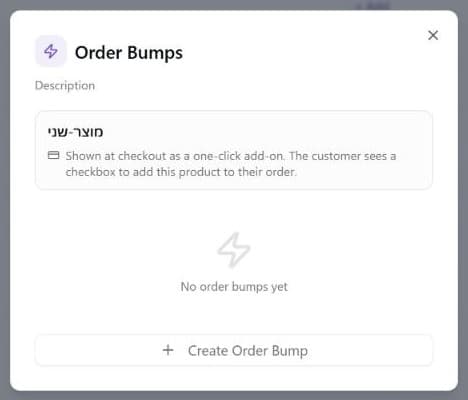
- Click + Create Order Bump. Fill in the form:
| Field | What to enter |
|---|---|
| Bump product | Search and select the product to offer as the add-on. |
| Variation | Only appears when the bump product has variants. Any (customer chooses) lets the shopper pick the size or color, or pick one specific variant to offer just that one. |
| Title | A short headline shown at checkout, e.g. "Protect your purchase". Leave blank to use the product name. |
| Discount | Optional. Choose % or $ and enter a value (0 or more), or leave the type on the dash to offer at full price. A fixed amount never takes the price below 0. |
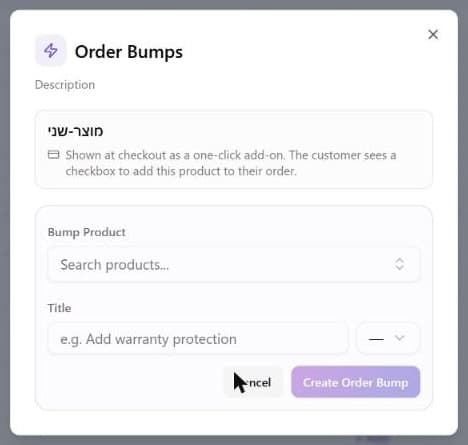
- Click Create Order Bump. The bump is live at the next checkout that includes the trigger product.
Every bump belongs to one trigger product. The dashboard has no way to make a bump that appears at every checkout whatever is in the order. (The API can create one without a trigger product; if a developer did that for you, it is offered on every checkout of the channels that have the Checkout Order Bump switch on.)
Editing, translating, enabling and disabling
Hover over a bump row in the dialog to reveal its tools: the pencil edits the bump, the languages icon opens a translation of its title and description for each of your store languages (see Translate products into another language), and the trash icon deletes it. Deleting a bump takes its discount away from carts that already hold it, as described below.
Each bump row has a toggle. Turn it off to pause without deleting.
The channel switch for order bumps
Every sales channel also has a switch for the whole feature: under Channels, open the channel's settings, Upsell & Cross-sell tab, Checkout Order Bump ("Show a checkbox add-on at checkout"). It is on by default. If you turn it off for a channel, that channel's checkout gets no bumps at all even though the bumps themselves stay active. If one shop shows bumps and another does not, check this switch first.
What the customer sees
At checkout, the bump appears as a small card: the product image, the title, the price (with any discount applied), and a prominent checkbox. Checking it adds the product to the order in real time; the order summary updates immediately.
The customer can uncheck it just as easily, with no pressure in either direction.
The bump does not appear at checkout
Before you go hunting through the trigger product or the discount, check the simpler explanation: your checkout page has to be built to draw the bump.
Creating a bump here makes the offer available to your website. Your website is separate code, and its checkout page has to ask Brainerce for the bumps and render the card. If nobody built that in, the bump is live and correct and no customer will ever see it.
A storefront scaffolded recently with npx create-brainerce-store already draws them. An older shop, or one built by hand, probably does not, and it does not gain the ability by itself. See a feature you turned on is not showing on your website.
Once you have confirmed your checkout does render bumps, then check the ordinary causes: the bump is toggled off, the Checkout Order Bump switch is off for that sales channel, the trigger product is not in the order, or the bump product is out of stock.
What happens when the quantity changes, or you edit the bump
The bump discount is per unit, and it follows the quantity down. If a customer accepts the bump twice, they hold two discounted units. If they then reduce that line to one unit, they get one unit's worth of discount, not two. The cart works this out on every change and again when the order is placed, so a customer cannot end up with more discount than the units they are actually buying.
It never spreads to units the customer did not accept. Raising the quantity of a bump line by hand does not extend the offer to the extra units. Those are charged at the normal price. If you want every unit discounted, that is a Discount Rule, not an order bump.
Editing the bump changes carts that already accepted it, in one direction. Lowering the discount, or clearing it, applies to carts in progress. Raising it does not: a customer who accepted 20% off keeps 20% off, even if you change the bump to 40% while they are still shopping. If you delete a bump, any cart still holding its discount loses that discount and pays the normal price. Pausing a bump with its toggle does none of this, it only stops the bump being offered to new customers, so pause rather than delete if customers may be mid-checkout.
Tips
Create a bump-only variant. If you want a checkout-only price that's lower than the product's storefront price, create a separate variant (or a new product) dedicated to the bump. That way the storefront price stays unchanged while the bump offers a checkout discount.
Keep the title benefit-first. "Protect your purchase for $9.99" converts better than "Add 2-year warranty".
No discount is fine. Some add-ons (gift wrapping, engraving, phone setup service) sell at full price at checkout; the bump just surfaces the option customers didn't think to look for.
What's next?
- Bundle offers cross-sell in the cart (before checkout).
- Modifier groups are per-product customization options shown on the product page.
- Related products show "you might also like" on product pages and in the cart.
Bundle offers
Show a cart upsell that offers a second product at a discount when a specific product is added to the cart.
Related products
Link products together as cross-sells, upsells, or related suggestions, and see the automatic Frequently bought together and Products you may like suggestions Brainerce works out from your orders.