 Brainerce Help
Cashback club
A club where customers earn a percentage of every purchase as a balance in your currency and spend it on their next purchase. How to set it up, how earning and spending work, and what happens on a refund.
A cashback club gives every paid order a percentage back as a balance in your own currency, for example "5% back". Customers see "you have 25.00" instead of a number of points, and they spend any part of it on a later purchase. It is the simplest club to explain, and the one shoppers already know from card and store programs.
It is a different club from points and rewards. A store runs one or the other. There is no "points per currency unit" and no reward catalog in a cashback club.
Set it up
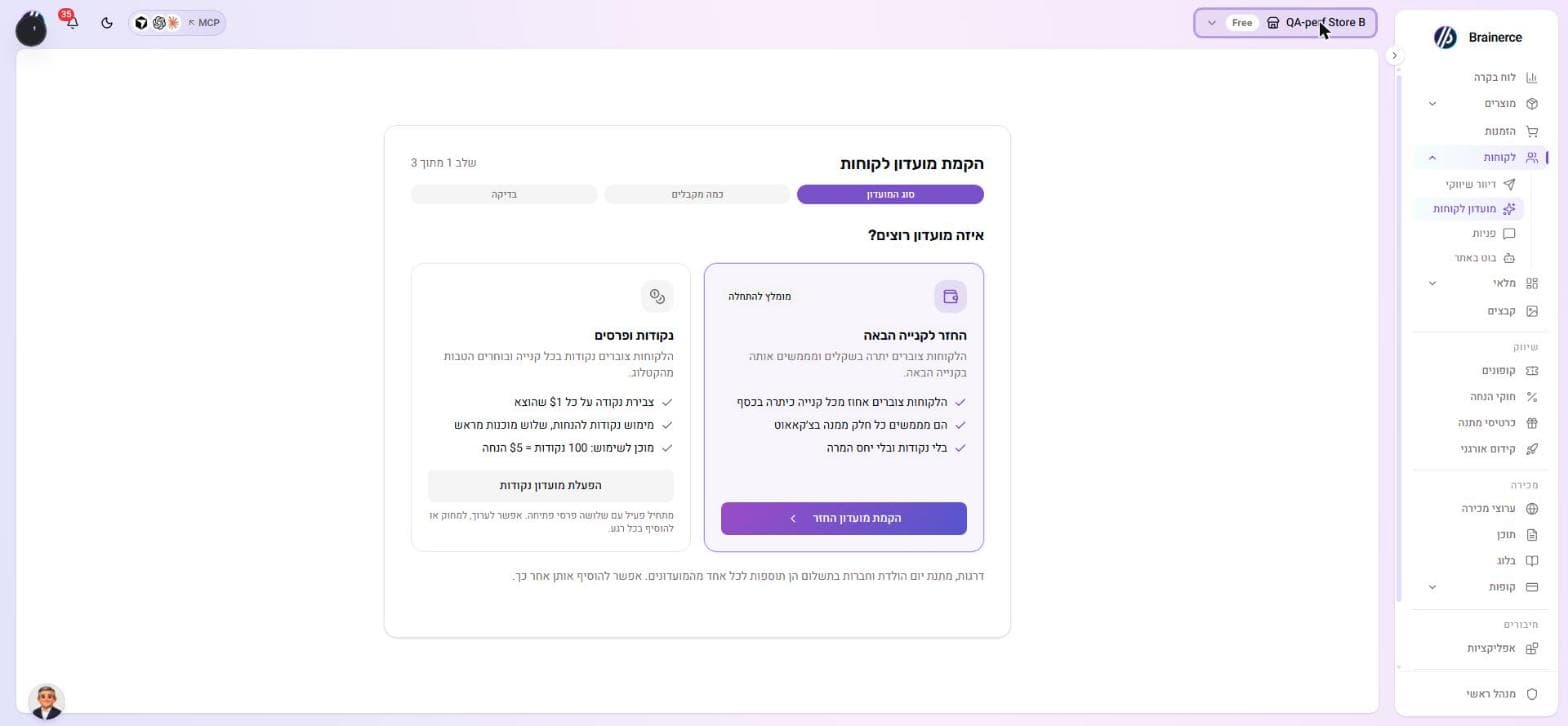
Open Customers → Loyalty. On a store with no club, the first screen asks which club you want and shows the two side by side. Choose Set up a cashback club on the first card, the one marked Recommended to start. A three step wizard opens.
- Club type. Two clubs, same size, side by side. Set up a cashback club goes on to the next step. Activate the points club is a different club: it starts the points club right away, live, with its defaults and three starter rewards, and it is not a draft. Pick the cashback club to continue here.
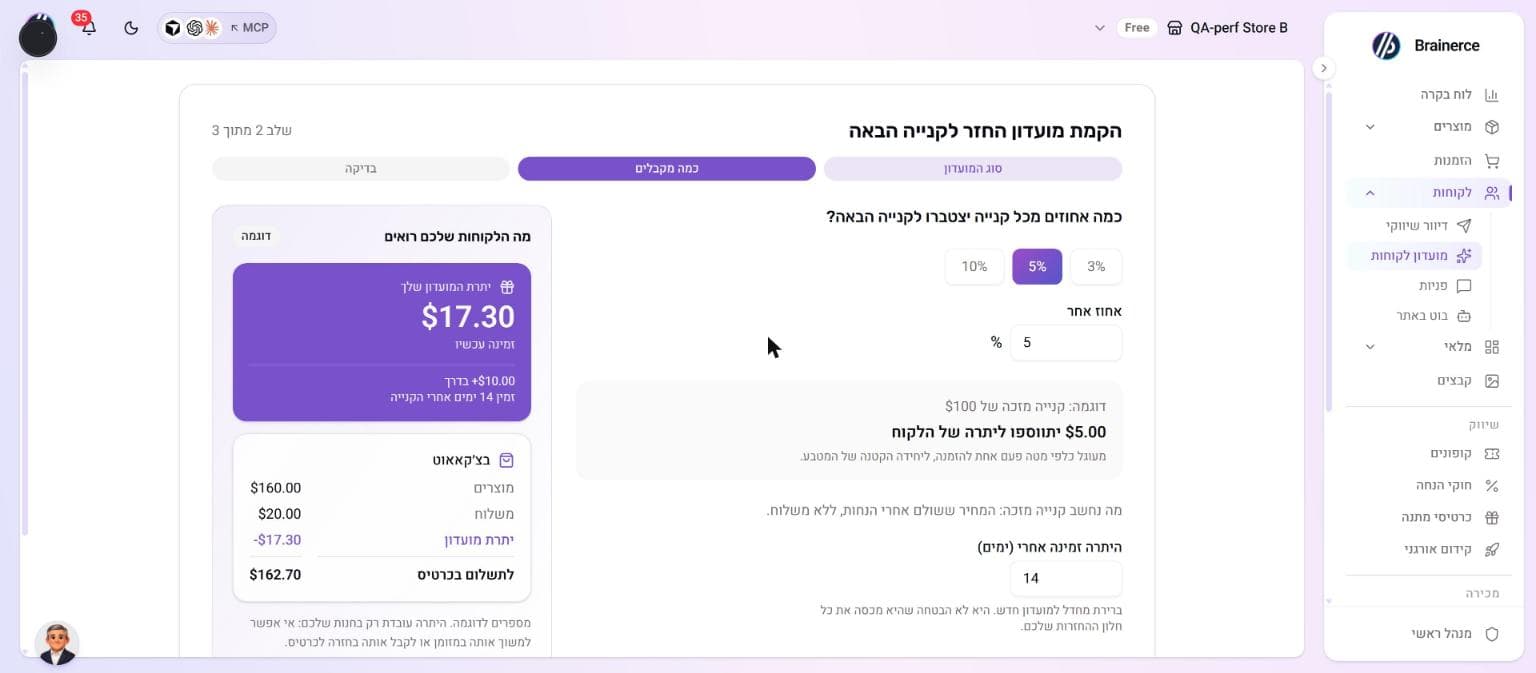
- How much. Choose 3%, 5% or 10%, or type your own percent, up to 30%. The example under the field shows exactly what a purchase of 100 earns, using the same rounding the club uses for real orders. You also choose how many days a new balance stays pending (14 by default). Beside the form, a preview shows what your customers will see: their balance, the money on its way and an example checkout. It changes as you type.
- Review and save. The club is saved as a draft. A draft earns nothing, spends nothing and sends nothing.
The 5% in the wizard is only a suggestion to start the draft. It is not advice and it does not mean 5% is profitable for your store. Check the rate against your margin before you activate.
The club screen
After you save, Customers → Loyalty shows the club screen. It has the same layout as the points club, so the two read as one product.
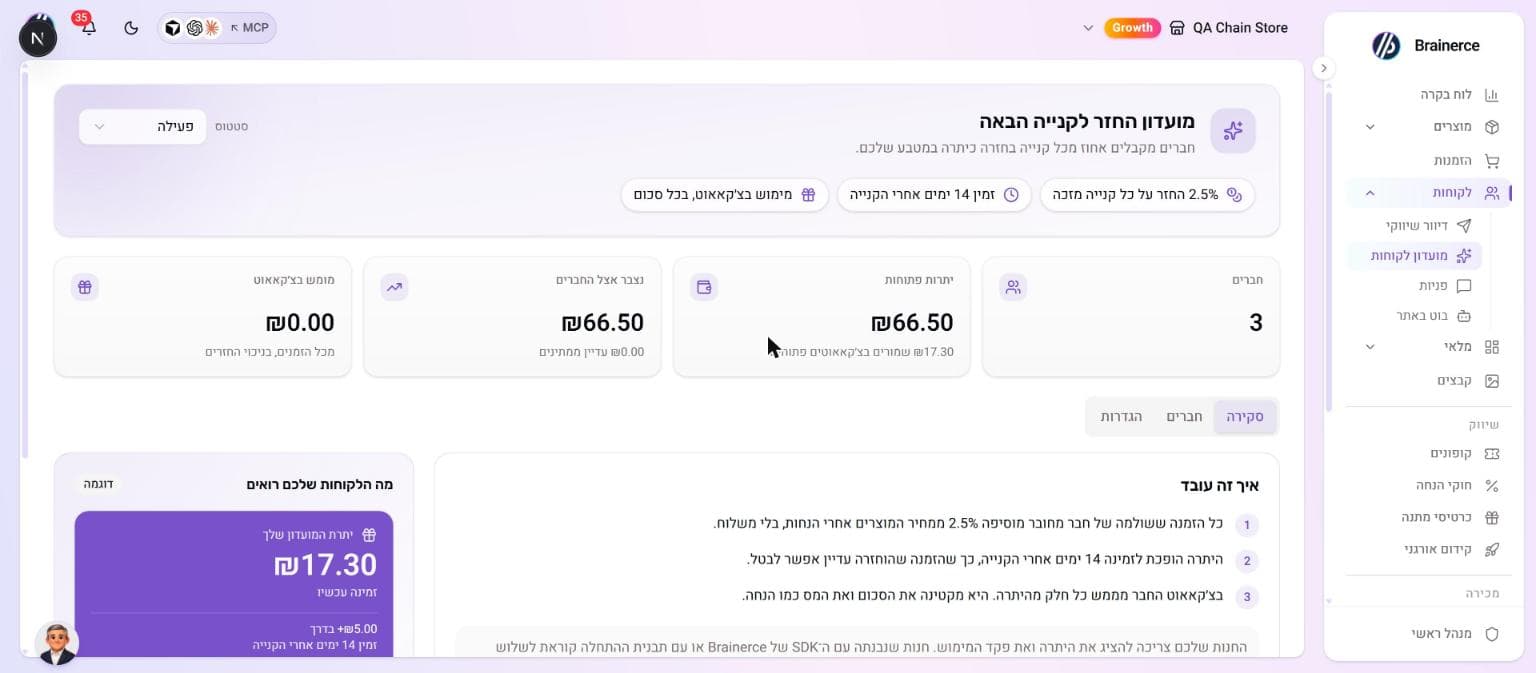
- The banner says the rule in plain words (the percent back, when the balance becomes available, that it is spent at checkout) and holds the status control: Draft, Active or Paused. Choosing Active asks you to confirm, because from then on every paid order from a signed-in member earns the percent. Paused stops new earning and keeps every balance. Active is not offered while the rate is 0%.
- The four numbers are the members, the balances outstanding (with how much of it open checkouts are reserving right now), what members earned (with what is still pending) and what was spent at checkout, after refunds gave some back. They are your club's real figures, in your currency.
- Overview explains how it works with your numbers in it, next to the customer preview.
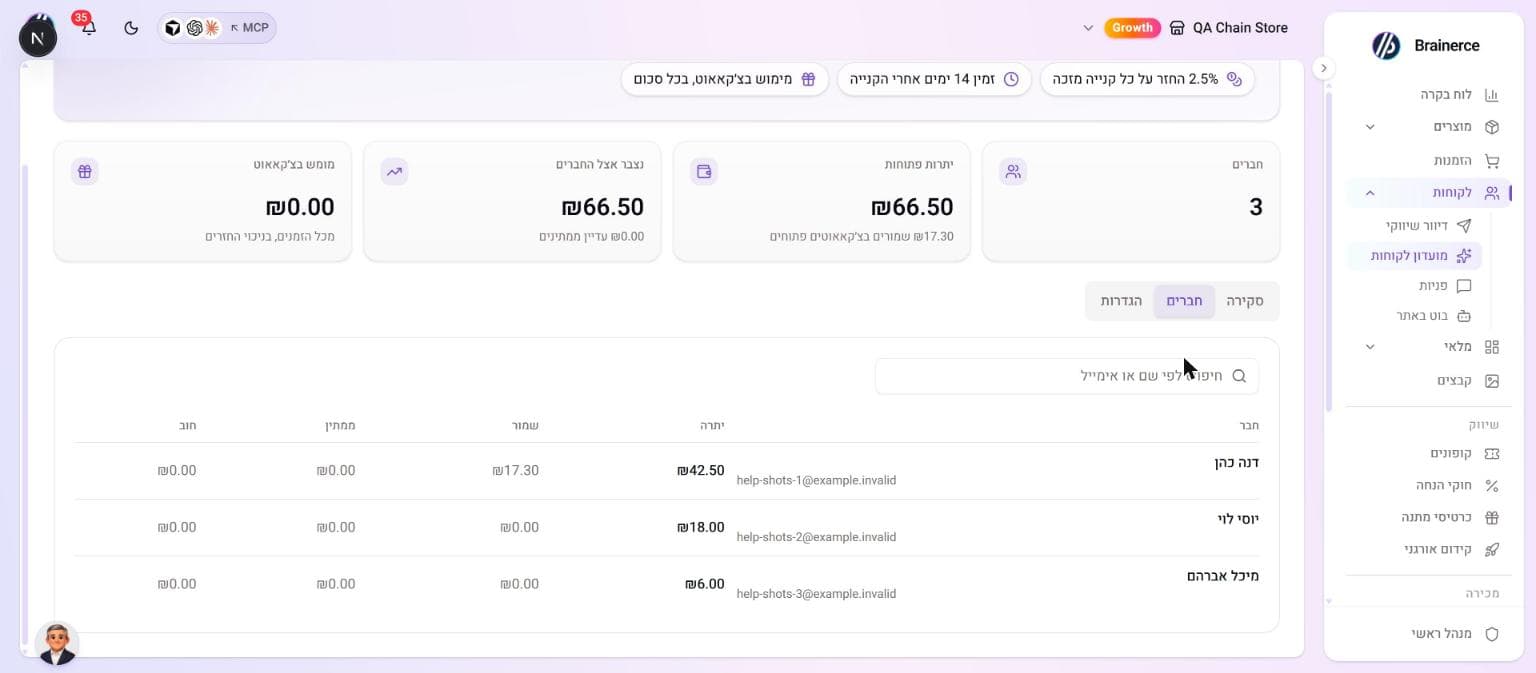
- Members lists every member with their balance, the amount reserved by an open checkout, the money still pending, and any debt. You can search by name or email.
- Settings edits the rate and the pending days in place, with the customer preview beside it following what you type.
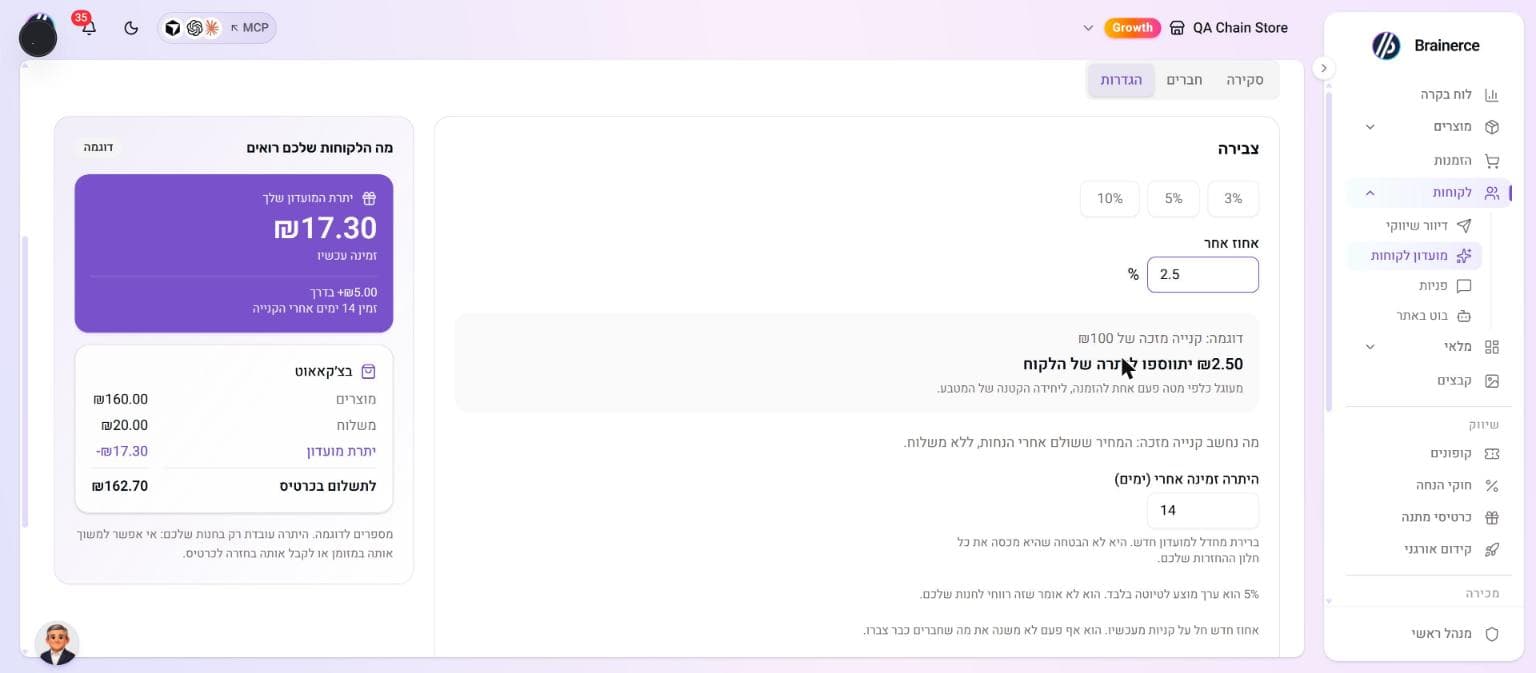
A new rate applies to purchases from then on. It never changes what members already earned.
How much a purchase earns
- The base is what the customer actually paid for the products. The price after discounts and coupons counts. Shipping does not. A part of the order paid with the club balance does not earn again.
- Rounded down once per order, to the smallest unit of your currency. A purchase of 99.90 at 2.5% earns 2.49, not 2.50.
- Only signed-in members earn. A guest checkout earns nothing, and a store can auto-enroll customers at their first order.
- A tier multiplier, if the member's tier has one, multiplies the rate. A member on 10% with a 1.5 tier earns 15%.
- A test order earns nothing. Neither does an order that was cancelled or refunded before the earning ran.
Pending, then available
A new earning starts as pending and becomes spendable after the pending days you set (14 by default, 0 confirms it on the next nightly run). The customer sees available and pending separately. The pending days are your own setting. They are not your return window, and changing one never changes the other, so set them at least as long as the time your customers can return a product.
Spending the balance at checkout
A signed-in member spends the balance on a later checkout, any amount up to what they have available.
- It works as a discount. It lowers the order total and the tax, the same way a coupon does, and it appears on the discount line of the order. It is not a payment method, and it is not a gift card.
- The most that can be spent is the smaller of the available balance and the room the basket leaves after its other discounts.
- Changing the cart afterwards is safe. A coupon or a smaller basket shrinks the amount to fit instead of losing it.
- Shipping is priced before the balance, so spending it never makes a shopper lose free shipping.
- It is reserved while the checkout is open and released if the checkout expires, fails or the shopper removes it. Two open checkouts cannot spend the same balance.
- It is spent when the order is created, and a test order never spends it.
Your storefront has to offer the control. A store built with the Brainerce SDK or the starter calls three methods for it (see the developer documentation). A custom storefront that does not will earn balances but never show them.
Refunds and cancellations
- A full refund or a cancellation takes back everything the order earned. A partial refund takes back a proportional share of the earning.
- If the customer already spent what the refund takes back, the difference is recorded as a debt that future earnings pay down. The balance never goes negative and nobody is charged. While a debt is open the customer cannot spend.
- A refund also gives the spent balance back, in proportion to the cash refunded. Refund half of the money and half of the balance that order spent returns to the member. It always goes back to the club balance, never to the card or as cash.
Changing the club type
At the bottom of the Settings tab (the points club has it too), the Club type panel opens a report of what switching to the other type would affect. It only reads your club: how many members hold what, what the points are worth in money, the pending earnings and the reward coupons nobody used yet.
- A club with nothing to lose can switch. If no member holds a balance, a pending earning or an unused coupon, the switch is just a save. The club becomes a draft of the other type and nothing is earned until you activate it.
- A club with balances cannot switch yet. The report lists what blocks it. Moving existing members between points and a money balance is not available: it needs an agreed conversion and an approved run, and the club keeps its type until then.
Manage it with BOBO or an AI assistant
BOBO, the assistant inside the dashboard, and an AI assistant connected over the Brainerce connector can run the cashback club for you, in plain language. Anything that changes money asks for your approval first.
- Set it up: "set up a cashback club with 5% back" creates the draft. Activating it is a separate step and BOBO asks you to confirm, because activating starts crediting every paid order.
- Read it: "how is the club doing" gives the numbers from the club screen (members, balances, earned, spent). "What does Dana have" reads her balance, what is reserved and pending, and "show Dana's history" reads her money ledger, newest first.
- Adjust a balance: "give Dana 25 shekels as an apology" shows an approval card with the member, the amount and the reason. The ledger is append-only, so a mistake is fixed by a second entry. A removal only takes the balance that is free: money reserved by an open checkout stays, so the result can be less than you asked, and BOBO says so.
- Check before switching the type: "what happens if I move to points" reads the same report as the Club type panel and explains why a switch is blocked.
BOBO tells a cashback member from a points member: it reads money for a cashback club and points for a points club, and it does not use the points tools on a cashback club.
What a cashback club does not do
- It is not cash. A balance cannot be withdrawn, paid out or refunded to a card.
- It does not expire. There is no expiry setting yet.
- It is not shared between stores. Each store has its own club and its own balances.
- It does not pay for shipping, tax or checkout fees. It lowers the price of the products in the basket, up to their total after other discounts.
- You cannot switch a club between points and cashback once it has activity. A club that already has balances, pending earnings, issued rewards or open checkouts keeps its type. Moving existing members from one type to the other is a separate project, not a setting.
- The points screens are not shown for a cashback club. Rewards, tiers and points adjustments belong to the points club. A birthday gift or a referral reward that works through the rewards catalog is a points feature for now.