 Brainerce Help
Bulk import products from CSV
Upload a CSV from Shopify, WooCommerce, Magento, or your own spreadsheet. Brainerce's AI maps every column for you, you review, and a hundred products land in seconds. Covers both importers, what each carries over, and what neither brings.
Adding products one at a time is fine for the first few. Past 20 products, or when migrating from another platform, the bulk importer is the right tool. Brainerce uses AI to auto-detect your CSV format and map every column, so you don't need to massage the file or match a template. Upload, review the mapping, hit import.
Quick steps
- Go to Products in the sidebar.
- Click Import (top right, next to Add Product).
- Drop your CSV onto the upload zone.
- Let the AI map the columns, fix any mistakes, click Preview.
- Verify the preview, then click Start import.
Everything the AI import creates arrives as Draft, so nothing goes live on your storefront until you activate it. The detailed walkthrough below covers each step plus what happens to variants, images and categories, and how to recover if something goes wrong.
There are two importers on this screen
This matters more than anything else on the page, because the two behave differently and it is easy to end up on the wrong one.
| AI import (what you get by default) | Use the Brainerce template | |
|---|---|---|
| How you reach it | Just drop your file; this is the default for products | The Use the Brainerce template link at the bottom of the upload screen |
| Meant for | Any file: Shopify, WooCommerce, Magento, your own spreadsheet | Files whose column names already match Brainerce's export |
| Variants | Yes, child rows are grouped under their parent | No, a variable row imports with zero variants |
| Categories, tags, brands | Yes | No, the columns are read, then ignored |
| Images | Yes, downloaded in the background | No |
| Custom fields | Yes, you choose which columns become custom fields | No |
| Attributes (Size, Color…) | Yes | No |
| Translations | No | No |
| Status of what lands | Always Draft | Whatever the file's status column says, and Active when it is missing |
| Re-uploading the same file | Products with a SKU already in your store are skipped by default, or updated if you choose so. Products with no SKU in the file are created again | Rows matching an existing product are skipped |
| Failed rows | A count on screen | Downloadable as a CSV |
Not sure which one you used? If you saw a Map columns step with confidence badges, you were on the AI import.
A third path, for files made by Brainerce's own Export: an Excel file or ZIP of CSV files that you exported from Products to edit and put back is not read by either importer above. See A file you exported from Brainerce opens the import wizard.
Before you start
- File format: CSV, Excel (
.xlsxor.xls), or PDF. UTF-8 encoding for non-Latin characters (Hebrew, Arabic, Chinese). If you exported from Excel and see ??? instead of text, re-save as "CSV UTF-8". - File size: Up to 5 MB per upload. Split larger files.
- Source: Any spreadsheet works, with no specific template required. Shopify exports, WooCommerce exports, Magento exports, hand-rolled spreadsheets: the AI figures out the columns.
- Variants: On the AI import, rows with a
variationtype are auto-grouped under their parentvariablerow, because Brainerce detects parent/child relationships from your file structure. The Brainerce-template path does not group variants at all. - Translations do not come across, on either path. See What neither importer carries over.
1. Open the importer
From the products list, click Import at the top right. The button sits next to Add Product: same row, one click away.
2. Upload your CSV file
The importer opens with a 3-step wizard: Upload file → Map columns → Preview. Step 1 is a drop zone. Drag the CSV from your desktop onto the box or click to browse.
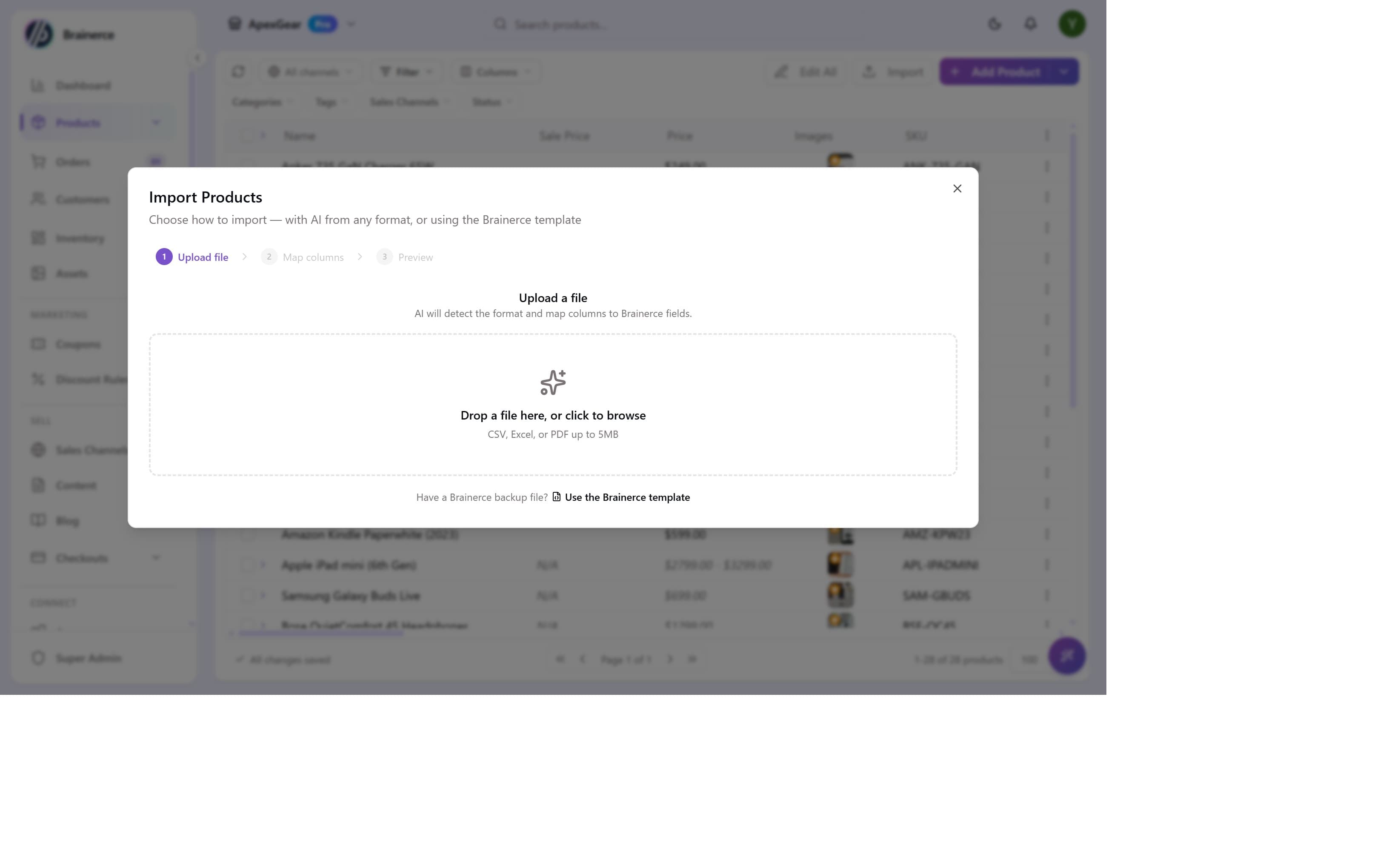
For everything (Shopify, WooCommerce, Magento, custom spreadsheets) just drop the file and let the AI take over. It is the better path for all of them, because it is the only one that brings variants, categories, tags, brands, images and custom fields with it.
A file you exported from Brainerce opens the import wizard
If the file you drop is one that Brainerce's own Export made (an Excel file with Brainerce's hidden information sheet, or a ZIP of CSV files with a products file and a variants file), the importer does not read it. Instead it shows This file is a Brainerce export, with two buttons: Open in the import wizard and Choose a different file.
- Why: the import wizard brings products and variants together, shows you exactly what would change before anything is written, and lets you undo the import for 30 days. See Edit your data in a file.
- Replace by the file is not offered when the wizard opens this way, so the file can add and update but never remove items. Removing items by a file is not available in this version at all.
- Only files made by Brainerce's Export are recognised. A spreadsheet from another system, a CSV you wrote yourself, and the older CSV that the Export action in the products table's selection bar produces stay with the importers below.
- Customers are different. The customer importer never opens the wizard.
Restoring a Brainerce backup file ("Use the Brainerce template")
At the bottom of the upload screen sits a link: Have a Brainerce backup file? Use the Brainerce template. It skips the AI mapping because the column names already match, but it is a much thinner import, and it is not a full restore of a backup.
This path takes a CSV, JSON or ZIP file of up to 16 MB, where the AI import takes a CSV, Excel or PDF file of up to 5 MB. It validates the file first ("Validating your data", then Validation Complete with counts of rows to Create, Update, Skip and Errors), shows a preview of the first 50 rows, and writes only when you press Confirm Import. A Validation Errors list shows the first 100 problems.
This path imports scalar product fields only: name, slug, SKU, description, base price, cost price, sale price, status, type and GTIN. It does not restore variants, categories, tags, brands, images, custom fields or translations, even though your export file contains those columns. A row marked
VARIABLEcreates a variable product with zero variants under it.
Kits come back from a Brainerce export on this path, with what's inside them. A row marked
KITis read together with itskit_pricing_mode,kit_discount_percentandkit_componentscolumns, so the kit returns with its pricing and its contents. Three things have to be true, and the preview names the row when one isn't:
- Every product inside the kit already exists in your store, or is in the same file. A component is matched by its exact SKU (the SKU of the variant, when the kit uses one particular variant). A component that can't be found makes the row an error, so a kit is never created half-empty.
- The price makes sense. A fixed-price kit needs a price. A kit priced "sum minus a percent" needs the percent, from 0 to 100. A row with neither is refused instead of being imported at 0.
- The kit's SKU is new. A row whose SKU or slug already exists is skipped on this path, and a product that exists in your store as a simple product is never turned into a kit by an import. Give the kit a new SKU.
A kit can't hold another kit, and a product with variants has to be named by the SKU of the variant you want in the box. If a component can't be written after the kit is created (for example, because the product inside it failed in the same import), the kit is left with nothing inside it, can't be bought, and the row is reported as failed. Open it on the product page and add the contents. See Kits.
The AI importer does not read these columns. A
KITrow dropped onto the AI import still lands as an ordinary simple product, at whatever price the price column holds, with nothing inside it. The same happens to a WooCommerce "grouped" product. To bring kits back from a Brainerce export, use Use the Brainerce template here, the Kits data of a file from Export opened in the import wizard (see Edit your data in a file), or the full backup file on the Backup page.
Stock quantities restore, but check three cases. The
stock_totalcolumn from your export is now read back as the product's stock, so a simple product restored into an empty store comes back with the quantity it had, tracked as before. Three exceptions still need a manual check on the Inventory page:
- Re-importing over products that already exist. When a row matches a product already in your store, this path updates the text fields and prices only; it never changes stock. Your existing quantities stay as they are; the numbers in the file are ignored.
- Products you had set to "don't track stock". They export with a quantity of 0 and come back with stock tracking switched on at 0, which makes them unbuyable. Switch tracking back off, or enter a real quantity, for those products.
- Variable products. They restore with no variants at all (see above), so there is nothing to hold stock and nothing a shopper can add to the basket. Rebuild the variants and their quantities by hand, or use the AI import instead.
To move a full catalogue between Brainerce stores, use the full backup file on the Backup page, or the file from Export opened in the import wizard (see above). The wizard treats a file from a different store as a copy: every row is created as a new item with a new ID, and update is not available.
3. AI maps the columns
The moment you upload, the AI analyzes your file's headers and inferred values, then matches each one to a Brainerce field. Within a few seconds you land on Step 2, Map columns. Brainerce shows you the detected mapping as a side-by-side table:
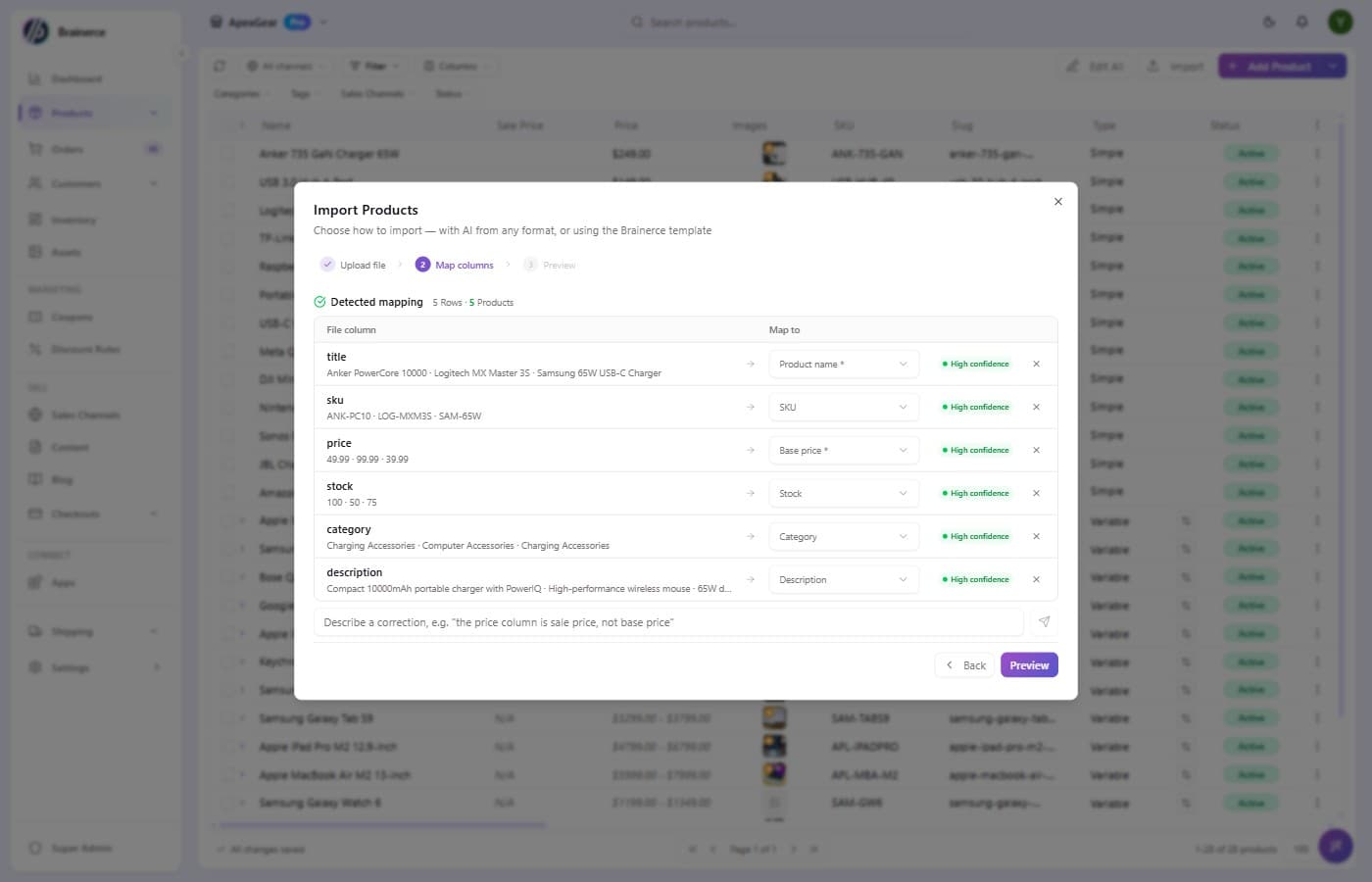
- Left column: every header from your CSV, with a few sample values underneath so you can sanity-check what the column actually contains.
- Right column: the Brainerce field it'll be imported into, with a confidence badge (High / Medium / Low) so you know where to focus your review.
The counter at the top is the most reassuring number on the screen: "44 Rows • 17 Products • 27 Variants". It confirms the AI correctly grouped your variant rows under their parent products before you commit to anything.
This step exists only on the AI import; the Brainerce-template path goes straight from upload to preview.
Fix what the AI got wrong, in plain English
Below the mapping table is a text box: "Describe a correction, e.g. 'the price column is sale price, not base price'". Anything you tell it in natural language updates the mapping immediately. No need to find the right dropdown and click through options: just type the fix.
Common ones we've seen:
- "The price column is the sale price, regular price is the base price."
- "The first image column is the main image, the rest go into the gallery."
- "Categories use
/for hierarchy, not>." - "Stock is in the 'inventory' column, not 'quantity'."
You can also click any Map to dropdown directly to pick the right field manually. The AI's suggestion is a starting point, not a lock.
Columns Brainerce doesn't recognise become custom fields
A column that matches no Brainerce field ("Warranty", "Supplier", "Remarks") is not thrown away. It drops into an Unrecognized columns section below the mapping table (the heading reads "N unrecognized columns"), each row with a type selector (Text / Number / Date / Yes-No). Leave it there and its values are saved on every product as a custom field; you will find them on the product page under Custom fields.
Two things worth knowing:
- You can drop one. Set a column to Don't import and it moves to the Ignored section, out of the import entirely. Nothing in the Unrecognised section is optional by accident: if it is listed there, it is being saved.
- You can send it to a custom field you already made. If your store already has a custom field for that data, pick it from the Map to dropdown under "Custom fields" and the values go into that one instead of creating a new one.
4. Preview the products before anything is written
When the mapping is correct, click Preview. Step 3 shows you exactly how the imported rows will look in your catalog (product name, SKU, images, base price, category, description, status) before any data is written.
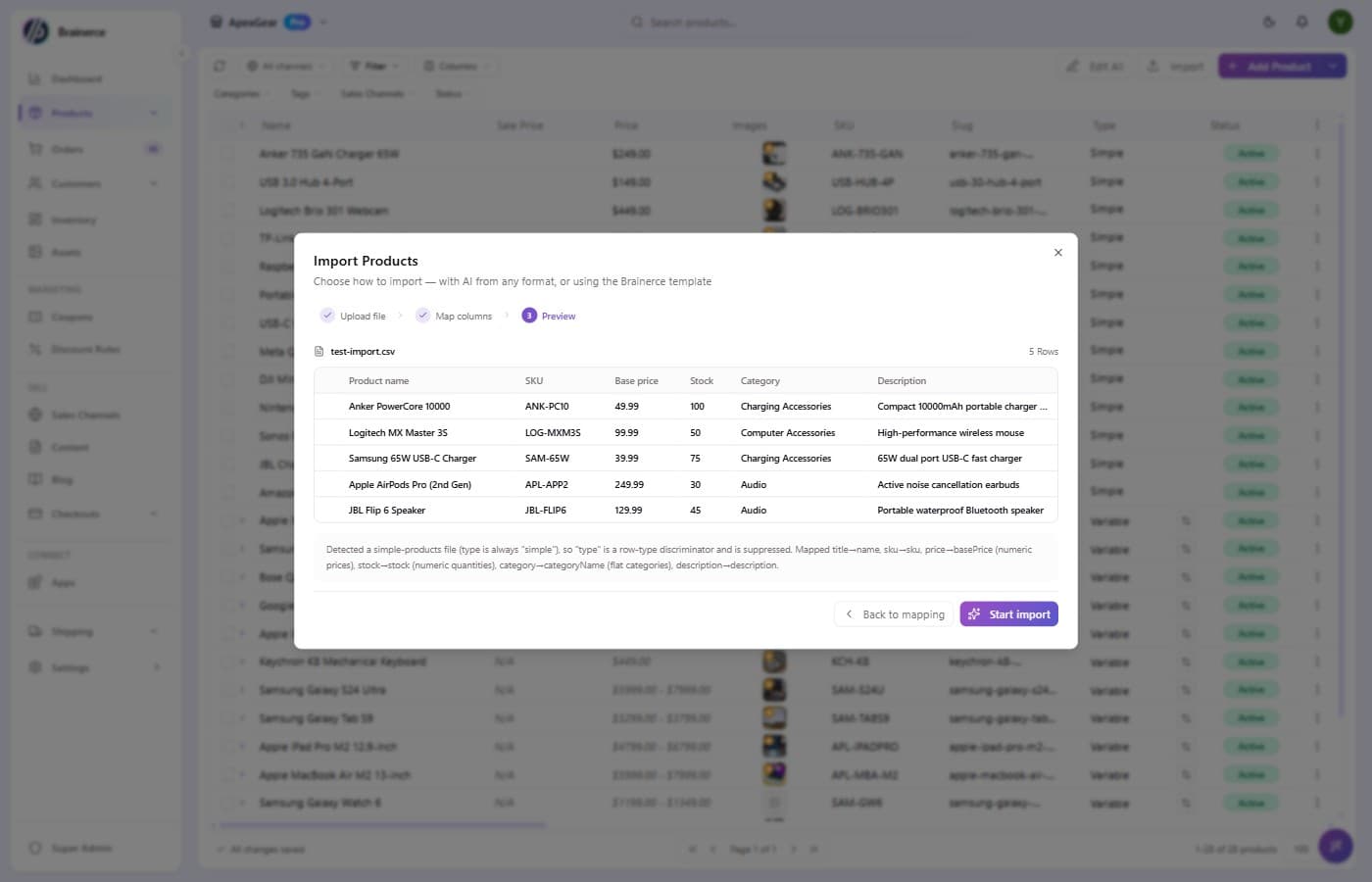
Scroll the table to spot-check products at random. Hot things to check:
- Images loaded. Every row should have a real thumbnail, not a placeholder. If thumbnails are missing, the image URLs in your CSV are 404 or behind auth.
- Prices look right. A
9,99that became999means the AI parsed a European decimal as a comma-thousands separator. Go back and tell itprices use comma as decimal separator. - Categories nest properly.
Electronics > Camerasshould appear in the Category column as a path, not flattened to one of the two parts. - Variants grouped under parents. Click the
▶next to a row that hasN Variantsto expand and verify the children look right.
If something's off, click Back to mapping and re-run with corrections. Nothing is written to your catalog until you press Start import.
Read the counts before you confirm
Above the table, this step states what the run will actually do: how many products are in the file, how many will be created, how many will be updated, how many will be skipped, and how many rows carry no SKU. The default is Create only, so on a first import the "will be updated" count is 0.
Those numbers are worth a glance even when you are only adding products. A file you expected to be all-new showing "38 will be skipped" means Brainerce found those SKUs in your store already; a big without a SKU count usually means the SKU column was mapped to the wrong field. Either is easier to fix now than after the import.
If some products are already in your store, expand N products are already in the store, see which to read the list before deciding what happens to them. Set the run to Update only or Create and update to change them, and see Updating products from a file.
Warnings and notes about the file
Before Start import the AI import also checks the file and lists what it found, as notes or as problems that need your attention. A problem makes you tick I have read these and want to import anyway before you can continue. The checks cover:
- Rows with no product name. A product cannot be created without one, so those rows are skipped.
- A price that is not a number. Those products would go on sale priced at 0, so fix the values or map a different column to the price.
- The same SKU on more than one product row. Only one of each set survives.
- Variation rows that do not belong to a product, sit far from their parent, or have no attribute values. They are imported as standalone products, left ungrouped, or filtered out.
- Barcodes that Excel turned into scientific notation (the trailing digits are gone). Those products import without a barcode, so re-export the file without opening it in Excel.
- An image column with no usable image links, which imports every product without a picture, and products that list more than 100 images, where the extra ones are dropped.
- Kit rows. The AI import cannot read what is inside a kit, so they import as ordinary products with nothing inside them.
If the file is more than your plan allows
Your plan caps the number of products (the Free plan allows 20; see Plans and limits). When the file would create more than you have room for, the preview says This import exceeds your plan limit, tells you how many it would create and how many fit, and offers Import first N only or Upgrade plan. Products created before the limit was reached are kept.
When everything looks good, click Start import.
5. Watch the import run and check the results
A progress bar tracks the import. For a 44-row file with images to download, this takes 20 to 60 seconds. You can close the modal and keep working, because the import runs in the background.
On the AI import, the panel shows running counts: products created out of the total, variants created, and a number of errors. It does not list which rows failed. If the whole run fails you get up to three error messages, and that is all. There is no per-row error CSV to download on this path, so note the error count and compare your catalogue against your file to find what is missing.
On the Brainerce-template path, the completed screen breaks the run into created / updated / skipped and offers a Download errors button producing an import-errors-….csv listing a row number, field and reason for each failure, so you can fix those rows and re-upload only them.
Your imported products are Drafts, and that's why you can't find them
Everything the AI import creates arrives with status Draft. Draft products are saved in your catalogue but invisible on your storefront: they will not appear in listings, in search, or at checkout until you activate them.
This is the most common "the import didn't work" report we get, and the import worked fine. To publish them:
- Open Products and filter the list to Draft.
- Select all the rows you just imported.
- Bulk Edit → Status → Active.
Check the products are right before you activate, because fixing a price while it is still a draft is cheaper than fixing it live.
The Brainerce-template path behaves differently here: it takes the status column from your file, and treats a row with no status as Active, so those go live immediately.
Re-importing the same file
Products you already have are never duplicated. Before you confirm, the preview tells you how many of the products in your file are already in your store and lets you see exactly which ones. What happens to them is your choice: leave them alone (the default) or update them.
The default is Create only: an existing product is skipped, meaning nothing happens to it: same price, same stock, same name, same images. If you fixed a price in your spreadsheet and re-uploaded on this setting, the fix did not reach your store.
To make the fix land, pick Update only or Create and update in the preview step and tick the fields you want written. See Updating products from a file below. Brainerce never decides this for you: a run that would change existing products is one you chose explicitly.
Brainerce also recognises the file itself. Upload the same file twice and the preview says so, with the date of the previous import and how many products it created, before you click anything.
How Brainerce decides a product is "already in your store"
By SKU, and only by SKU. The product-level SKU in your file is compared against the SKUs in your store, ignoring upper/lower case. Names and URL slugs are deliberately never used to match, because two genuinely different products can share a name, and matching on it would skip a product you meant to add.
Two consequences worth knowing before you upload:
- No SKU column means no matching. A file whose products carry no SKU has nothing to compare, so every row is created, and re-uploading such a file does give you a second copy of everything. The preview says how many products fall into this bucket. Add a SKU column if you plan to re-upload.
- Repeated SKUs inside one file create the product once. The first row wins; later rows carrying the same SKU are skipped and listed with the rest.
Updating products from a file
Upload a price list or a stock sheet and apply it to products you already have. The choice sits in the preview step, next to the counts, and you make it before anything is written:
| Setting | What it does |
|---|---|
| Create only | The default. Adds products your store does not have. Existing ones are left completely untouched. |
| Update only | Changes products already in your store. A row that matches nothing is skipped, never created. |
| Create and update | Adds what is new and updates what is already there. |
On either update setting the Start import button reads Apply to store. Matching is by SKU, exactly as described above, never by name. Renaming a product in your spreadsheet does not break the match, and a row with no SKU is skipped rather than matched by guesswork.
Tick the fields you want changed
On either update setting you choose which fields the file may write. Anything you leave unticked is not written, even if your file has a column for it. The default is price and stock only, because a price list often carries a shortened product name that would otherwise replace the name you wrote.
Available: price, sale price, stock, name, description, categories, brands, images, variants.
An empty cell does not erase anything
By default a blank cell means "this file has nothing to say about that field", not "clear it". A price sheet with an empty description column will not wipe your descriptions. If you genuinely want blanks to erase, tick Let empty cells clear existing values; it is off unless you turn it on.
What an update never does
- It never removes images. Images in the file are added to what the product already has. A file listing two pictures does not delete the other six.
- It never removes variants. Variants are matched by SKU and updated; ones the file does not mention are left alone. A variant in the file that your product does not have is added.
- It never removes categories, brands or tags. Those are added too.
- It never creates anything on "Update only". Rows that match nothing are listed in the result so you can see whether the file used the wrong SKU column.
To remove images, variants or categories, edit the product in the dashboard, because an import cannot do it.
Other ways to change products in bulk
| What you want to change | Where to do it |
|---|---|
| A few products | Edit them in the products table: click a cell and type. |
| Prices, status or names in bulk | Select the rows and use Bulk Edit. |
| Stock levels only | The Inventory page has its own importer taking just SKU and Stock. |
| Many things, checked first | Export the products, edit the file, and import it in the wizard: Edit your data in a file. |
The Use the Brainerce template path does not offer these settings: a row whose slug or SKU already exists is skipped, and the existing product is never updated. Updating from a file is the AI importer only.
If you have duplicates from an import you ran before this behaviour existed, select the extra rows in the products table and delete them. There is no automatic de-duplication of what is already there.
What neither importer carries over
Some things you may expect to migrate simply do not, on either path. Plan to set them up after the import rather than waiting for them to appear:
- Translations. Per-language versions of your product names and descriptions are never read from the file, whichever importer you use, not even from a Brainerce export that contains them. After importing, use Translate on the products table (one row or many) to generate them. See Manage products.
- Customer reviews, order history and stock movement history. The importer creates products; it does not bring a product's past with it.
- Everything the Brainerce-template path drops: variants, categories, tags, brands, images and custom fields. The AI import does bring all of those.
Common errors and how to fix them
| Error message | What it means | Fix |
|---|---|---|
Missing required column: Name | The AI couldn't find a column that looks like a product name. | Use the correction box: "the 'Title' column is the product name." |
Invalid price: "9,99" | Comma vs. period decimal mismatch from a European Excel export. | Tell the AI: "prices use comma as decimal separator." |
Image download failed (404) | An image URL is broken, behind auth, or has expired. | Re-upload the image to a public URL, or import without images and add later. |
Variant has no parent row | A variation row sits orphaned without a variable parent above it. | Sort the CSV so each variable row precedes its variations. |
Duplicate SKU | The same SKU appears twice in the file. | SKUs must be unique. Rename one or merge the rows. |
Encoding error: non-UTF8 bytes | The file is in a Windows codepage (CP-1255 for Hebrew, CP-1252 for Western Europe). | Open in Excel and re-save as "CSV UTF-8 (Comma delimited) (*.csv)". |
| A row fails after you've imported the same file several times | Ten products already share that URL slug, so an eleventh can't be created. | Rename the product in your file, or delete the duplicates you already have. |
What's next?
- Activate what you imported. Everything from the AI import is a Draft. Filter Products to Draft, select all, then Bulk Edit → Status → Active.
- Publish to a sales channel. A new product is on sale nowhere until you tick a sales channel for it, and for many products at once you select the rows and use Bulk Edit, in the Platforms section where you Publish them to a sales channel. Brainerce does not push products to Shopify or WooCommerce. See Add a product and Sales channels.
- Add modifier groups for toppings, customizations, and add-ons that apply across many imported products at once. See Modifier groups.
- Take a test order to verify that imported products check out correctly end-to-end. See Take a test order.
Customer reviews and review photos
Let customers rate your products and attach photos, decide whether photos wait for your approval, and take down a single bad picture without losing the review.
Edit your data in a file (export and import)
Download products, coupons, stock and more as a spreadsheet, change them in Excel, upload the file, see exactly what would change, approve it, and undo it for 30 days.