 Brainerce Help
Create an order by hand
Every field of the Create Order window, what the order does to stock, payment and customers, and why a changed price is refused.
Use Create Order for a phone order, a counter sale, or an order you are keying in for a customer. Click Create Order at the top right of the Orders page (or in the empty list). You need a team role that can update orders.
Creating an order here is not the same as a customer checking out:
- No order confirmation email is sent, and you get no New order alert email either. Send the customer the details yourself. If your store has WhatsApp automations switched on, the same order events that drive them still fire for a hand-made order, so a WhatsApp confirmation can go out to a customer who has a phone number and consent on file.
- An order with an email is linked to a customer profile. If your store already has a customer with that email (capitals do not matter), the order is attached to that profile under Customers and adds to its order count and total spent, like a checkout order. If there is no such customer, a new profile is created from the name and phone you typed. It has no password, and the person can claim it later by registering with the same email. An order with no email is not linked to anyone and creates no profile. The order adds the full order total to total spent at once, even while its payment is still Pending. A hand-made order earns loyalty points only if you tick Award loyalty points for this order (see Award loyalty points for a hand-made order), and it never changes a customer's tier by itself.
- It counts toward your plan's monthly order limit. On the Free plan (10 orders a month) the Create Order button works until the limit is reached and is then refused with a plan message. Paid plans keep working and bill extra orders. See Plans and limits.
- It is a real order. It appears in your revenue reports once it is paid, and it takes stock as described below. An order created as Paid also counts as a paid order everywhere else: it is reported to Google Analytics and Google Ads as a purchase (when connected) and sent to your outbound webhooks.
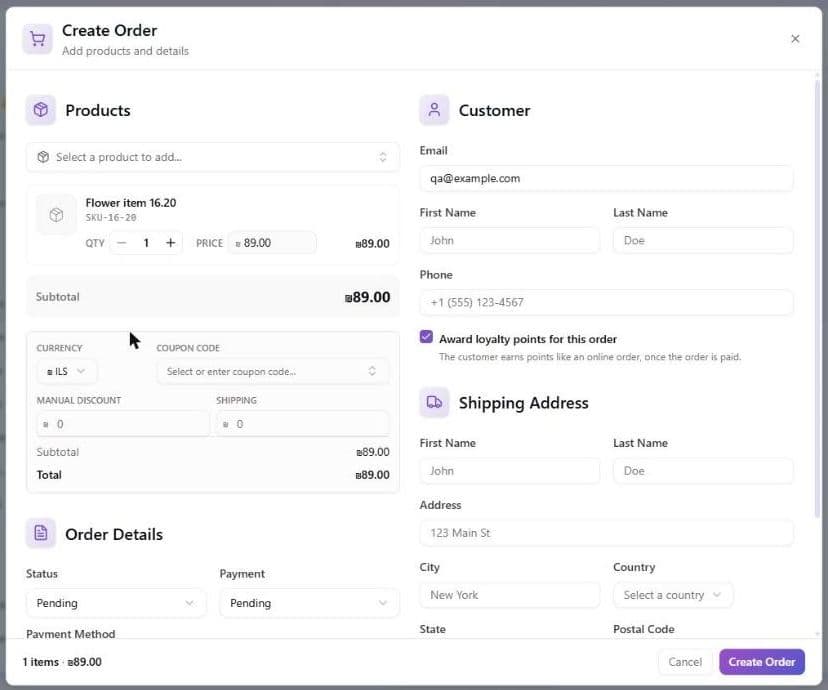
Step 1: add products
- Under Products, open Select a product to add... and search by name. The list loads as you scroll.
- Click a product to add it. For a product with variants, choose the variant under Choose a variant... (the price of each variant is shown). Back to products returns to the list.
- Adding the same product or variant again adds one more unit to its line instead of a second line.
The list offers simple products and products with variants. Kits (bundles of components) are not offered, because a manual order cannot price a kit from its components. Sell a kit through your storefront or add its components separately.
Each line has a quantity with minus and plus buttons (the minimum is 1, and one line can hold at most 1,000 units: more is refused with Failed to create order), a Price that is shown but cannot be edited, and a remove button.
The line price is the product's catalog price and cannot be changed here. The price shown is the product's current catalog price (the sale price, when one is running). When you click Create Order the server checks each line against the catalog price again, so a manual order can never be booked at a different price. There is no price override in the dashboard. To sell below the catalog price, enter a Manual Discount instead, or change the product's price first. If you change a product's price in another tab after adding it to the order, the order is refused with Failed to create order and a message naming the line, the price in the window and the new catalog price: remove the line and add the product again.
Step 2: currency, coupon, discount and shipping
These boxes appear once the order has at least one product.
| Field | What it does |
|---|---|
| Currency | Starts as your store's currency. The list offers your store currency plus USD, EUR, GBP and ILS. Changing it changes the currency label only: prices are not converted. |
| Coupon Code | Pick from Available Coupons (your active coupons, with their value) or type a code and press Enter. The code is checked against the order at once and the discount shows in green. A code that fails shows the reason and is cleared. Remove takes it off. Add products first: the box is disabled until the order has a line. If your coupon list is empty it says No active coupons available. |
| Manual Discount | A fixed amount off the order, in the order currency. It is added to any coupon discount, not instead of it. |
| Shipping | The shipping amount you charge, in the order currency. There is no shipping rate lookup here: type the price you are charging, or leave it empty for free shipping. |
There is no tax field and tax is not calculated. A hand-made order is recorded with no tax line, so its total is the products, less discounts, plus shipping. Use a storefront checkout when tax matters. A coupon you apply is checked against its own rules (dates, minimum order, who may use it) and counts as one use of that coupon. The totals box shows Subtotal, Coupon Discount, Manual Discount, Shipping and Total, and the footer shows the item count and total.
Step 3: order details
| Field | Options | What it does |
|---|---|---|
| Status | Pending (default), Processing, Completed | The starting status. The other statuses cannot be chosen when creating an order. |
| Payment | Pending (default), Paid | Paid records a payment of the full total at the same moment, exactly like Mark as Paid. It does not charge anyone. There is no partial payment. |
| Payment Method | Cash, Credit Card, Bank Transfer, PayPal, Other | A label for your records. It does not charge or contact anything. Optional. |
| Customer note | Free text, two lines shown | Shown to the customer on their order, for example delivery instructions. It is not emailed when you create the order, but a note you save later from the Orders list is emailed to the customer. Keep private remarks in an order custom field. |
Step 4: customer and addresses
- Customer: Email, First Name, Last Name and Phone. All are optional, and your browser checks that the email looks like an address. The Email is what links the order to a customer profile (see above), and it is also what makes the Award loyalty points for this order checkbox appear when your loyalty program is active. With no email, the order has no customer profile, and with nothing filled in it has no customer at all.
- Shipping Address: First Name, Last Name, Address, City, Country (a list of countries), State and Postal Code.
- Billing Address: Same as shipping is ticked by default. Untick it to type a separate address.
An address is saved only when Address, City, Country and Postal Code are all filled in. If any one of those four is empty, the whole address is dropped without a warning and the order is created with no address, so check them before you click Create Order. You can add the address afterwards from the Shipping column. If the shipping address has no phone, the customer's phone is used on it, because carriers need a number for the person at the door.
Award loyalty points for a hand-made order
You decide, order by order, whether a hand-made order earns loyalty points.
- The checkbox only appears when it can work. Award loyalty points for this order shows under the customer fields when your loyalty program is Active and you have typed an Email. With no email there is no customer profile to credit, so the box is hidden. If your program is a draft or paused, the box is hidden too. A team member whose role cannot see loyalty never sees the box, and their hand-made orders earn no points.
- It starts ticked. A counter sale normally earns like an online order. Untick it for an order that should not earn points, such as a replacement shipment or a staff purchase.
- Points arrive when the order is paid. If you create the order as Paid, the points are earned straight away. If you create it as Pending with the box ticked and later use Mark as Paid, the points are earned at that moment. Your choice is remembered until then. An order that is never paid earns nothing.
- They behave like checkout points. They are earned on the same base your program uses (the subtotal after discounts, before shipping and tax, unless you changed Earn on subtotal), they start as pending for your Pending window, and a cancelled or fully refunded order takes them back. An order is only ever credited once.
- It does not enrol people by itself unless your program does. If Auto-enroll is off in your program settings and the customer has not joined, no points are earned.
- It does not change a customer's tier by itself. Tiers follow your normal VIP tier rules.
- You cannot add points to an order that was already created. Tick the box before you click Create Order. To add points afterwards, adjust the member's balance by hand in the Members tab.
What the order does to stock
- Status Pending or Processing, Payment Pending: the units are reserved, the same as a storefront order that is waiting for payment. They leave your stock when the order ships and return to stock if you cancel it. If no single active warehouse has enough of a line, the order is refused for lack of stock.
- Payment Paid, or Status Completed: the sale is already settled, so the order is never refused for stock. Completed deducts the units at once, as a counter sale. A Paid order that is still Pending or Processing keeps them reserved until it ships. If a line had no warehouse with enough stock, the order still goes through with no warehouse on that line, and you choose one later under Ships from (see Order details).
- Low-stock alerts and inventory webhooks fire as for any order.
After you click Create Order
The window closes and the order appears at the top of the list as Order created successfully. You cannot add products to it afterwards: to change what was ordered, cancel it and create a new one. You can still change its status, note and address from the list.
What Create Order does not do
- It does not create a draft order or quote from the dashboard. (The AI assistant can create a draft as a quote.)
- It does not email the customer, look up shipping rates, calculate tax, or take a card payment. It does link or create a customer profile from the email you type, and it awards loyalty points only when you leave Award loyalty points for this order ticked.
- It cannot be saved half-finished: close the window and the form is cleared.