 Brainerce Help
The Orders list
Every column, filter, row action, bulk action and search rule on the Orders page, and which cells you can edit in place.
Orders in the sidebar lists every order in your store, newest first, 20 to a page. This page names each column, says which cells you can edit, and lists what the ⋯ menu on a row and the bulk bar can do. To work an order step by step, see Process an order.
You need a team role that can view orders to open the page. Changing anything (status, note, address, Create Order) needs a role that can update orders. Three actions need their own permission instead: setting a status to Cancelled (or using a cancel action) and deleting an order (Delete Order, Delete Orders, Delete Drafts) need a role that can cancel orders, and Refund, or setting a status to Refunded or Partially refunded, needs a role that can refund orders. A Manager and the Owner have both; a Staff member has neither by default, and the Refund menu item, the Delete Order menu item, the bulk Delete button, the Create Refund buttons and the Cancelled and Refunded choices in the Status dropdown are not shown to them. The server refuses a delete from a member without cancel orders too, so an AI agent or the assistant connected as that member cannot delete either. A Viewer can read the list and nothing else. Order Settings (your status labels and order custom fields, in the table's ⋮ menu) also needs a role that can manage store settings to change anything. See Team and permissions.
Unread orders, the refresh button and paging
- Unread orders are bold on a white row. Orders you have already opened are grey. Opening an order's Summary or its Items panel marks it read, for you only: a teammate still sees it as unread until they open it.
- The number on Orders in the sidebar counts the orders you have not opened yet. It goes down as you open orders (their Summary or Items), not when you merely visit the page, and an order you create by hand counts as unread too. It refreshes about once a minute while the page is open.
- New-order alerts (a pop-up in the dashboard and an optional browser notification) belong to you and your browser. The New Order Alerts switch under Settings → Account (on by default) turns them on or off, and the number on Orders shows either way; see Account settings. They are not in the notification bell. Clicking one takes you to this page with that order's panel already open when it is a single new order.
- Refresh (top left of the table) reloads the list. A new order does not insert itself while you are looking at the page.
- Use the page controls under the table to change Items per page and move between pages. Your page size is remembered.
- If the list cannot load, the page says Couldn't load your orders with a Try again button. It never shows an empty list in that case, so an empty table really does mean you have no orders.
- With no orders at all, the table shows No orders found and a Create Order button. When filters are on and nothing matches, it says No orders match these filters instead (see Filter the Orders list).
Columns on the Orders list
Show, hide, reorder, resize and pin columns with the Columns button, as on every table (Working with tables).
| Column | What it shows | Editable here? |
|---|---|---|
| Order # | The order number and the customer's name (the name is dropped on a narrow phone screen). A small flask icon means a test order, placed on a test sales channel. | No |
| Summary | A View button that opens the full order summary (see Order details). | No |
| Status | The order status as a colored badge. Shows your own custom status name when one is attached. | Yes, a dropdown (see below) |
| Sales channels | Where the order came from: the sales channel's logo, or a platform badge. Hover for the channel's name. | No |
| Items | The number of units on the order (a line of 3 counts as 3). Click it to open the Order Details panel with the items, totals, downloads and refunds. | No |
| Shipping | The shipping city and country, or Add Details when there is no address. Click it to edit the address. | Opens the address window |
| Tags | Your own labels on the order, such as VIP or Gift. Only your team sees them; the customer is never told. Click the cell to pick an existing tag or type a new one (see Tag orders). | Yes, click and pick or type |
| Customer Note (visible to customer) | A note the customer sees on their order. Saving it emails the customer. | Yes, click and type |
| Total | The order total in the order's currency. On a refund row, the refunded amount in orange with a minus sign. | No |
| Payment | The payment method: Credit Card, PayPal, Cash on Delivery, Cash (a hand-made order), Bank Transfer, Manual or Other. | No. The dashboard cannot change it after the order exists |
| Payment Status | Paid, Pending, Authorized, Failed, Refunded, Partial Refund or Cancelled. Blank when the order has no payment record. | No |
| Provider | The payment provider that took the money (for example Stripe, PayPal or Grow). Gift card appears when a gift card paid the whole order. Blank when there is no payment record. | No |
| Invoice | The invoice number issued by your invoicing or payment provider, as a link to the document. On a refund row it shows the Credit note instead. When the provider issued a document but gave no download link, the number is shown without a link. | No |
| Date | When the order was placed, with the time. | No |
Two more kinds of column appear before Date.
- Your checkout custom fields, one column per active field, showing what each customer typed or picked. They are hidden until you turn them on in Columns. See Custom checkout fields.
- Your order custom fields (internal fields such as a warehouse bin or PO number), one column per active field, shown by default and editable in the cell. See Order custom fields.
Filter the Orders list by status, payment, fulfillment, sales channel, tag or test orders
The Filter button next to Refresh adds filters to the table, the same way it does on the Products list. Tick the ones you want and a chip for each appears under the toolbar. Click a chip to pick values, and the table narrows to the matching orders across all pages, not just the page you are on.
| Filter | What you pick | What it matches |
|---|---|---|
| Status | Any of the built-in statuses you have switched on, and your own custom statuses | Orders with that status. A custom status matches only the orders that carry it. Pick several to see orders in any of them. |
| Payment | Pending, Paid, Partially refunded, Refunded | The payment state of the order. This is not the same thing as Status: an order can be Processing and Paid at once. |
| Fulfillment | Not fulfilled, Partially fulfilled, Fulfilled, Shipped, Delivered (one at a time) | Not fulfilled means the orders still waiting to be packed: not shipped yet, not finished and not cancelled. |
| Sales Channels | One or more of your sales channels | Orders placed on those channels. A team member limited to some channels only ever sees those, whatever they pick here. |
| Tagged with | One or more of your order tags | Orders carrying at least one of the tags you pick. |
| Not tagged with | One or more of your order tags | Orders carrying none of the tags you pick, so an order with no tags at all is included. |
| Test orders | Hide test orders or Only test orders | Test orders are listed with the rest until you choose one of these. |
- Filters combine. An order has to match every filter you set. Several values inside one filter match any of them, so Status Pending and Processing shows orders in either, and adding Payment Paid keeps only the paid ones among them.
- Paid but not shipped yet: set Payment to Paid and Fulfillment to Not fulfilled.
- All VIP orders that are not B2B: set Tagged with to VIP and Not tagged with to B2B. The tag has to be an order tag: product tags and customer tags are separate lists, and filtering by one of them here finds nothing.
- The filters are in the page address. Copy the link to send a teammate the same view, or bookmark it. Which filters are shown (not their values) is remembered for you.
- Your last filters come back. Open Orders again, on this device or another, and the filters you last set are applied again. This is remembered for you alone, separately in each store, and only for filters whose chip is showing. A link or bookmark that carries its own filters is used instead. Clearing the filters is remembered too, so they stay cleared. There are no named saved views or tabs to switch between.
- When nothing matches, the table says No orders match these filters with a Clear filters button. It does not say you have no orders.
- The Payment filter follows the order's own payment state. The Payment Status column shows the latest payment record, so on a rare order the two can read differently.
There is no filter for date, order total, product or SKU. To find an order by customer or order number, use search. Filtering does not change what you can export: Export from the bulk bar exports the rows you tick.
Search and sorting on the Orders list
- Search is the box in the top bar. It matches the order number, the platform's own order ID, the customer's email, the customer's name (first and last name together or the full name) and the order's tags, anywhere in the text and ignoring capital letters. Typing
viptherefore finds the orders tagged VIP. It searches only the tags of orders: a product's tags or a customer's tags do not match here. Only the first 100 characters of what you type are used, and a search returns at most 1,000 matching orders. Changing the search jumps you back to page 1. - Sorting (click a column header) reorders only the orders on the page you are looking at. It does not sort your whole order history. To see the newest or biggest order overall, search for it or page through the list.
Edit an order in place
Four kinds of cell can be changed straight from the table. A failed save shows a red message and puts the cell back to its old value.
- Status. Click the cell and pick a status. It saves at once and shows Order status updated. Shipped, Cancelled, Delivered and Completed also email the customer, see which status changes email the customer. The dropdown lists the built-in choices whose visibility switch is on (Pending, Processing, Shipped, Delivered, Completed, Cancelled and Refunded by default; one you switch off in Order Settings → Status Labels is left out) plus the custom statuses you made that the order can still move to. It does not hide a built-in choice the order cannot reach: pick one and the save is refused with the reason, and the cell goes back. The rules are in Order status and shipping.
- Tags. Click the cell, tick the tags you want or type a new one and choose Create tag, then click away. It saves at once and shows Tags updated. Nothing is emailed: tags are for your team.
- Customer Note. Click, type, and click away. It shows Note updated. The customer sees this note on their order, and every save of a non-empty note also emails it to them (the Order notes email, unless you switched it off in Settings → Email). A typo fix therefore goes out as a second email, and clearing the note sends nothing. Keep private remarks in an order custom field instead.
- Order custom fields. Click, type, press Enter or click away.
These orders cannot be edited: an order restored from a backup and an order that arrived through the Migration Tool from Shopify or WooCommerce are history only. Their Status cell is locked and their ⋯ menu offers only Delete Order. Orders reported by TikTok or Meta also have a locked Status cell and a read-only shipping address. Refund rows are locked too.
Refund rows under an order
An order with refunds has a small arrow at the start of its row. Click it to expand one row per refund, marked Full Refund or Partial Refund, with the reason you typed, the refunded amount and the refund's status, and the credit note in the Invoice column when your provider issued one. Click the arrow again to collapse. See Refund an order.
The ⋯ menu on a row
Each action appears only when it makes sense for that order.
| Action | Appears when | What it does |
|---|---|---|
| Mark as Paid | The order is not paid, authorized or refunded, is not Cancelled or a draft, and is not a restored or imported order | Records a payment you collected outside Brainerce. Asks you to confirm. Cannot be undone. See Mark an order as paid. |
| Manage Payment | The order has a payment record | Opens a read-only payment window, with a Create Refund button. See Order details. |
| Refund | The payment shows Paid or Partial Refund, the payment provider can refund through Brainerce, and the order is not already Refunded | Opens the Create Refund window. See Refund an order. |
| Delete Order | Always, for a role that can cancel orders (not shown to Staff) | Permanently deletes the order, unless it still holds a captured payment. See below. |
Tag orders: VIP, gift, call the customer
A tag is a short label you put on an order so your team can find it again: VIP, Gift, Call the customer, Check stock. You can use any words, in any language.
- Only your team sees tags. The customer never sees a tag, no email is sent when a tag is added or removed, and tags are not sent to a sales channel such as Shopify or Google. For a message the customer should read, use the Customer Note, which is emailed to them.
- Where to add them. Click the Tags cell in the table, or open the order with View and use the Tags section. A change is saved at once; there is no Save button. A tag you type that does not exist yet is created when you choose Create tag.
- Several orders at once. Tick the orders and use Add tag or Remove tag in the bar at the bottom. Add tag leaves the tags an order already has as they are; Remove tag changes only the orders that carry the tag.
- Limits. A tag is up to 100 characters and cannot contain a comma. An order carries up to 100 tags. VIP, vip and Vip count as the same tag, and the spelling already used in your store is kept.
- Order tags are their own list. They are separate from product tags and customer tags: a tag on a product or a customer does not appear on their orders, and renaming or deleting a product tag never changes an order. There is no page to rename, merge or delete order tags, and no colors. To remove a tag everywhere, use Remove tag on the orders that carry it.
- Find tagged orders. Use the Tagged with and Not tagged with filters, or type the tag in the search box.
- Imported orders can be tagged too. An order restored from a backup or brought in with the Migration Tool is otherwise view-only, but you can still label it. Tags from Shopify or WooCommerce are not brought in by the Migration Tool.
- A team member limited to some sales channels can tag only the orders of their own channels, and a bulk tag skips the others.
- Automatic tagging is not available. Brainerce does not tag orders by itself when they arrive. Your developer or the AI assistant can add tags through the API.
Select orders: export, tag and delete
Tick the boxes at the start of rows to open the bulk bar.
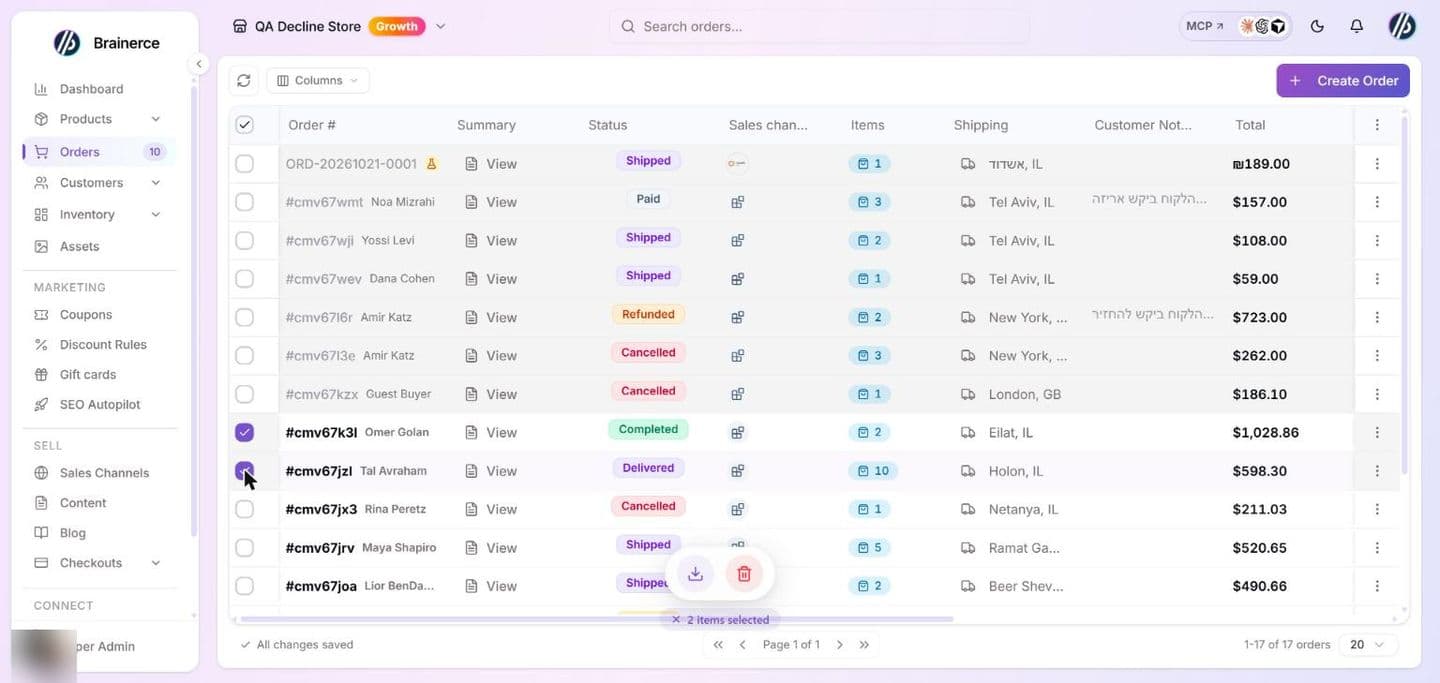
- Export downloads the selected orders as a CSV file named
orders-export-and today's date. Choosing Export as CSV or Export as Excel gives the same CSV file, which Excel opens. It has nine columns: order number, customer, email, status, platform, total, currency, date and tags (several tags are joined with a semicolon). - Add tag and Remove tag put a tag on, or take a tag off, every selected order at once, up to 100 orders per use. They need the same permission as changing an order's status. See Tag orders. For a full export of your whole order history, use the table's ⋮ menu and choose Export.
- Delete Orders deletes every selected order after you confirm, except an order that still holds a captured payment (see below). The button is not shown to a role that cannot cancel orders. When every selected row is an old draft left over from the retired Shopify connection, the button reads Delete Drafts instead.
What deleting an order does
Deleting is permanent and the confirmation says so. It removes the order, its shipments and its place in the customer's order count and total spent. It does not refund the customer, and does not touch the customer's card or your payment provider: the payment record stays in your provider's dashboard. Nothing is deleted on any other platform. If the customer should be refunded, do that first with Refund.
An order that still holds captured money cannot be deleted. If the customer paid by card (or another provider) and any of that payment is still captured, Brainerce refuses the delete with a message naming the amount, and tells you to refund it first. Cancelling does not return money, so it does not lift the block: use Refund, then delete. A fully refunded order, and an order that was never paid or whose payment failed, can be deleted. When you select several orders, the ones without captured money are deleted and each refused order is listed with its reason and counted as not deleted. This is the only thing that blocks a Manager or the Owner from deleting an order. A restored or imported order, which cannot be refunded here, can still be deleted.
Deleting an order that has not shipped gives back what it was holding. A Pending, Processing, On hold or Paid order holds its units, and may have used a promo code and earned loyalty points. Deleting it releases the held units back to your available stock, frees the promo code use and the discount rule's usage allowance, and takes back the loyalty points, the same as cancelling it would, and then removes the order. You do not need to cancel it first. An order that already shipped (Shipped, Delivered, Completed, Fulfilled) has had its stock taken off, so deleting it changes no stock and does not put the units back; refund it with Restock inventory if the goods came back. Old drafts and restored or imported orders never held stock here, so deleting them changes no stock either. To keep a record of an order you no longer want to ship, set its status to Cancelled and leave it in the list instead of deleting it.
A team member limited to certain sales channels can delete only orders from their own channels.
What's next?
- Order details for the summary, the items panel and the payment window.
- Create an order by hand for phone and counter sales.
- Process an order