 Brainerce Help
Order details
What each order window shows, the Order Summary, the Items panel, Manage Payment and the shipping address, and which parts you can change.
An order has four windows, each opened from a different cell on the Orders list. Opening the Summary or Items window marks the order as read for you.
| Open it from | Window | Can you change anything in it? |
|---|---|---|
| Summary column, View button | Order Summary | Internal fields and tracking only |
| Items column badge | Order Details (items panel) | The warehouse a line ships from, and Create Refund |
| Row ⋯ menu, Manage Payment | Payment Management | No. It only shows the payment and offers Create Refund |
| Shipping column | Shipping Details | Yes, the shipping address |
The Order Summary window
The summary is the receipt for one order. The top strip shows the sales channel (its logo and name), the order status, the payment state and fulfillment state when they differ from the status, a Self Pickup tag when the customer collects the order, then the order number and the date and time it was placed.
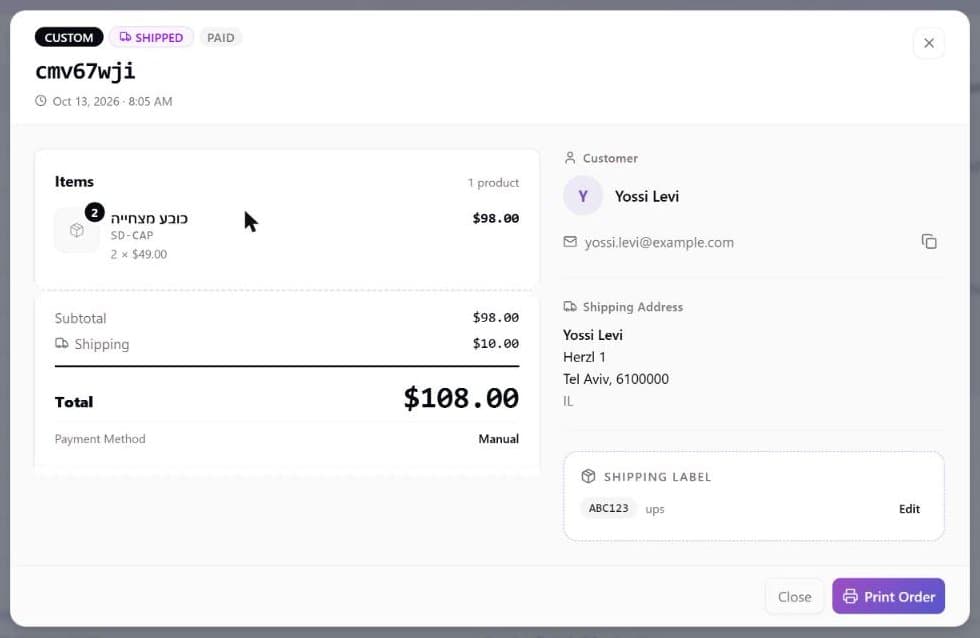
Left side, the receipt. The products (name, option choices, SKU or NO SKU, quantity, price and any line discount, and a Free tag for a free modifier option), then the money lines. A line appears only when it applies:
| Line | Meaning |
|---|---|
| Subtotal | The products before discounts, shipping and tax. |
| Coupon | The promo code used, its title, and (x% off) or (fixed amount), with the amount taken off. |
| Discount rule lines | One line per discount rule that applied, named after the rule, with the amount it took off. |
| Discount | A discount on an order that used neither a promo code nor a rule, such as the manual discount typed on a hand-made order. |
| Other Discounts | On an order that used a promo code, any discount beyond the coupon's own amount. |
| Shipping | The shipping charged, or Free. |
| Tax or Tax (incl.) | Tax as separate lines by tax name. (incl.) means the tax was already inside the prices. |
| Total | What the order came to. |
| Gift card ····1234 and Amount charged | When a gift card paid part of the order, the last four digits of the card and the part your payment provider actually took. See the order total is not always what the customer was charged. |
| Payment Method | How the customer paid. |
| Installments | Shown as N payments when the customer paid in more than one installment. |
Right side, the people and places.
-
Customer: name, email and phone, each with a copy button.
-
Shipping Address, or Pickup Location for a store pickup order (name, address, phone and the pickup rate name).
-
Also used as the billing address appears under the shipping address when both are the same. Otherwise a separate Billing Address block follows.
-
Carrier pickup point: when the customer picked a locker or pickup point of a carrier, its name, address, hours and note. The parcel is delivered there, and the address above is the customer's own.
-
Shipping label box for orders that ship to an address. With no tracking yet it reads No label created yet and offers Create Label (a carrier app is connected; needs a role that can fulfill orders), or it reads No tracking number yet and offers Add tracking (no carrier app; needs a role that can update orders). Once there is a tracking number it shows it with the carrier, an Edit button, a Track shipment link when there is a tracking link, and a Tracking history timeline when the carrier has reported events. Create Label opens Create Shipping Label: pick one of the quoted rates (the one the customer paid for is marked Paid at checkout) and press Purchase Label; the optional Package details (weight in kg, length, width and height in cm) override the weight and size saved on the products for that label. There is no button on a Cancelled or Refunded order or a restored or imported one, and Add tracking and Edit are also hidden once the order is Delivered or Completed. See Order status and shipping and Shipping.
-
Customer Custom Fields: the answers the customer gave to your checkout custom fields, read only. A field the customer left empty shows Not set.
-
Tags: your internal labels on the order (see Tag orders). Pick a tag or type a new one and choose Create tag; each change is saved at once, with no Save button. Only your team sees tags: the customer is not told and no email is sent. The section is hidden from a team member who has no tags to read and cannot change orders.
-
Internal Fields: your order custom fields. Fill them in and press Save (it shows Saving… then Saved). Only active fields appear. A required field cannot be saved empty.
-
Customer Notes: the customer's note on the order.
-
Order history: under the totals, every status change of the order, newest first (see Order history).
The footer has Close and Print Order. Print Order prints a receipt with the customer, both addresses, products with their customizations, custom fields, the money lines (including the gift card and Amount charged lines) and the customer note.
Order history: who changed what and when
The Order history section of the Order Summary window lists what happened to the order, newest first, grouped by day: when it was created and through which channel, every status change with who made it, the payment, refunds, the shipping label and the carrier's tracking updates.
- Custom statuses show by their own name and color. If you created statuses in Order Settings (for example Printing), the history shows that name and color, even when the order stayed under the same built-in status. Moving an order from one custom status to another is an event of its own. The line under it says the built-in status did not change.
- The history keeps the name a status had at that moment. Renaming a custom status later does not change the history. If you delete the status from Order Settings, the history still shows the name it had, with the note Status deleted from settings. The order itself falls back to its built-in status, as it always did.
- Who did it. A change made in the dashboard shows the team member's name. A change made through the API shows Through the API, and one made by Brainerce itself (a payment, a carrier update) shows The system or the provider's name.
- Orders created before 29 October 2026 have no record of their status changes. The history of such an order shows only what is known from the payment, the shipment and the refunds, and says so at the top. Brainerce does not rebuild the missing changes, and the current status is still shown correctly.
- Only your team sees the history. The customer does not see it, no email is sent when it grows, and it is not part of Print Order.
- Not in the history yet: notes, tags and the emails sent to the customer. Those changes are not recorded per order, so they do not appear here.
- Only the last 200 status changes of an order are kept.
Items panel: Ships from, downloads and customizations
Click the badge in the Items column to open Order Details. It shows the order number, the platform badge, status, date and customer name, then:
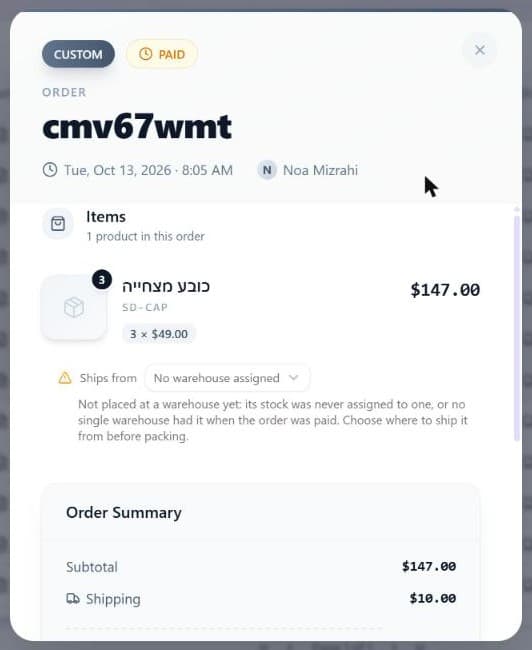
- Items: every line with its image, name, SKU, quantity and price. A product's Customization answers (text, choices, yes or no) appear under the line, or Not provided when the customer skipped one.
- Ships from: appears under each line only when your store has two or more active warehouses. It names the warehouse that line is packed from, or lists the split when one line is shared (for example "Main x2 and Outlet x1"). A line shows No warehouse assigned when no single warehouse had the stock at the moment the order was paid, with the note that you should choose where to ship it from before packing.
- To change it, open the dropdown on the line and pick another active warehouse. The stock reservation moves with it and the window shows Now ships from the new warehouse. A warehouse that cannot cover the whole line is refused, so you cannot oversell. Inactive warehouses are shown as inactive and cannot be chosen.
- You can change it only while the order still holds its stock: status Draft, Pending, Processing, On hold or Paid, and nothing shipped yet. After that the line is read only. You cannot change a bundle (kit) line, whose components ship from their own warehouses, nor a restored or imported order. Changing it needs a role that can fulfill orders.
- Downloads: for digital products, each file with its product, N/limit downloads used (or Unlimited) and the expiry date.
- Order Summary: the same money lines as the summary window.
- Refunds: Create Refund (when a refund is possible), the number of refunds issued, each refund with its amount, reason, type, tax part and Credit note number, and Refunded tax (refunds made before tax was tracked on them are not included in that total). With no refund yet it says This order has not been refunded.
- When no refund is possible, a notice says why: No payment to refund (the payment is not complete yet) or Refunds not available for the provider, with an Open dashboard button when the provider has one for manual refunds.
The Manage Payment window
Open the order's ⋯ menu, then Manage Payment. The entry exists only for an order with a payment record, so it is missing on a hand-made order that was never marked paid, and for restored or imported orders. The window is read only apart from Create Refund.
| Field | Meaning |
|---|---|
| Payment Amount and N refunded | The amount taken and how much has been refunded so far. |
| Status badge | Paid, Pending, Authorized, Failed, Refunded, Partial Refund or Cancelled. |
| Provider, Method, Card | The payment provider, the payment method, and the card brand and last digits when known. |
| External ID and Payment ID | The provider's own reference and Brainerce's payment reference. Click the copy icon to copy either, for example to find the payment in your provider's dashboard. |
| Invoice # and View Invoice | The invoice your provider issued, when there is one. Without a download link the number shows as plain text. |
| Amount, Refunded, Remaining | The refundable balance. Remaining appears only while a refund is possible. |
| Created | When the payment was recorded. |
| Red error box | When the provider reported an error on the payment: its error code (or Error) and message. |
| Refunds | N refunds issued, each with amount, status and Credit note, or No refunds issued. |
Create Refund appears only while the payment shows Paid or Partial Refund and money remains. It opens the same window as ⋯ → Refund. See Refund an order.
The Shipping Details window
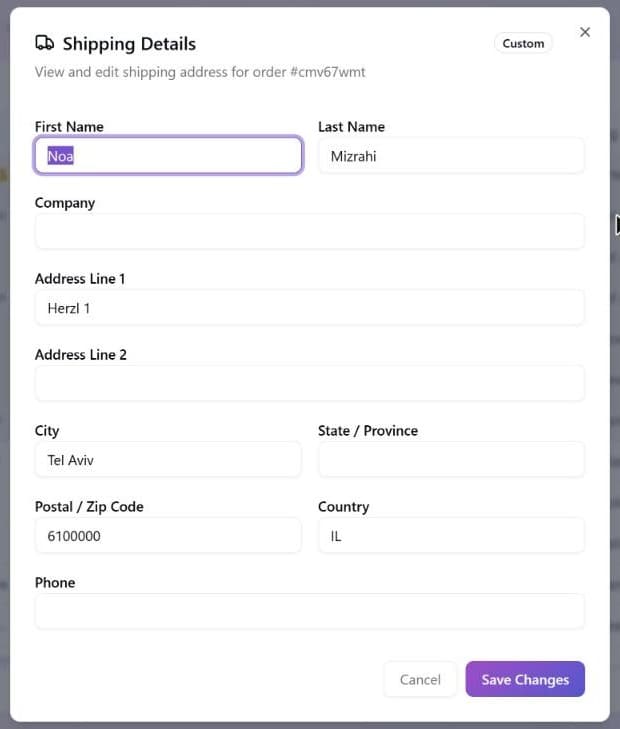
Click the Shipping cell (it shows the city and country, or Add Details). Fields: First Name, Last Name, Company, Address Line 1, Address Line 2, City, State / Province, Postal / Zip Code, Country and Phone. Address Line 1, City, Postal / Zip Code and Country are required and show Address is required, City is required, Zip Code is required and Country is required when empty. Click Save Changes.
- The change is saved on the order only. Nothing is sent to a carrier or a platform. After saving, the toast says The address on this order has been saved.
- The window is read only for orders reported by TikTok or Meta ("Read-only Platform"), and nothing can be saved on a restored or imported order.