 Brainerce Help
Backups and restore
Export a full or partial snapshot of your store, schedule automatic backups, and restore missing data from a backup file.
Settings → Backup does two jobs: it takes snapshots of your store data, and it puts data back if something goes missing. At the top of the page a status strip says whether the latest export completed, failed, or has not happened yet (The latest export completed, The latest export failed, No export yet), and shows Last export, Next scheduled backup (or Not scheduled) and Saved files (how many backups are kept). Below it, one history card lists your files with two views, Backups and Catalog imports, and a Scheduled Backups card sits beside it.
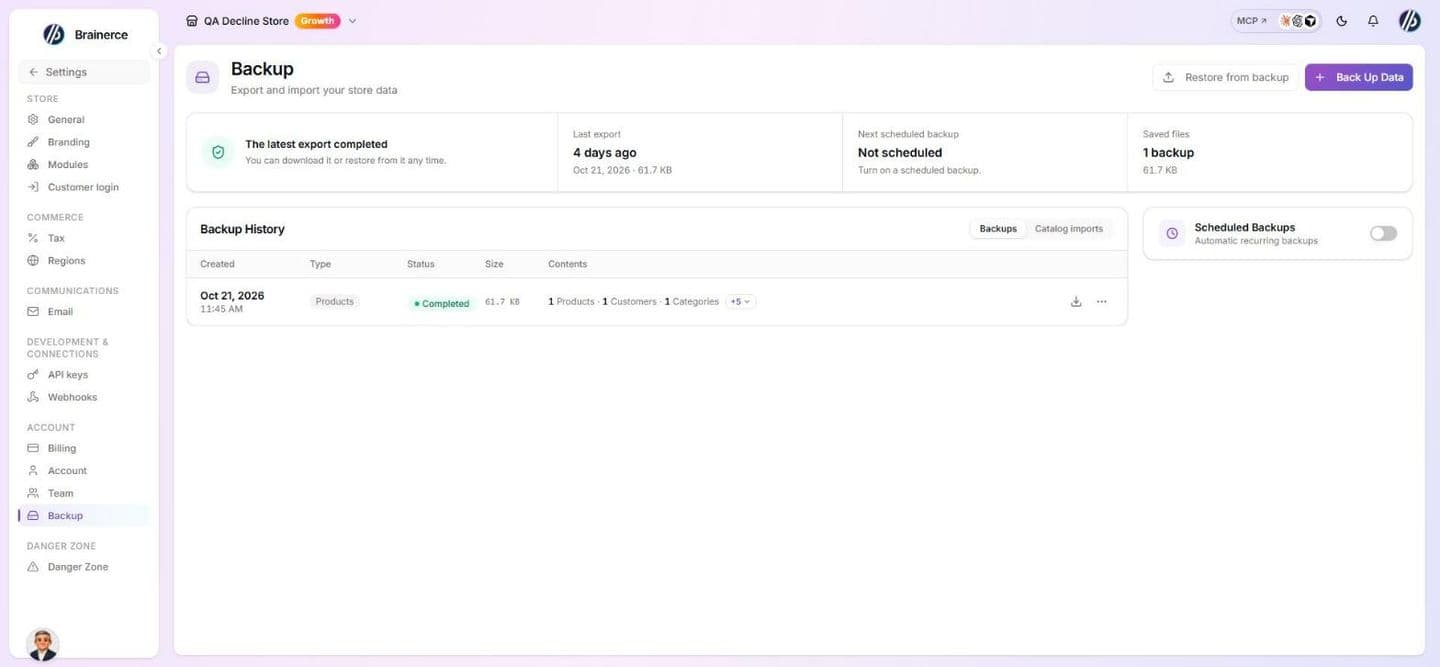
The most important thing to know before you use it: restore is additive by default. It only creates items that aren't in your store any more, and it never changes or deletes anything you already have. The one thing you can switch on is Update existing, per type of data, which also replaces a limited set of fields on items that already exist (see Update existing). Restore never deletes anything, and it is a safety net for deletions, not an undo button.
Take a backup now
- Go to Settings → Backup.
- At the top right of the page, click Back Up Data.
- Choose Full backup ("Everything in your store, ready to restore") or Choose manually ("Pick exactly what to include"). With Choose manually you tick sets of data in groups (Core Data, Catalog, Content, Marketing, Store Configuration), and the window counts how many are selected. A few sets are marked "Export only. No automatic restore for this yet": they are saved in the file but restore cannot put them back.
- Click Start Backup.
There is no format to choose. Every backup is one .zip that holds the data both as JSON (what Restore from backup reads) and as CSV (to open in a spreadsheet). The backup runs in the background. When it finishes it appears in Backup History, where you can Download or Delete it.
A backup you take by hand can be downloaded for 48 hours. From the moment it finishes you have 48 hours to press Download. After that the file can no longer be downloaded: Download answers "Download failed" with "Export download has expired", and a manual export (including a file exported for editing in a spreadsheet) and a Full backup are both removed from the history by a daily clean-up, which also deletes the stored file. An expired backup is gone for good; it cannot be brought back, so there is no way to download it after the 48 hours. The backup detail window shows the Expires date. Download your backup as soon as it finishes and keep the
.zipsomewhere safe yourself; Brainerce does not hold on to a hand-taken backup for you. Backups made by a schedule last as long as the retention you set (below).The "You already have 10 manual exports" warning is about manual exports only. Choose Choose manually in the Back Up Data window and, once 10 finished manual exports are in the history, it says "You already have 10 manual exports. When this one finishes, the oldest is deleted automatically, so only the newest 10 are kept." That is exactly what happens: when a new manual export finishes, the oldest ones beyond the newest 10 are deleted. A copy of your data taken automatically before a catalog import is not counted and is not deleted by this limit. The warning never appears for a Full backup, because a full backup is never deleted to make room for another one. Like any hand-taken backup it can only be Downloaded for 48 hours after it finishes, and the daily clean-up then removes it from Backup History together with its file. You can also Delete it yourself earlier. Scheduled backups last as long as the retention you chose. Do not count on Brainerce holding an old file: download it when it finishes.
What you can include
A full backup covers products (with variants, prices, attributes and modifiers), orders, customers, categories, tags, brands, coupons, discount rules, shipping zones, regions, tax rates, metafield definitions, email templates, store settings, sales-channel connections, loyalty, order bumps and bundles, the storefront bot, SEO Autopilot, warehouses, content, and installed apps.
Credentials are never exported. Installed apps, shipping apps included, come out with their settings and scopes but no access tokens or secrets, so after a restore you reconnect them by hand. This is deliberate: a backup file is not a place to keep keys.
Schedule automatic backups
In the Scheduled Backups card (beside the history on a wide screen, below it on a phone), switch on Enable scheduled backups and choose:
- Frequency: Daily, Weekly, or Monthly.
- Time (UTC): the hour the backup runs, on the hour (00:00 to 23:00).
- Day of week (Weekly) or Day of month (Monthly). Day of month goes from 1 to 28 only, so a monthly backup never skips a short month.
- Retention: 7 days, 30 days, 90 days, or 1 year. Scheduled backups are deleted automatically once they pass this age, except the most recent finished scheduled backup, which is never deleted by age so you always keep one known good copy.
Click Save schedule. Nothing runs the moment you save: the first backup is taken at the next time your schedule says (the status strip shows it under Next scheduled backup). If you want a copy right now, use Back Up Data. Once a schedule exists the card shows it as a short summary; click Edit schedule to change it.
All times are UTC, not your store's timezone. A "daily" backup on an Israeli store runs in the small hours of the morning local time, which is usually what you want anyway.
To stop future backups, click Remove schedule. Existing backups are kept.
Restore from a backup
- At the top of the page, click Restore from backup.
- Drag in a Brainerce backup file, or click to browse. It must be a
.zipproduced by this feature, no bigger than 16 MB. A larger file is refused on the spot with a message that says so; it is never uploaded in part. - Brainerce reads the file and shows you what it found, including which store it came from. A file that is cut off or unreadable fails here, before anything is written, and your store is left exactly as it was.
- Under Choose what to restore, tick the kinds of data you want back. They are grouped (Catalog, Marketing & settings, Customers, Orders and so on), each shows how many items are To create and how many are Skipped, and Select all / Clear all and Show N types not in this backup help with a long list.
- Click Restore now.
Ticking Products does not overwrite your products. On its own, selecting a data type only lets restore re-create the items that are missing. A product that still exists is skipped, whatever the backup file says about it, unless you also switch on Update existing for products.
When it finishes you get a summary: how many items were created, how many were skipped, and how many failed.
Why items get skipped
Skipping is normal, and usually it means there was nothing to do:
| Reason | What it means |
|---|---|
| Already exist | The item is still in your store, so restore left it alone. |
| Not selected | You didn't tick that kind of data. |
| Missing a linked item | The thing it belongs to is gone, for example a variant whose product wasn't restored. Restore that parent first, then run the restore again. |
| Archived | The item was soft-deleted rather than removed. |
| Not supported | A kind of data the file carries that this version of restore cannot put back. The restore screen names it explicitly. |
If you see Nothing to restore, every item in the file is already present. That is a good sign, not an error.
Customers, store settings and orders
These three come back differently from catalog data. Read the one you are about to tick.
Customers are matched by email address. A customer already in your store is left alone. One that is missing is re-created with their profile, addresses and tags. They do not get a password, saved logins or saved cards back, and marketing consent is switched off, so they have to agree to your emails again. A customer comes back tied to the sales channel they first came in through; one with no known channel is not tied to any, so a team member limited to certain channels will not see them. A customer you deleted because they asked you to is re-created if they are in the file. Untick Customers if that matters to you.
Store settings are the one data type that always touches a row you already have, because a store always has settings. By default restore only fills in what is empty and keeps everything you have set. With Update existing on, it also replaces the allowed settings with the backup's values. Either way, the store name, currency, taxes, plan, connected apps and the switch that turns email sending on are never restored. When it finishes, the summary lists which settings were filled in, which were replaced and which were kept.
Orders are off by default. When you tick them you confirm that they come back as read-only history: past orders with their payments, refunds, shipments and tracking history. They show on the Orders page and in your reports. Restoring them does not change your stock, coupon counts, customer totals or loyalty points, does not charge anyone, does not ship anything and sends no email. Download links for digital products, gift-card payments and itemised refund lines are not part of a backup and do not come back. Because of that, you cannot cancel, refund, fulfil or mark a restored order as paid. An order whose order number is already in your store is skipped, so running the restore twice does not duplicate anything.
Update existing
Under Choose what to restore, a type of data with items that differ from the backup shows an Update N existing switch, off by default, with how many items it would change. Turning it on replaces the current value with the backup's value for those items, so anything you changed since the backup is rolled back for them. You confirm this once before the restore runs.
It is deliberately narrow, and it never deletes or clears anything:
- Only fields on a fixed list are written. For a product that is its name, description, prices, sale dates and shipping size, plus the name, prices and shipping size of variants matched by SKU. Customers: name, phone, language, role and birthday, plus any address or tag they are missing. Coupons: the discount rules and dates. Pages, blog posts and email templates: their content. Each type's list is limited to content you would edit by hand.
- These are never changed: stock and inventory, order status or product status, passwords and marketing consent, customer totals, coupon use counts, which email template is active, switches that turn a feature or a coupon on or off, connected apps, and anything shared with your other stores.
- An empty value in the backup never erases yours.
- No variants are added or removed, and a product's categories, images and attributes are left as they are.
- A product, customer or coupon that already matches the backup is not counted, so running it twice changes nothing the second time.
- Orders, sales channels and installed apps have no Update existing switch. Orders are only ever added back as read-only history.
- Email templates: the current HTML is saved as a version before it is replaced, so you can bring it back from the email editor.
Edit your data in a file instead
To change many items at once (prices, names, stock, coupons and more), do not use a backup. Download them as a spreadsheet, edit it in Excel and upload it again: see Edit your data in a file. The Export and import button is on each screen that holds the data (Products, Coupons, Inventory and the others), not on this page.
What stays on this page for that job is the Catalog imports tab of the history card (it appears once you have imported a file, next to Backups): continue an import that stopped halfway, open its report, Undo import for 30 days, and download the copy of your data that was taken before it. A file you exported for editing is also kept in the backup history above.
What backups are not
- Not an undo. Restore cannot revert a deletion of data it does not carry, and it never deletes. By default it only puts back what is missing; Update existing can replace a limited set of fields with the backup's values, but only for the data you choose. To reverse a catalog import, use Undo import (see Undo an import).
- Not a way to move stores. A backup carries the store it came from; use the Migration Tool app to bring a catalog in from another platform.
- Not a secrets store. Reconnect shipping apps, payment providers and other apps yourself after restoring.
Who can do this
The Backup entry is in every team member's Settings menu. What they can do depends on the permission:
- View store settings (Owner, Manager and Staff have it) lets a person see the backup list, the status strip and the schedule.
- Manage store settings (Owner and Manager) is needed to Back Up Data, to save or remove the schedule and to Restore from backup. Staff and Viewer are refused on these.
- Download and Delete on a file also accept a catalog permission (such as View products or Edit products), but only for the catalog files that permission covers, for example a file exported for editing in a spreadsheet. A full backup needs Manage store settings.
A backup file holds your customers' personal data, so give Manage store settings deliberately. See Team and permissions.
What's next?
- Team and permissions controls who can reach your store's settings.
- Suspending or deleting your store covers the other two irreversible actions in Settings.
Import from another platform
Bring products, orders and (from WooCommerce) customers in from Shopify or WooCommerce with the Migration Tool, a one-time read-only import.
Suspending or deleting your store
What suspend and delete each do, which one you can undo, how billing stops, and what Brainerce keeps either way.