 Brainerce Help
Custom fields
Add structured extra data to every product, such as technical specs, certifications, care instructions, or any field your catalog needs.
Custom fields (also called metafields) let you attach additional structured data to products beyond the built-in fields. Go to Products → Custom Fields in the sidebar to define the fields. Once defined, a Custom Fields section appears in the product editor, both when creating and editing a product, where you fill in the values per product. Values are available in the SDK on your storefront.
Don't see it in the sidebar? Custom Fields is a module, and it can be switched off for a store; some store types start with it off. Turn it back on under Settings → Modules.
When to use custom fields
| Use case | Example fields |
|---|---|
| Technical specs | Wattage, Battery capacity (mAh), Screen resolution |
| Product details | Country of origin, Care instructions, Materials |
| Compliance | CE certification, Kosher, Allergens, RoHS compliant |
| Storefront display | Short tagline, Video URL, 3D model URL, Size guide URL |
| Internal ops | Supplier SKU, Warehouse bin, Lead time (days) |
Custom fields are not the same as attributes: attributes generate variant rows (each with its own SKU and stock), while custom fields hold descriptive data about the product as a whole, not options customers choose between. Custom fields of type Select, Multi-select, or Yes/No can also power storefront filters once you turn on Show in storefront filters. See Turn a custom field into a storefront filter.
The custom fields list
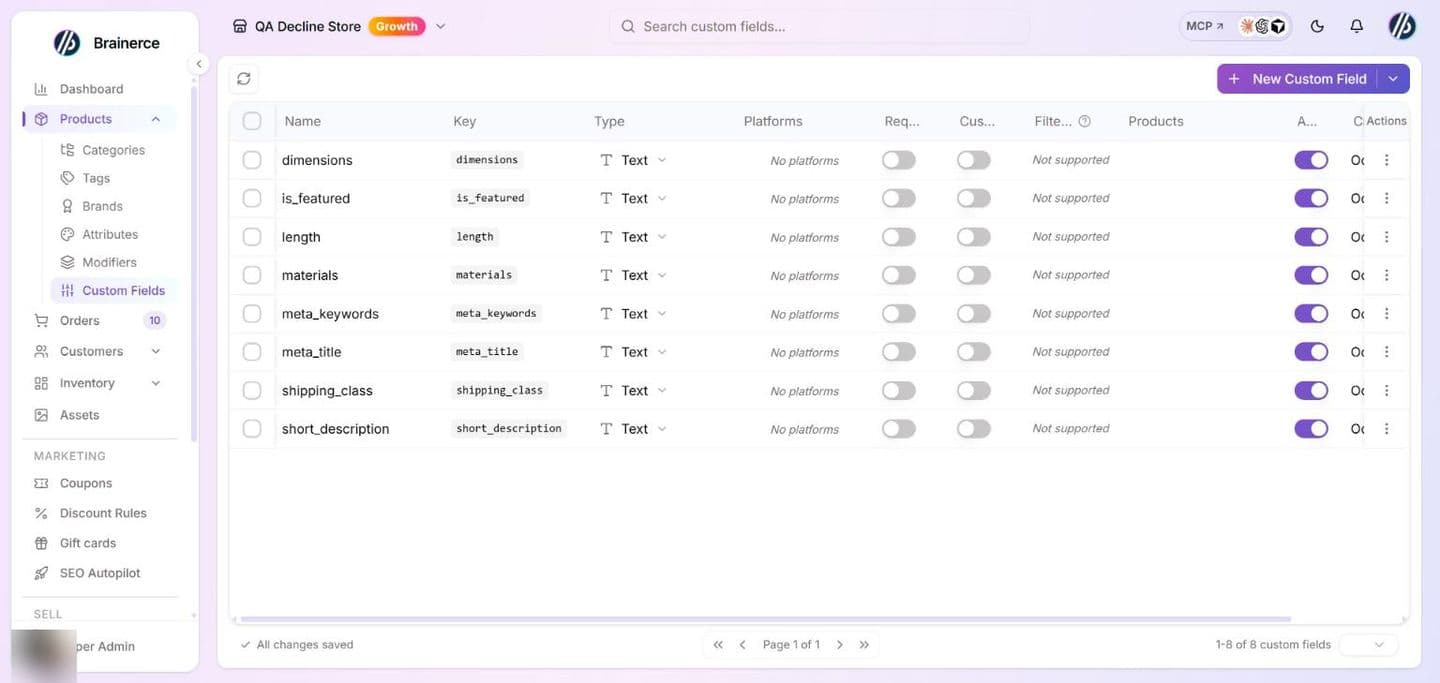
Go to Products → Custom Fields. Every field you create appears in one table, and a store with no fields yet shows an empty list with the New Custom Field button:
Creating a custom field
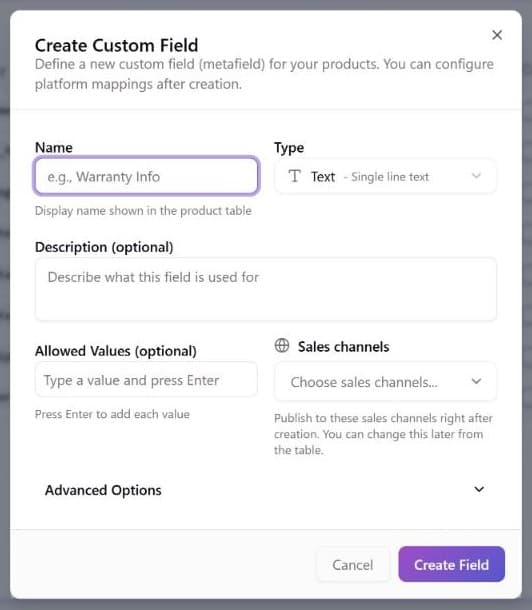
Click New Custom Field and the dialog opens:
| Field | What it does |
|---|---|
| Name | Required, up to 100 characters. The display label shown in the product editor and in the product table column (e.g. Warranty Info, Material). |
| Type | The data type. Determines how the field is rendered in the editor and how it's returned in the SDK. |
| Description | Optional, up to 500 characters. Helper text shown below the field in the product editor, describing what merchants should fill in. |
| Allowed Values | Optional. Type a value and press Enter to add it. When set, the field becomes a constrained list instead of free-form input, which is useful for Select and Multi-select types. |
| Sales channels | Publish the field definition to specific connected channels immediately after creation. Can be changed later. |
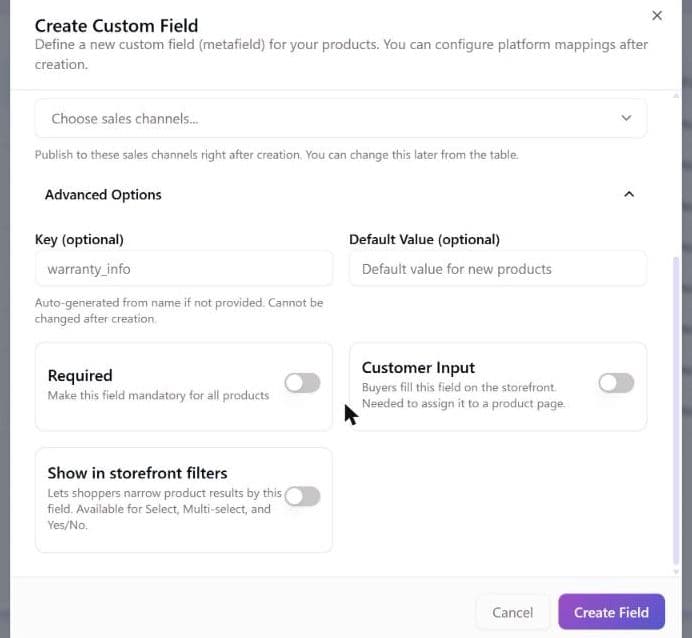
| Advanced Options | Collapsed by default. Contains a Key (optional, see below); a Default value (optional); Required, which makes the field mandatory for all products; Customer Input, which turns the field into a buyer-facing input shown on the product page, with Apply to all products or a picker (Apply to specific products) to choose which products it applies to; Show in storefront filters (Select, Multi-select, and Yes/No fields only), which exposes the field as a storefront filter; and, for text and number fields, length or value limits (Min Length and Max Length, Min Value and Max Value). See Turn a custom field into a storefront filter. |
The key is fixed once the field exists
The Key is the code name your storefront reads the value by (warranty_info): lowercase letters, digits and underscores, starting with a letter, up to 64 characters. Leave it empty and Brainerce makes it from the Name, lowercased with underscores. The key cannot be changed after the field is created, and renaming the field later does not change it, so pick the Name carefully, or type the Key yourself, before you save.
Deleting a custom field deletes its values
Deleting a field in the list asks you to confirm, and it permanently removes the field definition and every value stored for it on your products. This cannot be undone. Orders already placed are not affected: a buyer's value is saved on the order line itself. If you only want to stop using it, switch the field off with its Active toggle instead.
Changing a field after you made it
The list shows each field's Name, Key, Type, Sales channels, Required, Customer Input, Filterable, Products (which products it applies to), Active and Created. Most of these are editable in place:
- Type. The Type cell opens a small editor to change the type, and for a Select or Multi-select field to change its list of values. A Select needs at least one value. The create and edit dialog says the type cannot change after creation, but this cell is the one place it can: after changing the type, check a few products that already had a value, because Brainerce does not rewrite stored values into the new type for you.
- Limit the dates a buyer can pick (Date and Date & Time fields). A date field has Availability constraints (Configure availability in the dialog, or the availability icon on the row). For a product field you can set an earliest and latest allowed date, blocked days of the week, blocked specific dates, and for a Date & Time field (Also capture a specific time on) business hours and a slot duration in minutes. Business hours are set in groups of days (All week, Weekdays, Weekend or + Custom), a day can have a second range for a break, a day left without hours is closed all day, a day you blocked above cannot get hours, and two overlapping ranges are refused when you save. The "minimum notice", "daily order cutoff" and "bookable days ahead" rules exist only for checkout custom fields, not for product fields.
Field types
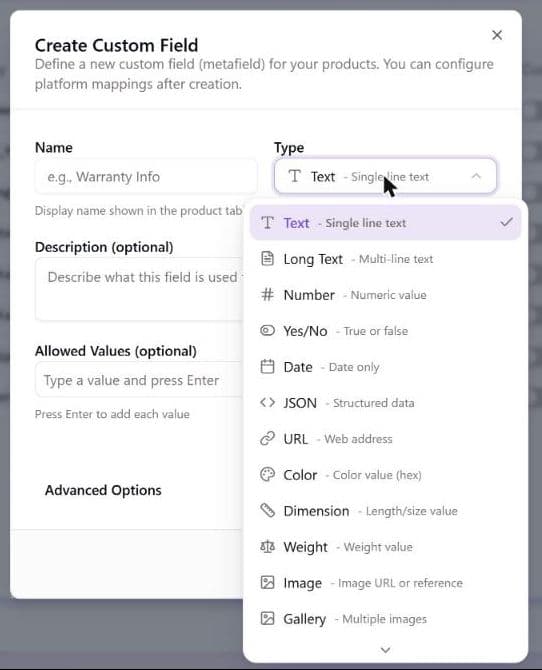
Click the Type dropdown to choose from 15 field types:
| Type | Description | Example |
|---|---|---|
| Text | Single line of text | SKU from supplier, short tagline |
| Long Text | Multi-line text (textarea) | Care instructions, warranty terms |
| Number | Numeric value | Wattage (65), Battery mAh (10000) |
| Yes/No | True or false toggle | Is organic, Dishwasher safe |
| Date | Date picker (date only) | Expiry date, Release date |
| Date & Time | Date and time picker | Event start, Availability window |
| JSON | Structured JSON blob | Spec sheets, nested configs |
| URL | Web address with validation | Video URL, 3D model, size guide |
| Color | Hex color picker | Primary brand color |
| Dimension | Length/size with unit | 12.5 cm × 7 cm |
| Weight | Weight with unit | 1.2 kg |
| Image | Image URL or media reference | Certification badge, alternate photo |
| Gallery | Multiple image references | Additional product photos |
| Select | Pick one value from a defined list | Condition: New / Refurbished / Open box |
| Multi-select | Pick several values from a list | Certifications: CE, RoHS, FCC |
For Select and Multi-select types, define the list choices in Allowed Values before saving.
Buyer personalization (customer input)
Custom fields can be flipped into buyer-facing inputs: fields that your customers fill in before adding the product to their cart. This is useful for personalised products:
| Use case | Example |
|---|---|
| Engraving or monogram | Customer types the text to engrave |
| Custom color | Customer picks a hex color or enters a name |
| Gift message on product | Message printed on the item itself |
| Photo upload | Customer uploads a reference image |
To turn any custom field into a buyer-facing input:
- Open the field's settings (click the edit icon next to the field).
- Expand Advanced Options.
- Turn on Customer Input.
- Choose which products the input applies to: all products or a specific selection.
You can also assign buyer input fields product by product from the Products table: the Customer Input Fields column ("Fields that buyers fill in on the storefront") lets you pick which ones apply to a product, with a Manage fields link to this page.
When Customer Input is on, the field appears as a form input on the product page in your storefront. The buyer's value is saved as a line-item detail in the order, and you can see it in the order detail view next to the product.
Photo upload: keep original quality for printing
When a buyer uploads a photo into an Image or Gallery customer input, Brainerce treats it as a regular image by default: it is converted to WebP and shrunk to at most 2048 pixels on the long side. That is fine for a reference photo, but too small to print.
If you print what the buyer uploads (a photo on a mug, a canvas, a t-shirt, stickers), switch on Keep original quality (for printing) in that field's settings. It appears under Advanced Options only when the field is an Image or Gallery with Customer Input on.
- Off (default): the photo becomes a regular image, converted to WebP and at most 2048 pixels. Nothing changes for any field until you switch this on.
- On: the photo is saved at the size and format the buyer sent (JPEG stays JPEG, PNG stays PNG). It is not converted or shrunk.
- Applies only to photos uploaded after you switch it on. Photos that buyers uploaded earlier were already reduced and cannot be restored to the original. Ask that customer to send the file again.
- Per field: the choice belongs to each Image or Gallery field. One product can print a photo at full quality while another field only collects a reference photo.
- Your storefront must send the field key with each upload, and that needs the latest Brainerce SDK. A storefront that does not (one built before this option existed, or on an older SDK) keeps storing photos as regular images even with the switch on, and nothing on the page tells you. If printed photos still arrive small after you switch this on, ask whoever built the storefront, or your AI builder, to update the Brainerce SDK and pass the field key to
uploadCustomizationFile. - Size and format limits (either setting): JPEG, PNG, WebP or GIF, up to 10 MB and 40 megapixels per file. Your own hosting can set a lower limit than ours (some hosts stop uploads above about 4.5 MB), in which case the buyer sees an upload error for photos over that size. Larger files, HEIC photos straight from an iPhone, PDFs, SVG and other formats are refused and the buyer sees an upload error.
- What changes in the file (either setting): location data (GPS) and other camera details are removed, and a photo taken sideways is turned upright. With the switch on, colours are kept.
- Where to download it: open the order, find the product line, and click the photo under Customization. The file opens in a new tab and you can save it from there.
- If the buyer never orders: the upload is deleted automatically after 7 days, so download it from the order, do not rely on it staying online forever.
- A photo you add yourself in the media library is a different thing. Those are always optimized for display on the storefront (up to 2048 pixels on the long side) and are not meant for printing.
Note: Customer Input is for collecting buyer choices at product level. For collecting information at checkout (delivery notes, gift wrapping, tax ID), use Checkout custom fields instead.
Turn a custom field into a storefront filter
Custom fields of type Select, Multi-select, or Yes/No can double as storefront filters, the same kind of facet customers already use for categories, brands, and price. A Condition field (New / Refurbished / Open box) becomes a checkbox group; a Kosher Yes/No field becomes a toggle shoppers can filter by.
Filtering is available only for Select, Multi-select, and Yes/No fields, not for free-text, number, or the other types.
To turn a field into a filter:
- Create or edit the custom field, and set its Type to Select, Multi-select, or Yes/No.
- Expand Advanced Options.
- Turn on Show in storefront filters.
- Click Save.
Once enabled, the field is exposed to your storefront through the SDK. Your storefront fetches which fields are filterable, then passes the shopper's chosen values back when listing products:
// 1. Discover which custom fields are filterable
const { definitions } = await brainerce.getPublicMetafieldDefinitions();
const filters = definitions.filter((d) => d.filterable);

// 2. List products matching the values a shopper picked
const { data: products } = await brainerce.getProducts({
  metafields: { condition: ['Refurbished'], kosher: ['true'] },
});
Values combine as AND across fields, OR within a field, so the call above returns Refurbished products that are also Kosher. For Yes/No fields, pass the strings "true" / "false".
Building the storefront yourself? The developer guide Filter by custom fields covers the full facet-rendering pattern, and Validation rules lists the exact server behavior.
Accessing custom fields in your storefront
Custom fields are returned on the product object as a metafields array: one entry per field, keyed by the field's key:
import { getProductMetafieldValue } from 'brainerce';

const product = await brainerce.getProductBySlug(slug);

// Read a value straight from the metafields array:
const warranty = product.metafields?.find((m) => m.definitionKey === 'warranty_info');
console.log(warranty?.value); // "1-year limited"

// …or let the typed helper parse it (numbers, booleans, dates):
console.log(getProductMetafieldValue(product, 'wattage')); // 65
The key is derived from the field Name you set, lowercased with underscores (e.g. "Warranty Info" → warranty_info).
Filling in values on a product
Once you've defined your custom fields, open any product (create new or edit existing). A Custom Fields section appears in the right column of the product editor. It splits into two groups:
- Product Attributes are all the active attribute fields (not buyer-facing). Fill in specs, certifications and descriptions, which are stored on the product and returned via the SDK.
- Buyer Input Fields are fields customers fill in on the product page. Only fields set to applies to all products show at creation time; product-specific input fields can be assigned and filled in after the product is saved.
Fill in the values and click Save, and they're saved together with the rest of the product.
Generate product specifications with AI
The Custom Fields card in the product editor has an AI specs button that reads the product's own description and suggests specifications (material, dimensions, capacity, weight, warranty, what's in the box) as custom fields you can add in one click.
You will only see the button when the Google app is installed, and only when editing a product you have already saved. It is not there while you are creating a product, because it reads the saved description, and it is not there on a store without that app, because product specifications are what Google's shopping feed calls product details. If the button is missing, that is why. See Get found on Google.
How it works:
- Open a saved product and find the Custom Fields card in the right column.
- Click AI specs. It reads the description that is currently saved on the product, not what you have just typed and not saved.
- Tick the suggestions you want. Everything is ticked by default.
- Click Apply. Each one you kept becomes a custom field on that product, creating the field definition if your store does not have it yet.
Nothing is saved until you click Apply. Generating suggestions changes nothing, so it is safe to run on any product just to see what it finds.
It never invents a fact. It only extracts what the description already states, word for word or close to it. It deliberately skips marketing claims like "premium quality" or "comfortable", and it skips price, availability and shipping, which come from their own fields. It also skips any spec you already have a custom field for, so running it twice does not create duplicates.
An empty or vague description gets you nothing, and that is the correct answer. A product with no description returns no suggestions and costs you no AI credits. A description that is pure marketing copy returns an empty list rather than invented specs. If you want specs, write the facts into the description first.
Two more limits worth knowing before you use it on a big catalog:
- Eight suggestions per product, maximum, and only the first 1,200 characters or so of the description are read. A very long description may not be mined to the end.
- It runs on one product at a time. There is no bulk "generate specs for every product" action, and generating costs AI credits like other AI features. See AI credits.
Once applied, the fields behave like any other custom field: they show in the product editor, come back through the SDK on your storefront, and are sent to Google as product details in your product feed.
What's next?
- Add a product to create a new product and fill in custom field values in the same step.
- Bulk import from CSV to populate custom field values via CSV column mapping.
- Edit your data in a file can export the field definitions and every product's values, and import your edits back with a review and an undo.
- Attributes are for properties that generate product variants (each with its own SKU and stock), a different job from custom fields.
- Checkout custom fields collect extra information from buyers at checkout.
- Order custom fields add internal tracking fields to order records.
Modifier groups (add-ons)
Per-checkout customizations such as engraving, warranty plans, accessory bundles and setup services. Includes Wolt-style "first N free" mechanics with 3 allocation policies, required vs optional choices, and per-product attachment.
Attributes
Define reusable properties such as Size, Color and Storage that auto-generate variant combinations and power storefront filtering.