 Brainerce Help
Categories & tags
Build your catalog hierarchy with categories and use tags for cross-cutting labels. Both are assigned to products from the same editor.
Categories and tags organize your catalog in complementary ways. Categories are hierarchical: a product lives at a specific place in your menu tree. Tags are flat labels that cut across categories for collections, filters, and promotions.
Categories at a glance
A category answers: "where in my shop does this product live?" They form a tree:
Electronics
  ├── Phones
  │   ├── Smartphones
  │   └── Accessories
  └── Laptops
Each category can have its own storefront landing page (the starter storefront uses /category/phones), a breadcrumb trail on product pages, and a navigation menu entry. Your storefront decides which of these it shows.
The categories list
Go to Products → Categories in the sidebar to see all your categories. The columns are Image, Name, Description, Meta (the search-result description), Parent Category, Platforms (the sales channels each is published to), Products (how many products are in it), Status, Created and Updated. A Google category column is also available but hidden by default: switch it on with the Columns button. It shows whether each category's Google product category is Auto or Manual and lets you change it in place (see The Google product category).
Don't see it in the sidebar? Categories is a module, and it can be switched off for a store; some store types start with it off. Turn it back on under Settings → Modules.
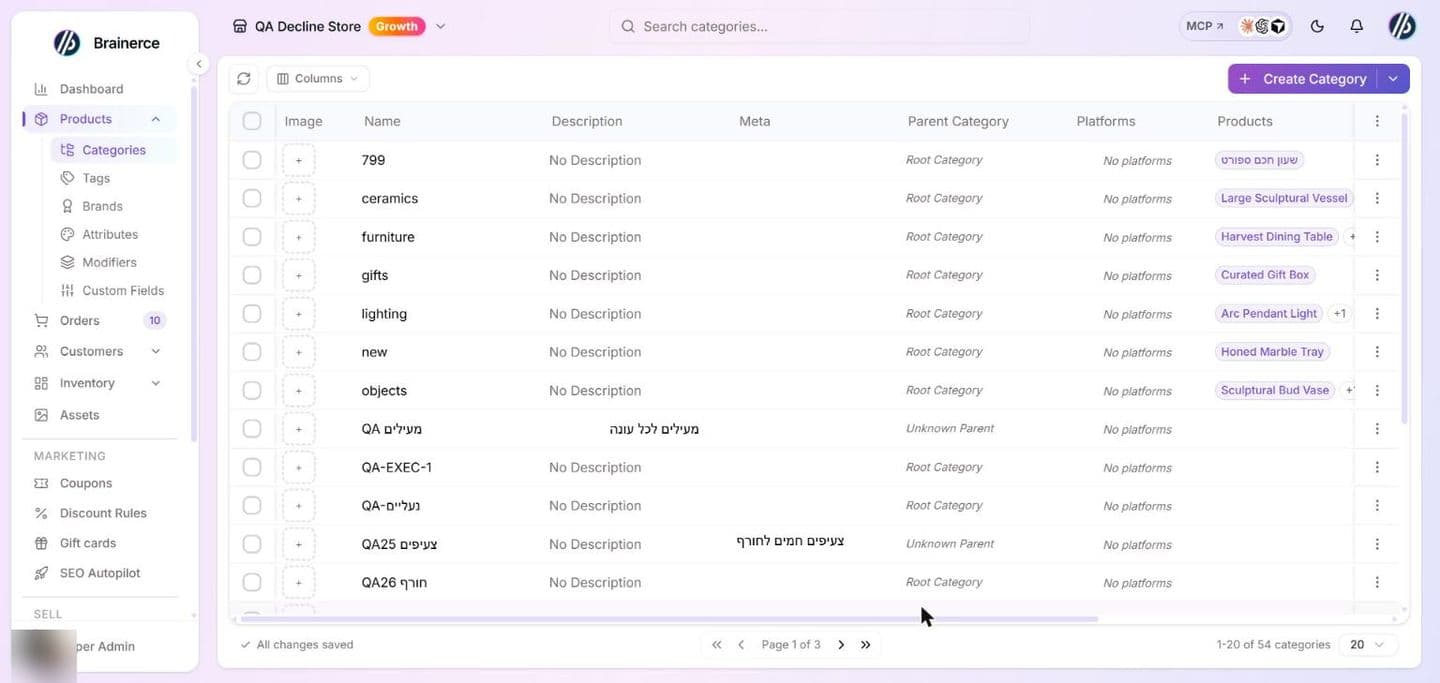
Creating a category
Click Create Category. The dialog has these fields:
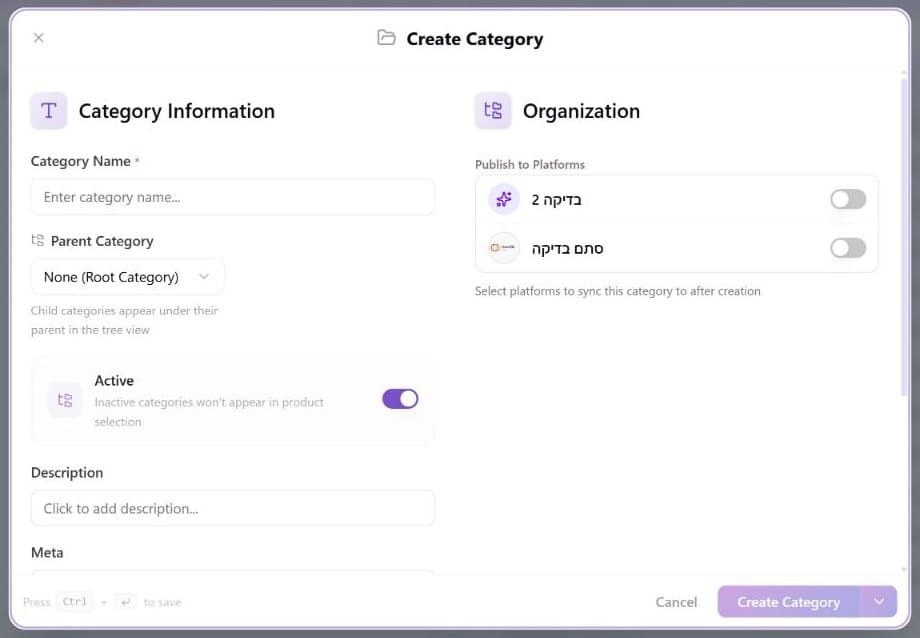
| Field | What it does |
|---|---|
| Category Name | Required. Shown on the storefront and in navigation menus. |
| Parent Category | Leave as "None (Root Category)" for top-level. Pick a parent to nest this as a sub-category, and child categories appear indented under their parent in the tree view. |
| Active | Toggle OFF to hide the category from storefront navigation and product selection without deleting it. |
| Tax | "Taxable" or "Tax exempt". Products in a tax exempt category are not taxed. Only shown when tax collection is on for the store. |
| Tax class | Optional, and only shown when tax collection is on and you have at least one tax class. Products in this category are charged this class's rate unless a product has its own tax class. Leave it on Default to inherit. See Tax classes and products. |
| Description | Optional. The text of the category landing page. Click it to open the editor. |
| Meta | Optional. The meta description Google and link previews show for the category page. 50 to 160 characters works best, and the counter shows how many you have used. Generate with AI is only there when you edit an existing category (save a new one first). See Generate a category description with AI. |
| Category Image | Optional image shown on the category landing page. Click Add image, pick a picture in the media library, and use Replace image or Remove image to change it. |
| Google product category | Only shown when the Google app is installed. See The Google product category. |
| Publish to Platforms | Syncs the category to the sales channels you pick. Toggle on per channel after creation. Shopify and WooCommerce are not channels you can publish to. |
Use Save and create another to add several categories in a row without reopening the dialog.
Edit the list in place, add a row, assign products
You do not have to open the dialog for small changes. In the list, click a cell to edit it: Name, Description, Meta, Parent Category, Status and the Image save as you leave the cell. The Products cell is a multi-select: pick or remove products there to put them in the category or take them out. Next to Create Category, the split arrow offers Add via form (the dialog) or Add empty row (a blank row in the table that you fill in and save). The row menu has Edit in Form. The refresh button above the table reloads the list. On a store with more than one language, a language button on a cell opens the translation editor, and Translate in the selection bar translates the selected categories.
A team member limited to certain sales channels can only change or delete categories published on those channels.
Delete a category
Tick one or more rows and use delete, then confirm. The categories are removed, the products in them are kept and become uncategorized, and any sub-categories move up one level (to the deleted category's parent, or to the top level). It cannot be undone. A category cannot be made its own parent, and a loop (A under B under A) is refused.
Generate a category description with AI
When you edit an existing category, the Meta field has a Generate with AI button. It writes both a description (roughly 150 to 300 words, built from the names of up to 15 active products in the category) and a meta description, in your store's language, and it spends AI credits like other AI features.
- It overwrites what you had. The new description and meta description replace the existing ones and are already saved to the category when the form fills in, even though the message says "Review and Save". Copy any text you want to keep before you click the button.
- Read it before you leave it. It is told not to invent brands, prices or claims, but it is still AI copy. Edit the fields and click Save to change it.
- A category with no products gets generic text, because there is nothing to ground it in.
The Google product category
If the Google app is installed, a category has a Google product category, the Google Shopping taxonomy entry that its products are listed under. Brainerce detects it automatically from the category name when it can (shown as Auto-detected). To lock a different one in, click Change, search the Google categories and pick one (shown as Manually set); Reset to automatic goes back to detection. A category with none shows Not set. Products in this category may be miscategorized on Google.
Without the Google app the field is not shown, because nothing else uses it. See Get found on Google.
Translating a category
On a store with more than one language, the language switcher in the dialog header lets you type the category's name, description and meta description in each language, with the same blank-falls-back rule as products. See Translate products into another language.
Creating a sub-category
Set Parent Category to any existing category. There is no depth limit, so you can nest as deeply as you want, but 2 or 3 levels is usually enough for clear navigation.
Rules of thumb
- A product usually belongs to one category. Multi-category creates duplicate navigation entries.
- If removing the label would leave the product without a home in your menu → it's a category.
- Keep categories stable. Tags are the right place for things that change seasonally.
Tags
Tags are the flat, cross-cutting half of catalog organisation: bestseller, summer-sale, gift-under-50. They live at Products → Tags and have their own guide: Tags.
Don't see it in the sidebar? Tags is a module, and it can be switched off for a store; some store types start with it off. Turn it back on under Settings → Modules.
Categories vs Tags: the quick rule
| Question | Answer |
|---|---|
| Does the product need a permanent home in the navigation menu? | Category |
| Would I want a collection of products around this label that cuts across categories? | Tag |
| Is it seasonal or promotional? | Tag |
| Is the hierarchy important (Electronics → Phones → Smartphones)? | Category |
Worked example
A "Vintage Leather Wallet" by Bellroy on sale this month:
| Field | Value |
|---|---|
| Category | Accessories → Wallets |
| Tags | leather, summer-sale, gift-for-him, under-100 |
The category puts it in the right menu. The tags power a Summer Sale collection page and a "Gifts for Him under $100" filter. Without touching the product when the sale ends, just deactivate or remove the tag.
What's next?
- Add a product to assign categories and tags during product creation.
- Brands are the manufacturer or label that made the product.
- Attributes cover size, color, material and other variant-generating properties.