 Brainerce Help
Manage products
Product status, editing, duplicating, translating, bulk actions, inline editing, and per-channel/per-language overrides.
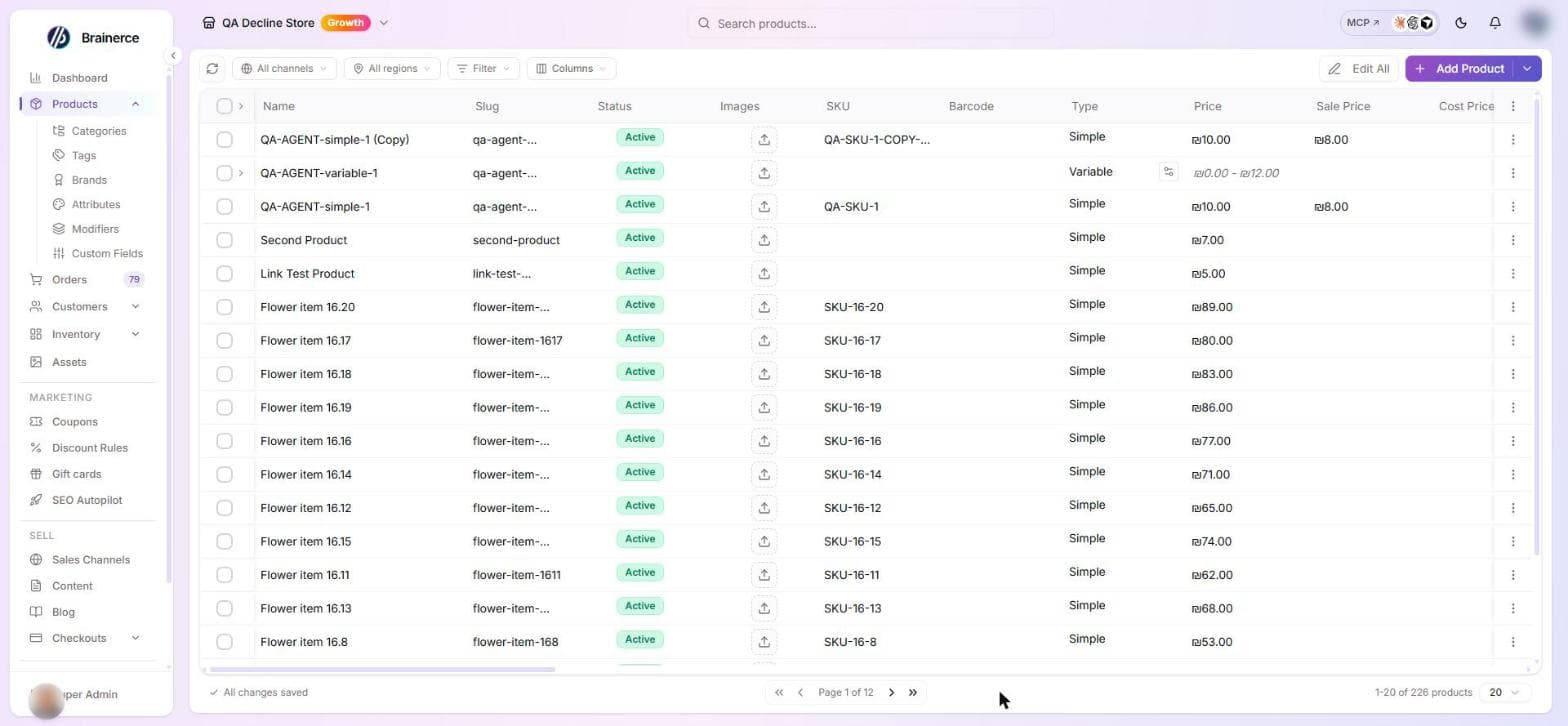
Beyond adding products, you run your whole catalog from the Products table: edit, duplicate, translate, change status, and make sweeping changes in bulk.
Product status
Every product has a status:
- Active means live and sellable on your storefront.
- Draft means saved but hidden; finish the details before selling.
Change status from the row's status badge, from the editor's save options, or across many products with a bulk action.
Hide, unpublish or archive a product
There are only two statuses, Active and Draft. There is no Archive status for products. To hide a product from every storefront without losing it, set it to Draft (the row's Deactivate action does the same); Activate brings it back. To take it off just one storefront, remove that sales channel in the Sales channels column. Draft keeps the product with all its data, prices, images and order history. Delete is the only action that removes a product for good, and it cannot be undone. (Modifier groups are different: they do have an Archived status.)
Row actions
Open a product's ⋯ menu for:
- View in store opens the product on your live storefront (one option per connected sales channel).
- Edit in Form reopens the full product editor.
- Duplicate asks you to confirm, then makes a copy as a Draft. You do not pick a title or which details to copy. The copy is named " (Copy)", gets a new slug and a SKU of "-COPY-", and carries the description, base and sale price, images, categories, brands, download settings, stock quantities with their tracking mode, backorder setting and low-stock threshold and, for a product with variants, every variant with its stock (each variant SKU gets "-COPY" added). It does not copy tags, cost price, barcode (GTIN), MPN, weight and dimensions, tax setting and tax class, shipping class, custom field values, modifier groups, kit contents, sale dates, translations, the meta description or which sales channels it is published on, so set those on the copy. A kit is copied as an empty kit, so choose its contents again.
- Who saved this lists the signed-in customers who saved the product to their wishlist. It appears only for team members who may view customers. See Wishlists.
- Translate (one entry per extra store language, "Translate selected to ") runs an AI translation of the product's content into that language.
- Delete removes the product (you'll confirm first).
Bulk actions
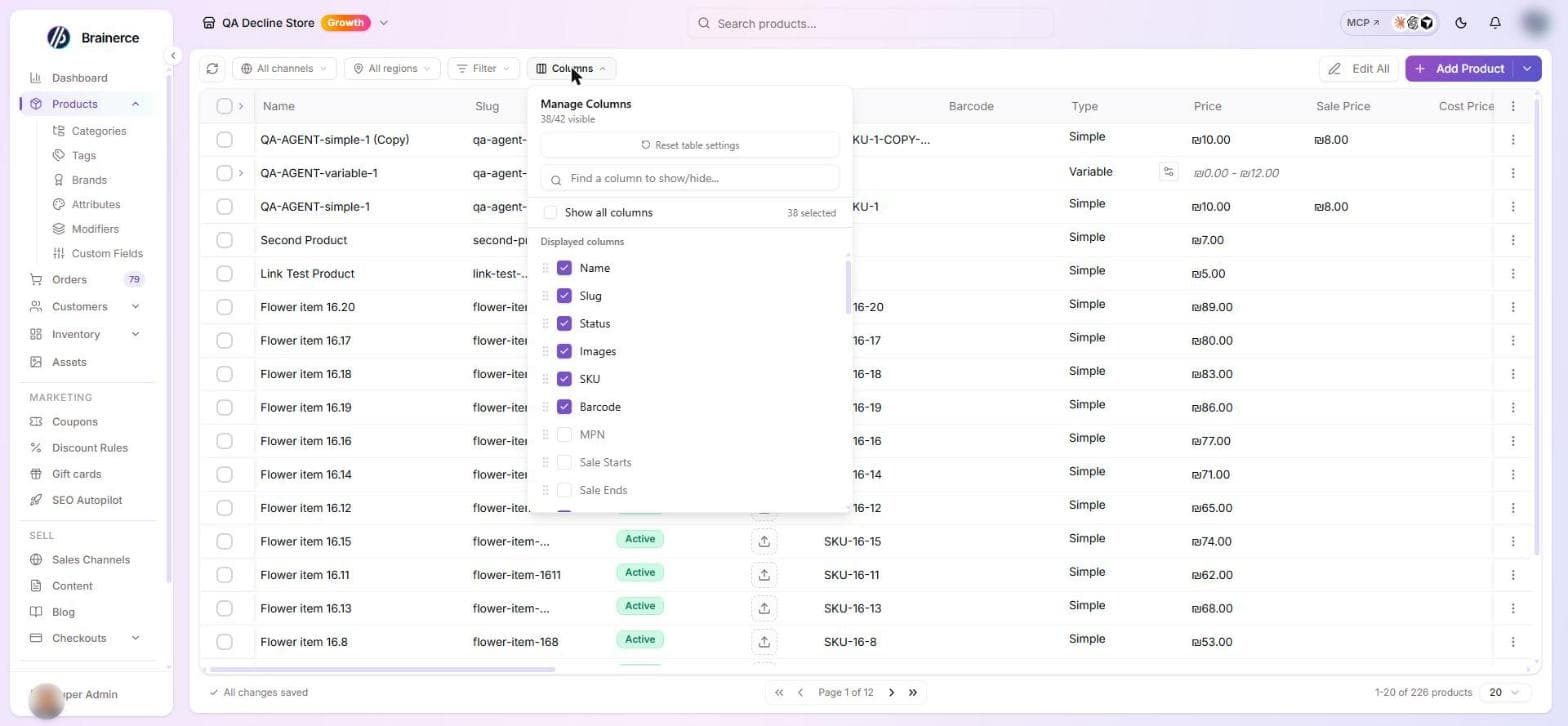
The toolbar above the table has a search box (name, SKU, description, product tag or barcode), a Filter button (Categories, Brands, Tags, Sales Channels, Type (Simple, Variable or Kit), Downloadable (Yes or No) and Status (Active or Draft)), the Columns button, Edit All and Add Product. The table's ⋮ menu holds Manage columns, Row height, Product Settings, Import, Export and Reset table settings. Select several rows to reveal the bulk bar:
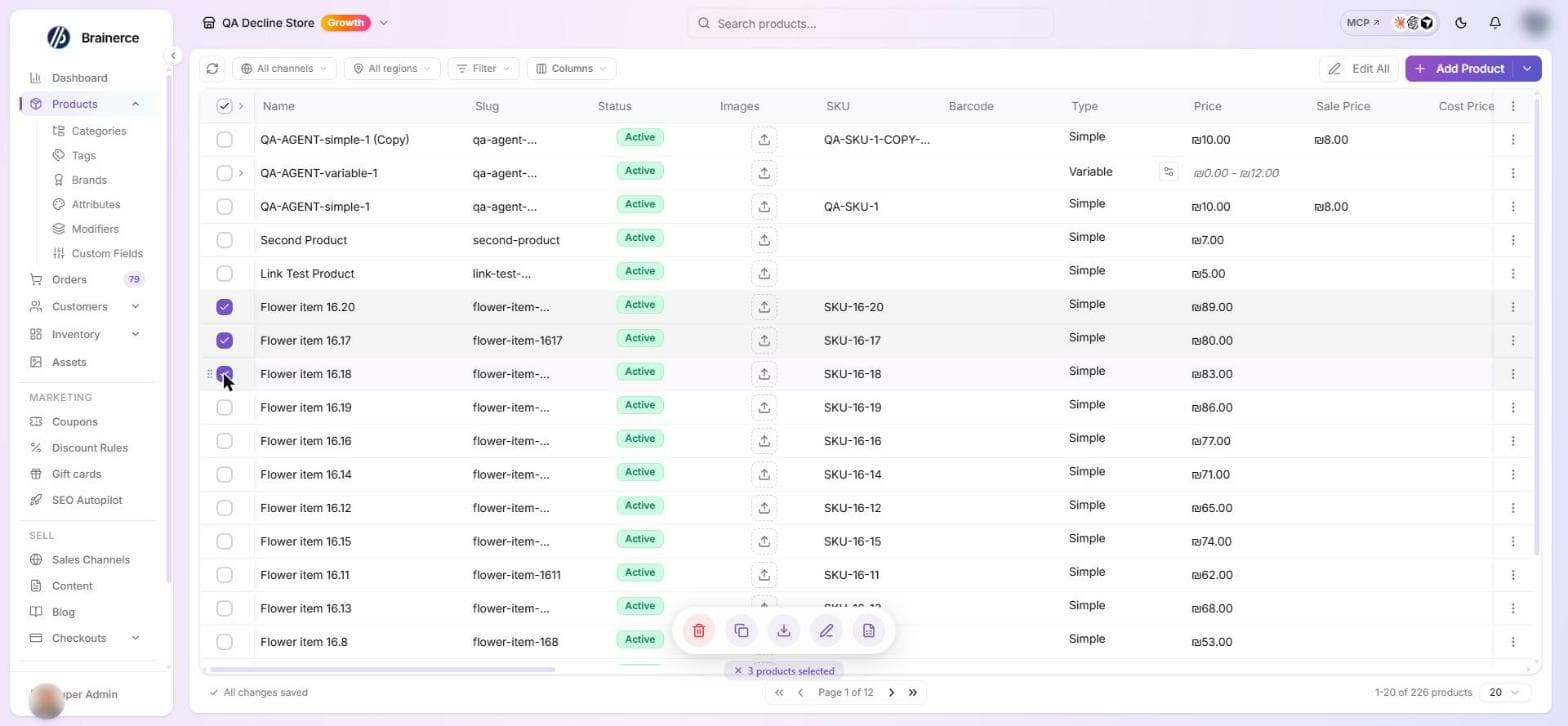
- Bulk Edit changes status, base / sale / cost price, inventory, categories, tags and brands, images, and which platforms (sales channels) the products are published to, across the selection, with set / increase / decrease / clear operations (fixed amount or %) for the number fields. To move several products to Draft, use Bulk Edit and set Status: there is no separate Deactivate button. Bulk Edit changes the products themselves, so it is refused while the table is scoped to one sales channel ("Use the All channels view for this"): switch back to All channels, or use Edit All and its dialog (see Per-channel & per-language editing).
- Duplicate copies several products (or variants) at once. Up to 100 products (or 100 variants) can be duplicated in one go. If the batch would put you over your plan's product limit, nothing is duplicated and you're shown an upgrade prompt instead (check Plans & limits before duplicating a large selection). Within an accepted batch, if one item can't be copied for another reason, that doesn't stop the rest: Brainerce duplicates every item it can and tells you how many succeeded and how many were skipped.
- Translate runs an AI translation across the selection. It only appears when your store has at least one additional language (see Translate products into another language).
- Export downloads the selected products as a plain CSV. It is a quick list for reading, not a file you edit and put back.
- Export to edit in a file starts the export wizard on exactly the products you selected, so you can change them in Excel and import the file again with a review and an undo. It appears when your store offers editing in a file. See Edit your data in a file.
- Delete removes several at once.
- Edit All, the button in the toolbar above the table (not in this bar), applies bulk edits across the whole filtered list, not just the rows you ticked.
What the Bulk Edit and Edit All dialogs contain
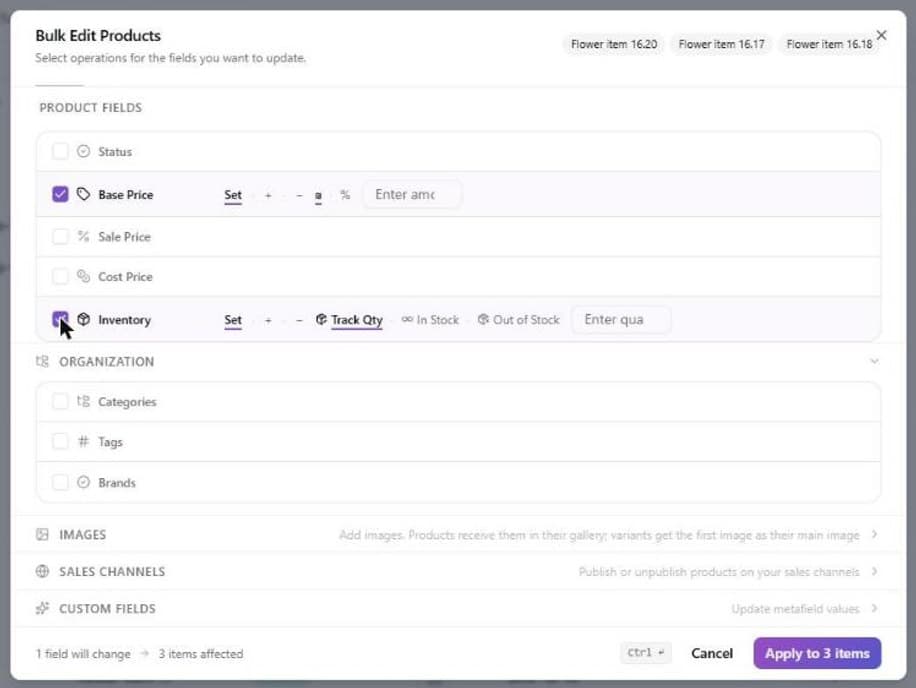
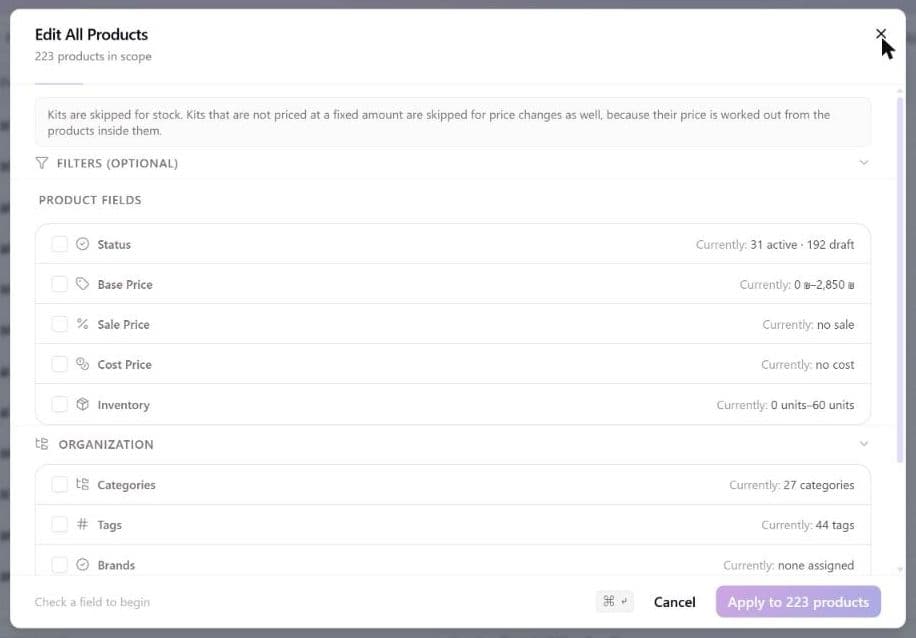
Both dialogs work the same way: you tick a field to turn it on, pick an operation and a value, and only the ticked fields change ("Check a field to begin"). The button counts what it will touch (Apply to 12 items), and a confirmation comes before anything is written. In Bulk Edit the confirmation shows how many products are affected (and how many variants, if you selected variants) and, when you change a price, up to five example rows with the old and the new value in your store currency, then asks you to press Confirm and apply. In Edit All the confirmation shows how many products will be updated. A bulk change cannot be undone, so check the confirmation. When you select variants instead of products the dialog is called Bulk Edit Variants and offers fewer fields (no cost price, no platform publishing).
| Field | Operations and values |
|---|---|
| Status | Set to Active or Draft. |
| Base Price | Set, Increase or Decrease, by a fixed amount or a %. A percentage is worked out from the base price or from the sale price, as you choose under "Calculate % from". The result is rounded to the smallest unit of your store currency, so +10% on 41.00 gives 45.10 (cents are kept, the price is not rounded up to a whole number). |
| Sale Price | The same operations, plus Clear to remove the sale price. A sale price must end up above 0 and lower than the base price: if any product in the change would break that, the whole change is refused with a message naming the first products and that request writes nothing. A very large Edit All runs in batches of 200 products, so a refusal part way through leaves the earlier batches applied and the message says how many products were changed. The same check applies when you lower a Base Price below an existing sale price (clear those sales first). |
| Cost Price | Set, Increase or Decrease (fixed or %). Products only. |
| Inventory | Set to, Increase by or Decrease by a quantity, and a Tracking Mode: Track Qty, In Stock (always available, no count) or Out of Stock (not for sale). |
| Categories, Tags, Brands | Add, Remove or Replace the chosen ones. |
| Images | Add Images only: they join the product's gallery (for a variant, the first image becomes its main image). It never removes images. |
| Sales channels | Publish or Unpublish the selection on the channels you pick. |
| Custom Fields | Set the value of a Merchant-managed field, or Enable or Disable a Customer input field on these products. At most 10 custom field values in one change. Each value is checked against its field type first, and a field that is switched off or belongs to another store is refused: then the whole change is refused and nothing is written. A product that already has that value is left as it is. |
Kits are skipped for stock, and a kit that is not priced at a fixed amount is skipped for price changes, because its price comes from its contents. The dialog says how many were skipped. In Edit All, the Filters (Optional) at the top (Category, Brand, Status, Sales Channel) choose which products are changed, with the matching count shown; with no filter it says it will update ALL your products.
Edit All works on any number of products, there is no 1,000-product limit. A small edit (up to 200 products) applies right away. A larger one runs in the background: you see a progress notice, you can keep working, and the table refreshes when it finishes. All the changes you picked in one Edit All (status, prices, stock, categories, tags, images and the rest) are applied together, product by product, in one pass.
- One large edit at a time. While a large edit is running for your store, starting another is refused with a message. Wait for the first to finish.
- If it is interrupted, the message says how many products were changed and how many were not. Do not repeat a relative change, such as raising prices by 10% or lowering stock by 5, to finish it: it would apply a second time to the products already changed. Narrow the edit to the products that were not changed (for example by category or status) and run it for those.
- Images are not added twice. If a product already has an image from the same address, it is skipped.
- The AI assistant and connected AI tools are still limited to 1,000 products per bulk price or stock edit. Narrow the scope and run it in parts, or use Edit All in the dashboard.
Inline editing & columns
Click most cells to edit them in place: price, stock, status, SKU, and more save on their own. Use the Columns button to show, hide, and reorder columns; there are far more than fit on screen, including SEO score, reviews, cost price, shipping & tax class, availability windows, barcode, and translation status. See Working with tables.
Every column of the products table
| Column | What it shows or edits |
|---|---|
| Name, Slug, SKU, Description | The basics, editable in place. |
| Images | The product's pictures. |
| Barcode, MPN | The GTIN and manufacturer part number. Hidden by default. |
| Type | Simple, Variable or Kit. |
| Price, Sale Price, Cost Price | A variable product shows its variants' range. |
| Sale Starts, Sale Ends | The sale window. Hidden by default. |
| Status | Active or Draft. |
| Tax, Tax Class | Taxable or Tax exempt, and the tax class. |
| Inventory | The stock badge (see the next section). Needs the Inventory module. |
| Shipping, Shipping Class | Weight and dimensions, and the shipping class. Need the Shipping module. |
| Downloadable | Whether it is a digital file product. |
| Categories, Tags, Brands | Multi-select cells. Each needs its module switched on. |
| Modifier Groups, Customer Input Fields | The groups and buyer input fields attached. Each needs its module. Customer Input Fields is hidden by default. |
| Cross-Sells, Upsells, Related Products | See Related products. |
| Bundles, Order Bumps | Counts of offers, see Bundle offers and Order bumps. |
| Reviews, SEO, Translations | The star chip, the SEO score and the translation status. |
| Saved by | How many signed-in customers saved the product to their wishlist. Shown only to team members who may view customers. |
| Sales channels | Where the product is published. |
| Availability Hours | Time windows when it can be bought. Hidden by default. |
| Created | When the product was created. |
Each active custom field that is not a buyer input field also gets its own column, named after the field. A column that needs a module you have switched off is not listed at all.
What a cell refuses. A price must be a number, 0 or more ("Price is required. Enter 0 for a free product"). A sale price must be above 0 and lower than the regular price ("Sale price must be less than the regular price"; 0 is not a sale price, leave the cell empty to take the product off sale) and needs a regular price first. A barcode must be a valid GTIN: 8, 12, 13 or 14 digits with a correct check digit.
Stock per warehouse in the stock cell
Click the stock badge of a row to open the stock popover. If your store has two or more active warehouses, a product without variants shows one row per warehouse (what it holds, how many units are reserved there, and a field with minus and plus buttons) instead of a single quantity, plus, once some stock is recorded in a warehouse, a Transfer between warehouses control (a product whose units are all still unassigned has nothing to transfer yet; edit the rows instead). A product with variants, a kit, and a store with one warehouse keep the single quantity field. In a sales channel view the warehouse numbers are read-only, because stock is shared by every channel. The full steps are in Adjust stock levels and the stock basics are in Stock & inventory.
Show prices for one region
On a store with more than one active region, a Region filter sits next to the channel and language filters. Pick a region that is priced in a different currency and the two price columns show that region's prices (converted, or the figure you set by hand), with a quiet Manual or Auto mark on each. It changes what the table displays and what a price edit writes: an edit in a region view sets a price for that region only and leaves the product's own price alone. See Regions and currencies.
Schedule a sale with Sale Starts and Sale Ends
Show the Sale Starts and Sale Ends columns (they are hidden by default) to give a product's sale price a start date and an end date. Set a Sale Price first; the dates only schedule it. Give both dates, and the end must come after the start.
- Before the start date shoppers see and pay the regular price. The sale price does not show on your storefront, in the cart or at checkout yet, so you can set up a Black Friday or holiday sale weeks ahead.
- From the start date to the end date the sale price is what shoppers see and what they are charged.
- After the end date the regular price comes back on its own. You do not need to remove the sale price; it simply stops applying.
- The end date is the last day of the sale, in your store's time zone. A date picked in the table starts the sale at midnight on the start date and ends it at the end of the end date (23:59), both in the time zone set in your store settings. To run a sale through November 30, pick November 30.
- No dates at all means the sale price applies for as long as it is set.
What happens to a cart when the sale ends
If a shopper put an item in the cart during the sale and checks out after it ended, they are never charged the old sale price. Checkout stops and does not go through until the shopper accepts the new price; how that is shown (for example a "prices changed" message) depends on your storefront. The same works the other way: an item added before the sale started is charged the sale price once the sale is on. Orders that were already paid keep the price that was paid.
What the sale dates do not change
- Promo codes and automatic discounts keep their own schedules. The sale dates do not switch a coupon or a discount rule on or off.
- A manual price for a region (set under Regions) has its own sale price, and the product's sale dates do not switch that one on or off.
- Variants: a variant can have its own sale dates. A variant with a sale price but no dates of its own follows the product's dates. See Sale start and end dates for one variant.
Per-channel & per-language editing
Selling on multiple sales channels or in multiple languages? Scope the table to one channel or language with the filters at the top, then edit values just for that channel or language. Clicking a cell opens a per-channel (or per-language) override editor. Everything you don't override keeps the product's main values. For the full picture of what translates and what stays the same in every language, see Translate products into another language.
A different price on one channel, for a product with variants
- Set the channel price on the variant. In the Products table, scope the table to the channel, expand the product to see its variants, and click the Price or Sale price cell of the variant. A price (and sale price) you set for one variant on a channel replaces that variant's price on that channel only: on the product page, in the "from" price range and in the cart. Other channels keep the main price. A price of 0 is treated as not set.
- A channel price set on the product itself does not change a product that has variants. Each variant keeps its own price, so set the channel price on the variants. It only applies to a variant that has no price of its own.
- A channel sale price follows the sale dates, the same as the main sale price does. Outside those dates the customer pays the regular price.
- The discount badge on the product page is worked out from that channel's price, the same price the cart takes the automatic discount off, so the page and the cart agree.
- A variant's SKU can be set on one channel too. With the table scoped to the channel, edit the variant's SKU cell. The product page, the cart, the checkout and the order placed on that channel all show your value, and so does the payment provider's page. Clear the cell to go back to the main value. A variant's name comes from its attributes (such as color or size), so it is the same on every channel. The same goes for a product's name and SKU: what you set for a channel is what that channel's orders and payment pages say.
- The sale dates can be different on one channel. Edit Sale Starts or Sale Ends with the table scoped to the channel. The channel's dates decide whether its sale price is live, on the product page and in the cart alike, so a sale can run on one channel while it has ended (or has not started) on the others. An end date is the whole of that day, in your store's time zone. Clearing a date means that channel has no such date, it does not bring back the main one.
- The tax class and the shipping class can be different on one channel. Pick them in the Tax Class and Shipping Class cells with the table scoped to the channel; the empty option at the top of the list returns that channel to the main class. Checkout on that channel works out tax and shipping with the channel's class, and the order keeps it. A class you set on the product only applies to variants that have no class of their own: a variant's own class stays in force until you set one for it on that channel. The Tax Center's counts and reports still show each product's main class.
- A product can be Active on one channel and Draft on another. With the table scoped to a channel, change the Status cell of a product to Draft: that product is hidden on that channel only. Its page, its place in that channel's lists and search, the cart and checkout on that channel no longer offer it, and a customer who had it in the cart there sees it as unavailable. The product stays published on the channel, so it is still in that channel's table and you can set it back to Active at any time. Other channels, and the product's own status in the All channels view, do not change. This is different from removing a product from a channel, which takes it out of that channel altogether.
- Edit All changes the products themselves, for every channel. It works the same in a channel view as anywhere else: it edits the main prices, stock, status and the rest, whatever channel the table is scoped to. To aim it at the products of one channel, pick that channel in the dialog's Sales channel filter. That only chooses which products it changes; the values are still written to the products, so every channel sees them. To change a price, sale price, SKU, sale dates, tax class or shipping class for one channel only, edit the cells in the channel view.
- Everything else is the same on all channels. Images, attributes (such as color or size), stock, the order of products and variants, and the variations editor are changed in the All channels view, and so are Bulk edit on selected rows and the product form: they change the product itself, for every channel, so a channel view won't run them. If you try, Brainerce tells you and changes nothing. A channel view never overwrites the main value when you edit a cell. Edit All is the one exception: it writes to the products themselves, as described above.
Tax and tax class
When tax collection is on, the product form has a Tax field (Taxable or Tax exempt) and, if you created at least one tax class, a Tax class field. Leave Tax class on Default unless this product is taxed at a different rate, for example reduced or zero. When it is on Default, a line under the field says whether the class comes from one of the product's categories or is the store default. Brainerce does not know which tax category your product legally belongs to, so it never picks a class for you. See Tax classes and products.
Search & filter
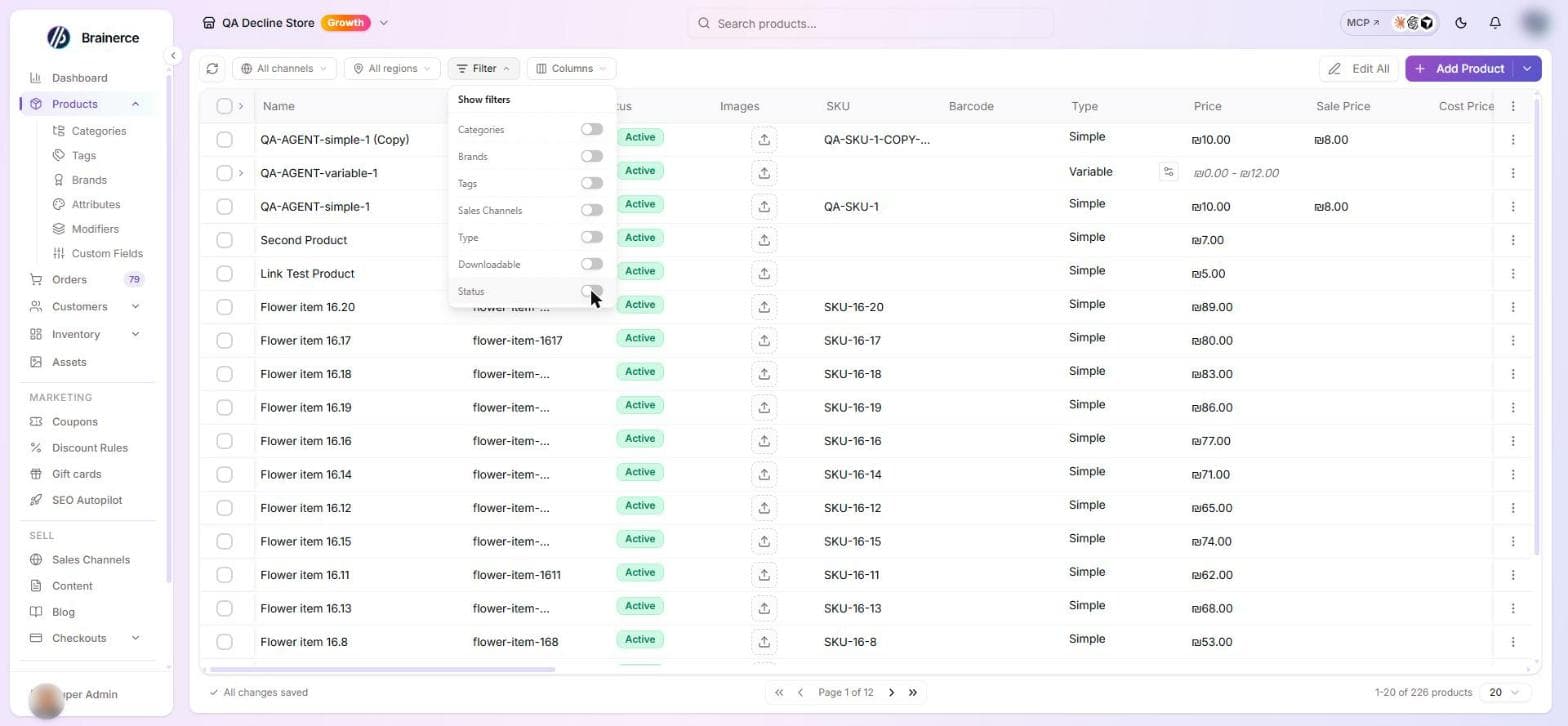
Search by name, SKU, description, tag or barcode (GTIN), and filter the list by status, category, brand, sales channel, and more to find products fast. Typing a tag name (for example summer) lists the products that carry a tag with that name, next to products whose name or description contains it. Only product tags count here: customer tags and order tags are separate lists. A barcode must match exactly (scanning one with a USB or Bluetooth barcode scanner works the same as typing it). It checks the product's own barcode and every variant's, so a variant's barcode brings up its parent product. A storefront's search box (when your site is connected with a store ID) reads the same search, so a shopper typing a tag name finds those products too.
The filters you set are remembered: open Products again and they are applied again. This is kept for you alone, separately in each store, and only for filters whose chip is showing. A link that carries its own filters is used instead, and clearing the filters is remembered too. There are no named saved views.
A list that fails to load, and a search with no results
An empty table is not always an empty store. If the products list cannot load (for example the connection dropped), the table is replaced by a red box titled Couldn't load this list, which says your data is safe, with a Try again button. It is never shown as an empty store with a "create your first product" prompt. If a list that was already on screen fails to refresh in the background, the rows you were looking at stay and no error box replaces them. Nothing is deleted by a failed load.
A search or filter that matches nothing shows No results for "your search" (or No results match the current filters) with a button: Clear search, Clear filters, or Clear search and filters, depending on what is narrowing the list. That is different from a store that really has no products, which shows the "add your first product" prompt instead.
The same two states appear on the other product lists: Categories, Tags, Brands, Attributes, Custom fields and Modifier groups. Other pages (orders, for example) show their own load-failed message with a Try again button.
SKU and price rules that refuse a save
These rules apply when you add or edit a product or one of its variations: in the product form, in a cell of the table, in the variations dialog, and when an AI assistant, the API or an MCP connection does it for you. The bulk and file importers have their own rules, described in Bulk import from CSV.
A SKU can be used only once in your store
A SKU belongs to one product or one variation in the whole store. Brainerce checks the product SKUs and the variation SKUs together, so a variation cannot take the SKU of another product, and a product cannot take the SKU of another product's variation.
- Upper and lower case count as the same.
MUG-1andmug-1are one SKU, and spaces before or after the code are ignored. - The product form tells you as you type. When the SKU you typed is already in use, a message under the field names the product (or the variation's product) that has it, before you save. The variations dialog checks each variation's SKU the same way.
- Saving anyway is refused. If you save with a SKU that is taken, nothing is saved and the message names the product that owns it. Brainerce never saves a second product with the same SKU and never changes the SKU for you.
- Only a SKU you change is checked. A product or variation that already shares a SKU from before keeps saving normally as long as you do not touch its SKU.
- An empty SKU is allowed. Leaving the SKU blank is not a duplicate of anything.
Two variations cannot share a SKU or the same options
Inside one product, no two variations can carry the same SKU, and no two can have the same combination of options. Two rows that are both Size: S, Color: Red are the same thing to a shopper, so the second is refused with a message naming the combination. Capital letters and extra spaces do not make a combination different (S and s are the same size). Change one of the options, or delete the duplicate row.
A price with more decimals than your currency allows is refused
Every currency has a smallest unit: two decimals for dollars, euros and shekels (19.99), none for yen or won (1500), three for some dinar currencies. A price with more decimals than that, such as 10.505 in dollars or 10.5 in yen, is refused with a message, not rounded to something near it. Brainerce does not guess which price you meant. Type the price again with the right number of decimals.
This covers the price, sale price and cost price of a product and of a variation, whether you type it in the form, in a table cell or in the variations dialog, or an assistant or the API sends it. Prices set by a bulk price change, an import file or a regional or channel price follow their own rules and are not checked by this one. A price saved earlier is never rewritten or rejected because you edited something else on the product.
A variable product whose variations are refused is not kept
When you create a Variable product, Brainerce saves the product and then its variations. If the variations are refused (a taken SKU, a repeated combination, a price with too many decimals), the new product is not kept: Brainerce removes the product that this save just created, so you do not end up with a half-built product with no variations. The Create Product window stays open with everything you entered, so you fix the message and click save again. If removing the product fails, the window tells you, and the next save removes it first. Nothing you typed is lost.
Export and import from the ⋮ menu
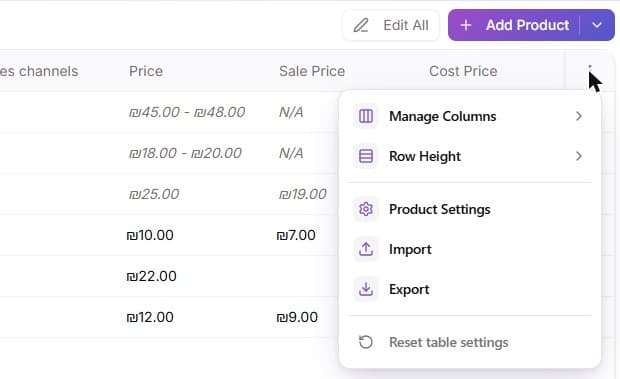
Import and Export sit together in the ⋮ menu of the table's last column header, next to the table's other settings. There is no Import button in the toolbar. Import opens the importer for spreadsheets (see Bulk import from CSV), and hands over a file that Brainerce's own export made to the import wizard. A store with no products yet has no table, so there the Import button sits beside Add Product. Export: it exports the whole catalog, a filter, or the products you ticked, to Excel or a ZIP of CSV files, and is described in Edit your data in a file.
Other things the products table can do
Four surfaces open from columns and menus on the products table rather than from the editor:
- SEO score. Click a product's score for its own SEO audit: what's missing, what's weak. The store-wide view is SEO Autopilot.
- Reviews. The Reviews column opens a moderation panel for that product's reviews.
- AI specs, in the product editor, propose custom fields by reading your description, so a spec table doesn't have to be typed out by hand.
- Product Settings, from the table's settings menu, control pricing-formula auto-fill behaviour for the table, and hold the list of formulas themselves. On Always recompute from cost, editing a cost in the table overwrites a price you set by hand. See Pricing formulas.
Availability windows
A product can carry availability hours: weekly day and time windows when it can be bought (for example Monday to Friday, 07:00 to 11:00). This is what you want for a kitchen that stops serving breakfast at 11, rather than manually toggling stock twice a day. A product with no windows can be bought at any time.
- There is no place in the dashboard to add or change them. The Availability Hours column of the Products table (hidden by default, switch it on under Columns) only shows the windows a product already has, for example "Mo,Tu,We 07:00 to 11:00". To create or remove windows, ask the AI assistant ("make the breakfast menu available Monday to Friday, 7 to 11") or an AI tool connected to your shop. See Connect an AI assistant.
- A window cannot be edited. Delete it and create it again.
- Times are 24-hour, in the store's time zone unless a different zone is given when the window is created. A name that is not a real time zone (a typo such as "Asia/Jerusalm") is refused. The start time counts and the end time does not: a window of 07:00 to 11:00 is open at 07:00 and closed at 11:00.
- A window that runs past midnight (Friday 22:00 to Saturday 02:00) is saved as two windows, one for Friday evening and one for Saturday morning.
- Your storefront has to act on it. Outside the hours Brainerce marks the item in the cart as unavailable ("out of hours"), but on your storefront's cart and checkout it does not stop the item being added to the cart or the order being placed. Hiding the product or disabling the buy button outside the hours is up to your storefront, and the starter storefront does not do it for you. (Orders that an AI shopping agent builds through Brainerce's agent checkout do leave out an item that is outside its hours.) See a feature you turned on is not showing on your website.
What's next?
- Add a product is the full editor walkthrough.
- Bulk import from CSV adds many products at once, and can update products you already have (matched by SKU) when you choose to.
- Edit your data in a file exports products to Excel, lets you change them there, and imports them back with a review and a 30-day undo.
- Inventory covers stock levels and low-stock alerts.
Add a product
Step by step, add a single product with variants, images, inventory, and SEO so it's ready to sell on your storefront.
Pricing formulas (work out the price from your cost)
Set up a markup rule so Brainerce fills in a product's price from the cost you paid. Covers the formula language, which products a formula covers, what happens when two formulas fit, and why a formula sometimes does nothing.