 Brainerce Help
Stock & inventory
What Inventory, Reserved and Available mean, how to set a product's starting stock, and where each stock task is explained.
The Inventory page (sidebar → Inventory) gives you one table across all your products and variants: real-time stock, inline adjustments, and low-stock products at a glance, without opening each product.
No Inventory page at all? Stock tracking is a module, and stores set up to sell only digital goods or services start with it switched off, which removes the whole Inventory section, not just a sidebar link. Turn it on under Settings → Modules.
Key terms
| Term | What it means |
|---|---|
| Inventory | Total units you have on hand for this SKU. |
| Reserved | Units held by open orders that haven't been fulfilled yet. Brainerce locks these so they can't be double-sold. |
| Available | Inventory minus Reserved: the number new customers can actually buy. The storefront uses this to determine in-stock / out-of-stock. |
Setting starting stock when you create a product
In the product form the Inventory Status field starts on In Stock, which means stock is not counted: the product can always be bought and no quantity is kept. To count units:
- Click Inventory Status to open its popover.
- Turn Manage Inventory on.
- Type the Stock Quantity (a whole number, 0 or more).
A quantity of 0 with Manage Inventory on starts the product sold out. The field is on simple products only: a product with variants sets stock on each variant, a kit has no stock of its own, a downloadable product has no Inventory section, and a store with the inventory module off does not show it. The other states are explained in Stock tracking modes.
The inventory list
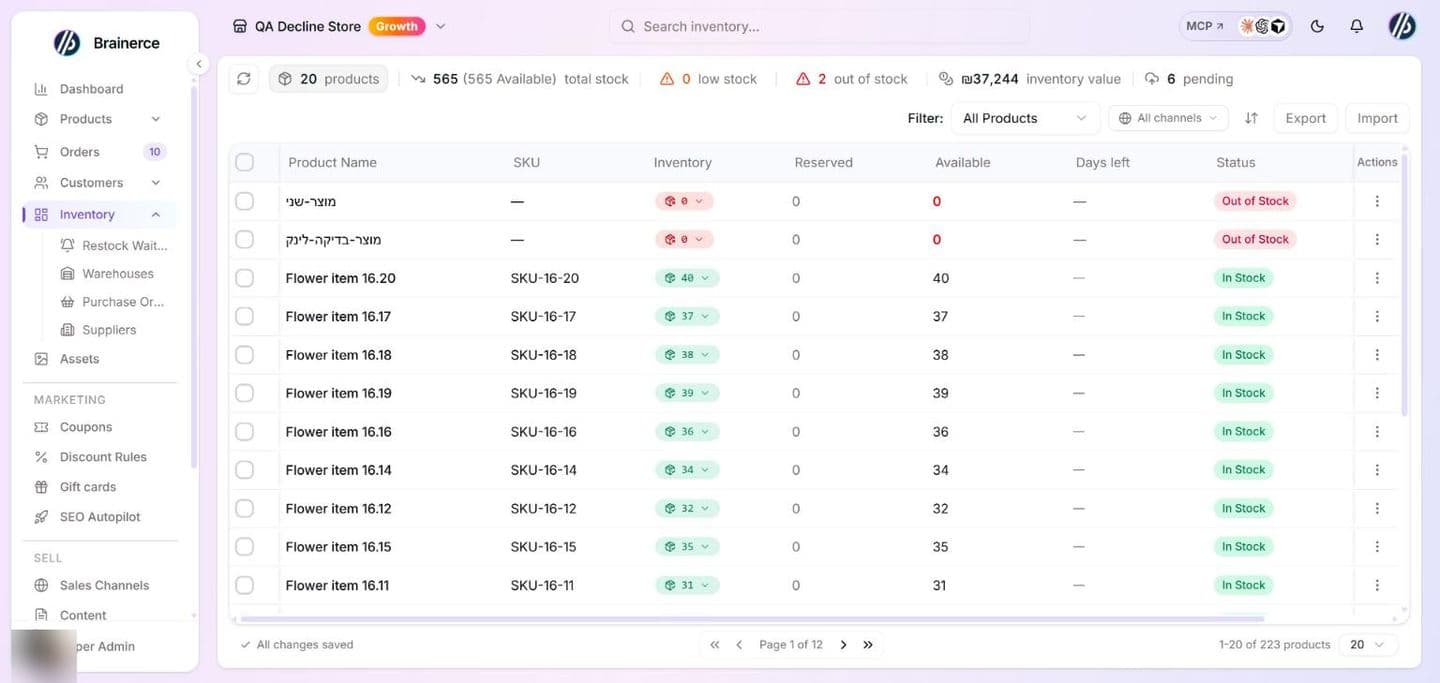
The toolbar numbers, the filter, the sales channel picker, the columns and the export are described in Adjust stock.
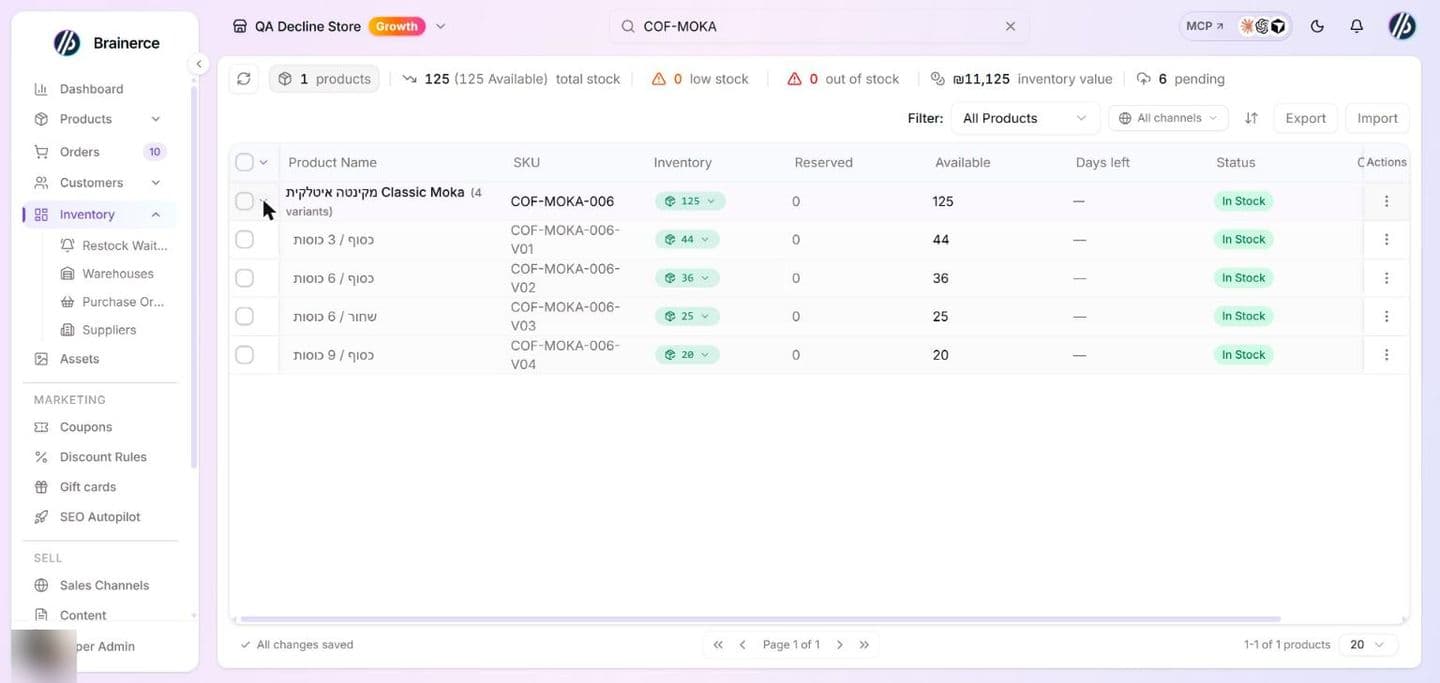
Products with variants show a single parent row with the total stock. Click the arrow on it to expand every variant as its own row, each with its own SKU, inventory, reserved and available count. The warning triangle on a variant row means its stock is at or below the low-stock threshold.
Changing a stock number
Click the inventory badge on any row and a popover opens inline:
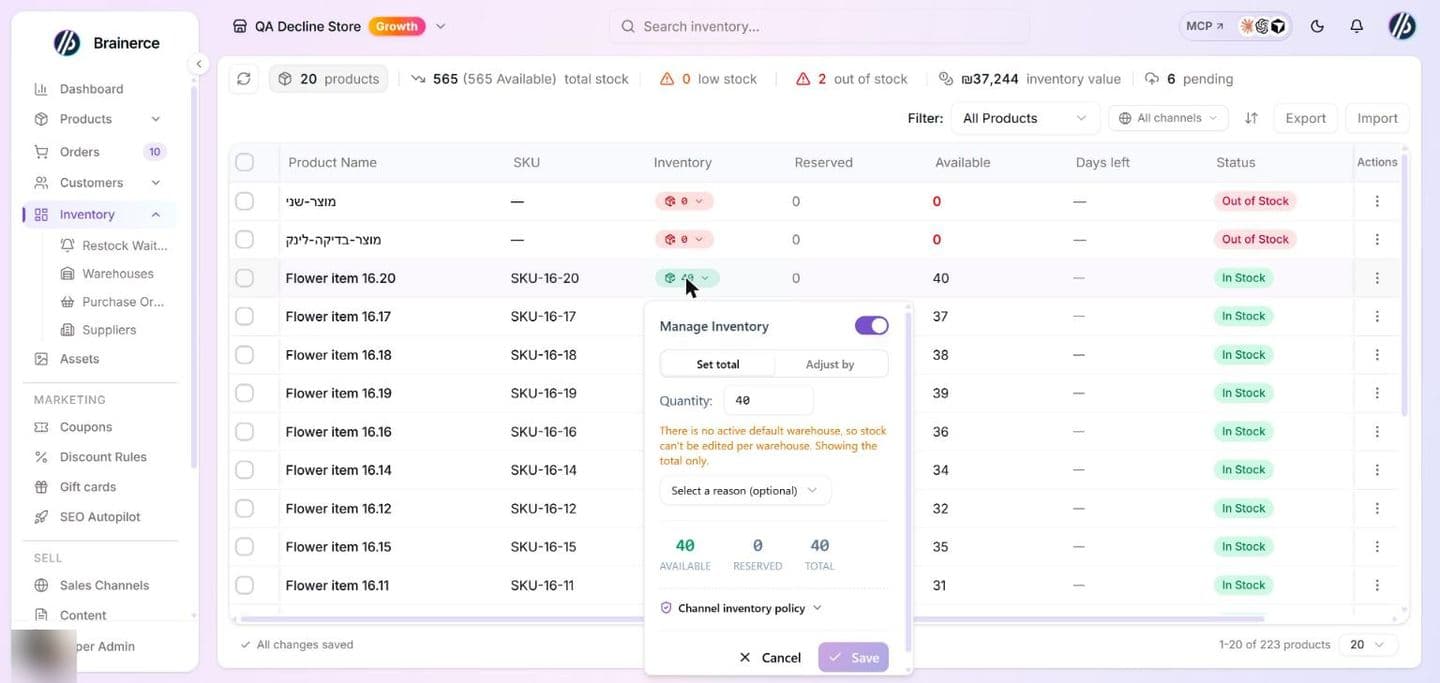
The popover has Manage Inventory, Set total or Adjust by, a reason, and the Available, Reserved and Total figures. Every step, including warehouses, variants, reasons and what each stock mode does, is in Adjust stock. For many SKUs at once use the Inventory page's CSV importer or Set Stock there, described under Updating a lot of stock at once. The product importer in Bulk import from CSV is not the tool for a stock sheet: by default it only creates products and skips ones you already have.
Why a kit's stock cell is not editable
A kit, a gift box or bundle sold as one product, keeps no stock count of its own, so its row shows a grey From kit badge and no popover opens. This is not a bug and not a missing setting. How many kits you can sell comes from what is inside them, so change the stock of the products inside the kit and the kit follows. The product form's Inventory field does not appear for a kit either. See Kits have no stock of their own.
Is there a Last Synced column in the inventory list?
No. The inventory list has no "Last Synced" or "Last Updated" column, and the exported CSV has none either. Your own storefront asks Brainerce for stock directly, so there is nothing to sync, and Brainerce does not push stock to Shopify or WooCommerce. To see when a stock number last changed and why, open a row's actions menu and choose Stock movements: the last 20 changes with the reason saved for each one.
Stock per warehouse, movement history and channel policy
- Two or more warehouses: the stock popover of a product without variants shows one row per warehouse instead of one quantity. See Update stock in each warehouse and Warehouses and purchasing.
- Channel policy: the Channel policy column controls how much of an item each sales channel may sell. See Reserving stock per sales channel.
What's next?
- Add a product to set starting stock during product creation.
- Adjust stock levels to update stock for many SKUs at once.
- Add variants to a product: each variant tracks inventory independently.
Edit your data in a file (export and import)
Download products, coupons, stock and more as a spreadsheet, change them in Excel, upload the file, see exactly what would change, approve it, and undo it for 30 days.
Back-in-stock waitlist
See who is waiting for a sold-out product to return, and how Brainerce emails them automatically when it does.