 Brainerce Help
Add variants to a product
Sell the same product in multiple sizes, colors, or storage tiers. Brainerce auto-generates one variant per combination so you only price and stock once per row.
A variant is a version of the same product: a 41mm Midnight Apple Watch is one variant of "Apple Watch Series 9". When customers see options on the storefront ("Pick a size, pick a color"), each combination they pick is a variant, and each variant tracks its own price, SKU, and inventory.
Quick steps
- Open the product you want to add variants to.
- Open the Manage Variations dialog (the variants editor).
- Add Product Attributes (Size, Color, Storage, …) and the values for each.
- Click Generate Variations and Brainerce creates one row per combination.
- Fill in Price, SKU, and Inventory per row, then Save Changes.
When you need variants, and when you don't
| Scenario | Use variants? |
|---|---|
| Same shirt in S, M, L, XL | Yes, one attribute (Size) |
| Apple Watch in 41mm / 45mm × Midnight / Starlight / Gold | Yes, two attributes (Size, Color) |
| Two unrelated products that happen to share a brand | No, make them separate products |
| Product with optional add-ons (engraving, gift wrap) | No, use Modifier groups instead |
| Subscription tiers (monthly / annual) | No. Build one standing order plan per tier |
The rule of thumb: if every combination has its own inventory count, it's a variant. If it's just a customer-side customization that doesn't change the SKU you ship, it's a modifier.
The Manage Variations dialog
Every variant edit happens in the same dialog. Open it from the product editor: click the gear icon ⚙️ next to the Variable Product type dropdown, or open any product that already has variants (Apple iPad mini, Apple Watch Series 9, Galaxy Tab S9 all ship with variants if you imported the demo CSV).
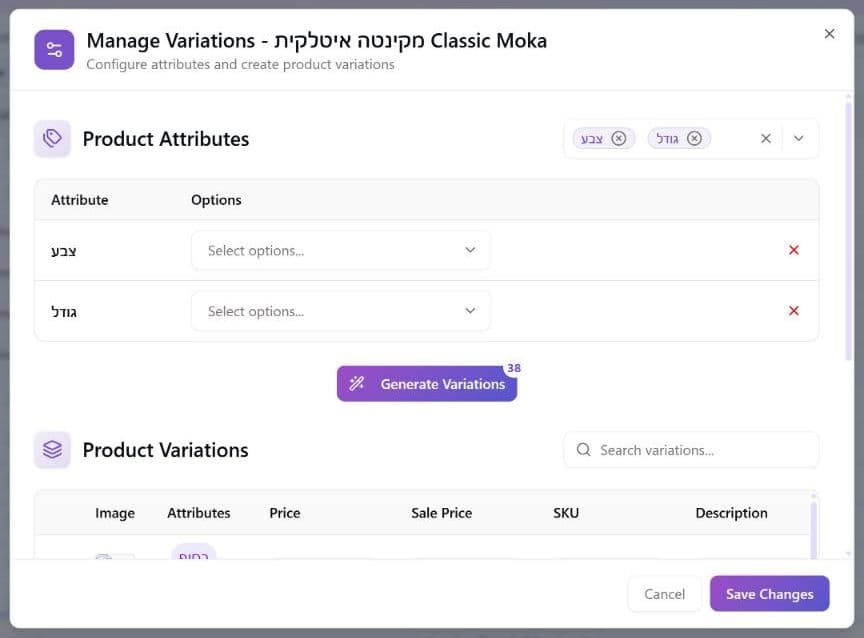
The dialog has three regions, top to bottom:
1. Product Attributes
The attributes are the option groups customers will choose between on the storefront. For Apple Watch that's size (41mm, 45mm) and color (Midnight, Starlight, Gold). For a t-shirt it'd be Size and Color. For an iPad it might be Storage and Connectivity.
To add an attribute:
- Pick from the suggestions in the chips at the top (
size,color) or type a new one (material,storage, …). - Click the Select options… dropdown next to it and add the values.
- Repeat for each attribute you want.
You can remove an attribute by clicking the × on the chip or the red × next to its row. The variants table re-generates immediately to reflect the change.
2. Generate Variations
The button in the middle is the magic. The badge on it (28 in the Apple Watch example) shows how many combinations the current attribute setup will produce, which is the Cartesian product of every attribute. Two attributes with 2 sizes × 14 colors = 28 variants.
Click it and Brainerce creates one row in the variants table for every combination. You don't have to write the variant names yourself; they're built from the attributes (41mm / Midnight, 41mm / Starlight, 45mm / Gold, …).
You don't have to keep all of them. If a combination doesn't actually exist (Apple sells
41mm Goldbut not45mm Goldin some markets), delete the row with the red trash icon. The product page on the storefront only shows real, in-stock variants.
3. Product Variations
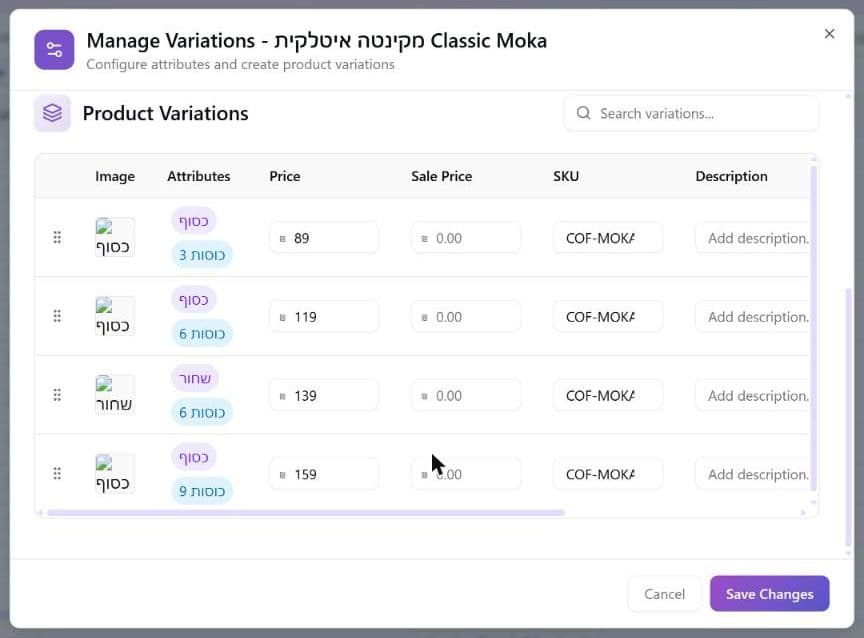
This is the table where each variant gets its own data:
| Column | What it does |
|---|---|
| Image | Override the parent product image with a variant-specific one (e.g. show the actual color). |
| Attributes | The combination this row represents (read-only, set by Generate Variations). |
| Price | Defaults to the parent product price; a larger size usually costs more. |
| Sale Price | Optional per-variant sale. Above 0 and lower than the variant price; empty means no sale. |
| SKU | Auto-suggested as <parent-SKU>-<short-code> (e.g. APL-AWS9-41-MID). Override freely. |
| MPN | Manufacturer Part Number, required by Google Shopping and most marketplace feeds. |
| Description | Per-variant blurb if it differs from the parent. |
| Inventory | Stock count, tracked independently. |
| Downloadable | Toggle on for digital-only variants (skips shipping at checkout). |
| Actions | Delete this variant row. |
When you're done, click Save Changes at the bottom-right of the dialog. The storefront updates within seconds.
How many variants can a product have? Up to 500 per product, no plan limit
One product holds at most 500 variants, on every plan. The plan does not limit variants: Free, Pro, Growth and Enterprise all use the same cap of 500 per product, and a Size x Color grid of 3 x 4 (12 variants) is fine on Free. Your store as a whole has no variant limit, because the cap counts the variants of one product. See Plans & limits for the limits that do exist.
What happens at the cap. Adding variant number 501 is refused: the Manage Variations dialog shows "A product holds at most 500 variations" and disables Save Changes until you remove some, and the API, the assistant and a file import give the same refusal. A Generate Variations grid that would go past 500 (for example 10 sizes x 10 colors x 6 materials = 600) can be built on screen but cannot be saved, so split it into more than one product. A product that already holds more than 500 stays editable: you can rename it, reprice it, change stock and delete variants, you just cannot add more.
Sale prices on variants. A variant's Sale Price must be above 0 and lower than its Price (or lower than the product's price when the variant has none). Leave the box empty to take the variant off sale: 0 is not a sale price. A variant that already has a sale price at or above its price, saved before this rule, can still be edited, and is only checked again when you change its price or sale price.
How storefront shows variants
After saving:
- The product page on the storefront shows option selectors: radios, dropdowns, or swatches, depending on how each attribute is set to display and on how your shop was built.
- Price and stock update live as customers pick options.
- The product card on collection pages shows the lowest variant price as a "from $X.XX" label.
- A variant with
stock = 0shows Out of stock at checkout; the product as a whole is Out of stock only if every variant is at zero.
The default selected variant is whichever sits first in the variants table, so drag rows to reorder.
Bulk edit and per-channel overrides
Inside the variations dialog you can multi-select variant rows to bulk-edit them (price, sale price, stock, tracking, enabled) or bulk-delete. SKUs are checked against your catalog as you type and warn if one is already taken.
The dialog has one set of variants for the whole store: there are no per-channel tabs in it. To give a variant a different price, sale price, SKU, sale dates, tax class or shipping class on one sales channel, scope the Products table to that channel, expand the product and edit the variant's own cells (see A different price on one channel, for a product with variants). Brainerce does not push variants to Shopify or WooCommerce.
Sale start and end dates for one variant
A variant can have its own sale dates (a sale start and a sale end), separate from the product's Sale Starts and Sale Ends. Use it when only one size or color is on sale, or when its sale runs on different dates.
- Where to set it: in the Products table, show the Sale Starts and Sale Ends columns (they are hidden by default) and edit them on the variant's own row, under its product. A date on the product's row is the product's date, not the variant's. You can also ask the assistant (for example "put the Large on sale for $39 from November 1 to November 30"), or set it through the API. The Manage Variations dialog has a Sale Price column but no date columns, so you cannot pick variant sale dates there.
- The rules are the same as for the product: give both dates, the variant needs a sale price, and the end must come after the start. Removing the dates removes only the dates, not the sale price.
- What the dates control: the price shoppers see and pay for that variant, on your storefront, in the cart and at checkout, and the sale dates sent with the variant to Google and Meta shopping. Before the start date the variant sells at its regular price; from the start date to the end date at its sale price; after the end date the regular price comes back on its own, so you do not need to remove the sale price when the sale is over.
- A variant with no dates of its own uses the product's dates. This is the usual case when you set sale prices in the Manage Variations dialog and the dates on the product's row: every variant's sale then starts and ends with the product's. Give a variant its own dates only when its sale runs differently.
- The end date is the last day of the sale, in your store's time zone. The sale starts at midnight on the start date and ends at the end of the end date (23:59). To run a variant's sale through November 30, pick November 30.
- A cart that outlives the sale: a shopper who added the variant during the sale and checks out after it ended is never charged the old sale price. Checkout stops until the shopper accepts the new price. Orders already paid keep the price that was paid.
- What the dates do NOT change: promo codes and automatic discounts keep their own schedules, and a manual price for a region (set under Regions) has its own sale price that these dates do not switch on or off.
Common patterns
Apparel: Size + Color
The textbook case. Two attributes; every combination has its own SKU and stock. For Color, set the display type to a color/image swatch on the attribute itself (see Attributes) so the storefront renders actual color squares instead of the words "Black" / "White".
Electronics: Storage + Connectivity (with gaps)
Apple iPad Pro: 128GB Wi-Fi, 256GB Wi-Fi, 256GB Wi-Fi + Cellular, 512GB Wi-Fi + Cellular. Note: fewer variants than the Cartesian product because some combinations don't exist (no 128GB Cellular). Delete the unwanted generated rows after Generate Variations.
Wearables: Size + Color × multiple finishes
Apple Watch Series 9 is the classic example: 2 sizes (41mm, 45mm) × 3 colors (Midnight, Starlight, Gold) = 6 variants per band material. Price often varies by size (the 45mm Watch costs $150 more than the 41mm).
Food: Spice level + Side
Pizza or curry: Mild + Rice, Mild + Naan, Spicy + Rice, Spicy + Naan. Same pattern as apparel.
Create many variants at once via CSV
For a brand-new product with 50+ variants, the CSV importer is faster than the dialog. See Bulk import products from CSV. On the AI import, variant rows are marked Type: variation and grouped under their parent Type: variable row.
Updating existing variants from a file is possible, with limits. The AI import can be set to Update only or Create and update, matches by SKU (never by name), and only writes the fields you tick. Variants are matched by SKU and updated, a variant the file has and the product lacks is added, and variants the file does not mention are never removed. The default is Create only, which leaves existing products untouched. See Updating products from a file. To change many existing variants with a preview and an undo, Export the products and import the file in the wizard (Edit your data in a file, where variants are on their own sheet), or use the products table (select the rows → Bulk Edit), or the Inventory page's own SKU-and-Stock importer for stock levels. The "Use the Brainerce template" import does not import variants at all.
What's next?
- Modifier groups are for add-ons that customize a variant at checkout (toppings, engraving, gift wrap) without creating a new variant.
- Bulk import is the fastest way to load hundreds of variants at once.
- Stock & inventory covers stock per variant, and low-stock alerts cover warnings.
Translate products into another language
Sell in Hebrew, Arabic, Spanish or another language. Which product fields translate, how AI translation works, what stays the same in every language, and why your website may still show the wrong one.
Modifier groups (add-ons)
Per-checkout customizations such as engraving, warranty plans, accessory bundles and setup services. Includes Wolt-style "first N free" mechanics with 3 allocation policies, required vs optional choices, and per-product attachment.