 Brainerce Help
Modifier groups (add-ons)
Per-checkout customizations such as engraving, warranty plans, accessory bundles and setup services. Includes Wolt-style "first N free" mechanics with 3 allocation policies, required vs optional choices, and per-product attachment.
A Modifier Group lets a customer customize a product at checkout without creating a new variant for every combination. Think AppleCare+ tiers, engraving, MagSafe case bundles, "first topping free" mechanics. Each modifier adds to the price (or is free), but they don't expand the product catalog the way variants do.
When to use a modifier vs a variant
| Scenario | Use this | Why |
|---|---|---|
| Same product in 3 sizes × 5 colors, each with its own stock | Variant | Every combination has its own SKU, price, and inventory count. |
| AppleCare+ 1yr / 2yr add-on at checkout | Modifier group | No separate stock per choice; the modifier just tweaks the order total. |
| "Pick up to 3 accessories, first one is on us" | Modifier group | Free-quantity mechanics + multi-select. Variants can't do this. |
| Engraving with optional text | Modifier group | Optional, per-order, doesn't change what you ship. |
| Pizza toppings, sides, or any food customization | Modifier group | Classic Wolt-style "choose N, first M free". |
| Pre-paid vs subscription pricing | Neither: separate products | Different commercial models. Don't conflate. |
Rule of thumb: if every choice has its own inventory count, it's a variant. If it just changes price/options without changing what comes out of your warehouse, it's a modifier.
Quick steps
- In the sidebar: Products → Modifiers.
- Click + Create modifier group.
- Fill name, selection rules (Single/Multiple, min/max, free quantity), and add a few modifiers.
- Click Save Changes, and the group is reusable across many products.
- Open a product → Modifier Groups field → pick which groups it shows on its checkout.
1. The list view
In the sidebar: Products → Modifiers (the page is the list of modifier groups). The list shows every group with its selection rules, modifier count, free policy, and which products use it.
Don't see it in the sidebar? Modifier Groups is a module, and it can be switched off for a store; some store types start with it off. Turn it back on under Settings → Modules.
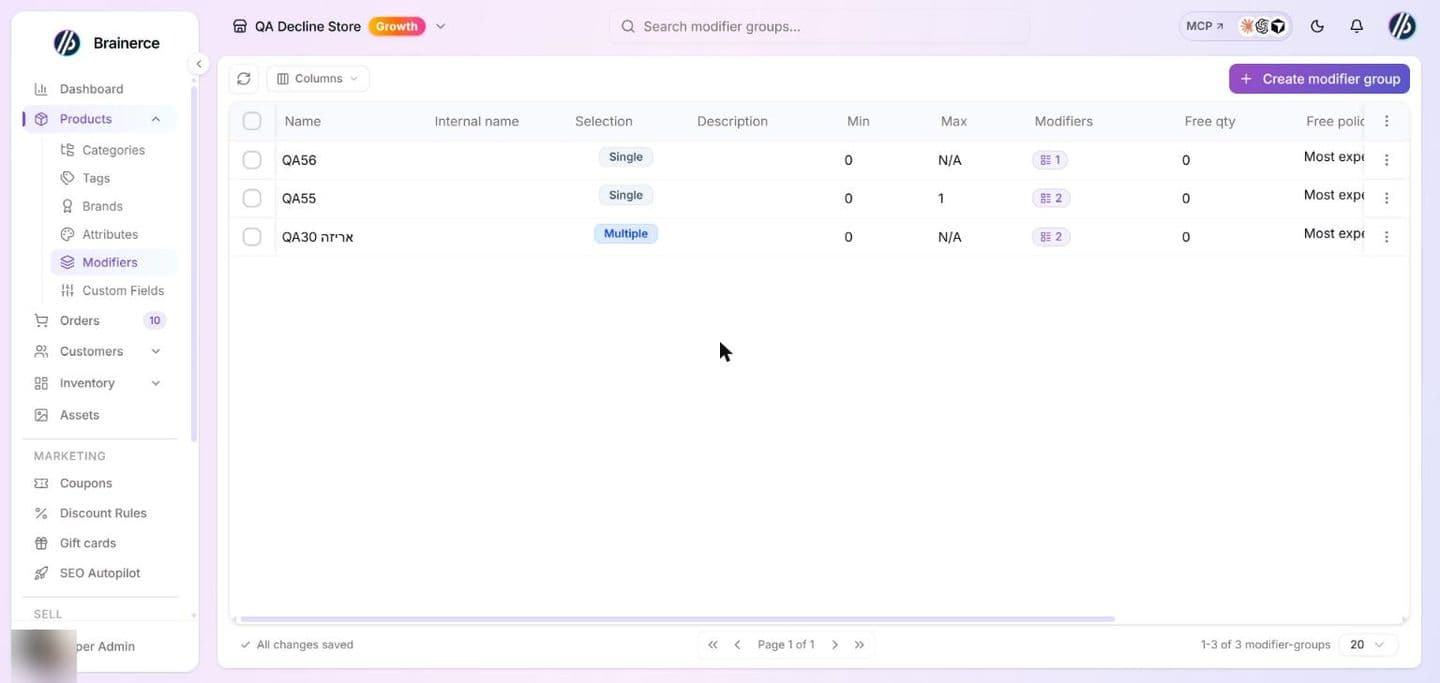
Edit the list in place. Most cells save as you leave them: Name, Internal name, Selection, Description, Min, Max, Free qty, Free policy, Required and Status. In the Modifiers cell you can add a modifier by typing its name, and drag modifiers to reorder them (a message says where it moved and offers Undo). The refresh button reloads the list, and on a store with more than one language Translate in the selection bar translates the selected groups.
Delete a group. Tick rows and delete, then confirm. The group and all its modifiers are deleted for good, and every product that used it loses the attachment. It cannot be undone. Use Archived instead to keep a group but stop attaching it to new products.
The columns at a glance:
| Column | What it shows |
|---|---|
| Name | Customer-facing label that appears on the storefront and on receipts. |
| Internal name | Admin-only label for disambiguation (e.g. "warranty-help-demo"). Never shown to customers. |
| Description | Customer-facing helper text shown under the group title. |
| Selection | Single (radio, pick at most 1) or Multiple (checkbox, pick 0..max). |
| Min / Max | The selection bounds. Min 1 + Max 1 = exactly one required. Max N/A = unlimited. |
| Modifiers | Count of options inside the group. Click the badge to see the modifiers. |
| Free qty | How many of the customer's picks come at no extra cost. |
| Free policy | Which picks consume the free slots. See Free allocation policies below. |
| Required | Toggle. When ON, the group MUST be answered before checkout, paired with Min ≥ 1. |
| Status | Active (visible on storefront) or Archived (hidden from new attachments but stays where attached). |
| Used by | Number of products this group is attached to. |
2. Create a modifier group
Click + Create modifier group. The same modal you'll see when editing one opens up, in two columns: Basic info on the left, Selection rules on the right, and the Modifiers list at the bottom.
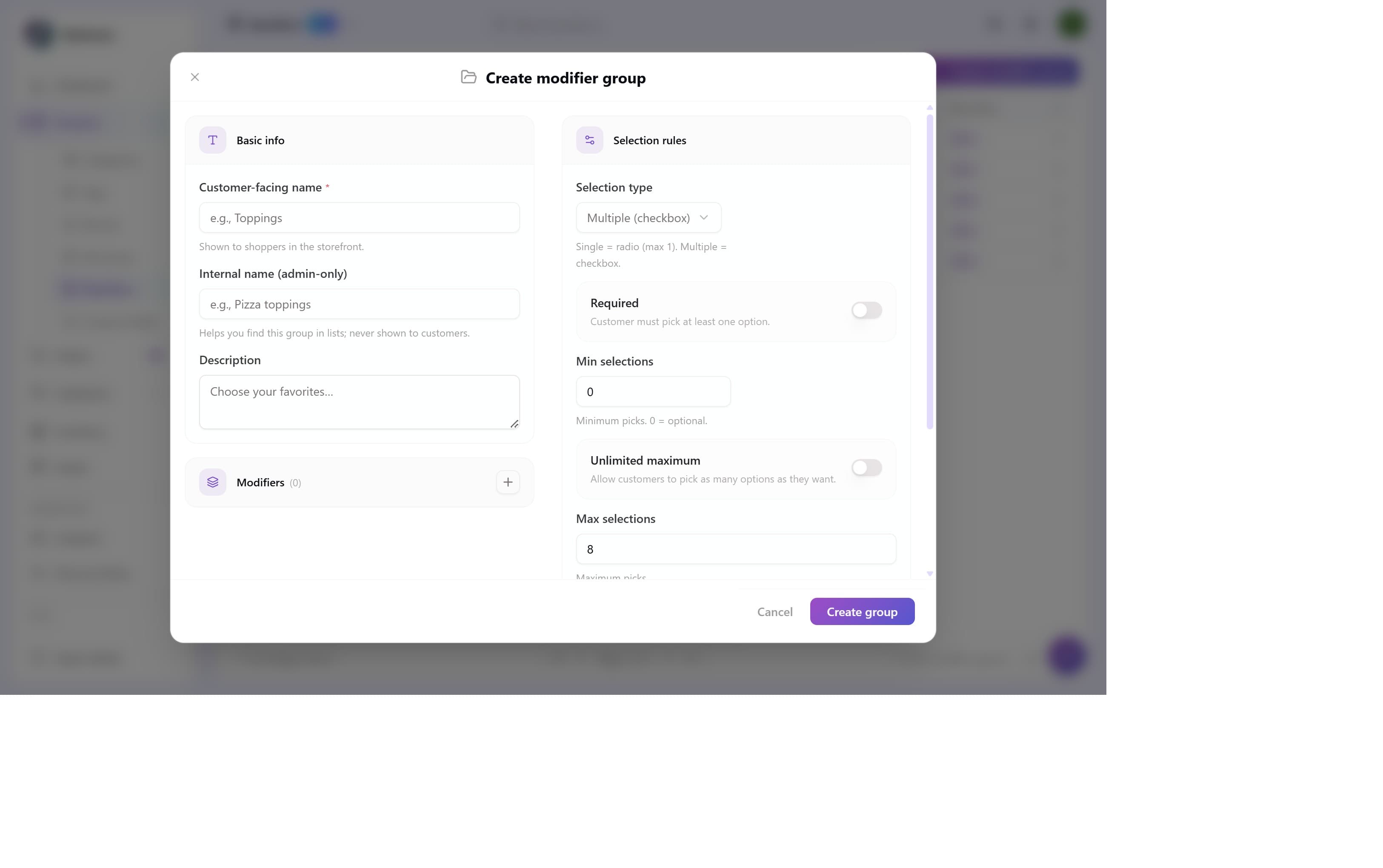
To edit an existing group, hover over its row → click the ⋮ menu → Edit. The same form opens pre-filled. Here's what it looks like for the AppleCare+ Coverage group:
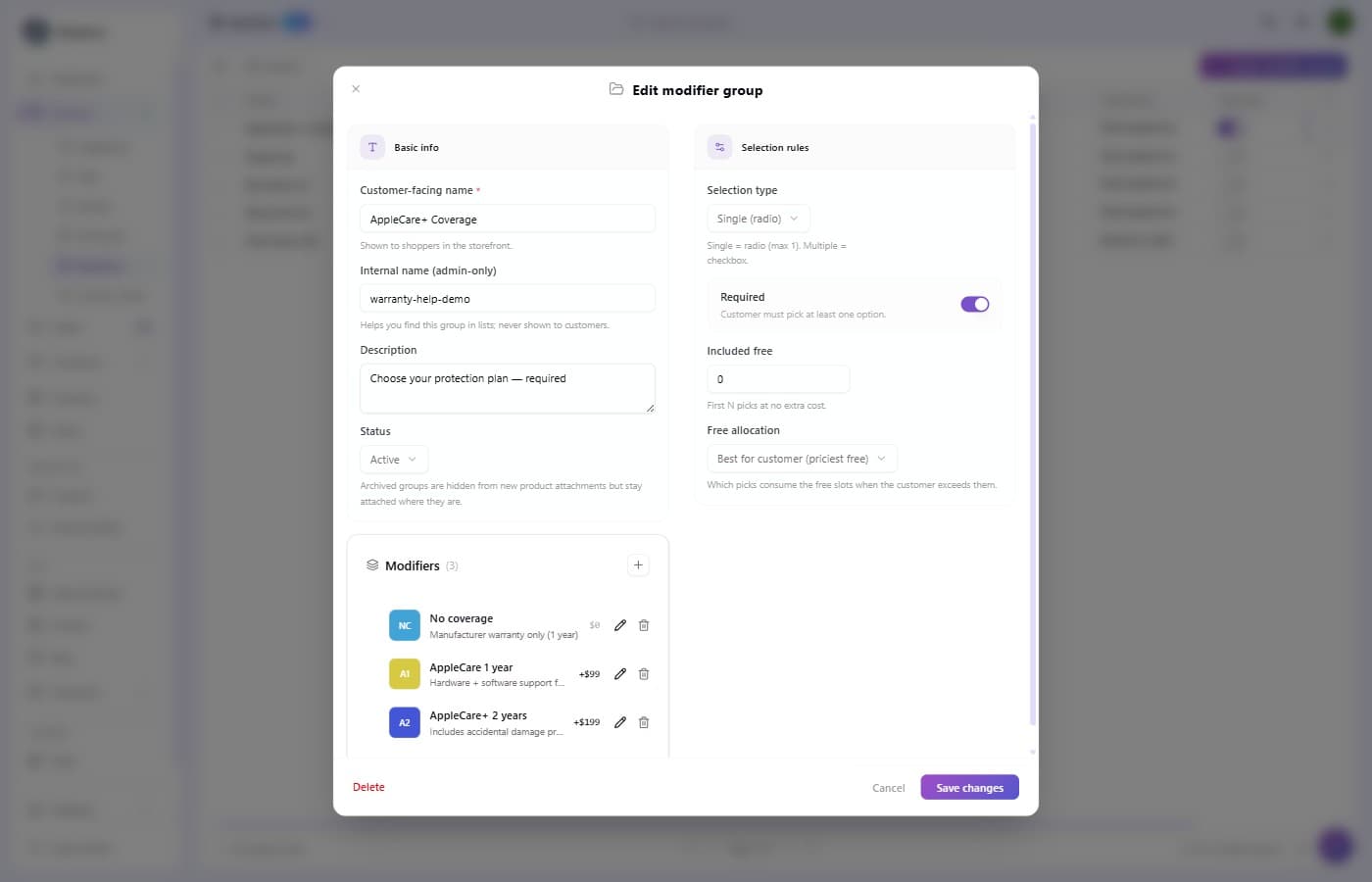
Basic info (left column)
- Customer-facing name is shown to shoppers on the storefront. Keep it short ("Box Add-ons", "Engraving").
- Internal name is an admin-only label. Lets you have two groups with the same customer-facing name (e.g. one "Size" for shirts vs another for shoes) without confusion. Never sent to a public storefront API caller.
- Description is customer-facing helper text under the group title at checkout.
- Status:
Activeshows up on the storefront.Archivedhides the group from new product attachments but leaves it on products that already use it.
Selection rules (right column)
- Selection type:
Single (radio)for "pick at most one" orMultiple (checkbox)for "pick 0 to max". - Required, when ON, stops customers checking out without picking from this group. Implies
Min ≥ 1. - Min selections is the floor.
0= optional,1+= required N picks. - Unlimited maximum, toggled ON, allows as many picks as the customer wants (Max becomes N/A).
- Max selections is the ceiling when unlimited is off.
- Included free sets how many of the customer's picks are at no extra cost. See Free allocation policies for how the discount is distributed.
- Free allocation decides which N picks consume the free slots when the customer exceeds them. See below.
The Modifiers list (bottom)
Each modifier is one option inside the group. Click + to add one, or click the pencil icon on a row to edit. The list scrolls inside the modal.
Each modifier has:
- Name + Description are what the customer sees.
- Price delta is additive to the product price. It can be positive (paid extra), zero (free option), or negative for a downsell, e.g. "Pizza without cheese: -$2.00". A negative price needs the Allow negative pricing switch turned on first.
- Image is an optional thumbnail you pick from the media library (Click to select an image; Change image or Remove later). Square images work best. It falls back to a colored monogram avatar if missing.
- SKU is an optional internal SKU for the modifier, useful for reporting and POS systems.
- Pre-selected by default pre-checks this option when the customer first sees the group.
- Available turns the option off to mark it sold out. See Marking a modifier sold out.
- Premium: always charged means the option never uses up the group's free quantity: customers always pay its price, even when free slots are left.
Use Save & add another in the modifier dialog to add several options in a row. Removing an option from a group does not change carts that already picked it: they keep their selection.
3. Attach a group to a product
A modifier group is reusable: create it once, attach to as many products as you want. Each product page picks which groups appear on its checkout.
To attach groups:
- Open the product (Products → ⋮ menu → Edit in Form).
- In the right-side Organization panel, find the Modifier Groups field.
- Click the dropdown and pick the groups you want, and they appear as removable chips.
- The order they appear in is the order the customer sees at checkout.
- Click Save Changes.
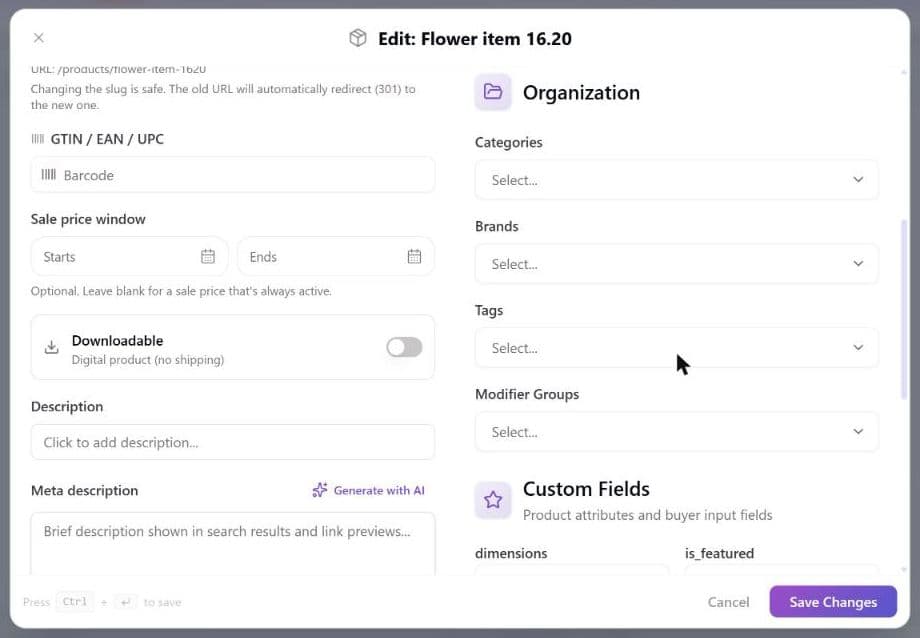
The same group can be attached to dozens of products: edit the group once and every attached product's checkout updates within seconds.
Free allocation policies
When Included free > 0 and a customer's picks exceed that count, the system has to decide which picks count as free and which as paid. The Free allocation dropdown controls that:
| Policy | Label in UI | What it does | Best for |
|---|---|---|---|
EXPENSIVE_FREE | Best for customer (priciest free) | The N most expensive picks are free; the cheaper ones are paid. | Default. Wolt-style, so customers feel "the system gave me my favorites". |
CHEAPEST_FREE | Best for merchant (cheapest free) | The N cheapest picks are free; the expensive ones are paid. | Stores that want to minimize their margin loss. |
SELECTION_ORDER | By click-order | The first N picks (in click order) are free, regardless of price. | "Free gift with purchase": fair, no price-gaming. |
Worked example: Box Add-ons (freeQuantity = 1, EXPENSIVE_FREE)
A customer picks 3 add-ons from Box Add-ons:
- MagSafe Case: $29
- Wireless charger: $49
- Extra USB-C cable: $19
With Included free: 1 and policy EXPENSIVE_FREE:
| Pick | Price | Charged? |
|---|---|---|
| Wireless charger | $49 | Free (most expensive) |
| MagSafe Case | $29 | $29 |
| Extra USB-C cable | $19 | $19 |
| Modifier total | $48 |
If we'd picked CHEAPEST_FREE instead, the customer would pay $49 + $29 = $78 (the $19 cable goes free). With SELECTION_ORDER, whichever they clicked first is free.
Tip:
EXPENSIVE_FREEis almost always the right default, because it maximises perceived value at minimal margin difference vsCHEAPEST_FREEwhen most carts have a similar mix. UseSELECTION_ORDERonly when fairness is the brand story ("first click is on us, no tricks").
Required vs optional patterns
The combination of Selection type, Required, Min, and Max is what makes a group behave the way you want. The 5 common patterns:
| Pattern | Selection | Required | Min | Max | Example |
|---|---|---|---|---|---|
| Required choice (one of N) | Single | ON | 1 | 1 | AppleCare+ coverage tier, must pick. |
| Optional choice (one or none) | Single | OFF | 0 | 1 | Engraving, leave blank if not needed. |
| Optional add-ons (any count) | Multiple | OFF | 0 | 3 (or none) | Box Add-ons, pick up to 3. |
| Required minimum picks | Multiple | ON | 2 | 5 | Pizza toppings, must pick 2-5. |
| Unlimited (rare) | Multiple | OFF | 0 | unlimited | "Pick any number of stickers". |
Required needs a minimum of at least 1. On a Single group the form sets the minimum for you (1 when Required is on, 0 when off) and the maximum is always 1, so those two fields are hidden. On a Multiple group the minimum is yours: switching Required on while Min selections is 0 is refused with "required = true implies minSelections >= 1", so raise the minimum first. Setting a minimum of 2 does not switch Required on by itself.
Storefront: what customers see
After attaching a group to a product, the storefront renders:
Singlegroup → radio buttons (or a dropdown if there are many options).Multiplegroup → checkboxes.- Required group → a red asterisk + the customer can't add to cart until they pick.
- Modifiers with
priceDelta > 0→ label shows+$X.XXnext to the option. - Modifiers with
priceDelta = 0→ no price shown (it's free). - Modifiers with
priceDelta < 0→ label shows-$X.XX(a downsell, common for "no cheese", "no fries"). - Free quantity mechanics → live calculator. Customer picks 3 add-ons, the cart line item itemizes which is free per the policy.
Groups appear on the product in the order they were attached. The Modifiers field is a multi-select, not a sortable list, so to change the order remove the groups and re-add them in the order you want.
Common patterns
AppleCare+ tier (required choice)
- Selection: Single
- Required: ON, Min 1, Max 1
- Modifiers: No coverage ($0), AppleCare 1yr (+$99), AppleCare+ 2yr (+$199)
- Free policy: (irrelevant, no free quantity)
Engraving (optional one-of-many)
- Selection: Single
- Required: OFF, Min 0, Max 1
- Modifiers: No engraving ($0), Custom text ($0), Emoji or logo (+$5)
- Tip: "No engraving" as the first option makes "skip" frictionless.
Wolt-style toppings (multiple, N free)
- Selection: Multiple
- Min 0, Max 5, Included free 2
- Free allocation:
EXPENSIVE_FREE - Modifiers: Pepperoni (+$3.50), Mushrooms (+$2.50), Olives (+$2.00), Pineapple (+$2.00), Extra cheese (+$3.00)
- Customer picks 3 → priciest 2 free → only pays for the cheapest topping.
Free gift with purchase (fair-game)
- Selection: Multiple
- Min 0, Max 2, Included free 1
- Free allocation:
SELECTION_ORDER - Modifiers: Travel pouch ($9), Cable organizer ($7), Cleaning kit ($5)
- Customer's first click is on us, with no price-gaming and fair to all.
Downsell (negative priceDelta)
- Selection: Single
- Min 0, Max 1
- Modifiers: Standard burger ($0), No cheese (-$2.00), No fries (-$3.00)
- Used in food to handle "make it cheaper by removing".
Architecture notes
A few schema details that matter at scale:
Modifier.imageis JSON{ url, thumbnailUrl, alt }. Store a CDN-hosted image and a thumbnail. Missing = colored monogram fallback.Modifier.positioncontrols display order inside the group (smallest first). Drag rows in the modal to reorder.ProductModifierGroup.positioncontrols order of groups on the product page. Always wins overModifierGroup.position(which is a default hint for newly-attached products).Modifier.priceDeltaisDecimaland can be negative, so downsell pricing is supported end-to-end.ModifierGroup.translationsholds locale-specific names:{ "fr": { "name": "Suppléments", "description": "..." } }. Edit translations via the SDK or the multi-language editor on each modifier group (where supported by your dashboard build).
Marking a modifier sold out
When you run out of an add-on (oat milk, a sauce, a size) you don't need to edit the group. The modifier availability board at /products/sold-out lists every modifier with a toggle, refreshes itself every 30 seconds, and is built to be left open on a screen during service.
Marking one sold out removes it from the customer's choices immediately, everywhere it appears. Toggle it back when you restock.
There is no sidebar entry for this page, so go to /products/sold-out directly and bookmark it.
What's next?
- Variants are for size and color combinations with their own inventory (use variants, NOT modifiers).
- Edit your data in a file can export and import Add-ons (the groups, the add-ons inside them, which products use them, and the variants that are excepted). The CSV importer in Bulk import does not carry modifier groups.
- Discount Rules: Volume and Bundle rules can target products that have modifier groups attached.
Add variants to a product
Sell the same product in multiple sizes, colors, or storage tiers. Brainerce auto-generates one variant per combination so you only price and stock once per row.
Custom fields
Add structured extra data to every product, such as technical specs, certifications, care instructions, or any field your catalog needs.